SQLite editor: Best tools for sqlite editor and schema tasks
Discover a sqlite editor that streamlines data browsing, schema management, and query productivity - find the best fit for your project.
At its core, an SQLite editor is a tool that gives you a visual, point-and-click way to work with SQLite databases. It completely replaces the often-clunky command-line interface. Think of it as a specialized IDE for your data, letting you browse tables, tweak individual records, and run queries without ever having to touch a terminal. For anyone building with SQLite—whether for mobile apps, prototypes, or embedded systems—a good editor is a game-changer.
Why a SQLite Editor Is Your Database Co-Pilot
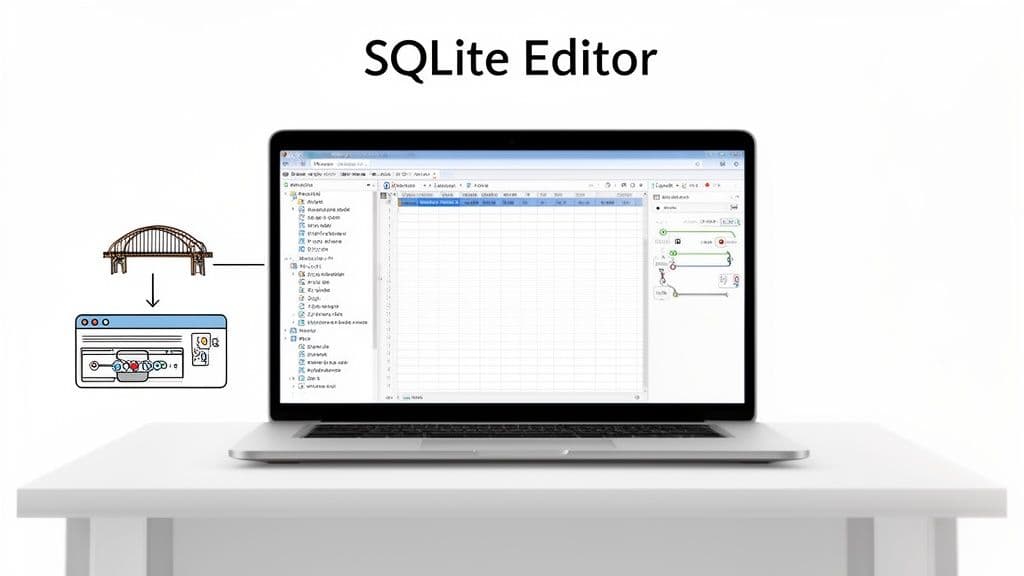
Sure, you can manage a database from the command line. But it’s slow and unforgiving. It’s a bit like trying to navigate a new city using only text-based directions. You can get there, but a visual map with a GPS is faster, more intuitive, and keeps you from making wrong turns. A dedicated SQLite editor is that visual guide for your database.
This kind of tool turns abstract text commands into something you can see and interact with. Instead of meticulously typing out SELECT * FROM users WHERE status = 'active'; just to see who's active, you can click the users table and apply a quick filter. That immediate visual feedback is gold during development and debugging.
Bridging the Gap Between Code and Data
A solid SQLite editor does more than just display rows and columns; it helps you truly understand the database's structure and how everything connects. This is especially important with SQLite, which is a serverless, file-based database often baked right into an application. The data isn't sitting on some distant server—it's part of your project.
Imagine a mobile developer working on a to-do list app. They can pop open their tasks.sqlite file in an editor to:
- Instantly check if a new task was saved correctly after they tap "add" in the app. For example, they can verify the
task_nameis "Buy milk" and theis_completedflag is0. - Manually change a
due_dateto yesterday's date to test how the app handles overdue items, all without a recompile. - Visually confirm the table schema, making sure column names like
created_atand data types likeINTEGERare exactly what their code expects.
Without an editor, every one of these simple checks would mean writing queries or littering the code with print statements, grinding the whole development process to a halt.
Actionable Insight: Keep your SQLite editor open in a separate window while you're coding. As you write features that interact with the database, use the editor to immediately verify the data changes. This creates a tight feedback loop that catches bugs the moment they happen.
More Than Just a Viewer
Modern tools like TableOne have evolved far beyond simple data viewers. They’re full-blown workstations built to handle complex database tasks with ease. If you're just starting, our guide on how to create a database in SQLite is a great place to begin before diving into these more advanced workflows.
Ultimately, the real value of an SQLite editor is how it makes you faster and more confident. It drastically cuts down on the risk of human error—like the dreaded typo in a DROP TABLE command—by providing visual safeguards and a much more forgiving environment. For any developer working with SQLite, a good editor isn't a nice-to-have; it's a core part of the toolkit.
What Every Good SQLite Editor Should Do
Not all tools are created equal. Sure, dozens of apps can open a .sqlite file, but a professional-grade SQLite editor gives you a specific set of features built to make your work faster, more accurate, and just plain easier. These core functions are what separate a simple file viewer from a true database workstation.
Think of it like this: you can write code in a basic text editor, but a full-blown IDE gives you syntax highlighting, debugging tools, and smart autocompletion that prevent mistakes and accelerate your workflow. The same idea applies here. Let's dig into the non-negotiable features that define a great SQLite editor.
Intuitive Data Browsing and Filtering
At its most basic, you need to see your data. But a top-tier editor does more than just dump rows and columns into a spreadsheet-like view. It presents your data in a clean, readable grid that makes finding what you need almost effortless.
Of course, just looking at data isn't enough—you have to find specific records, and fast. This is where smart, visual filtering changes the game. Instead of manually writing a WHERE clause for every little lookup, you should be able to apply filters directly to the table view with a few clicks.
Imagine you're debugging an e-commerce app and need to find all orders from the last 24 hours with a status of 'shipped'.
- The Old Way: You’d have to stop what you're doing and type out
SELECT * FROM orders WHERE status = 'shipped' AND created_at >= date('now', '-1 day'); - The Modern Way: You just click the column headers for
statusandcreated_at, apply a text filter for 'shipped', and a date filter for 'is after yesterday'.
This visual approach is more than just a time-saver. It lowers your cognitive load, letting you stay focused on solving the actual problem instead of getting bogged down in SQL syntax.
Effortless Inline Editing
Data is always in flux, especially during development and testing. The ability to edit data directly in the table grid—known as inline editing—is a must-have. It turns the editor from a passive viewer into an active, hands-on tool for managing your database.
With a quick double-click, you should be able to change a value, fix a typo, or nullify a field. A good editor handles the UPDATE statement for you in the background and gives you immediate visual feedback. This workflow is incredibly useful for tasks like:
- Practical Example: Manually correcting a user's address for a test case. Double-click the
street_addresscell and type "123 Main St" to fix a typo. - Practical Example: Changing a product's inventory level to
0to simulate an out-of-stock scenario and test your app's frontend logic. - Practical Example: Tweaking a configuration setting stored in a
settingstable, such as changingdark_mode_enabledfrom0to1.
Actionable Insight: Use inline editing to set up specific test conditions. Instead of writing complex seed scripts for every edge case, you can manually create the exact data state you need in seconds, making your testing process much more agile.
A Powerful and Intelligent Query Editor
While visual tools are great for many day-to-day tasks, you'll always need to write custom SQL. A capable SQLite editor absolutely must include a first-class query editor that actively helps you write better queries, faster. This isn’t just a blank text box; it’s an intelligent assistant.
Here are the key components of a great query editor:
- Syntax Highlighting: This simple feature makes queries instantly readable by color-coding keywords, functions, and strings. You'll spot typos and errors at a glance.
- Autocompletion: As you type
SELECT * FROM us, the editor should suggestusers. After you typeusers., it should list all the columns in that table. This not only saves you keystrokes but also prevents frustrating errors from misspelled names. You can learn more about how to quickly see what's in your database by reading our guide on how to list tables in SQLite. - Multi-Query Execution: The ability to write and run multiple SQL statements at once, with the results for each appearing in separate tabs, is essential for more complex analysis and data modification scripts. For example, run a
SELECTto find users, then anUPDATEto change their status, all in one go.
For example, when joining two tables, a smart editor might suggest valid ON conditions based on foreign key relationships, saving you the hassle of looking up the schema yourself. This kind of proactive help transforms query writing from a memory test into a guided conversation with your database.
These three pillars—browsing, editing, and querying—are the foundation of any SQLite editor worth its salt. The difference between having them and not is often the difference between a frustrating afternoon and a productive one.
CLI vs Modern SQLite Editor: A Workflow Comparison
The table below contrasts common database tasks, showing how a modern graphical interface can dramatically simplify your workflow compared to a command-line-only approach.
| Task | Command-Line Interface (CLI) Approach | Modern SQLite Editor (e.g., TableOne) Approach |
|---|---|---|
| View Table Data | Run SELECT * FROM my_table;. Data is printed in plain text, often with poor formatting, making it hard to read. | Double-click the table name in the sidebar. Data appears in a clean, sortable, and filterable grid. |
| Filter Records | Write a full SELECT statement with a WHERE clause (e.g., ...WHERE status = 'active'). Requires precise syntax. | Click the filter icon on the status column and type "active". Results update instantly. |
| Make a Quick Edit | Write and execute an UPDATE statement (e.g., UPDATE users SET email = '...' WHERE id = 123;). Verify with another SELECT. | Double-click the email cell for user 123, type the new value, and press Enter. The change is saved automatically. |
| Export to CSV | Configure the CLI output mode to CSV, run a SELECT query, and redirect the output to a .csv file. | Click the "Export" button, choose CSV format, select the desired table, and save the file. |
| Explore Schema | Run commands like .schema my_table to see the CREATE TABLE statement. To see all tables, you'd run .tables. | The entire schema is visible in a sidebar. Click on a table to see its columns, data types, indexes, and constraints at a glance. |
While the command line is undeniably powerful and essential for scripting, a modern GUI-based editor excels at the interactive, exploratory tasks that make up a huge part of a developer's day. It's about choosing the right tool for the job to keep you in the flow.
Unlocking Advanced Workflows for Maximum Productivity
Once you move past simply browsing and editing data, a great SQLite editor starts to feel less like a tool and more like a partner. It's a force multiplier, taking tedious, error-prone tasks off your plate so you can focus on building reliable software, faster. Mastering these next-level features is what separates the pros from the pack.
Think of it this way: these capabilities elevate your editor from a basic data viewer to a core part of your entire development pipeline. Let's dig into a few of the most powerful workflows that save professional teams from headaches and lost hours.
This graphic shows just how much a modern editor can simplify things, turning a clunky command-line dance into a smooth, straightforward process.
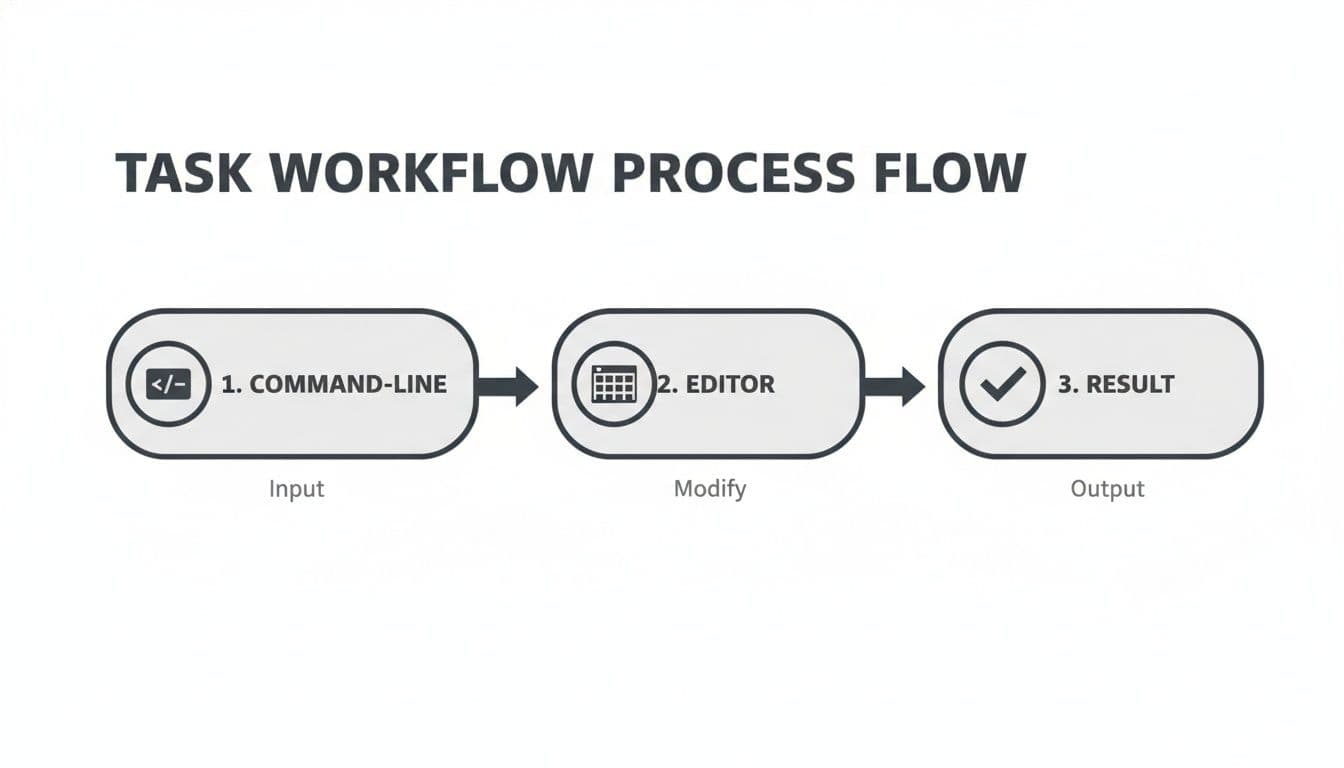
You can see the difference immediately. Moving complex tasks from a manual, text-based environment to an intuitive, visual one isn't just about convenience—it's about speed and accuracy.
Mastering CSV Imports with Intelligent Data Handling
Pulling data in from a CSV file seems simple, but it's a classic trap. Data types rarely line up perfectly, which can cause imports to fail outright or—even worse—quietly corrupt your data. A good SQLite editor won't let that happen. It gives you an intelligent import wizard to guide you through the process.
Let's say you have a products.csv file you need to get into your existing products table. An advanced editor turns this into a few simple steps:
- Column Mapping: The tool lays out the CSV columns (
product_name,cost) next to your table's columns (name,price). You can just drag and dropcostto matchprice. - Data Type Preview: Before you commit, the editor scans the source data and flags potential mismatches. It might warn you that a
pricecolumn in your CSV contains text like "N/A" when your database is expecting a number. - Conflict Resolution: You get to decide how to handle those issues on the fly. You can skip the problem rows, import the bad data as NULL, or even sub in a default value like
0.0.
This guided approach turns a high-stakes gamble into a predictable, safe operation, protecting your data's integrity without needing a single line of code.
Using Schema Comparison to Prevent Deployment Disasters
When you're working on a team, keeping database schemas in sync across different environments—like your local machine, a staging server, and production—is a massive challenge. Checking for differences by hand is a recipe for disaster. This is where schema comparison becomes your best friend.
Actionable Insight: Before every deployment, run a schema comparison between your staging and production databases. This simple five-minute check can catch missing columns, incorrect data types, or forgotten indexes, preventing hours of downtime and frantic debugging later.
For example, maybe a developer on your team adds a last_login_ip column to the users table locally. Before deploying, you can run a quick comparison between their database and the staging server. The tool will instantly highlight the new column, making sure it gets added to the next migration script. This single feature prevents that sinking feeling when you realize your code was deployed but the database change it depends on wasn't.
If you do find a change you need to make, you can learn more about the right way to do it in our guide on how to alter a table and change a column.
Visually Navigating Foreign Key Relationships
Understanding how your data connects is everything in a relational database. Even though SQLite is often used for simple jobs, its support for foreign keys allows for surprisingly complex data models. A top-tier editor lets you see and navigate these relationships visually, no JOIN clauses required.
Here's a practical example: You're looking at a specific record in your orders table. You see a customer_id of 42. Instead of writing a new query (SELECT * FROM customers WHERE id = 42;), you just click on the customer_id. The editor automatically jumps you to customer #42's record in the customers table.
This is a game-changer for a few reasons:
- Onboarding New Team Members: A visual map of your database helps new developers get up to speed in a fraction of the time.
- Debugging Complex Issues: When you're chasing a bug, you can start with a single record—like an order—and just click your way through to see the customer, the products, and the shipping details.
- Query Planning: Before you write a complicated query, you can trace the path between tables to make sure you've got the logic right.
This feature turns an abstract schema into a tangible, explorable map of your data. And while SQLite is a specialized tool, it operates in a huge ecosystem. As of June 2024, giants like Oracle, MySQL, and Microsoft SQL Server still dominate the market, but open-source darlings like PostgreSQL are right there with them. This just shows that there's a critical role for specialized tools like SQLite, and a great visual editor makes them exponentially more powerful.
How to Choose the Right SQLite Editor for Your Team
Picking the right SQLite editor isn't a one-size-fits-all deal. It’s really about finding a tool that fits your team's unique rhythm and workflow. The perfect editor for a solo developer tinkering on a new app is going to be worlds apart from what a data analysis team scattered across the globe needs. Choosing wisely from the get-go can save you from a world of headaches and prevent you from getting stuck with a tool that just slows everyone down.
The whole decision boils down to a few key questions. By weighing your needs against these practical points, you can pick an editor that feels less like another piece of software and more like a natural part of your toolkit.
Define Your Environment and Platform Needs
First things first: where does your team actually work? A Windows-only tool is a complete non-starter if your team runs on MacBooks. For modern teams, true cross-platform support is non-negotiable. You need something that performs natively on macOS, Windows, and Linux so that every single person has the same, reliable experience.
The other big piece of the puzzle is your database environment. Are you just poking around local .sqlite files, or do you also need to tap into remote databases like PostgreSQL or MySQL? A versatile editor that handles both local SQLite and remote SQL databases means you can ditch the juggling act of multiple tools. It creates one clean, unified place for all your database work.
Analyze Licensing Models and Budget
Let's talk money. The way you pay for a tool has a huge impact on its real cost over time. You’ll mostly run into two models: subscriptions or one-time fees.
- Recurring Subscriptions: These usually come with the promise of constant updates and support, but they can easily become a major ongoing expense, especially as your team grows.
- One-Time Licenses: You buy it once, and it's yours forever. Tools like TableOne use this model, which gives you a predictable, one-off cost. It's much easier to budget for, particularly for individuals and smaller companies.
Actionable Insight: When evaluating cost, calculate the Total Cost of Ownership (TCO) over three years. A $15/month subscription costs $540 over three years, per user. A one-time license of $100 remains $100. This calculation often reveals that a one-time purchase is far more economical for long-term use.
Match Features to Your Primary User Role
The best SQLite editor for you is deeply connected to who is using it and why. Different roles have completely different priorities, and a great tool should understand and cater to those specific needs.
For the Solo Developer or Indie Hacker
If you're flying solo, your world revolves around speed and agility. You need a tool that's lightning-fast, lightweight, and stays out of your way. The focus is on quick prototypes and squashing bugs, so you'll care most about:
- Fast local file access for popping open
.sqlitefiles in an instant. - Effortless inline editing to quickly change data while testing.
- A clean, uncluttered interface that keeps distractions to a minimum.
For the Collaborative Development Team
The moment you bring a team into the mix, collaboration and consistency become the name of the game. You need a tool that supports shared workflows and helps keep your data straight across different environments. Look for features like:
- Schema comparison tools to catch changes and prevent painful deployment mistakes.
- Shared connection management to make sure everyone connects to the right database securely.
- Cross-platform consistency so the tool works the same way for everyone, every time.
For the Data Analyst or Product Manager
Data analysts live and breathe ad-hoc queries and exports. Their main job is to get data in and out of the database as smoothly as possible to build reports and find insights. They'll be looking for:
- Robust CSV import/export that can intelligently handle different data types.
- A powerful query editor built for complex analysis.
- Easy filtering and sorting right in the data grid to quickly make sense of things.
The incredible growth of SQLite is exactly why this decision matters so much. As of 2026, it's estimated that around 14,523 companies are using the database engine, giving it a global market share of about 1.5%. With SQLite being used everywhere—in mobile apps, on the desktop, and across the web—more developers are working with these databases than ever before. That makes having the right tool a massive productivity booster. You can learn more about these database analytics trends and get a deeper look at the ecosystem.
Avoiding Common Pitfalls and Security Risks
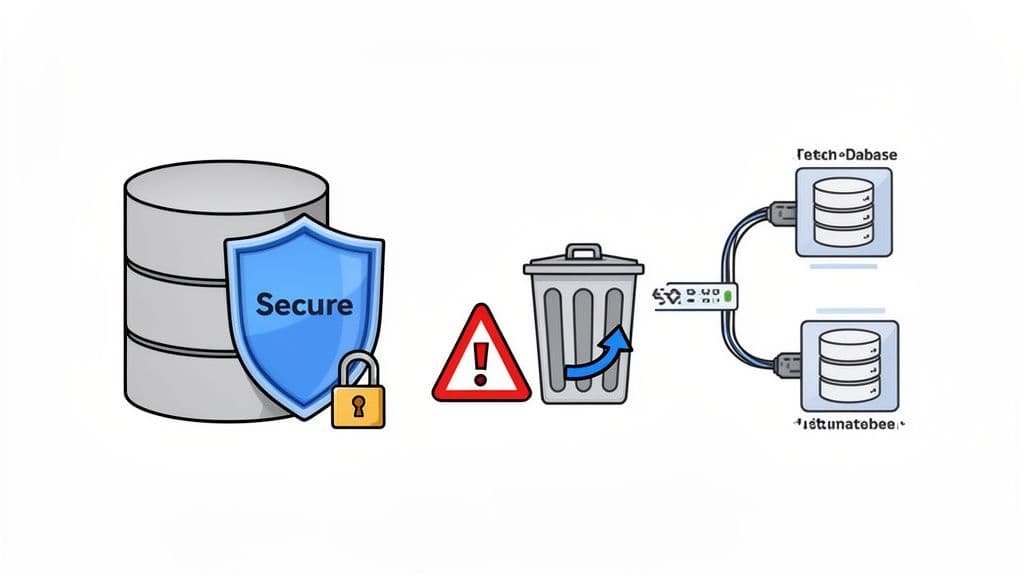
While a good SQLite editor is a massive boost to your productivity, it also puts a lot of power right at your fingertips. With direct access to your data, a single misclick or a badly formed query can cause some serious headaches. Think of working directly on a database—even a "simple" SQLite file—like performing surgery. It demands focus, precision, and a few safety nets.
It's tempting to ignore the risks, but they don't just go away. The biggest problems usually aren't from hackers but from simple human error. A forgotten WHERE clause in an UPDATE statement can silently wreck thousands of records. An accidental DROP TABLE can vaporize mission-critical data in a heartbeat. The trick is to build good habits and use tools that catch you before you fall, so you can work confidently instead of anxiously.
Guarding Against Accidental Data Loss
The number one danger when using any database GUI is accidentally changing or deleting the wrong thing. We've all been there—you think you're connected to a test database, but you're actually on production.
Here are a few practices that can save your skin:
- Use Safe Mode: Look for an editor with a "safe mode." It's a simple feature that forces you to confirm destructive queries like
DELETE,UPDATE, orDROP. That tiny pause is often all you need to catch a mistake. - Preview with
SELECT: Before runningUPDATE users SET is_active = 0;, runSELECT * FROM users;first to ensure you aren't about to deactivate every user in the system. Then, add yourWHEREclause:SELECT * FROM users WHERE last_login < '2022-01-01';to see exactly which rows you're about to affect. - Work on Copies: When you're doing anything complex or risky, just make a copy of the database file (
cp my_app.sqlite my_app_backup.sqlite). It's a completely sandboxed environment where you can experiment without any fear of breaking things.
Actionable Insight: Adopt a "measure twice, cut once" policy for any
UPDATEorDELETEquery without aWHEREclause that specifies a primary key. Always run aSELECTwith the exact sameWHEREclause first to confirm the scope of your change.
Mitigating Performance and Security Risks
Beyond just deleting things, a solid SQLite editor should help you steer clear of performance traps and security holes. This is especially true if you’re connecting to a remote database that's handling live traffic.
For remote connections, using an SSH tunnel is non-negotiable. It creates a secure, encrypted link between your computer and the server, keeping your credentials and data safe from anyone snooping on the network. A modern editor should make setting up an SSH tunnel dead simple—just a few extra fields to fill out.
On the performance side, a poorly written query can grind an entire application to a halt. A monster query with a bunch of joins across huge tables will hog server resources and frustrate users. That's where a good query editor comes in. It should give you feedback on execution time and show you the query plan, helping you spot and fix slow queries before they ever become a production issue.
SQLite isn't just for tiny embedded apps anymore—developers are using it for more critical tasks than ever. In just one year, its mindshare in the open-source database world jumped from 3.6% to 5.4%, a relative leap of 50%. As you can see when you compare its mindshare to other databases, this shift means that robust security and performance habits are essential. Choosing an editor with built-in safeguards isn't just a convenience; it's crucial for your data's integrity and your own peace of mind.
A Few Common Questions About SQLite Editors
It's easy to get lost in the sea of database tools out there. When you're trying to find the right one for your job, a few questions always seem to pop up. Whether you're flying solo on a project or working with a big team, getting good answers is key to making a smart choice.
Let's clear up some of the most common questions we hear about modern SQLite editors. My goal here is to cut through the confusion and help you feel confident about picking and using the right tool for your work.
Can I Use an SQLite Editor for Remote Databases?
Yes, and honestly, this is where a modern tool really shines. While the name "SQLite editor" might make you think it's only for local files, the best ones are actually powerful SQL clients that can juggle a lot more.
Think of it this way: a tool like TableOne is built to give you the same, comfortable experience whether you're poking around a local *.sqlite file or connecting to a production server. This means you can:
- Practical Example: Instantly open a local
development.sqlitefile to try out an idea for a new feature. - Practical Example: Securely connect to a live staging PostgreSQL database using an SSH tunnel to debug a tricky issue reported by QA.
- Practical Example: See both your local and remote connections in one sidebar, letting you compare schemas or data side-by-side without switching apps.
This kind of unified setup is a huge boost for productivity. You get to use the same interface and features you know and love, no matter where your data is stored.
What Is the Difference Between a SQLite Editor and a SQL Client?
The lines have definitely blurred, but the terms come from different places. A tool that calls itself a "SQLite editor" was originally designed with SQLite's unique file-based nature in mind. It's built to be fast and lightweight for opening local database files.
On the other hand, a general "SQL client" was created to connect to server-based databases like PostgreSQL, MySQL, or SQL Server. Its main job is to handle the network connection and talk to a remote database server.
Actionable Insight: When choosing a tool, look for the term "multi-database support." This is a clear signal that the application is a modern hybrid, offering the best features of both a dedicated SQLite editor and a general-purpose SQL client.
Are Free Open Source SQLite Editors a Good Option?
Absolutely. Tools like DB Browser for SQLite are fantastic, especially when you're just getting started or need to do something simple. They're great for a quick look at your data or running a basic query, and you can't beat the price.
But for professional developers and teams, investing in a premium tool often pays for itself pretty quickly. The real value comes from advanced features that save you time and prevent headaches—things you rarely find in the free options. We're talking about:
- Schema Comparison: This is a lifesaver for teams, helping you catch potential deployment errors before they happen.
- A Polished UI: A well-designed interface just makes your work easier and less of a mental chore.
- Dedicated Support: When you're stuck, getting help from a real person can save you hours of frustration.
It all comes down to a trade-off. Is your budget the top priority, or is it the productivity boost you get from a more powerful and thoughtful workflow?
How Should I Handle Schema Migrations with an Editor?
This is a great question. Your editor is an incredibly useful partner for migrations, but it shouldn't be the tool that actually applies the changes to production. The best practice is to manage all schema changes through code with a migration library (like the ones built into Django, Rails, or Laravel). This keeps your changes in version control, making them repeatable and automated.
So where does the editor fit in? In two critical places:
- Prototyping and Testing: Use your editor to visually create a new
tagstable and link it to yourpoststable. Once you're happy with the columns and foreign keys, then you write the official migration script based on that proven design. - Verification: After you run a migration on your staging server, use the editor to connect to that database. Visually confirm the
tagstable exists and that thepost_idcolumn has the correct foreign key constraint. An instant visual check gives you total confidence.
This approach gives you the reliability of automated scripts and the peace of mind that comes from a quick, hands-on check.
Ready to bring some sanity to your database workflow? TableOne offers a clean, fast, and predictable way to manage SQLite, PostgreSQL, and MySQL databases in a single, cross-platform app. Start your free 7-day trial of TableOne today.