Create a Database in SQLite A Hands-On Guide
Learn how to create a database in SQLite from the ground up. This practical guide covers CLI, Python, and GUI tools for real-world projects.
Getting started with SQLite is refreshingly simple. To create a brand-new database, all you have to do is connect to a file that doesn't exist yet. SQLite handles the rest, creating the file for you on the fly. It's a zero-configuration dream, often boiling down to a single, practical command like sqlite3 my_database.db.
Why Choose SQLite for Your Next Project
Before we jump into the commands, it's worth taking a moment to appreciate why so many developers swear by SQLite. Unlike traditional client-server databases, SQLite is serverless, self-contained, and requires absolutely zero configuration. It reads and writes directly to an ordinary disk file, which makes your entire database incredibly portable and a breeze to manage.
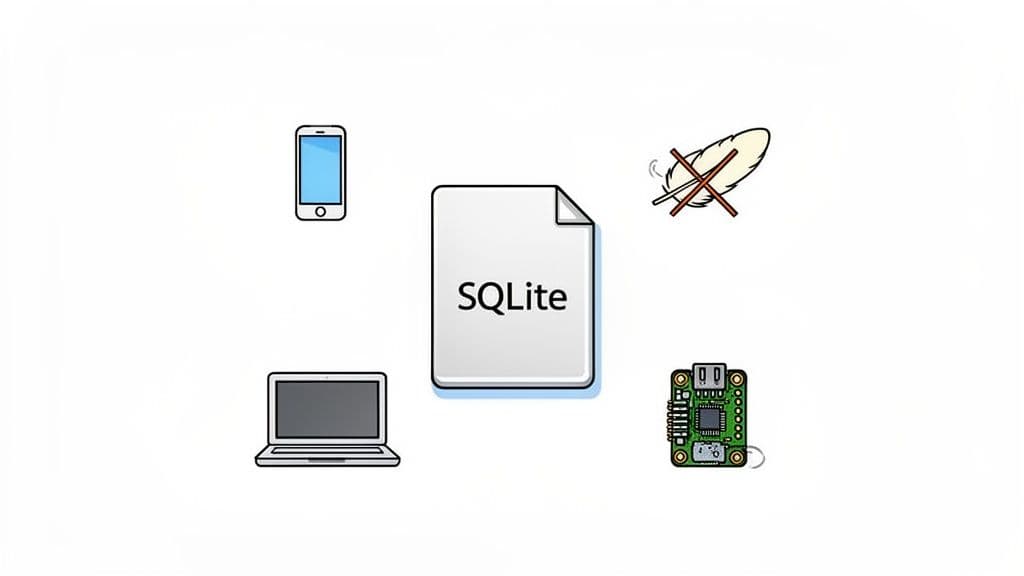
This elegant simplicity makes it a perfect fit for a ton of real-world scenarios:
- Rapid Prototyping: Need a quick backend for a web app idea? SQLite lets you get a full-featured database up and running in seconds without wrestling with a complex server installation.
- Mobile and Desktop Apps: Embed a database right into your application to handle everything from user settings to offline data. For example, a note-taking app can store all its content locally in an SQLite file.
- Embedded Systems: It’s a natural choice for IoT devices and other hardware where every resource counts, like a Raspberry Pi-based weather station logging sensor data.
- Data Analysis: Package an entire dataset into a single, shareable
.dbfile that anyone can open and query, eliminating the need for complex CSV parsing.
SQLite's entire philosophy is built around simplicity and reliability. It isn't trying to replace massive, enterprise-level databases. Instead, it shines in situations where you need convenience and portability above all else. For a look at how it stacks up against other popular options, check out our detailed comparison of MySQL vs. PostgreSQL.
Since its release back in 2000, SQLite has become the most widely deployed database engine in the world. Its growth has been staggering; by 2013, it was already running on an estimated one trillion devices, largely thanks to its inclusion in every major smartphone. You can find out more about its fascinating history and widespread adoption.
Creating a Database from the Command Line
Let's get our hands dirty. The most direct way to get an SQLite database up and running is right from your command-line interface (CLI). This approach cuts through the complexity and shows you just how simple it is—at the end of the day, a powerful relational database is just a single file on your computer.
Assuming you've got SQLite installed, pop open your terminal or command prompt. The whole process kicks off with one simple command.
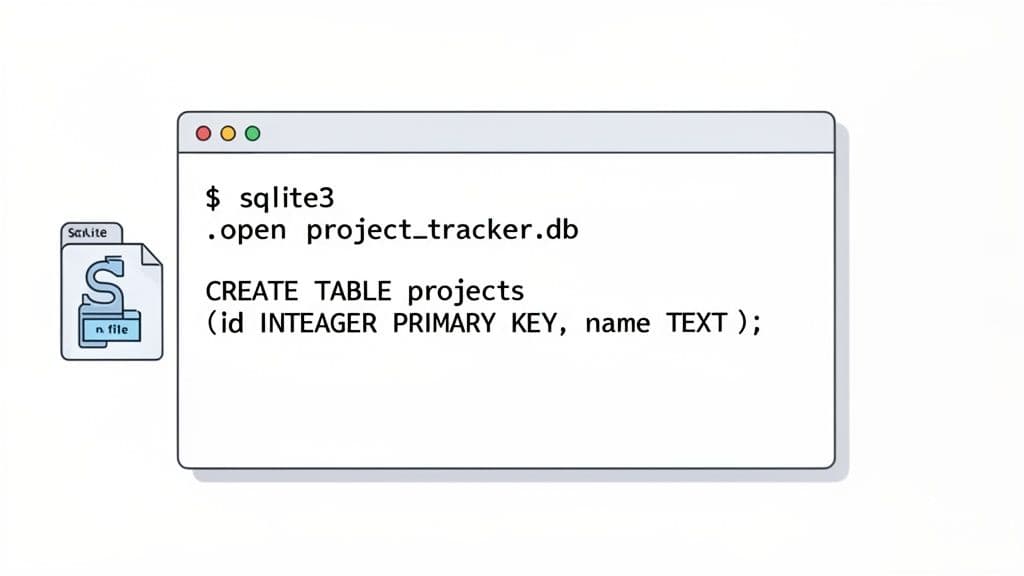
sqlite3 project_tracker.db
This one line is surprisingly powerful. It tells your system to start the sqlite3 interactive shell and, in the same breath, it either opens the project_tracker.db file if it already exists or creates it from scratch if it doesn't. That's it. You've just created a database. Your command prompt will change to sqlite>, signaling you're now inside the SQLite environment, ready to go.
Essential Dot-Commands
Once you're inside the sqlite> shell, you’ll be using special commands called "dot-commands" to manage everything. These commands, which all start with a period (.), are your go-to tools for inspecting the database structure itself, as opposed to querying the data inside it.
Here’s a quick reference for the most common and useful SQLite dot-commands you'll use when managing your database from the terminal.
Essential SQLite CLI Dot-Commands
| Command | Description | Example |
|---|---|---|
.databases | Lists all database files currently attached to the connection. | .databases |
.tables | Shows a list of all tables in the active database. | .tables |
.schema [table] | Displays the CREATE statement for a specific table or all tables. | .schema projects |
.quit | Exits the sqlite3 interactive shell. | .quit |
.help | Provides a comprehensive list of all available dot-commands. | .help |
These are the commands you'll find yourself typing over and over. Getting comfortable with them is key to working efficiently in the CLI.
A key thing to remember is that SQLite's CLI treats file creation as a side effect of simply trying to open a file. This is a core part of its "zero-configuration" design philosophy and is precisely what makes it so incredibly fast for prototyping and local development.
Now that you have an empty database file, the next step is to give it some structure by defining tables. You can run standard SQL commands, like CREATE TABLE, directly in the shell to build out your schema, which we'll dive into next.
Designing a Practical Database Schema with SQL
An empty database file doesn't do you much good. Its real power comes from the structure you give it, and that's where a schema comes in. Think of the schema as the blueprint for your data; a good one keeps everything organized and makes your application far easier to build and maintain.
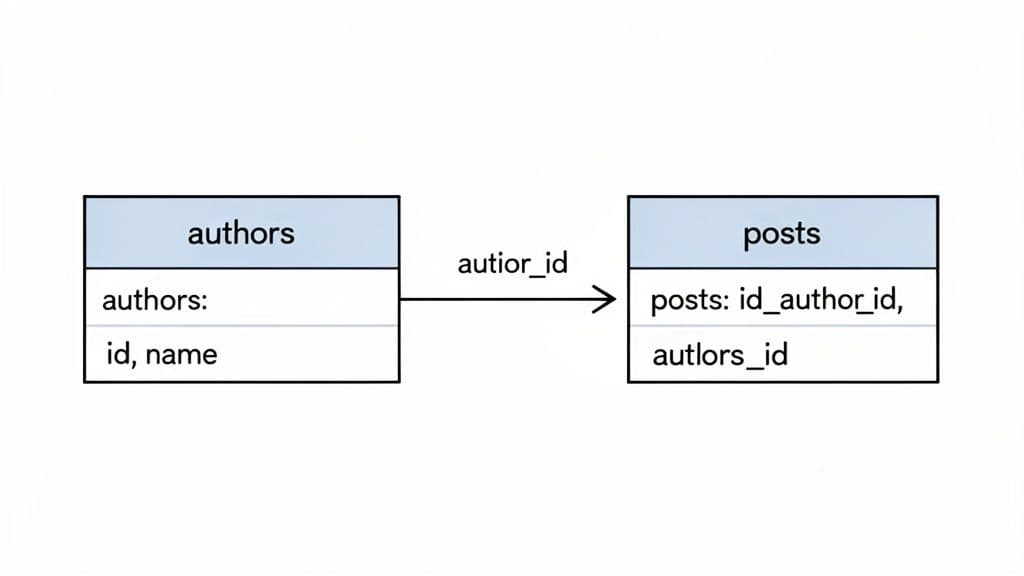
Let's ditch the single-table examples and create something more practical: a schema for a small blog. We'll need two tables that are connected—one for authors and another for posts. This simple, relational setup is a fundamental concept you'll use all the time.
Defining Tables with CREATE TABLE
To start building this structure, we'll use the CREATE TABLE statement. This command is exactly what it sounds like: it defines a table's name, its columns, and the data type for each column. Data types are just rules that tell SQLite what kind of information to expect, whether it's numbers, text, or dates.
First up, the authors table.
CREATE TABLE authors (
    author_id INTEGER PRIMARY KEY, -- A unique ID for each author
    name TEXT NOT NULL,           -- The author's name, cannot be empty
    email TEXT NOT NULL UNIQUE    -- The author's unique email address
);
Pay close attention to constraints like PRIMARY KEY, NOT NULL, and UNIQUE. These are your data integrity guardrails. For example, NOT NULL is a lifesaver that prevents you from accidentally adding an author without a name, which would almost certainly cause headaches down the road.
Now, let's create the posts table and link it back to our authors.
CREATE TABLE posts (
    post_id INTEGER PRIMARY KEY,
    author_id INTEGER NOT NULL,    -- Links to the authors table
    title TEXT NOT NULL,
    content TEXT,
    published_date TEXT,
    FOREIGN KEY (author_id) REFERENCES authors (author_id)
);
The FOREIGN KEY is the magic that connects everything. It creates an explicit link, ensuring that every single post belongs to a valid author that actually exists in the authors table. No orphan posts allowed!
This idea of linking tables is absolutely foundational. By separating authors and posts, you don't have to store the same author's name and email over and over for every single post they write. This process is called normalization, and it makes your database way more efficient and a breeze to update.
Speeding Up Queries with Indexes
Imagine your blog takes off and you have thousands of posts. Searching for all the posts from a specific month could start to feel sluggish. An index solves this by acting like the index in a book, letting the database find rows much faster without having to scan the entire table from top to bottom.
Let's add an index to the published_date column to make date-based searches snappy.
CREATE INDEX idx_published_date ON posts (published_date);
And just like that, with a few CREATE statements, you've designed a robust and efficient schema. This SQL-first approach is a valuable skill that translates to other database systems, too. For instance, the same principles apply even when you're working with massive datasets, which you can see in our guide on how to import a CSV into PostgreSQL. Mastering these fundamentals will take you far.
Working with SQLite in Your Application Code
The command line is fantastic for getting your database set up and running quick checks, but the real work happens in your application code. This is where you’ll connect to SQLite to programmatically add records, pull data, and build dynamic features.
Let's look at how this plays out in two of the most common environments you'll find today: Python and Node.js.
Python and the Built-in sqlite3 Module
One of the best things about using SQLite with Python is that you don't need to install a thing. The standard library comes with a powerful sqlite3 module ready to go. The logic is simple and clean. When you try to connect to a database file that doesn't exist, Python's sqlite3 library will just create it for you.
Here’s a complete, actionable script that does it all: connects to a database (or creates it), defines a table, adds a new product, and then reads the data back out.
import sqlite3

# Connect to 'inventory.db' — this creates the file if it doesn't exist.
conn = sqlite3.connect('inventory.db')
cursor = conn.cursor()

# A good practice is to create the table only if it's missing.
cursor.execute('''
CREATE TABLE IF NOT EXISTS products (
    id INTEGER PRIMARY KEY,
    name TEXT NOT NULL,
    quantity INTEGER
)
''')

# Let's insert a new product.
# Using '?' as a placeholder is a crucial security practice to prevent SQL injection.
cursor.execute("INSERT INTO products (name, quantity) VALUES (?, ?)", ('Laptop', 25))

# You have to commit the transaction to save the changes to the file.
conn.commit()

# Now, let's query the data and see what we've got.
print("Fetching all products:")
cursor.execute("SELECT * FROM products")
print(cursor.fetchall())

# Always clean up and close the connection when you're done.
conn.close()
Node.js with the sqlite3 Package
For the Node.js crowd, the community has built some excellent tools for database interaction. The most popular choice by far is the sqlite3 package on npm. You can get it running in your project with a quick npm install sqlite3.
A key thing to remember when working in Node.js is its asynchronous nature. Unlike the Python example, database operations don't halt your entire application. This is essential for building fast, responsive web servers and applications that can handle multiple tasks at once.
The following practical example achieves the exact same result as our Python script, just with the async-first mindset of JavaScript.
const sqlite3 = require('sqlite3').verbose();

// Open a database connection. The file is created if it doesn't exist.
const db = new sqlite3.Database('./inventory.db', (err) => {
  if (err) {
    return console.error(err.message);
  }
  console.log('Connected to the inventory SQLite database.');
});

// db.serialize() ensures that the commands inside run one after another.
db.serialize(() => {
  // Create the table.
  db.run(`CREATE TABLE IF NOT EXISTS products (
    id INTEGER PRIMARY KEY,
    name TEXT NOT NULL,
    quantity INTEGER
  )`);

  // Insert a row. Note the callback function for error handling.
  db.run(`INSERT INTO products(name, quantity) VALUES(?,?)`, ['Mouse', 75], function(err) {
    if (err) {
      return console.log(err.message);
    }
    // `this.lastID` gives you the ID of the row you just inserted.
    console.log(`A row has been inserted with rowid ${this.lastID}`);
  });

  // Select all rows and log the result.
  db.all(`SELECT * FROM products`, [], (err, rows) => {
    if (err) {
      throw err;
    }
    console.log('Current inventory:');
    rows.forEach((row) => {
        console.log(`ID: ${row.id}, Name: ${row.name}, Quantity: ${row.quantity}`);
    });
  });
});

// Close the connection when all operations are done.
db.close((err) => {
  if (err) {
    return console.error(err.message);
  }
  console.log('Closed the database connection.');
});
Even though these examples are for SQLite, the core pattern—connect, execute, fetch, and close—is a fundamental concept you'll see with nearly every database system. If you want to see how these ideas translate to a more traditional client-server database, check out our guide on how to connect to a PostgreSQL database.
Using a GUI for Simpler Database Management
While the command line is powerful, let's be honest—it's not always the fastest or most intuitive way to work with data. A good graphical user interface (GUI) can completely change the game, making everyday database tasks much more efficient. Tools like TableOne swap raw SQL commands for clicks and visual feedback, which is a huge time-saver.
Imagine a practical workflow: you just drag your blog.db file into an app to open it. Instantly, you can browse tables, click into a cell to fix a typo in a blog post title, and apply a filter to see all posts from last month—all without writing a single line of SQL.
Here’s a quick look at what that experience is like in TableOne with a database already loaded.
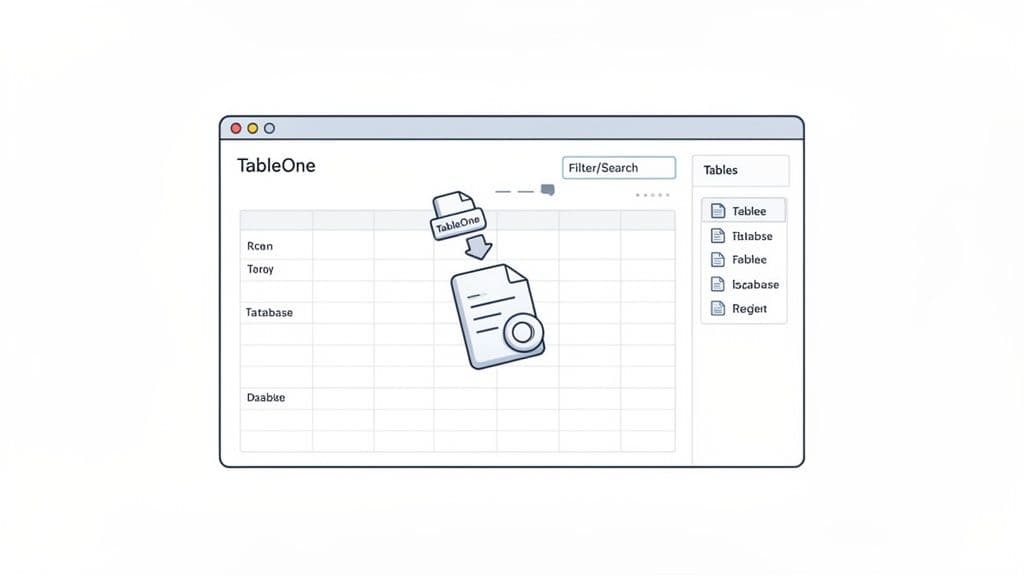
The layout is straightforward: your tables are listed on the left, and the data from the selected table appears in a filterable grid. It just makes exploring your database far less intimidating.
Why a GUI Can Boost Your Productivity
A visual tool makes the process to create a database in SQLite feel much more approachable. It’s not just about ducking the command line; it’s about getting a clearer, immediate understanding of your data's structure and contents.
This is especially true for solo developers, data analysts, or DevOps pros who need to move fast. For many of us, a common action is to drag a .db file into an application to get instant access to tables with inline editing, smart filters, and one-click export options. It's this kind of flexibility that explains why so many developers favor SQLite.
Using a GUI removes the friction between you and your data. Tasks that require multiple commands and careful syntax in a terminal—like filtering records across several criteria or updating a specific cell—become simple, visual actions. This frees up mental energy to focus on the data itself, not the commands to access it.
Got Questions About Making a New SQLite Database?
When you're first getting your hands dirty with SQLite, a few questions always seem to pop up. Don't worry, everyone asks them. Getting these sorted out early will save you a ton of headaches down the road.
What If My Database File Doesn't Exist Yet?
This is one of my favorite things about SQLite. If you try to connect to a database file that isn't there, SQLite doesn't throw an error—it just creates a new, empty one for you on the spot. It's a "just-in-time" approach that makes spinning up a new project incredibly simple. For example, the command sqlite3 new_app.db immediately creates the file new_app.db in your current directory if it's not already there.
Can I Stuff More Than One Table Into a Single File?
You bet. A single SQLite database file (that .db or .sqlite file) is designed to be a complete, self-contained package. You can have hundreds of tables, indexes, and views all living happily together inside that one file. This is perfect for a simple application that might need tables for users, products, and orders—all can be stored neatly in one app.db file.
This is a game-changer for portability. Your entire application's data structure and content can be emailed, dropped in a Git repo, or backed up just by copying a single file. No server dumps, no complex export processes.
How Do I Pick the Right Data Types for My Columns?
SQLite is pretty relaxed about data types, which is a big departure from stricter systems like PostgreSQL. You really only need to remember a few key ones for most situations:
INTEGER: The go-to for whole numbers. You'll use this constantly for your primary key IDs (user_id,product_id).TEXT: Your workhorse for any kind of string data, whether it's a short username or a full-length article.REAL: For any numbers that have a decimal point, like product prices (19.99) or measurements.BLOB: Stands for Binary Large Object. Use this if you need to store raw data like a small image or a configuration file directly in the database.
My advice? Start with the type that makes the most sense for your data, but don't stress over it. SQLite's dynamic typing system is surprisingly forgiving. For example, if you store the number 123 in a TEXT column, SQLite handles it gracefully.
Ready to manage your SQLite databases with a fast, modern GUI? TableOne gives you the power to browse tables, edit data inline, and run queries without the clutter. Download your free trial of TableOne today.