Your Guide to PostgreSQL Data Dump Operations
Master the PostgreSQL data dump with our expert guide. Learn proven pg_dump and pg_restore strategies for efficient, reliable database backups and migrations.

A PostgreSQL data dump is essentially a logical backup of your database, neatly packaged into a single file. Most of the time, you'll use the pg_dump utility to create it. Think of this file as a complete script of SQL commands that can rebuild your database's structure and re-insert all its data from scratch. It’s an incredibly versatile tool for everything from disaster recovery to migrating data or just setting up a safe development environment.
The Right Tool for the Right PostgreSQL Backup
When you first get into PostgreSQL backups, the options can seem a bit overwhelming. But for most everyday situations, you really only need to know about two core command-line utilities: pg_dump and pg_dumpall. The key to a solid backup strategy is simply knowing which one to grab for the task at hand.
When to Use pg_dump vs. pg_dumpall
Think of pg_dump as your surgical instrument. It’s designed to operate on a single database, exporting its tables, data, schemas, and functions into one self-contained file. This makes it perfect when you need to back up a specific application's database or move just one database to a new server. It's focused and precise.
pg_dumpall, on the other hand, is your wide-net approach. As the name implies, it backs up an entire PostgreSQL cluster. This means it captures all the individual databases on the server, plus the global objects that pg_dump completely ignores, like user roles and tablespaces.
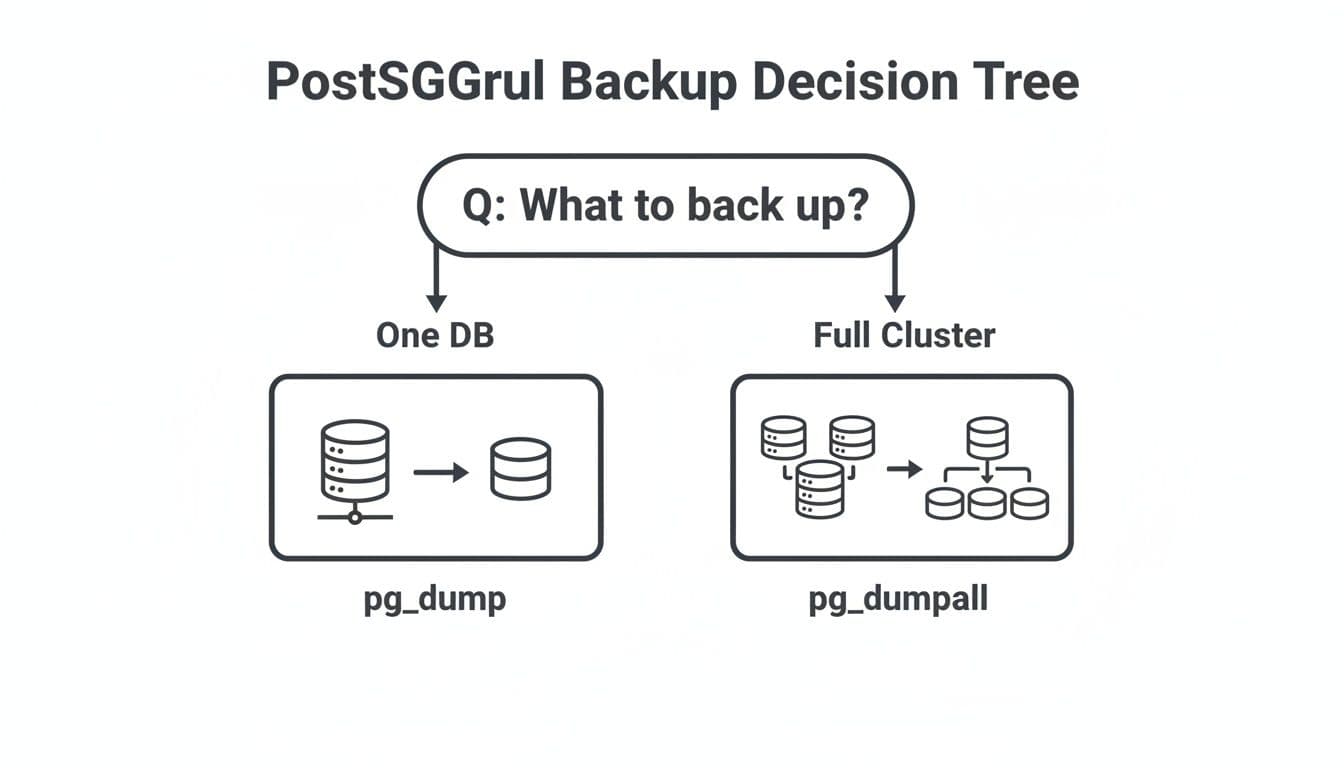
So, how do you choose? It’s usually a simple decision based on your goal. If you're just moving a single project's database to a new host, pg_dump is your go-to. But if you need to clone your entire PostgreSQL instance for a major server upgrade or a full hardware migration, that's a job for pg_dumpall.
This decision tree breaks it down nicely:
To make it even clearer, this table compares the three main backup tools you'll encounter.
Choosing the Right PostgreSQL Backup Tool
| Tool | Primary Use Case | Key Advantage | Best For |
|---|---|---|---|
pg_dump | Backing up a single database | High flexibility, version-agnostic restores | Migrating one application, creating dev copies, granular backups. |
pg_dumpall | Backing up a full cluster | Captures everything, including global roles/tablespaces | Cloning a full server, major version upgrades, complete disaster recovery. |
pg_basebackup | Creating a physical replica | Extremely fast for very large databases (VLDs) | Setting up a streaming replication standby or quick point-in-time recovery on identical hardware. |
Ultimately, pg_dump and pg_dumpall cover the vast majority of logical backup needs. You’ll only reach for pg_basebackup in more advanced scenarios involving huge databases and replication.
Logical vs. Physical Backups: A Crucial Distinction
It’s really important to understand that pg_dump and pg_dumpall both create logical backups. This means they generate a representation of your data (usually as SQL commands) that can be reloaded on almost any other PostgreSQL server. This is a huge advantage, as it isn't tied to your server's specific hardware architecture or even the minor version of PostgreSQL you're running.
This is fundamentally different from a physical backup, which you'd create with a tool like pg_basebackup. A physical backup is a literal, file-level copy of the data directories on disk. While much faster to create and restore for massive databases, it comes with a major trade-off: it’s far less flexible. You typically need a nearly identical server environment (OS, architecture, and PostgreSQL version) to restore it successfully.
For most day-to-day work, the flexibility of a logical dump from pg_dump is exactly what you need. If you're just getting started with your setup, our guide on how to connect to a PostgreSQL database can help you get your environment ready.
Creating Your First PostgreSQL Dump
Alright, enough theory. Let's get our hands dirty and actually create a PostgreSQL data dump. The main tool for this job is pg_dump, and once you get the hang of a few key flags, you'll be able to handle most day-to-day backup tasks with ease. We'll start with the simplest case and build up to more realistic, real-world scenarios.
The most basic pg_dump command is for a database running right on your own machine. All you need to do is point it at the right database and tell it where to save the file.
For a database named mydatabase, the command is as straightforward as it gets:
pg_dump mydatabase > mydatabase_backup.sql
This command connects to your local PostgreSQL server using your current OS username. It then dumps the entire mydatabase into a plain-text SQL file called mydatabase_backup.sql. For quick-and-dirty local backups, this works perfectly.
Connecting to Remote Databases
Of course, in the real world, your database rarely lives on your local laptop. You'll almost always need to specify a user, a host, and maybe even a port to connect securely. This is where a few more flags become your best friends.
- -U or --username: The PostgreSQL user you're connecting as.
- -h or --host: The server's address (e.g., a domain name).
- -p or --port: The port PostgreSQL is listening on. The default is 5432, but it's good practice to be explicit.
- -W: This one is important. It forces
pg_dumpto ask for a password interactively. You should always use this instead of putting passwords in your scripts or command history.
Let's see what this looks like when backing up a database on a remote server.
pg_dump -U myuser -h my-remote-server.com -p 5432 -W mydatabase > mydatabase_backup.sql
When you run that command, your terminal will prompt you for the password for myuser. It's a much safer and more professional way to handle remote database dumps.
Choosing the Right Dump Format
By default, pg_dump spits out a plain-text SQL script (.sql). While you can open it in a text editor and see exactly what's going on, this format has some serious drawbacks. For anything other than a tiny development database, you really should be using one of the archive formats.
The -F flag is how you specify the format. Here are your main options:
- p (plain): The default
.sqlscript we've already seen. - c (custom): A compressed, flexible, binary format. For most situations, this is the one you want. It's the recommended format for a reason.
- d (directory): Dumps the database into a folder, with one file for each table. This is fantastic for speeding up large migrations.
- t (tar): A standard
.tararchive. It's fine, but the custom format is more powerful.
The custom format (-Fc) is the clear winner for general-purpose backups. It's compressed out-of-the-box, which saves a ton of disk space. But its real superpower is the flexibility it gives you when you need to restore the data using pg_restore.
The biggest advantage of the custom format is that you can restore individual tables or even reorder how the restore happens. With a plain SQL file, you're stuck restoring everything at once unless you're willing to risk manually editing a potentially huge file.
To create a backup using this better format, you'll also want to use the -f flag to name your output file directly.
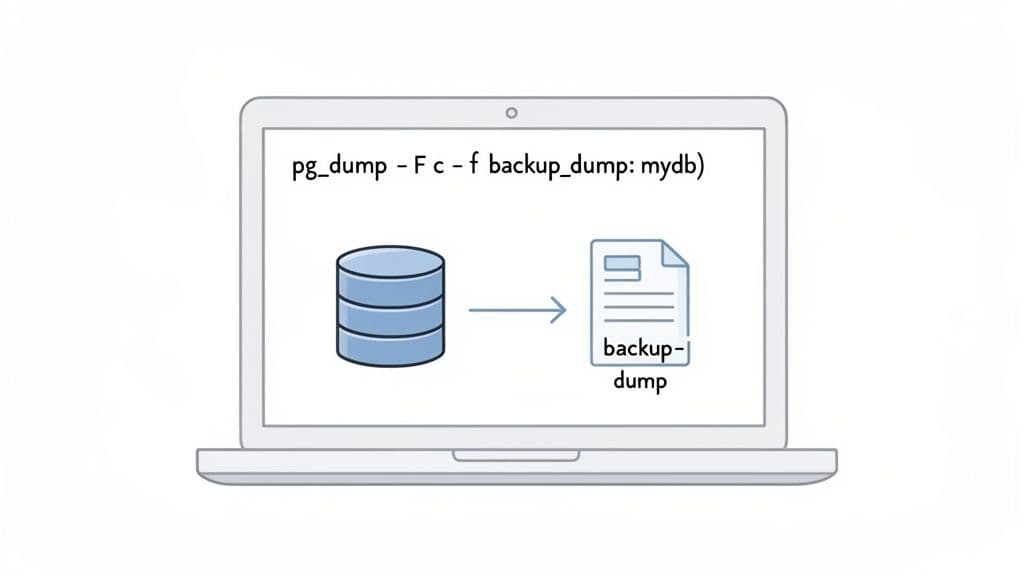
pg_dump -U myuser -h localhost -Fc -f mydatabase.dump mydatabase
See the difference? We use -Fc for the custom format and then -f to set the output file, mydatabase.dump. This one command gives you a compressed, portable, and incredibly versatile backup file.
Plain Text vs. Custom Format: When to Use Which?
So, how do you decide? It really comes down to what you're trying to accomplish. Here’s a quick guide based on my own experience.
| Scenario | Recommended Format | Why? |
|---|---|---|
| Quick backup for local dev | Plain (-Fp) | It’s simple. You can open it, inspect it, and even tweak it with a text editor. Great for small, non-critical stuff. |
| Production database backup | Custom (-Fc) | No question. It's compressed, safer, and allows for selective restores—a lifesaver when you only need one table back. |
| Migrating a very large database | Directory (-Fd) | This format lets you use the -j flag for parallel jobs during restore, which can slash your migration time dramatically. |
| Storing schema in version control | Plain (-Fp) | A text-based format plays nicely with tools like Git, making it easy to track schema changes over time. |
For any serious backup strategy, the power you get from the custom or directory format is simply a must-have. The ability to restore a single corrupted table without touching the rest of the database is a level of control a plain SQL script just can't give you. My advice? Get into the habit of using -Fc from day one. You'll thank yourself later.
Advanced Dumping Techniques for Production
When you’re working with live production databases, the stakes get a whole lot higher. The datasets are bigger, and the basic pg_dump commands that work just fine in development can become slow, resource-hungry beasts. This is where you need to level up your game with a few advanced techniques to create a PostgreSQL data dump that's fast, efficient, and targeted.
These strategies aren't just for massive databases, either; they're about working smarter. Once you learn how to properly tune pg_dump, you can slash your backup times, shrink the disk space they consume, and gain precise control over exactly what data you're pulling.
Compressing Dumps on the Fly
One of the first headaches with production data is the sheer size of the dump file. A 50 GB database can easily spit out a 50 GB uncompressed SQL file. That eats up disk space and takes forever to move across a network.
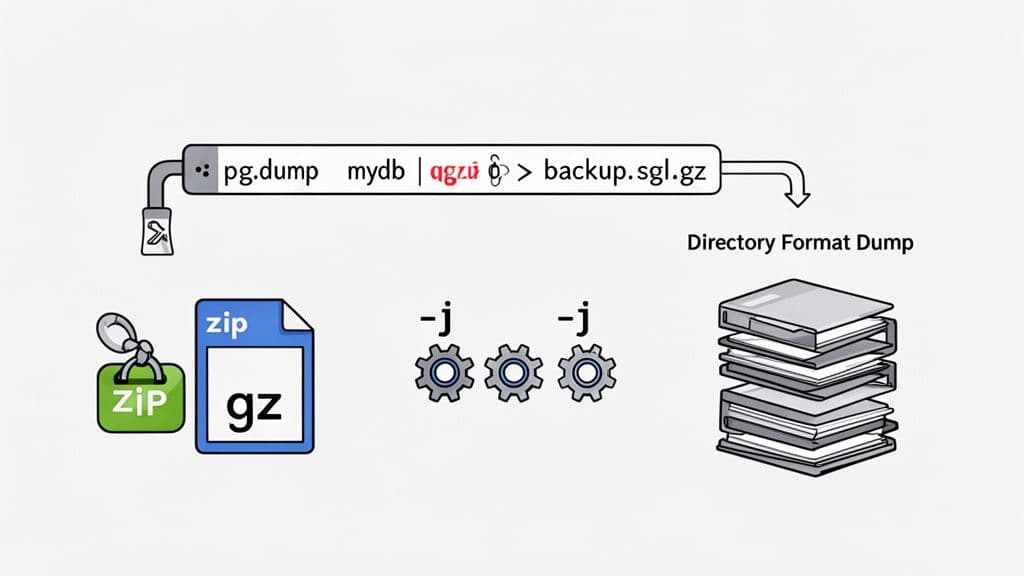
The answer is to compress the data dump as it's being created. Don't dump to a file and then compress it—that’s inefficient. Instead, use a standard Unix pipe (|) to feed the output of pg_dump directly into a compression tool like gzip. This is far more efficient because it skips writing the huge, uncompressed file to disk first.
Here’s a practical example of piping pg_dump into gzip:
pg_dump -U myuser -h my-prod-db.com mydatabase | gzip > mydatabase_$(date +%Y-%m-%d).sql.gz
This command does two things beautifully. It starts a plain-text dump and immediately sends that stream to gzip, which compresses it on the fly and saves the result as a .gz file. We’ve also tossed in a simple date command to timestamp the backup file—a must-do for managing your backups over time.
Pro Tip: While the custom format (
-Fc) has some built-in compression, it's often not as aggressive as what you can get fromgzip -9orzstd. For maximum space savings, piping a plain-text dump to a powerful compression tool can be a fantastic trade-off, though you do give up the selective restore capabilities ofpg_restore.
Boosting Performance with Parallel Dumps
For really big databases, even with compression, the dump process itself can become a bottleneck. If your server has multiple CPU cores (and most production servers do), you can get a massive speed boost by running the dump in parallel.
This is where the directory format (-Fd) truly shines. When you use this format, you can also add the -j flag to specify the number of concurrent jobs to run. Each job will tackle a different part of the database dump, which can dramatically cut down the total time.
Imagine a large database with hundreds of tables. A parallel dump would look something like this:
pg_dump -U myuser -h my-prod-db.com -Fd -j 4 -f mydatabase_dump_dir mydatabase
Let's break that down:
- -Fd tells
pg_dumpto use the directory output format. - -j 4 specifies that
pg_dumpshould use four parallel jobs. - -f mydatabase_dump_dir sets the name of the output directory where all the dump files will land.
A good rule of thumb is to set the number of jobs equal to the number of CPU cores on your database server. Just be careful not to completely saturate the system's I/O. I've seen this single flag cut dump times by more than half.
Gaining Granular Control Over Your Dump
Sometimes, you just don't need a backup of everything. You might only need a single schema, a few specific tables, or maybe everything except for a couple of huge, non-critical tables. Luckily, pg_dump has some powerful flags for this kind of surgical precision.
- --schema or -n: Dumps only the schemas that match a given pattern.
- --table or -t: Dumps only the tables that match a pattern.
- --exclude-table or -T: Dumps everything except for the specified tables.
Let’s say you have a logs table that's massive and you don’t need it for a development copy of the database. You can easily exclude it like this:
pg_dump -U myuser -h localhost -Fc -f myapp_no_logs.dump --exclude-table=public.logs myapp_db
This command creates a custom-format dump of myapp_db but completely skips the public.logs table. The result is a much smaller and faster backup. It's incredibly handy.
Creating Schema-Only Dumps for Version Control
For any developer or DevOps team, tracking database schema changes is just as important as tracking code changes. Generating a schema-only dump is an invaluable technique for this. It creates a SQL file containing only the CREATE TABLE, CREATE INDEX, and other DDL statements—without a single row of data.
This makes the output file perfect for committing to a Git repository, allowing you to review and track how your schema evolves over time.
To create a schema-only dump, just use the --schema-only or -s flag:
pg_dump -U myuser -s myapp_db > myapp_schema.sql
The myapp_schema.sql file you get is a clean, data-free blueprint of your database structure. You can easily diff this file between environments (like staging vs. production) to spot inconsistencies, or use it to spin up a new development environment without any sensitive production data.
Restoring Your Database with pg_restore
Creating a postgresql data dump is only half the battle. A backup is just a file until you know for certain you can restore it. This is where pg_restore comes in, the powerful counterpart to pg_dump. It’s built specifically to understand the archive formats—custom, directory, and tar—we looked at earlier.
Unlike a plain SQL script that you just pipe into psql, pg_restore gives you an incredible amount of control over the recovery process. You can bring back the entire database, pick and choose specific tables, or even slash restore times with parallel processing.
The Basic Restore Process
At its heart, pg_restore takes your archive file and loads its contents into a fresh, empty database. It's a common stumbling block for newcomers, but it’s crucial to remember that pg_restore will not create the database for you. You have to do that first.
You can use the createdb command-line utility or a standard CREATE DATABASE statement in SQL.
Let's imagine you have a backup file named mydatabase.dump (created with the highly recommended -Fc custom format) and you want to restore it into a new database called mydatabase_restored.
First, you’ll create that new database:
createdb -U myuser mydatabase_restored
Next, you can run pg_restore, pointing it to the new database with the -d flag:
pg_restore -U myuser -d mydatabase_restored mydatabase.dump
And that’s the core workflow. pg_restore will connect to mydatabase_restored and get to work rebuilding all your schemas, tables, data, and other objects from the archive.
Ensuring a Clean Slate with --clean
So, what happens if you're restoring into a database that isn't completely empty? Maybe you’re refreshing a development environment or recovering from a failed restore attempt. You'll likely run into errors as pg_restore tries to create objects that already exist.
This is exactly why the --clean flag is an absolute lifesaver.
Adding --clean tells pg_restore to first drop any existing database objects before it tries to recreate them from your dump file. This gives you a clean slate and a predictable result every single time.
pg_restore -U myuser -d mydatabase_restored --clean mydatabase.dump
I almost always use
--cleanwhen restoring to a non-production environment. It creates a repeatable process and prevents those "but it worked last time" headaches that are often caused by leftover objects from a previous, partial restore.
Slashing Restore Times with Parallel Jobs
For large databases, a standard, single-threaded restore can take an eternity. This is where you can unlock a massive performance boost, provided you created your dump using the directory format (-Fd).
The -j flag (short for --jobs) lets you tell pg_restore how many concurrent jobs to spin up. Leveraging modern multi-core processors this way can dramatically cut down your recovery time.
If your backup was created in a directory named mydatabase_dump_dir, you could use four parallel jobs like this:
pg_restore -U myuser -d mydatabase_restored -j 4 mydatabase_dump_dir
A good rule of thumb is to start with the number of CPU cores on your database server. For a big database, this one flag can easily turn an hour-long restore into a 15-minute coffee break. If you often work with large datasets, you might also find some helpful tips in our guide on how to import CSV files into PostgreSQL.
Restoring from a Remote Source
Just as you can dump a remote database, you can also restore a local file to a remote server. The connection flags are the same ones you use with pg_dump: -h for the host, -p for the port, and -W to make sure you're prompted for a password securely.
Let's say backup.dump is on your local machine, and you need to load it into a database on a staging server. The command would look something like this:
pg_restore -U staging_user -h staging-db.com -p 5432 -d staging_db --clean -W backup.dump
This combination tells pg_restore to connect to the remote host, clean the target database, and then load your local dump file. Using -W prompts you for the password, which is a much safer practice than putting it directly in the command or a script where it could be exposed in your shell history.
Automating Backups and Applying Best Practices
Relying on someone to remember to run a backup is a recipe for disaster. A single forgotten manual backup can easily lead to catastrophic data loss. The real goal is to build a robust, automated backup system that you can set and forget, knowing your data is safe. This means moving beyond one-off commands and embracing the reliability of scheduling and scripting.
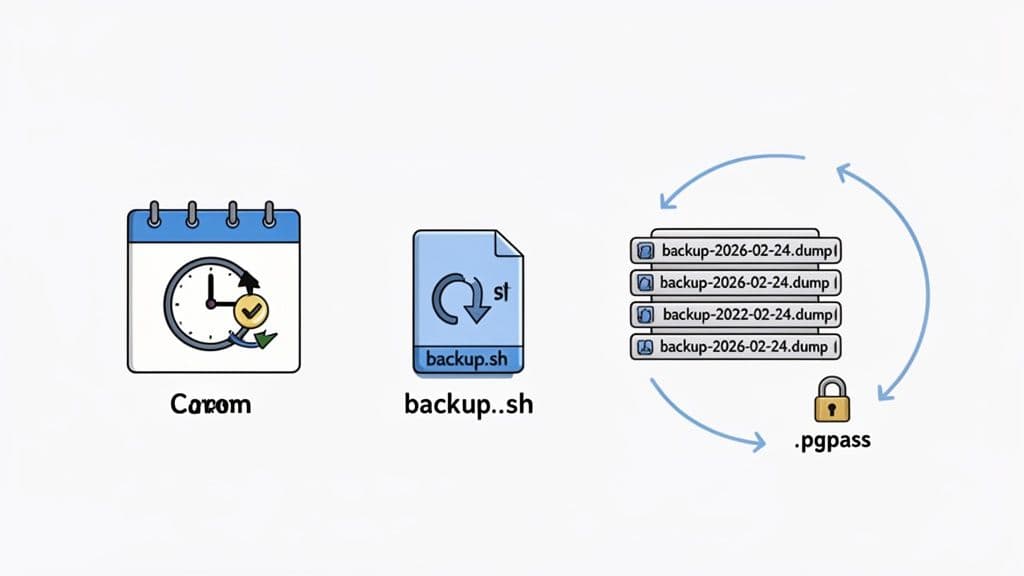
Luckily, automating your PostgreSQL data dumps is pretty straightforward with standard system tools. If you're on Linux or macOS, the go-to method is to create a simple shell script and schedule it with cron.
Scheduling Dumps with Cron
A cron job is nothing more than a scheduled task. You can tell your server to run a specific command at whatever interval your business needs—every night, once a week, you name it. A good backup script doesn't need to be fancy; it just needs to be dependable.
Here's a simple shell script to get you started. It creates a compressed, timestamped backup of a single database.
#!/bin/bash

# --- Configuration ---
DB_USER="backup_user"
DB_NAME="production_db"
BACKUP_DIR="/var/backups/postgres"
DATE=$(date +"%Y-%m-%d_%H%M%S")

# --- Create Backup ---
pg_dump -U $DB_USER -h localhost -Fc $DB_NAME > "$BACKUP_DIR/$DB_NAME-$DATE.dump"

# --- Optional: Clean up old backups (e.g., older than 7 days) ---
find $BACKUP_DIR -type f -name "*.dump" -mtime +7 -delete
Let's quickly walk through this. The script defines your database details, sets a backup location, and then runs pg_dump with the custom format (-Fc). The find command is a crucial housekeeping step; it automatically deletes any dump files older than 7 days, giving you a rolling week of backups without filling up your disk.
To get this script running automatically, you’d edit your crontab by running crontab -e and then add a line like this to run it every morning at 2:00 AM:
0 2 * * * /path/to/your/backup_script.sh
Handling Credentials Securely with .pgpass
Did you notice something missing from that script? The password. You should never hardcode passwords directly into your scripts or cron jobs—it’s a massive security hole. The proper way to handle this is with a .pgpass file.
PostgreSQL's command-line tools, including pg_dump, are smart enough to automatically look for a .pgpass file in the user's home directory. This file is designed to store connection credentials securely.
The format is simple: hostname:port:database:username:password. Just create the file at ~/.pgpass and add a line for your backup user:
localhost:5432:production_db:backup_user:your_secure_password
Now for the most important part: you absolutely must lock down the file permissions so only the user running the script can read it.
chmod 600 ~/.pgpass
With this file in place, pg_dump will find and use the password without you ever exposing it in a script, command history, or process list.
A correctly configured
.pgpassfile is a hallmark of a professional PostgreSQL setup. It's a simple change that vastly improves the security of your entire automated backup process.
Test Your Restores Regularly
Your backup strategy is worthless until you've proven you can actually restore from your dumps. A backup file sitting on a disk gives you a false sense of security; only a successful restore drill is proof that your safety net works. You have to test your restores regularly.
This doesn't need to be a huge production. A great approach is to set up a secondary, non-production server and schedule a periodic script that pulls the latest backup and runs pg_restore. This script can check for a successful exit code and fire off an alert if anything fails. This process validates the entire chain: the dump is being created, it's not corrupt, and it can be used to rebuild your database from scratch. For more on this, our guide to database migration best practices offers some deeper strategies for moving data safely.
The Role of Optimizer Statistics
One of the more frustrating parts of restoring a database has always been the performance hit right afterward. When you restore a fresh database, PostgreSQL has no information about your data's distribution, which can lead to terribly slow queries until you run ANALYZE on the whole thing.
Thankfully, the PostgreSQL backup ecosystem is always evolving. For instance, PostgreSQL 18 introduced a --statistics flag to pg_dump, allowing these vital optimizer statistics to be included directly in the dump file. This is a game-changer, as it lets you bypass that time-consuming database analysis after a restore. What's even better is that the extended statistics data in pg_dump is backward-compatible, supporting versions all the way down to PostgreSQL 10. This helps ensure your restored database performs at its best right from the start.
Common Questions About PostgreSQL Data Dumps
As you get your hands dirty with PostgreSQL, you'll inevitably run into the same questions and roadblocks that trip up many developers and DBAs. This section cuts straight to the chase, tackling the most common challenges with practical answers to get you moving again.
What Is the Difference Between pg_dump and pg_dumpall?
The easiest way to think about this is scope.
pg_dump is your precision tool. It’s designed to create a logical backup of a single database, which is exactly what you need for most day-to-day tasks like migrating one application's data, cloning a database for a dev environment, or backing up a specific project.
pg_dumpall, however, takes a much wider view. It backs up the entire PostgreSQL cluster. This means it grabs all the individual databases plus all the global objects that pg_dump leaves behind, like roles (your users) and tablespaces.
For routine backups, you'll almost always reach for pg_dump. Save pg_dumpall for those big-ticket items like a full server migration or a complete disaster recovery scenario.
How Can I Speed Up a Large Data Dump and Restore?
When you're dealing with a large PostgreSQL database, performance is everything. To seriously speed things up, you should always create your backup using either the custom format (-Fc) or, even better, the directory format (-Fd).
Why? Because these formats unlock a powerful feature: the --jobs (or -j) flag for both pg_dump and pg_restore. This flag lets you run the operation in parallel across multiple CPU cores, which can dramatically slash the time it takes to complete.
Another pro tip for restores is to use the
--disable-triggersflag withpg_restore. This avoids the huge performance hit of firing triggers for every single row insertion. The indexes and constraints get applied at the end of the restore anyway, so you're not losing any integrity.
Can I Restore a Single Table from a Full Dump?
Yes, you absolutely can—but with one big catch. You must have used an archive format for the dump. As long as you created the backup with the custom (-Fc), directory (-Fd), or tar (-Ft) format, restoring a specific table is surprisingly easy with pg_restore.
This is a true lifesaver when you've got a corrupted table and don't want to roll back the entire database. You just need the --table or -t flag to tell pg_restore which one you need.
For example:
pg_restore -d new_db -t my_specific_table my_backup.dump
This command connects to the new_db database and restores only the my_specific_table from your backup file. This powerful capability is the number one reason to ditch the plain-text .sql format for any serious database backup strategy.
Why Is My Restore So Slow on a Database with Many Indexes?
A common bottleneck during restores is the overhead of building indexes and checking constraints as data is being loaded. Thankfully, pg_dump and pg_restore are pretty smart about this. By default, they follow a "data-first" approach: they load all the data and then create the indexes and foreign keys. This is far more efficient than trying to update indexes with every INSERT.
If your restore still feels sluggish, the culprit is likely I/O on the server. Your best weapon against this is the -j flag for parallel jobs. Research from teams building modern data tools consistently shows that this "deferred index creation" strategy is a cornerstone technique for achieving fast bulk data loads.
Managing databases doesn't have to be a constant struggle in the command line. If you're looking for a clean, modern GUI to browse tables, edit data, and manage your PostgreSQL, MySQL, and SQLite databases, check out TableOne. It simplifies everyday tasks like importing CSVs, comparing schemas, and running queries so you can ship with confidence.
Learn more at https://tableone.dev.