SQLite List Tables: A Developer's Practical Guide
Discover every method to SQLite list tables. This complete guide covers the CLI, SQL queries, Python, Node.js, and GUI tools for modern developers.

When you open an unfamiliar SQLite database, your first task is to see what's inside. The quickest way to get a lay of the land is by using the .tables command in the command-line interface or running a simple SQL query: SELECT name FROM sqlite_master WHERE type='table';.
Both methods give you a complete list of tables, which is the essential first step before you can interact with any data.
Why Listing Tables Is Your First Step
Think of it like looking at a map before a road trip. Before you can query, update, or analyze data, you need to know what tables exist. This simple action is your starting point for a few key reasons:
- Getting Your Bearings: It provides an instant overview of the database's structure.
- Planning Your Queries: You can't write a
SELECTstatement without the exact table name—spelling and capitalization count! - Basic Debugging: If a query fails, a common troubleshooting step is simply verifying that the table you think you created actually exists.
This flowchart breaks down the decision-making process for which method to use, depending on where you're working.
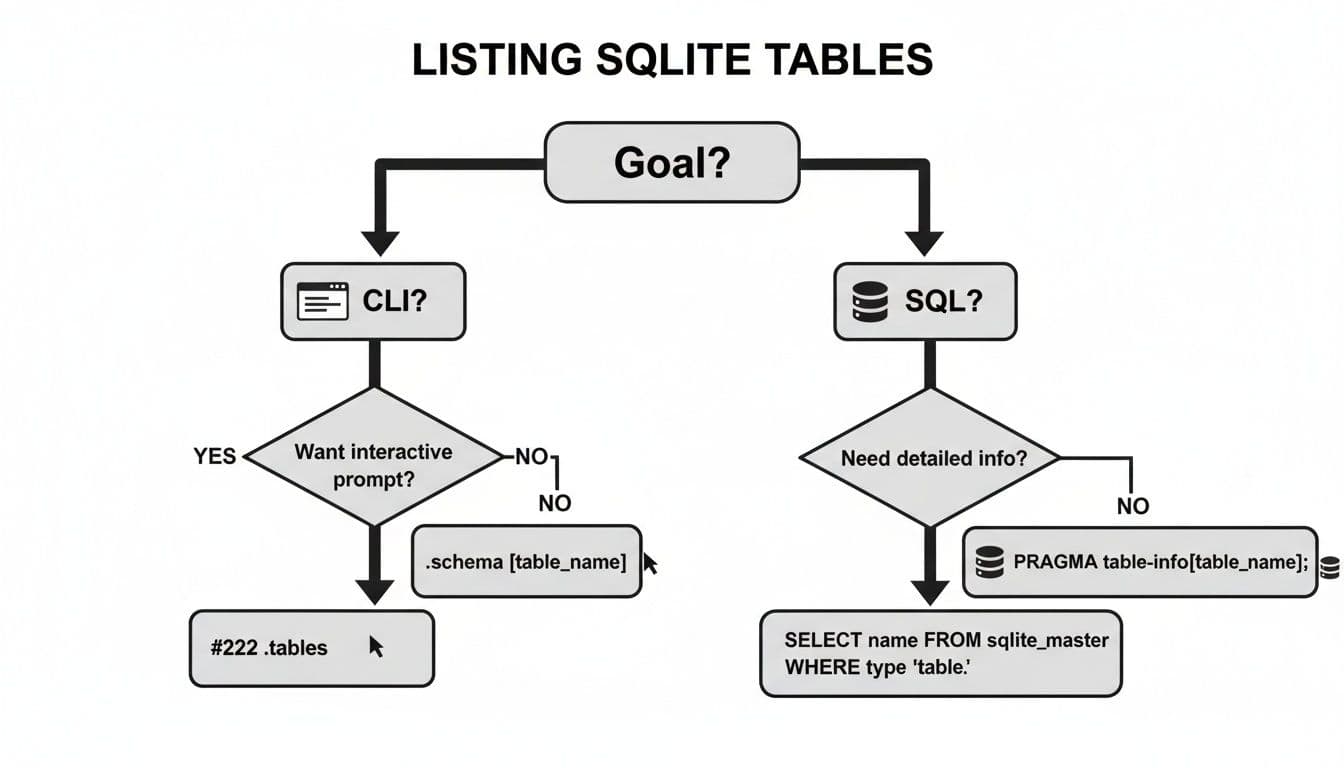
As the visual shows, your choice boils down to whether you're in the command line or need to get the table list programmatically with SQL.
This straightforward introspection is where SQLite shines. It's built for quick, no-fuss data work, which is why it's embedded in billions of devices—from your phone to your web browser. If you're just starting and want to build from the ground up, our guide on how to create a database in SQLite is a great next step.
Mastering the SQLite Command-Line Interface
When you need a quick, no-nonsense look inside your database, the SQLite command-line interface (CLI) is often the fastest tool. While .tables is a great start, a few extra tricks can save you time, especially when navigating a database packed with tables.
For instance, you aren't limited to listing every single table. The .tables command accepts a LIKE pattern, which is a lifesaver for filtering. Imagine a database with hundreds of tables—you don't want to scroll endlessly just to find the ones related to sales.
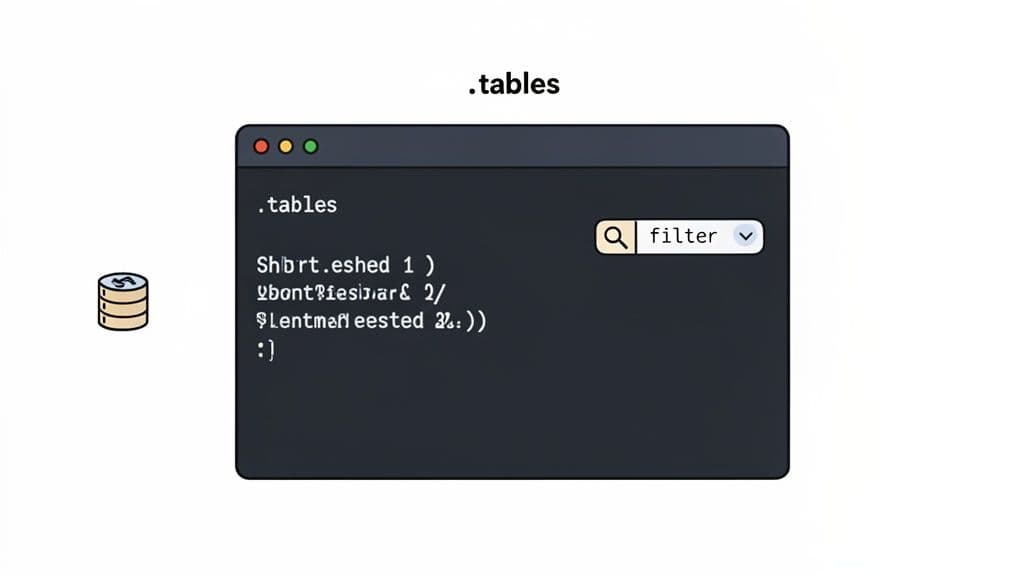
Practical CLI Commands for Listing Tables
Getting comfortable with a few key commands will make your workflow smoother.
- Filter with Patterns: To find only tables starting with
sales, run.tables 'sales%'. The single quotes are good practice, especially if your pattern contains special characters. - Show the Schema: Once you spot an interesting table, use
.schema <table_name>to see itsCREATE TABLEstatement. This is the quickest way to check columns and data types without a query. - Improve Readability: Before querying, my favorite commands are
.header onand.mode column. This combination formats output into clean, aligned columns, making results infinitely easier to scan.
Here’s a practical example showing a complete workflow from connecting to querying.
-- First, connect to your database from the terminal
sqlite3 my_database.db

-- Find all tables related to customers
.tables 'customer%'
-- Output might be: customer_accounts   customer_profiles

-- Okay, let's check the structure of the profiles table
.schema customer_profiles
-- CREATE TABLE customer_profiles (id INTEGER, name TEXT, signup_date TEXT);

-- Now, let's make the output pretty before we query
.header on
.mode column

-- Ready to run a readable query
SELECT id, name, signup_date FROM customer_profiles LIMIT 5;
-- id  name          signup_date
-- --  ------------  -----------
-- 1   Alice Smith   2023-01-15
-- 2   Bob Johnson   2023-01-16
Pro Tip: You can chain commands directly from your terminal. Running
sqlite3 my_database.db ".tables"will open the database, list the tables, and immediately exit. This is incredibly handy for quick checks or for use in scripts.
It's important to remember these dot-commands are not SQL. They are specific instructions for the sqlite3 program, providing a powerful interactive layer that makes the CLI an indispensable tool for fast database inspection.
Querying the Database Schema with SQL
While command-line shortcuts are handy, writing a direct SQL query gives you far more control and flexibility. This is the universal method—it works identically whether you're in application code, a GUI tool, or the CLI itself. The key is a special, internal table called sqlite_master.
Think of sqlite_master as the database's own table of contents. Every time you create a table, view, or index, SQLite logs its metadata there. By querying it, you can pull a detailed list of every object your database contains.
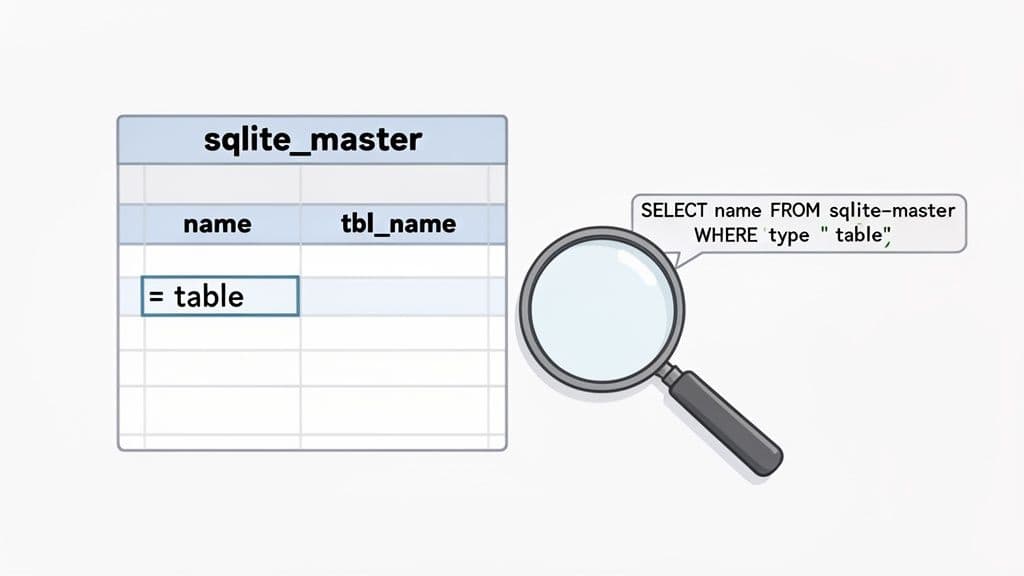
Unlocking the sqlite_master Table
The simplest query to list your tables is both elegant and powerful. Just select the name column for every entry where the type is 'table'.
SELECT name FROM sqlite_master WHERE type='table';
This one-liner is a workhorse for developers. Its raw utility is a big part of why SQLite is so respected. In fact, the DB-Engines Ranking, which tracks database popularity, consistently places SQLite near the top. A 2025 survey highlighted that 62% of developers rely on it for mobile and embedded apps, primarily because fundamental tasks like this are so straightforward.
The real magic comes from using other columns for more specific searches:
- type: Tells you what the object is ('table', 'index', 'view').
- name: The actual name of the object.
- tbl_name: For indexes, this points back to the table they belong to.
- sql: The original
CREATEstatement that defined the object.
So, if you’re digging through a massive database and only care about tables related to user data, you can add a LIKE clause.
SELECT name FROM sqlite_master
WHERE type='table' AND name LIKE 'user%';
A Quick Word on
sqlite_schemaAs of SQLite version 3.33.0, a new view calledsqlite_schemabecame available. It's essentially a modern, read-only version ofsqlite_master. For listing tables, they do the same thing. Usingsqlite_schemais now better practice in newer projects because it clearly shows you're just reading the schema, not modifying it.
Seeing More Than Just Tables
The sqlite_master table isn’t a one-trick pony. You can easily tweak your query to find any database object. This is a lifesaver when you need a complete map of your schema, not just the tables.
For a practical example, imagine you need to find all indexes on your products table to debug a slow query. This command gives you actionable information instantly.
SELECT name, sql FROM sqlite_master
WHERE type='index' AND tbl_name='products';
This would immediately show you the names of those indexes and, more importantly, the exact SQL used to create them. By simply changing the WHERE clause, you can hunt down views, triggers, or anything else. This deep introspection is why SQL remains the definitive way to explore a database schema.
Listing Tables Programmatically in Your Apps
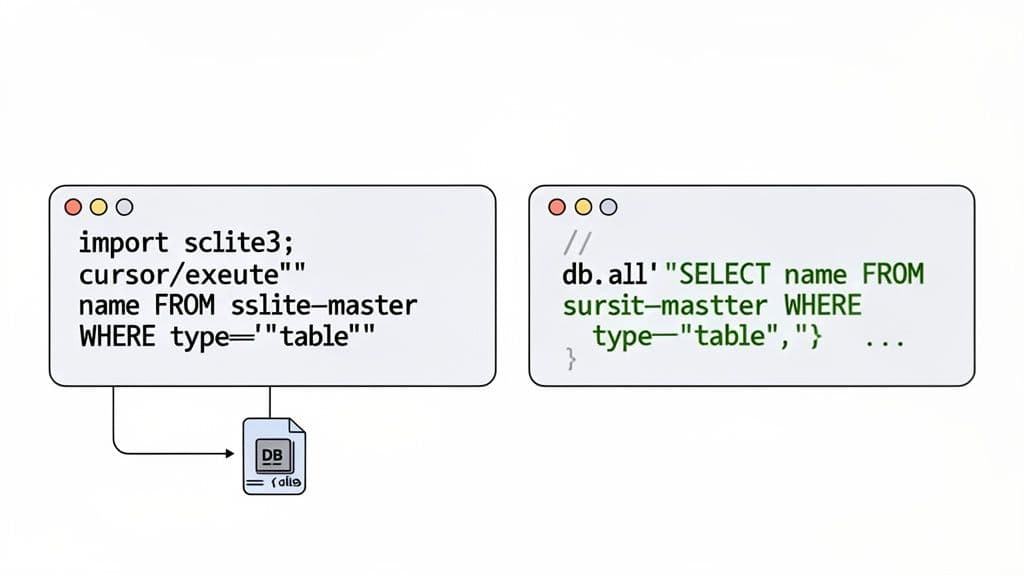
It’s one thing to poke around a database in the command line, but what about when your application needs to discover the schema on its own? This is common for building dynamic admin dashboards or writing database migration scripts.
Luckily, getting a list of tables is just as straightforward in code. Whether you’re a Python or Node.js developer, the core idea is the same: connect to the database, run our sqlite_master query, and loop through the results.
Getting a Table List with Python
If you're using Python, the sqlite3 module is part of the standard library, so no installation is needed.
Here’s a clean, reusable function to grab table names from any database file.
import sqlite3

def list_sqlite_tables(db_file):
    """Connects to an SQLite database and lists its tables."""
    conn = None
    try:
        conn = sqlite3.connect(db_file)
        cursor = conn.cursor()
        # Use sqlite_schema for modern best practice
        cursor.execute("SELECT name FROM sqlite_schema WHERE type='table';")
        # A list comprehension makes this quick and clean
        tables = [table[0] for table in cursor.fetchall()]
        return tables
    except sqlite3.Error as e:
        print(f"Database error: {e}")
        return []
    finally:
        if conn:
            conn.close()

# Practical example: Call the function and print the results
db_path = 'your_database.db'
table_list = list_sqlite_tables(db_path)
print(f"Tables in {db_path}: {table_list}")
Wrapping the logic in a try...finally block is a must-do in production code. It guarantees your database connection is closed properly, even if an error occurs.
Fetching Tables in Node.js
For JavaScript developers, the go-to package is sqlite3. A quick npm install sqlite3 gets you started. Its API is asynchronous, fitting perfectly into the Node.js ecosystem.
This script demonstrates the classic callback-based pattern for connecting and running a query.
const sqlite3 = require('sqlite3').verbose();

// First, open a database connection.
const db = new sqlite3.Database('./your_database.db', (err) => {
  if (err) {
    return console.error(err.message);
  }
  console.log('Connected to the SQLite database.');
});

const sql = `SELECT name FROM sqlite_schema WHERE type='table'`;

// db.all() fetches all rows from the result set.
db.all(sql, [], (err, rows) => {
  if (err) {
    throw err;
  }
  const tableNames = rows.map(row => row.name);
  console.log("Tables found:", tableNames);
});

// Always remember to close your connection when you're done.
db.close((err) => {
  if (err) {
    return console.error(err.message);
  }
  console.log('Closed the database connection.');
});
Being able to programmatically sqlite list tables is a fundamental skill for building database-driven applications. And while these examples are for SQLite, the core concepts—connect, query, process, close—are universal. You'll find similar patterns when you learn how to connect to a PostgreSQL database or any other RDBMS.
5. Using a GUI for Visual Database Exploration
While the command line is powerful, sometimes you just want to see your database. A good Graphical User Interface (GUI) can be the fastest way to get a feel for a new database, turning schema exploration into a simple point-and-click process. This is a game-changer for rapid development.
Instead of typing commands and trying to piece together relationships in your head, a modern database tool lets you explore visually. For anyone who thinks better with a visual workflow, this approach removes friction and speeds up the discovery phase. It's perfect for orienting yourself in an unfamiliar database without writing a single line of SQL.
A Quick Walkthrough with TableOne
A clean GUI like TableOne makes connecting to a database and listing its tables painless. You just open your SQLite file, and the app immediately lays out your entire schema in a structured, easy-to-scan sidebar.
Here’s a look at the main interface right after connecting to a database.
As you can see, the layout is simple and effective. Tables are listed on the left, and clicking one instantly populates the main grid with its data. This visual approach is more interactive than the static text from the command line.
A GUI takes you beyond a list of table names. You can instantly see row counts, inspect column types, sort and filter data, and even get a sense of relationships between tables with a few clicks. This deepens your understanding of the schema in seconds, not minutes.
For developers moving quickly, this immediate feedback is invaluable. If you want to see how this fits into your workflow, you can explore the cross-platform tool by downloading the free trial of TableOne. It’s all about making everyday database tasks feel less like a chore.
Common Mistakes and Pro Tips
Even a basic task like listing tables in SQLite can have pitfalls. I’ve seen developers run into the same snags time and again. Knowing how to sidestep them will make your life easier.
Filtering Out the Noise
One of the first things that catches people off guard is seeing tables they didn't create, like sqlite_sequence, in their list. This is just an internal table SQLite uses to manage AUTOINCREMENT keys. It’s crucial for the database, but usually just noise for you.
Here is an actionable insight: filter it out. The cleanest way is by telling your query to ignore any internal system tables, which conveniently start with the prefix sqlite_.
SELECT name FROM sqlite_master
WHERE type='table' AND name NOT LIKE 'sqlite_%';
Just by adding that NOT LIKE clause, your results will instantly become more focused, showing only the tables you actually created and care about.
Pro Tip: Getting an empty list when you know tables should be there? Before debugging your code, check for simple file permissions issues. If your application can't read the
.dbfile, it might connect successfully but won't be able to see any of its contents. A classic "oops" moment we've all had.
This straightforward, practical functionality has helped make SQLite a developer favorite. A 2025 Stack Overflow survey identified it as the third most popular database management system. That's a huge testament to a tool that started in 2000 and now quietly powers an incredible number of applications. You can dig deeper and see how it stacks up against other databases for more context.
Common Questions Answered
When you're working with SQLite, a few common questions pop up time and again. Let's tackle some of the most frequent ones with practical answers.
How Can I Get a List of All Tables and Views Together?
This one's a classic. You're not just interested in tables; you want to see everything you can query. The easiest way is by tweaking your query against the sqlite_schema table.
This simple query gives you a complete inventory of all tables and views in one go, which is incredibly useful when you first explore a new database.
SELECT name, type FROM sqlite_schema
WHERE type IN ('table', 'view')
ORDER BY type, name;
I added ORDER BY to group the results, making the output cleaner and more organized—a small but practical touch.
Why Do I Sometimes Need to Wrap Table Names in Quotes?
You've probably run into this: a query fails, and the solution is to wrap a table name in double quotes. This happens when your table or column name is an SQLite keyword (like order), contains spaces, or uses special characters.
For example, a table named order details won't work on its own. You must write it as "order details" in your SQL.
My advice? Avoid this headache entirely. A great habit is using snake_case for all your naming, like
order_details. It's clean, readable, and saves you from ever having to worry about quoting issues.
Can I See the Tables in a Database File Without Opening It?
The short answer is no. An SQLite database is a single file on your disk—a .db or .sqlite file. To do anything with it, you must first open a connection.
Think of it like a locked box. You can't see what's inside until you unlock it. Whether you're using the command-line tool, a GUI, or a Python script, the very first step is always establishing that connection. Once you're in, you can run all the commands you need to inspect its schema.
Managing databases doesn't have to be a chore. With TableOne, you can visually explore schemas, edit data directly, and run queries against SQLite, PostgreSQL, and MySQL in one beautiful app. Download the free trial of TableOne and speed up your workflow.