Finding the Best SQLite Browser for Mac in 2026
Explore the best SQLite browser for Mac in this guide. We compare top tools, detail must-have features, and share workflows to boost your productivity.

At its core, a SQLite browser for Mac is a specialized app that lets you see and interact with your database files visually. Instead of wrestling with raw code, you get a clean, graphical interface that turns complex database management into simple point-and-click actions.
Think of it as a friendly dashboard for your data. For example, instead of typing SELECT * FROM users; and getting a wall of text, you just click on the users table and instantly see everything laid out in a clean, spreadsheet-like grid.
Why You Need a SQLite Browser for Your Mac
Ever tried working with a database purely through the command line? It can feel like you're fumbling around in the dark. You type a command, cross your fingers that you got the syntax right, and get a wall of text back. It’s powerful, but rarely intuitive.
A good SQLite browser for Mac flips the lights on. It lets you pop open any .sqlite file and instantly see your tables laid out in a clean, understandable grid. For anyone working with data on a Mac—from developers building apps to analysts searching for insights—this is a massive leap in clarity and efficiency.
Escaping Command-Line Headaches
The command line is a staple for many developers, but it’s notorious for being tedious and unforgiving. A solid GUI solves some of the most common frustrations with practical, time-saving features.
- Endless Typos: One misplaced character in a long SQL query can send you right back to the beginning. Actionable Insight: A GUI with syntax highlighting and auto-completion catches these mistakes in real-time. For instance, if you type
SELCET, the editor will immediately flag it as an error, saving you from a failed query. - Zero Visualization: It's tough to grasp how tables connect to one another when all you have are text-based schema definitions. Actionable Insight: A visual tool can show you that the
customer_idin yourorderstable links directly to theidin yourcustomerstable, making complex joins intuitive. - Repetitive Work: Simple tasks like updating a single record or exporting a table to a CSV file often mean writing the same queries over and over. Actionable Insight: A browser lets you handle these jobs with a couple of clicks. Need to change a user's email? Just double-click the cell and type. Need a CSV of recent orders? Click "Export" and you're done.
By getting rid of these pain points, a dedicated SQLite browser seriously boosts your productivity and makes mistakes far less likely. It also opens up database access to everyone on the team, not just the SQL experts. If you want to dive deeper, we have a whole guide on choosing the right database management approach on a Mac.
Why a Native Mac App Matters
Mac users expect a certain level of quality and polish from their software, and that absolutely extends to developer tools. Just look at Safari—it holds a solid 16.46% of the global browser market, according to StatCounter Global Stats. This isn't an accident; it shows a clear preference for apps that feel like they truly belong on macOS.
When your tools feel clunky or out of place, they create friction. A great SQLite client feels like a natural extension of the Mac experience, where a smooth and predictable workflow is key to staying focused.
A great SQLite browser for Mac doesn't just show you data; it helps you understand it. It transforms abstract database structures into a tangible, interactive workspace, letting you focus on insights instead of syntax.
This is exactly why so many developers and analysts go looking for the best sqlite browser for mac. They need a tool that doesn’t just work, but works beautifully and intuitively on the platform they use every day.
The Must-Have Features of a Modern SQLite Browser
When you’re looking for a SQLite browser on your Mac, you're not just grabbing another app—you're choosing a daily driver for your development workflow. Any basic tool can show you a table of data. But the real game-changer is a modern GUI that actively helps you solve problems, not just look at them.
Think of it this way: while macOS includes a powerful, built-in command-line tool for SQLite, relying on it alone is like building furniture with only a hammer. A dedicated SQLite browser gives you the full workshop—the saws, drills, and measuring tape you need to work efficiently and with precision.
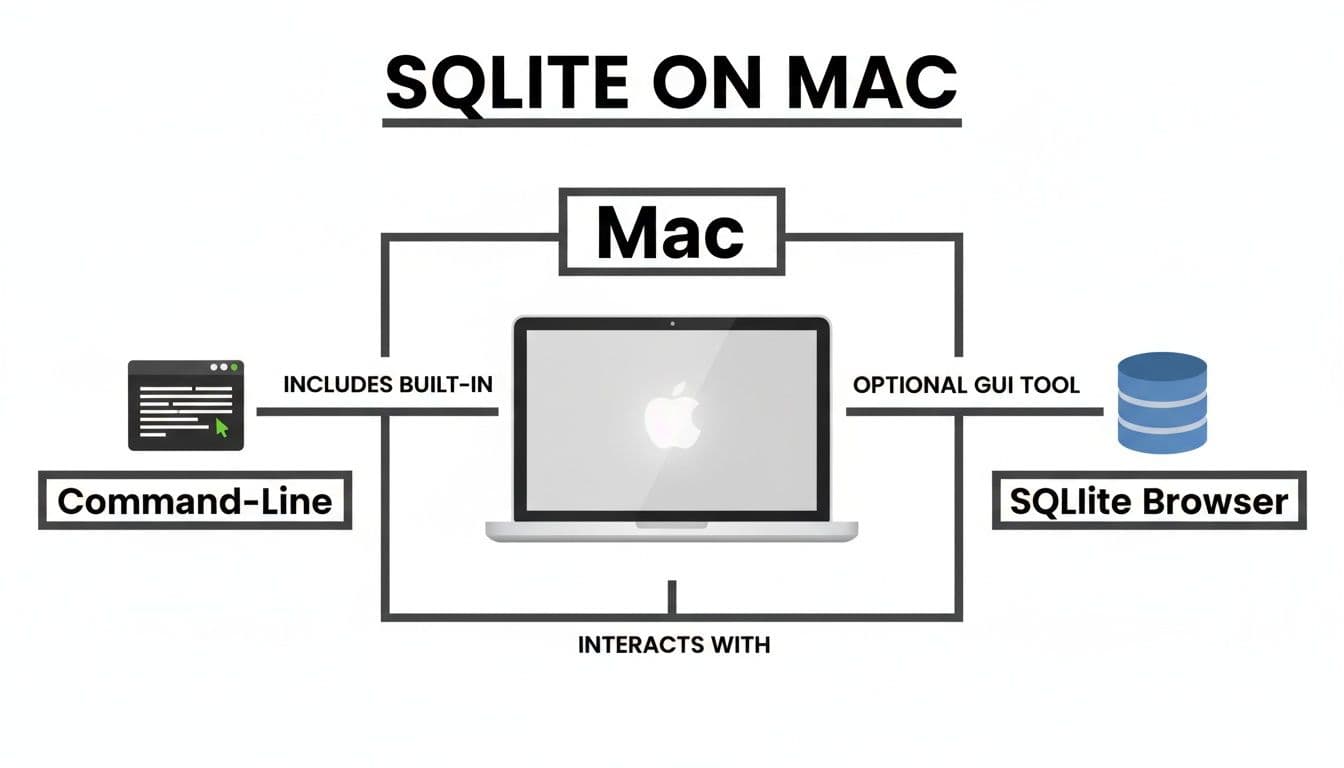
This diagram shows the two paths you can take. For anything beyond a quick check, the visual route offered by a browser is almost always the smarter choice.
Evaluating Your Toolkit: What to Look For
So, what separates a simple viewer from a professional-grade tool? The difference often lies in features that go beyond just displaying data. A good browser should feel like a partner, anticipating your needs and making complex tasks feel simple.
This table breaks down the essential versus advanced features to help you evaluate which SQLite browser best fits your workflow, from basic data viewing to complex database management.
Essential Features in a Modern SQLite Browser for Mac
| Feature | What It Does | Why It Matters for Your Workflow |
|---|---|---|
| Editable Data Grid | Lets you directly view, edit, and add rows in a spreadsheet-like interface. | Essential: The absolute baseline. Example: Fixing a typo in a customer's address is as simple as double-clicking the cell and typing the correction. |
| Simple CSV Import/Export | Provides a straightforward way to get data in and out of your database from CSV files. | Essential: Crucial for seeding a new database, migrating data, or sharing a dataset. Example: You can load a 10,000-row products.csv file into your database in under a minute without writing a single INSERT statement. |
| Visual Schema Editor | Allows you to create or modify tables, columns, indexes, and constraints using a graphical interface. | Important: Saves you from writing tedious CREATE TABLE and ALTER TABLE statements. Example: Adding a new last_login_at column to your users table is a matter of clicking "Add Column" and filling out a form. |
| SQL Query Editor with Syntax Highlighting | A dedicated space to write, run, and see the results of your SQL queries. | Essential: The core of any database tool. Syntax highlighting makes queries readable and easier to debug. |
| Visual Schema Comparison | Graphically highlights the differences between two database schemas (e.g., local vs. production). | Advanced: Prevents deployment disasters by showing you exactly what’s about to change. Example: Before deploying, you can visually confirm that the only change is the new is_active column you added, not an accidental table drop. |
| Foreign Key Navigation | Lets you click on a foreign key and instantly jump to the related record in the parent table. | Advanced: A huge time-saver. Example: While viewing an order record, you can click the customer_id and instantly jump to that customer's full profile in the customers table. |
| Multi-Tab Querying and Pinned Results | Run multiple queries in separate tabs and "pin" important results to keep them visible while you work on other tasks. | Advanced: This is a productivity powerhouse. Example: Run a query for "Top 10 Customers" and pin it, then run another for "Recent Orders" in a new tab to compare the results side-by-side. |
Ultimately, while the essentials get the job done, the advanced features are what truly accelerate your work and prevent costly mistakes.
Beyond Basic Data Viewing
A top-tier SQLite browser should feel like a natural extension of your IDE, not just another window on your screen. It’s all about giving you immediate insight and control.
Here are a few features that make a massive difference in day-to-day work:
- Visual Schema Comparison: Imagine you’ve tweaked your local database schema and need to push it to production. Instead of manually checking every change, a visual diff tool can instantly highlight every new table, altered column, or modified constraint. This is your safety net against deployment errors.
- Foreign Key Inspector: Ever tried to make sense of a legacy database with dozens of interconnected tables? Rather than writing complex
JOINs just to see how things connect, a foreign key inspector lets you visually navigate those relationships. Just click a key, and you're instantly taken to the related record. - Advanced Query Tools: A great query editor is more than a simple text box. You should be able to run multiple queries in different tabs, save useful snippets for reuse, and pin query results so you don’t lose that crucial finding while you start on a new task.
These aren't just fancy extras; they're tools that save you from the tedious, error-prone work that kills productivity. You get to focus on building features, not wrestling with SQL syntax.
Powerful Data and Schema Manipulation
The best tools empower you to manage the entire database structure—not just the data inside it—with confidence and precision. This is where you'll find the most significant time savings.
The goal of a modern SQLite browser isn't just to make database tasks possible, but to make them predictable and fast. It should anticipate your needs, from quick edits to complex schema migrations.
For instance, a DevOps engineer managing a production Postgres database and a developer prototyping with a local SQLite file have different needs but can benefit from a unified tool. Modern solutions like TableOne provide built-in utilities that go far beyond basics. You can create indexes, copy entire tables between different database systems, or generate schema snapshots for code reviews—all tasks that are clumsy and slow without a proper GUI.
Native Feel and Cross-Platform Power
macOS users expect a certain level of polish. With Safari holding 16.46% of the browser market and macOS itself at 4.78% of platform share, developers are accustomed to apps that feel native and thoughtfully designed. This expectation absolutely extends to developer tools.
Beekeeper Studio is a great example of a Mac-friendly option that supports real-time editing for SQLite and other databases. Meanwhile, a tool like Base for macOS specifically addresses a common SQLite pain point by simplifying complex table alterations that are notoriously difficult to do in core SQLite, as developers often point out in community discussions on Hacker News.
A Step-By-Step Guide to Using TableOne
Reading about features is one thing, but the best way to understand a tool is to use it. Let's walk through a real-world scenario to see how a dedicated sqlite browser for mac like TableOne can make your life easier. We'll go from a fresh database file to useful results in just a few minutes.
Imagine you've just been handed the classic northwind.sqlite sample database. Your goal is to poke around, fix a small error, find some specific records, and then share what you found.
Step 1: Open the SQLite Database
First up, we need to get the database open. With a local file, there’s no messy connection setup. Just drag the northwind.sqlite file and drop it onto the TableOne app icon. You could also just use the standard "Open File" menu if you prefer.
The app immediately loads the database, and you'll see all its tables pop up in the sidebar, ready to go. This instant access is exactly what you want from a GUI—no more fumbling with command-line syntax just to peek inside a file.
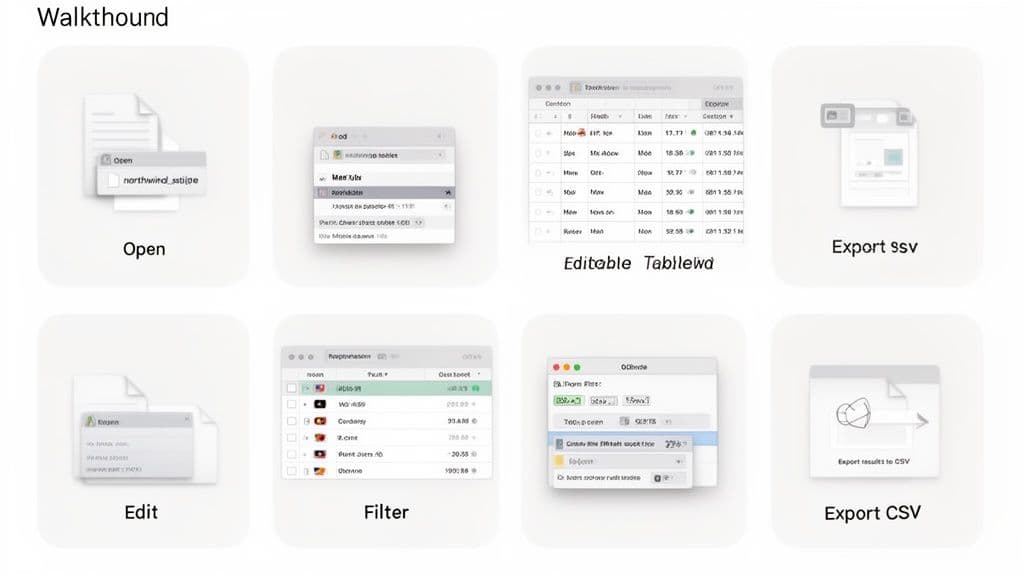
The interface you land on is clean and straightforward, with your tables on the left and your data front and center.
Step 2: Edit a Record in the Data Grid
Alright, let's make a quick edit. Click on the Customers table in the sidebar to see its contents. You spot a small typo in a customer’s contact name that needs to be corrected.
Forget about writing an UPDATE statement. Here, you can just work with the data like it’s a spreadsheet.
- Scroll to find the record for "Alfreds Futterkiste".
- Double-click the
ContactNamecell, which currently reads "Maria Anders". - Type in the correction, "Maria Anders-Schmidt", and hit Enter.
And that’s it. Your change is saved directly to the database file. For quick fixes, data entry, or just testing things out, this kind of direct editing is a massive time-saver.
Step 3: Filter Data to Find Specific Customers
Next, your boss asks for a list of all customers located in Germany. You could scroll through the whole table, but that’s a pain. Writing a WHERE clause feels like using a sledgehammer to crack a nut for a request this simple.
This is where visual filtering shines.
With a well-designed SQLite browser, simple data exploration should never require writing code. Your focus should be on asking questions, not on remembering SQL syntax.
To get your list of German customers:
- Click the "Filter" button right above the data grid.
- A new bar appears. In the first dropdown, choose the
Countrycolumn. - Leave the operator as "is".
- In the text box, type "Germany" and press Enter.
Instantly, the grid updates to show only the 11 customers from Germany. What was a data chore becomes a simple point-and-click task.
Step 4: Run a Quick SQL Query
Visual tools are fantastic, but some jobs just need the power of raw SQL—especially when you need to join tables. Let's find all the orders placed by customers from the UK, which means we need to connect the Customers and Orders tables.
Pop open the query editor and paste in this SQL statement:
SELECT
  o.OrderID,
  c.CompanyName,
  o.OrderDate
FROM Orders o
JOIN Customers c ON o.CustomerID = c.CustomerID
WHERE c.Country = 'UK';
The results show up immediately. But what if you need to compare these results against another query? In TableOne, you can pin the results. This locks the result set into its own tab, so it won’t disappear when you run a new query. It's incredibly useful for comparing different views of your data side-by-side.
Step 5: Export Your Filtered Data to CSV
Finally, you need to send that list of German customers to a teammate who doesn't have access to the database. Your filter from Step 3 is still active, so you can export exactly what you see.
Just click the "Export" button and select CSV as the output format. TableOne will create a clean CSV file with only the filtered data—in this case, your list of German customers.
This whole process, from opening the file to exporting a specific slice of data, takes just a couple of minutes. It’s a perfect example of how the right SQLite browser for Mac can make you far more productive.
Advanced Workflows for Developers and Teams
Sure, looking at data is useful, but a truly great SQLite browser for Mac shines when it becomes part of your day-to-day development process. This is where you move past simple viewing and editing and start tackling tasks that actually save you time and prevent headaches. These are the workflows that make a tool go from "nice to have" to "can't live without."
Let's walk through a few powerful workflows that developers and small teams deal with all the time. These aren't just theoretical features; they're practical solutions to common problems.
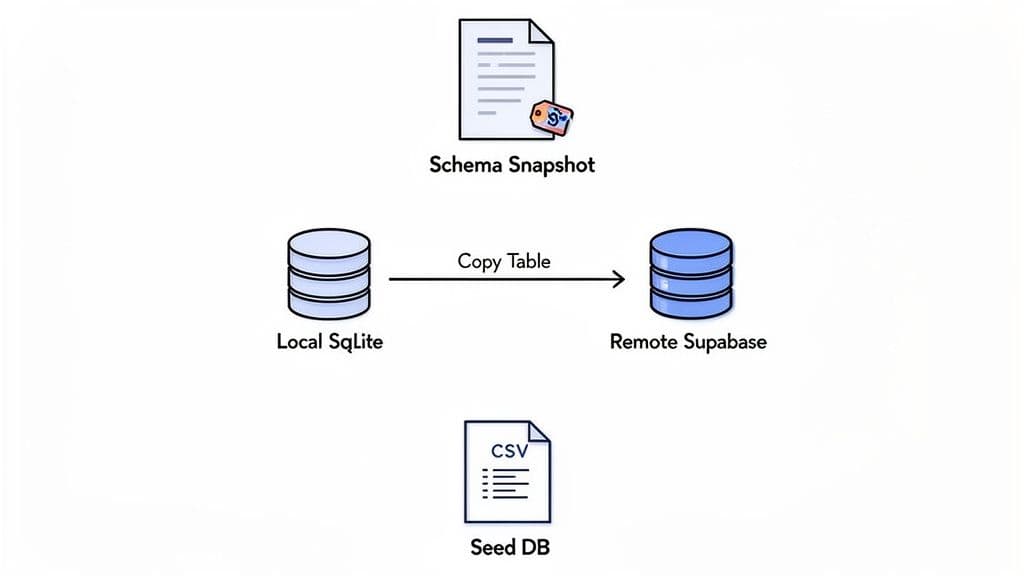
Generate a Schema Snapshot for Code Review
When you change a database schema, just showing the code in a pull request isn't enough. Your teammates need to see the result of that change without having to pull down your branch and run migrations themselves. A schema snapshot gives them that crucial context instantly.
Imagine you've just added a last_login_at column to your users table. Instead of just describing it, you can show them exactly what the new table structure looks like.
Actionable Workflow:
- In a tool like TableOne, right-click the
userstable you just modified. - Find and select an option like "Copy Schema as SQL."
- Paste the generated
CREATE TABLEstatement directly into your pull request description.
This one small step makes code reviews so much clearer. It gives everyone a clean "before and after" picture, which helps catch potential issues and avoids confusion down the line.
Migrate Data Between Local and Remote Databases
Here’s a classic developer task: you’ve built a new feature locally and now you need to move the data to a staging or production environment. Maybe you have a new products table in your local SQLite file that needs to go to a remote Supabase (PostgreSQL) database. Writing SQL scripts for this is not only slow but also incredibly error-prone.
A modern SQLite browser can turn this into a surprisingly simple job. It connects to both databases at once and intelligently handles the differences between them.
Actionable Workflow:
- Connect to your local
development.sqlitedatabase. - Connect to your remote Supabase database using its connection string.
- Now for the magic: simply drag the
productstable from your local connection and drop it right onto the remote Supabase connection in the sidebar.
That's it. The tool does the heavy lifting, generating the correct CREATE TABLE syntax for PostgreSQL and running all the INSERT statements to copy the data. What used to take 30 minutes of careful scripting is now a five-second drag-and-drop.
The ability to seamlessly copy tables and data between different database systems (like SQLite and PostgreSQL) is a hallmark of an advanced workflow. It removes friction and lets developers focus on building, not on data plumbing.
Seed Your Development Database with a CSV File
When you're starting a new project or onboarding a new team member, you need a database with realistic data to work with. Writing thousands of INSERT statements by hand is out of the question. A good SQLite browser for Mac lets you import data straight from a CSV file.
Let's say you have a customers.csv file with 10,000 records. You can get that into your local database in seconds.
Actionable Workflow:
- Right-click on the
customerstable in your database. - Select an "Import from CSV" option.
- Point the tool to your
customers.csvfile and use the visual interface to match the CSV columns to your table’s columns. - Hit "Import," and watch as the tool efficiently loads everything for you.
This is fundamental for building out solid development and testing environments. It ensures you're working with a meaningful amount of data, not just a handful of test records.
Understand a Legacy Database with a Visual Inspector
We've all been there: you inherit an old project with a massive, undocumented database. Your first job is just to figure out how everything is connected. Trying to piece it all together by writing endless JOIN queries is a recipe for frustration.
This is where a visual relationship inspector becomes your best friend. It acts like an X-ray for your database. For instance, you can click on an order_items table and immediately see it's linked to an orders table and a products table. Following these visual links helps you build a mental model of the architecture fast, so you can navigate the project with confidence instead of guesswork.
Best Practices for Database Security
Connecting to a database, especially a live production environment, comes with a huge amount of responsibility. One wrong move could expose sensitive customer data or bring down a critical service. That's why treating security with the utmost seriousness isn't just a good idea—it's an absolute must.
While a good SQLite browser for Mac gives you the right tools for the job, those tools have to be used with discipline. It all starts with the right mindset: assume every connection is a potential risk and take deliberate steps to lock it down.
The Principle of Least Privilege
If you take away only one thing from this section, let it be the principle of least privilege. It's the golden rule of database security. In simple terms, it means any person or application should only have the bare minimum permissions needed to do their job—and absolutely nothing more.
Practical Example: Instead of giving every developer the root password, create a specific role. An analyst's role might only have SELECT access on the sales and marketing tables. A backend service role might only be allowed to INSERT and UPDATE records in the users and orders tables. Permissions like DROP TABLE should be reserved for a highly restricted db_admin role.
By strictly limiting who can do what, you dramatically shrink the blast radius if an account is ever compromised. If an attacker gets their hands on a read-only account, they can see some data, but they can't burn the whole castle down.
Secure Connection Checklist
Before you ever connect to a remote database like PostgreSQL or MySQL, it’s worth running through a quick mental checklist. Think of it as a pre-flight check for your data. A professional GUI tool makes these settings easy to find and configure.
- Always Use SSL/TLS Encryption: This is completely non-negotiable for remote connections. Actionable Insight: In your database connection settings, find the "Use SSL" checkbox and ensure it is always enabled. This encrypts traffic between your Mac and the server, preventing snooping on public Wi-Fi.
- Use a Dedicated User Role: Never, ever use the root user for your daily work. Actionable Insight: When setting up a new connection, always use a user account that has been granted only the permissions you need for the task at hand (e.g.,
analyst_readonly). - Store Credentials Securely: Don't even think about saving database passwords in plain text files. Actionable Insight: A professional SQLite browser for Mac like TableOne integrates with the native macOS Keychain. Use this feature to store credentials safely and automatically. This is a clear sign of a tool built for serious work.
- Consider IP Whitelisting: If your database host supports it, this is a fantastic extra layer of security. Actionable Insight: In your cloud provider's firewall settings (e.g., AWS Security Groups or DigitalOcean Cloud Firewalls), add a rule that only allows connections from your office or home IP address. This blocks access from anywhere else, even if credentials are stolen.
These practices are foundational for protecting your data and your company. For a more exhaustive look, we've put together a guide covering our recommended database security best practices in our dedicated article.
Choosing the Right Tool for the Job
A great SQLite browser for Mac is incredibly handy, but it’s not a magic wand. The secret to being truly effective is knowing exactly when its strengths shine and when it’s time to reach for a more specialized tool. This isn't about one tool being better than another; it's about building an efficient, well-rounded toolkit.
Think of a GUI like TableOne as your go-to for quick, interactive database tasks. It’s the perfect companion when you need to:
- Explore Data Quickly: Browse tables, make a few edits on the fly, and filter data visually without having to write a single line of SQL.
- Manage Your Schema Directly: Create or tweak tables, add indexes, or manage constraints through a straightforward graphical interface.
- Administer Multiple Databases: Connect to and manage SQLite, PostgreSQL, and MySQL databases all from one place.
For these kinds of ad-hoc queries, local development tasks, and routine database check-ups, a GUI is simply faster and more intuitive.
When to Use a Different Tool
But what about the heavy lifting? Knowing when to switch gears is the mark of an experienced developer. For certain large-scale or highly specialized jobs, other tools are built to outperform a general-purpose GUI.
Actionable Insight: A SQLite browser for Mac is not your best bet for deep data science work. For that, switch to environments like Jupyter Notebooks, which work beautifully with libraries like Pandas for analysis and Matplotlib for plotting. These tools are designed from the ground up for statistical modeling and intricate data visualization—tasks that are far beyond simple data browsing.
A skilled developer knows their tools like a chef knows their knives. You wouldn't use a paring knife to chop a pumpkin, and you shouldn't use a database GUI for large-scale data transformation.
The same logic applies when you're building and managing large-scale data transformation pipelines. This is where industry standards like dbt (data build tool) or workflow orchestrators like Apache Airflow come in. They are engineered to handle complex, dependent, and scheduled data jobs, giving you a level of reliability and scalability that a manual GUI process just can't match. If you're curious about the different philosophies behind these interfaces, our breakdown of GUI vs Command Line tools is a great place to start.
By understanding the specific role your SQLite browser plays, you can confidently pick the most efficient and powerful instrument for any job that comes your way.
Frequently Asked Questions About SQLite Browsers for Mac
When you're hunting for the right SQLite browser for Mac, a few key questions always seem to pop up. Getting straight answers is crucial—it's the difference between finding a tool that slots perfectly into your workflow and one that just creates friction.
Whether you're a solo dev or working with a team, you need a tool that just works. Let’s dive into the questions that really matter.
Can I Use One Tool for SQLite, PostgreSQL, and MySQL?
Absolutely. In fact, finding a tool that can speak multiple database "languages" is one of the biggest productivity boosts you can get. Modern database GUIs like TableOne are built to connect to SQLite, PostgreSQL, and MySQL from a single, unified interface.
Actionable Insight: Many developers prototype with a simple local SQLite file but deploy to a production PostgreSQL or MySQL server. Instead of juggling three different apps with their own quirks, a unified tool lets you work in one familiar environment. This turns complex tasks, like copying a table from your local SQLite database to a remote PostgreSQL server, into a simple drag-and-drop.
What Is the Difference Between a Native and Cross-Platform App?
A native Mac app is built from the ground up just for macOS, using Apple's own development tools. The result is usually an app that feels incredibly fast and polished. It fits in perfectly with the rest of the OS, right down to the standard keyboard shortcuts and support for system features like Keychain.
A cross-platform app, on the other hand, is built on a single codebase that can run on macOS, Windows, and Linux. In the past, this sometimes meant a clunky, "un-Mac-like" experience, but modern tools have almost completely closed that gap. The huge advantage here is consistency—if your team uses different operating systems, everyone gets the exact same experience.
A great cross-platform tool strikes a balance: it offers a consistent experience everywhere while still respecting the core conventions of macOS, so it never feels out of place.
Are Free SQLite Browsers Safe for Sensitive Data?
The short answer is: it depends entirely on the tool, not the price tag. Many free and open-source options are perfectly safe—the community-favorite DB Browser for SQLite is a great example. The real question isn't whether it's free, but how it handles your credentials and data.
Actionable Insight: For any tool you consider, paid or free, you must verify that it doesn't store your passwords in plain text. A professional-grade SQLite browser for Mac will always integrate with the macOS Keychain to encrypt and secure your connection details. If a tool doesn't offer Keychain support, you should think twice before using it to connect to any database holding sensitive information.
Ready to manage your databases with a tool built for speed and simplicity? TableOne gives you a powerful, predictable GUI for SQLite, PostgreSQL, and MySQL in a single, clutter-free app. Try it today and see how much faster your daily data work can be. Download your free trial of TableOne.