Explore gui vs command line interface: Choose Your Database Automation Tool
Discover gui vs command line interface pros and cons for database tasks in 2026, boosting automation, scripting, and daily workflows.
The choice between a graphical user interface (GUI) and a command-line interface (CLI) really boils down to a simple trade-off: do you prefer a visual, point-and-click environment, or a text-based one that prioritizes raw speed and automation? One isn't inherently better than the other; your decision in the GUI vs. command line interface debate depends entirely on the task at hand.
Understanding GUI vs CLI for Database Work
When you're working with databases, this choice isn't just a matter of preference—it directly impacts your daily workflow. It's about how you see, manipulate, and manage your data to get the job done efficiently.
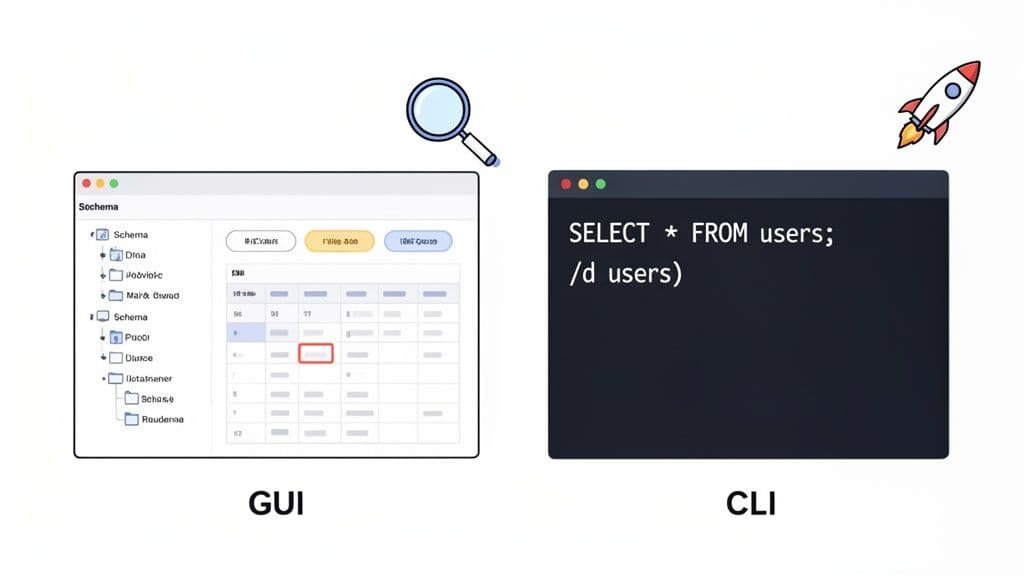
A Graphical User Interface (GUI) gives you a visual canvas. Think of a modern desktop client like TableOne, where you can click through a PostgreSQL schema, edit data directly in a spreadsheet-like grid, or build complex filters without writing a single line of SQL. This approach is fantastic for exploring unfamiliar databases, running quick ad-hoc queries, and situations where just being able to see the data is half the battle. For many of us, a good database tool is non-negotiable.
This isn't just an anecdotal observation. The market for GUI design software was valued at USD 885.80 million in 2022 and is expected to climb to USD 2,071.64 million by 2031. This trend shows a clear industry-wide investment in making complex systems more accessible and intuitive for developers and data professionals alike.
How a Command Line Interface Differs
On the other side of the coin is the Command-Line Interface (CLI). Using a tool like psql for PostgreSQL, you interact with the database using precise text commands. Instead of clicking on a table name, you type a command like \dt to list all tables. To view the first 10 rows of a users table, you'd type SELECT * FROM users LIMIT 10;. This method requires you to know the specific syntax, but what you lose in visual hand-holding, you gain in speed and scriptability.
This is where the CLI truly excels. For any task that's repetitive or needs to be automated—like running nightly backups, deploying schema changes in a CI/CD pipeline, or managing remote servers—the command line is king. You simply can't have a person clicking buttons on a server in the middle of the night.
The core decision in the GUI vs. CLI debate for databases isn't about which is "better" overall, but which is better for the specific job at hand. The right tool depends on your task, expertise, and whether your goal is discovery or automation.
To put these differences in perspective, here's a quick side-by-side comparison that breaks down the core characteristics of each interface for database work.
Quick Comparison GUI vs CLI for Database Tasks
| Characteristic | Graphical User Interface (GUI) | Command-Line Interface (CLI) |
|---|---|---|
| Interaction Style | Visual (point-and-click, drag-and-drop) | Text-based (commands and arguments) |
| Learning Curve | Low; intuitive for beginners | Steep; requires memorizing commands |
| Best For | Exploration, complex one-off tasks, data visualization | Automation, scripting, repetitive tasks, server management |
| Example Task | Visually comparing two database schemas side-by-side | Running an automated nightly backup script |
Ultimately, most experienced professionals don't choose one and abandon the other. They learn to use both, reaching for the GUI when they need to explore and understand, and turning to the CLI when they need to automate and execute.
Analyzing Productivity and Learning Curves in Your Workflow
When people argue about GUIs versus the command line, the conversation almost always lands on productivity. But "productivity" isn't a single metric—it's deeply personal and depends entirely on the task at hand, your experience level, and the tool you're using. The real difference emerges when you look at the learning curve and how each interface helps you get work done.
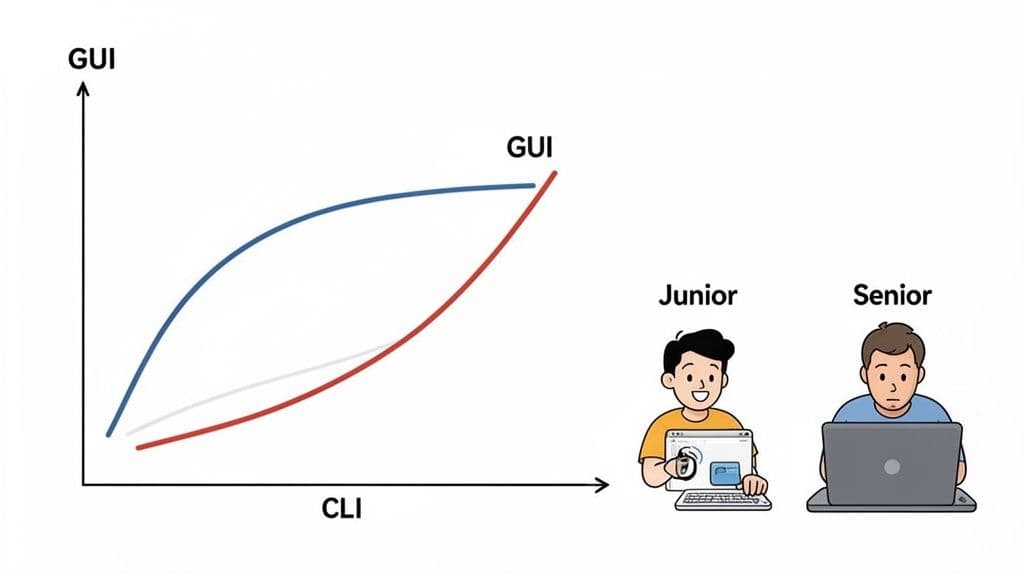
Getting good with a Command-Line Interface (CLI) is a serious commitment. You have to memorize a mountain of commands, their specific syntax, and countless flags. That initial investment of time and effort absolutely pays off, giving experts incredible speed for repetitive tasks, but it's also a high wall to climb for anyone just starting out. For example, to connect to a remote PostgreSQL database, you might type psql -h your-host -p 5432 -U your-user -d your-db. Forgetting a single flag means the command fails.
On the other hand, a well-built Graphical User Interface (GUI) is designed for discoverability. Its visual, point-and-click nature invites you to explore features and options without needing to know anything beforehand. This dramatically lowers the barrier to entry, making GUIs a fantastic choice for newcomers or for tasks you only do once in a while.
The Impact on Daily Tasks
Think about a junior developer or data analyst who needs to get familiar with a new database schema for the first time. Their experience will be completely different depending on the tool.
- With a GUI: They can visually navigate tables, see how they're related, and check column data types in just a few minutes. A tool like TableOne lets them build a mental map of the database structure right away, no commands required.
- With a CLI: That same task demands a sequence of specific commands, like
\dinpsqlorSHOW TABLESin MySQL. To see relationships, they might need to run\d+ your_table_nameto find foreign key constraints. It's fast if you have the commands down cold, but it’s a frustrating dead-end if you don’t.
This accessibility isn't just for beginners. Even seasoned developers often turn to visual tools for their daily work. A 2020 Stack Overflow survey revealed that 73% of developers use IDEs with powerful GUIs, while only 12% stick to pure command-line editors. For database tasks specifically, usability studies suggest GUIs can reduce error rates by 30-40% compared to writing raw queries—a massive gain for teams trying to move quickly. You can explore more insights about GUI software market trends.
The idea of 'peak productivity' is often misunderstood. While a CLI offers pure speed for known, repeatable commands, a GUI improves overall efficiency for complex or unfamiliar tasks by lowering cognitive load and preventing mistakes.
Balancing Speed and Cognitive Load
There’s no question that an expert can type a command much faster than a GUI user can navigate through a few menus. But that comparison only holds true when the expert knows the exact command they need.
When you're facing a new problem or trying to piece together a complex, multi-stage query, the mental energy needed to build the right command sequence in a CLI can be immense. A GUI offloads a huge chunk of that cognitive burden. Instead of struggling to recall syntax, you can focus on the problem you're trying to solve, using visual aids to construct queries, filter data, and understand the results.
This becomes especially important during high-stakes situations, like troubleshooting a bug in production. In those moments, clarity and accuracy are far more valuable than raw input speed. Ultimately, the GUI vs command line interface choice is about finding the best way to optimize human efficiency, not just the machine's.
Comparing Performance, Resource Use, and Automation
When we talk about performance in the GUI vs. command line debate, the conversation often starts and ends with a simple truth: the CLI is lighter and faster. While that’s technically correct from a machine's point of view, real-world performance is about more than just raw processing power. It’s a balance between how efficiently the computer runs and how efficiently a person can get their job done.
From a pure resource standpoint, the command line is king. It doesn’t have to bother rendering icons, windows, or menus, so it sips memory and CPU. This minimalist approach is exactly why it’s the go-to for server-side operations and automation, where every system resource is precious.
A nightly database backup is a perfect example. You can set up a simple cron job to run a pg_dump command, like pg_dump -U your_user -W -F t your_database > backup.tar, and it will do its work reliably in the background without hogging resources. It’s a classic set-it-and-forget-it task where the CLI’s efficiency really shines.
Balancing Human Speed with Machine Speed
But what about the person sitting at the keyboard? Their performance—how quickly and accurately they can finish a task—is just as important. This is where GUIs often come out ahead, especially for tricky or unfamiliar jobs that involve a lot of exploration.
This trade-off is clear in the market. Even though a CLI can use 10x less memory, the global market for GUI design software was valued at a massive USD 2.5 billion in 2024. It's projected to hit USD 8.59 billion by 2033, a testament to how much companies invest in good user interfaces to cut down on human error and speed up interactive work. You can read the full research about the GUI software market for more on this trend.
The core performance question is this: Are you optimizing for the computer or the user? For automated server tasks, optimize for the computer with a CLI. For interactive problem-solving, optimize for the user with a GUI.
Imagine you get an urgent call about a data issue in production. A developer is under pressure to find and fix the problem, and every second counts.
In a GUI like TableOne, you can jump right in, filter a table with a few clicks, see how it connects to other data, and edit a bad entry in a simple grid. Trying to write the equivalent SELECT, JOIN, and UPDATE statements from scratch in a terminal would be slower and far riskier. One typo in UPDATE users SET status = 'inactive' WHERE user_id = 12346; (notice the wrong user_id) could bring everything to a halt or, worse, corrupt the data.
The same goes for something like a complex schema migration. What could take hours of careful scripting, testing, and debugging in the command line can often be handled in minutes with a GUI’s visual schema comparison tool. In these moments, the GUI isn't just about looking nice; it's about reducing mental overhead and preventing costly mistakes, which is its own kind of performance.
Real-World Scenarios: When to Choose GUI vs. CLI
Let's move past the theory. The real question in the GUI vs. command line interface debate is which tool gets the job done faster and with fewer headaches right now. It’s not about picking a side; it's about making a smart, tactical choice based on the task in front of you.
Your role and your immediate goal are everything. A DevOps engineer scripting a deployment has fundamentally different needs than a product manager pulling a quick report. Understanding this context is what separates frustrating workarounds from a truly productive workflow.
This decision guide helps visualize that choice. At its core, it boils down to one thing: are you interacting with the data, or are you automating a process?
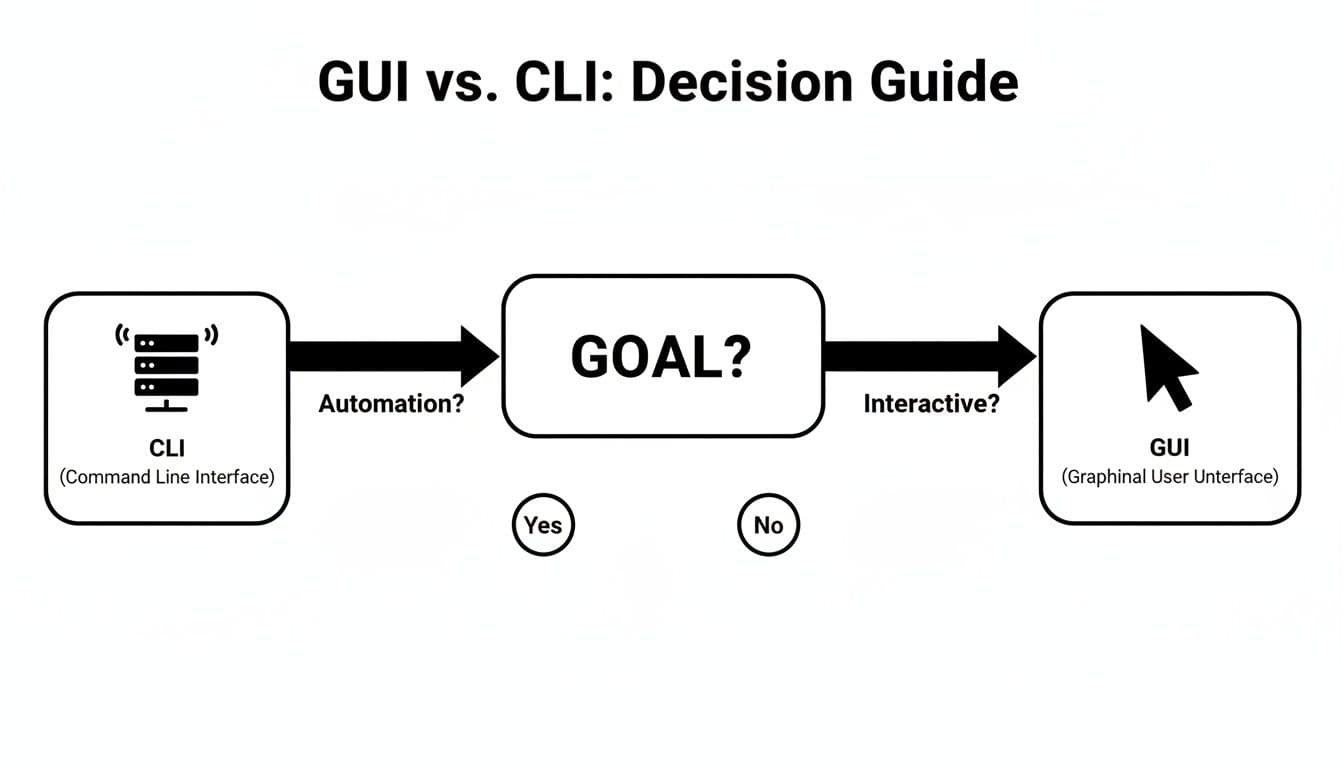
As you can see, your intent is the most critical factor. Interactive, exploratory work often points to a GUI, while repetitive, automated tasks are the command line's home turf.
Running a Quick, One-Off Query
Imagine you get a Slack message from marketing: "How many new users did we get last Tuesday?" This is a classic ad-hoc request, and it's the perfect job for a database GUI. The priority here is getting a fast, reliable answer without fumbling with syntax under pressure.
Using a GUI, you can quickly connect to the database, pop open a new query tab, and type out a simple SELECT COUNT(*) FROM users WHERE created_at >= '2023-10-24' AND created_at < '2023-10-25';. The results appear in a clean, readable table instantly. You don't have to wrestle with connection strings or pipe the output to a formatting tool. It’s all about getting in, getting the data, and getting back to your day.
Could you do this in the CLI? Absolutely. But for a one-time check, the CLI introduces unnecessary risk. A simple typo in the WHERE clause might pull the wrong numbers or, worse, an error that sends you down a debugging rabbit hole. Here, the GUI's visual clarity and safety net are far more valuable.
Prototyping a New Feature
When you're building a new feature, your biggest needs are speed and the freedom to experiment. You're constantly adding tables, tweaking columns, and seeding test data. This is where a GUI-heavy, hybrid approach really shines.
A developer using a modern client like TableOne can visually sketch out a new profiles table, add columns for user_id, bio, and avatar_url, and then set up a foreign key back to the users table, all with just a few clicks. The immediate visual feedback makes it incredibly easy to catch design flaws and adjust the schema on the fly.
While you can do all of this with
CREATE TABLEandALTER TABLEcommands in the terminal, the GUI accelerates the entire trial-and-error cycle that is central to prototyping. It lets you stay focused on the logic of your data model, not the specifics of SQL syntax.
Automating Database Health Checks
Now for a task on the other end of the spectrum: a recurring, automated health check to monitor database connectivity and performance. This is 100% a job for the CLI. You need a process that is repeatable, scriptable, and can run on a server with zero human oversight.
A DevOps engineer would write a small shell script using a command-line tool like psql or mysql to execute a simple diagnostic query (e.g., SELECT 1;). By checking the command's exit code, the script can immediately know if the database is responsive. If it fails, it can trigger an alert in PagerDuty or Slack. This script then gets scheduled as a cron job to run every five minutes.
Trying to automate this with a GUI is simply not practical. GUIs are built for a person to be present and interacting with them. The CLI's lightweight, non-interactive nature is exactly what makes it the only real choice for robust, server-side automation. If you're new to this, our guide on how to connect to a PostgreSQL database can help you get started with the command-line tools.
Task-Based Tool Recommendation: GUI vs. CLI
To make the choice even clearer, here’s a quick breakdown of common database tasks and which tool is generally the better fit.
| Database Task | Recommended Tool | Why It's a Better Fit |
|---|---|---|
| Data Exploration & Analysis | GUI | The ability to quickly sort, filter, and visualize data in a spreadsheet-like view is invaluable for finding insights. |
| Schema Design & Prototyping | GUI | Visually creating tables and relationships provides instant feedback and makes complex schemas easier to understand. |
| Writing Complex Queries | GUI | A good GUI offers syntax highlighting, autocompletion, and query history, which dramatically speeds up development. |
| Quick Ad-Hoc Lookups | GUI | It's the fastest way to get a simple answer without worrying about connection syntax or output formatting. |
| Database Backups & Restores | CLI | These are critical, repetitive tasks perfect for automation. Scripts ensure consistency and reliability. |
| CI/CD Migrations | CLI | Database migrations must be run automatically within deployment pipelines, making the CLI the only option. |
| Bulk Data Imports/Exports | CLI | For large datasets, CLI tools are faster, more memory-efficient, and can be easily scripted. |
| Server Monitoring & Health Checks | CLI | Essential for automated, unattended monitoring that can trigger alerts when something goes wrong. |
This table isn't a set of rigid rules, but a guide to help you choose the path of least resistance. The most effective professionals are comfortable in both environments and know when to switch.
Embracing Hybrid Tools for Modern Database Work
For years, developers have argued over which is better: a graphical user interface (GUI) or the command-line interface (CLI). But that entire debate misses the point. The most effective tools today don't force you to pick a side; they give you the best of both.
This isn't a new concept. We've seen it play out with code editors. Top-tier IDEs like VS Code didn't succeed by ignoring the terminal; they brought it right into the main window. This allows developers to jump from visually editing code to running command-line scripts without missing a beat. The same philosophy is now shaping the most powerful database clients.
The Best of Both Worlds
When it comes to databases, a hybrid tool gives you a visual canvas for safe exploration and a powerful, raw SQL editor for when you need to get your hands dirty. Think of it as having a point-and-click schema browser and inline data editing sitting right next to a full-featured query editor with history, syntax highlighting, and autocomplete.
This blended approach is a game-changer for teams with varying levels of experience.
- For Junior Developers: A visual interface is a crucial safety net. They can browse production data, apply filters, and understand table relationships without the fear of writing a
DELETEquery that takes down the system. - For Senior Engineers: The integrated SQL editor gives them the unfettered power they’re used to. They can write complex migration scripts, fine-tune performance, and perform advanced database administration with absolute precision.
The real magic of a hybrid tool is that it doesn’t hide the power of SQL. It just wraps it in a safer, more intuitive environment so everyone on the team can work confidently.
Hybrid in Action: A Unified Workflow
A modern desktop client like TableOne is a perfect example of this idea in action. It was built from the ground up on the principle that you shouldn't have to sacrifice a GUI's clarity for a CLI's control. For instance, a product manager can open it up, use the visual filters to check daily user sign-ups, and get their answer in seconds—no SQL required.
Meanwhile, a developer on the same team can have the very same application open to write a tricky, multi-stage UPDATE script. They can use the powerful SQL editor to get the logic just right before running it. Everyone gets what they need without constantly switching between different tools. To make the right choice, it helps to know what makes for the best database client for today's workflows.
Ultimately, a developer's needs can change by the minute. The best tool is the one that can change right along with them.
When a Modern GUI Is Your Best Bet
Look, the command line is powerful, no doubt. For automation and raw scripting, it's king. But what about the day-to-day grind? The real test is when you hit those specific, nagging pain points in your workflow that just slow you down. This is where a modern GUI stops being a luxury and starts becoming a necessity.
A good GUI isn’t just about making things look pretty; it's about making your work safer, simpler, and more focused. When you’re tired of managing a dozen different command-line tools for a dozen different databases, or when the fear of a typo in a production UPDATE keeps you up at night, it's time to consider a visual interface. It’s about shipping work you can actually trust.
Solving Common Developer Frustrations
I've seen developers and small teams get bogged down by the same issues time and again. If any of these sound painfully familiar, a dedicated GUI is almost certainly the right move.
- Juggling Multiple Tools: Do you have
psqlopen in one terminal,mysqlin another, and a separate app just to peek at an SQLite file? A unified GUI like TableOne consolidates PostgreSQL, MySQL, and SQLite into a single, cohesive interface. You get one consistent workflow for all your projects. - High Subscription Costs: Recurring software fees can bleed a small team or a solo developer dry. Opting for a GUI with a straightforward, one-time license gives you a powerful tool without the financial headache of yet another monthly subscription.
- Risky Manual Data Entry: Manually writing
UPDATEstatements to fix a single record is a recipe for disaster. One misplacedWHEREclause can cause irreversible damage. A GUI with a spreadsheet-like grid lets you edit data inline, so you can see exactly what you're changing before you commit.
The real value of a modern GUI isn't just about looking nice—it's about addressing specific, expensive problems. It saves time, reduces cognitive load, and eliminates the friction that comes from using a collection of single-purpose tools.
When a GUI Is the Obvious Choice
Beyond fixing general frustrations, some roles and tasks are just a natural fit for a graphical tool. In these situations, the GUI vs command line interface debate isn't much of a debate at all—the visual approach wins on speed, clarity, and reliability.
Here are a few classic scenarios where a GUI shines:
- For Indie Developers: You're prototyping an app with a backend-as-a-service like Supabase or Neon. A GUI lets you visually design your schema, seed initial data, and iterate incredibly fast without getting lost in command-line syntax.
- For Data Analysts: Importing and exporting CSVs is a daily task, but it can be a nightmare in the terminal. A GUI's import wizard guides you through mapping columns and handling tricky parsing issues, turning a frustrating process into a few simple clicks.
- For Engineers Migrating Schemas: Before you deploy, you need to be 100% sure your local database schema matches the remote one. A visual diff tool is perfect for this, instantly highlighting any discrepancies so you can prevent a broken migration before it ever happens.
Frequently Asked Questions
When you're weighing whether to use a GUI or a command line for your database work, a few common questions always seem to pop up. Let's tackle them head-on with some practical, real-world advice.
Can I Succeed as a Developer Using Only a GUI?
Yes, absolutely. A developer’s most critical skills are a deep understanding of SQL and solid database design principles. The tool you use to write and run your queries is secondary to that foundation.
Modern database GUIs are incredibly powerful, with top-tier SQL editors and all the management features you need for day-to-day development. While knowing your way around the CLI is a huge plus for automation and server-level tasks, you can be a highly effective and productive developer armed with just a great GUI.
Is the Command Line More Secure Than a GUI?
Not by default. Real security comes from your connection protocols—things like SSH tunneling and SSL encryption—and correctly configured user permissions. These principles apply whether you're connecting through a terminal or a visual client.
In fact, you could argue a GUI sometimes has a security edge. By making complex security settings more visible and manageable, a GUI can help you avoid the simple human errors that often lead to vulnerabilities.
The biggest security risk in any setup is almost always user error. A well-designed GUI can act as a safety net with features like transaction previews or the ability to disable destructive commands on production connections—safeguards a raw CLI simply doesn't have.
How Can I Transition from a GUI to the CLI?
The best way is to start small and let your GUI teach you. Most visual clients have a query history or log that shows the exact SQL commands being executed behind the scenes. This is a fantastic way to learn the syntax for actions you already know how to perform visually.
Once you’re ready to get your hands dirty, try this gradual approach:
- Start with Read-Only Commands: Connect to a staging or local database and practice safe commands. Run a few
SELECTstatements or list the tables in your database (e.g.,\dtin PostgreSQL). - Create Aliases: As you start re-using certain commands, make them easier to run by creating shortcuts in your shell profile. For instance, an alias like
showtables="psql -c '\dt'"saves you typing and builds muscle memory. - Practice on Low-Stakes Tasks: Once you're comfortable, try running simple
UPDATEstatements on a development database. Get a feel for the workflow before you even think about touching a live production system.
Ready to stop juggling tools and embrace a more predictable database workflow? TableOne offers a modern, cross-platform GUI with a simple one-time license. Explore tables, edit data safely, and ship with confidence.