Choosing the Best Mac Database Tool for 2026
Discover the best Mac database tool for your workflow. An in-depth comparison of GUI tools for PostgreSQL, MySQL, and SQLite on macOS with actionable insights.
Picking a Mac database tool isn't just about personal taste—it's a decision that directly shapes your daily productivity. The right tool can feel like a superpower, while the wrong one introduces constant friction, turning even the simplest tasks into a grind. For any developer, analyst, or engineer working on a Mac, a great GUI is non-negotiable.
Why Your Choice of Mac Database Tool Matters
Let's face it, macOS is the standard for a huge number of us. A native, responsive database client isn’t a nice-to-have; it's a fundamental part of a modern, efficient workflow. Clunky, poorly designed tools just waste time, invite manual errors, and build up a low-grade frustration that wears you down.
A good tool, on the other hand, gets out of your way and makes essential tasks feel effortless. This pays off in very real ways:
- Actionable Insight: The right tool turns tedious tasks into quick actions. Instead of manually writing a
CREATE TABLEstatement, a good GUI lets you build it visually, reducing typos and saving minutes. For instance, when you can duplicate a table's structure with a right-click and a "copy" command, you can prototype a new feature in a fraction of the time. - Fewer Mistakes: Visualizing data relationships and working in a clean query editor helps you catch the kind of common errors that are all too easy to make on the command line. A practical example is spotting a
WHEREclause typo in aDELETEstatement because the result preview shows all rows are about to be deleted, not just the two you intended. - Easier Teamwork: Tools that handle schema comparisons or share connection profiles make it much simpler to keep development, staging, and production environments in sync. Imagine onboarding a new developer: instead of them manually configuring five database connections, you can just export a single connection file for them to import.
The Ever-Expanding World of Data
The need for good tooling is only growing. The database management system (DBMS) market is exploding, with enterprise data volumes projected to hit a staggering 181 zettabytes by 2025.
Databases like PostgreSQL and MySQL consistently land in the top three most-used systems worldwide, so solid support for them is a must-have. You can see just how popular different systems are by checking out the latest rankings on Statista.com. This growth makes your choice of tool more critical than ever.
How We're Evaluating the Tools
To find the best Mac database GUI, we need to go deeper than a simple feature list. Our comparison is all about practical, real-world value.
A great tool doesn’t just have more features; it has the right features, presented so intuitively that your workflow feels seamless. It almost seems to know what you need to do next.
We're judging the top contenders against four core criteria:
- Ease of Use: How quickly can you get up and running? Is the interface actually intuitive or just cluttered? Practical test: How many clicks does it take to connect to a new database and run your first query?
- Performance: How fast and reliable is it when connecting to core databases like PostgreSQL and MySQL? Does it lag or freeze when loading a table with 100,000 rows?
- Workflow Support: Does it have smart, dedicated features for common jobs like schema diffs or handling CSV files? Actionable test: Can you generate a migration script from a schema comparison, or does it just show you the differences?
- Total Cost of Ownership: Beyond the sticker price, what’s the real value you get from the license and update model?
Looking at each tool through this lens will help you make a choice that gives you a genuine edge in your day-to-day work.
Comparing the Top Mac Database GUIs
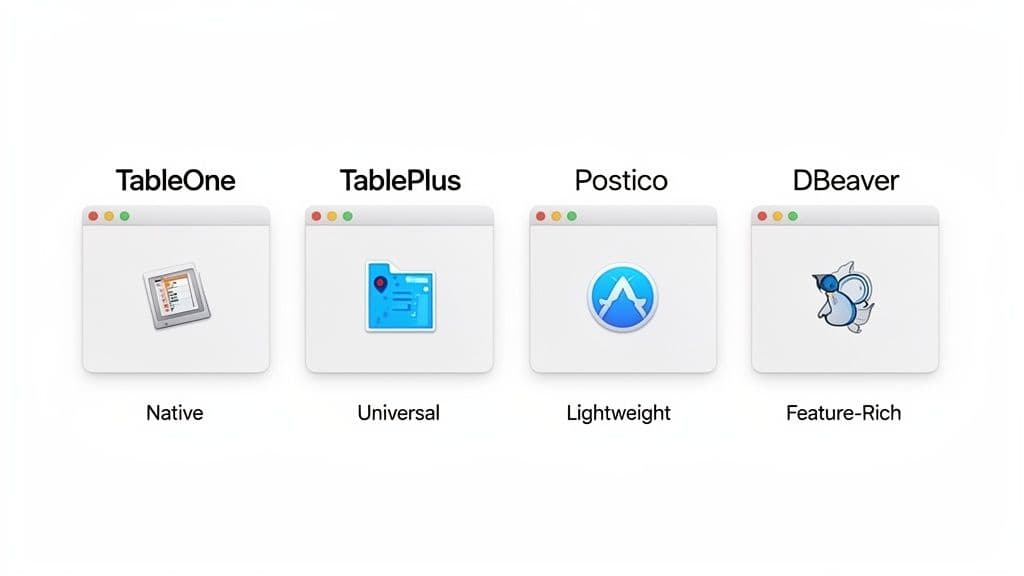
Trying to find the right Mac database tool can feel like a chore. Everyone has a favorite, and after a while, all the feature lists start to look the same. To help you cut through the noise, we're going to take a hard look at the four big players: TableOne, TablePlus, Postico, and DBeaver.
What really sets these tools apart is their core philosophy. At one end of the spectrum, you have universal, do-it-all clients like DBeaver, designed to connect to practically anything. On the other end are native, workflow-first apps like TableOne and Postico, which trade universal compatibility for a polished, Mac-centric experience on a handful of popular databases.
H3: Core Philosophy and User Experience
This difference in approach has a huge impact on the day-to-day user experience. A Java-based, cross-platform tool like DBeaver offers incredible flexibility by supporting dozens of database engines. The tradeoff, however, is often a clunkier interface that just doesn't feel at home on macOS.
A truly native app, in contrast, feels snappy and intuitive. It follows the macOS conventions you already know for keyboard shortcuts, window management, and design. This isn't just about looks—it’s about reducing friction. When an app works the way you expect, you get your work done faster and with less frustration.
Actionable Insight: A key differentiator is how a tool handles the constant evolution of macOS. A well-maintained native app will feel stable and reliable, even after a major OS update, because it's built with Apple's own tools. For example, when a new version of macOS changes how windows behave, a native app adapts seamlessly, whereas a cross-platform tool might suddenly exhibit weird visual glitches or broken dialogs until its underlying framework is updated.
There's no denying the appeal of macOS for developers. While its global market share is modest, it’s the platform of choice for a huge number of professionals. This concentration of developers, often working with databases like SQLite and PostgreSQL, creates strong demand for high-quality, native tools.
But the macOS ecosystem moves fast. For example, macOS 26.3 rocketed to nearly 40% market share in just one month. This kind of rapid adoption means your Mac database tool must keep up to ensure your workflow doesn't break. You can dig into this trend and its impact by checking out the latest macOS version survey findings on telemetrydeck.com.
H3: A High-Level Overview
To get started, let's summarize each tool's primary focus, strengths, and business model. This table offers a quick way to see which options might be a good fit before we dive into specific real-world tasks in the next section.
High-Level Comparison of Popular Mac Database Tools
| Tool | Core Philosophy | Primary Databases | Pricing Model | Best For |
|---|---|---|---|---|
| TableOne | Native performance and workflow-focused utilities in a clean, predictable UI. | SQLite, PostgreSQL, MySQL | One-Time Purchase | Developers wanting a fast, modern GUI without subscription fatigue. |
| TablePlus | A fast, native, and lightweight tool with a simple and clean interface. | PostgreSQL, MySQL, SQLite & more | Subscription | Users who need broad database support in a native macOS app. |
| Postico | A modern, Mac-only client exclusively for PostgreSQL with deep integration. | PostgreSQL | Subscription | Developers working exclusively with PostgreSQL on a Mac. |
| DBeaver | A universal, open-source tool that connects to almost any database. | 100+ databases | Open-Source / Enterprise | Teams needing a single tool to manage a wide variety of data sources. |
This overview sets the stage for a much deeper, task-based analysis. After all, the best tool isn't the one with the longest feature list—it's the one that makes your most common tasks feel effortless. For an even more detailed breakdown, you might also find our guide on choosing the best database client for your needs helpful.
Real World Workflow Performance
 A long list of features looks great on a marketing page, but the real test of a Mac database tool is how it actually performs during your daily grind. We're going to put these tools through their paces with four common, real-world scenarios that every developer or data analyst runs into. This is where you see which apps help you fly and which ones just get in the way.
These aren't obscure edge cases. They are the bread-and-butter tasks where thoughtful design makes a huge difference in your productivity. We'll look at local prototyping with SQLite, managing a production PostgreSQL database, wrangling big CSV files, and comparing schemas between environments.
1. Local Prototyping With SQLite
Every project has to start somewhere, and for many of us, that's by firing up a local SQLite database for quick prototyping. The right tool makes this feel effortless—no fuss, no ceremony, just get to work.
- Actionable Insight: When you're in the prototyping zone, speed is the only thing that matters. Your tool should let you open an
.sqlitefile straight from Finder. TableOne gets this perfectly, treating SQLite files like any other document. You can open a file, poke around the tables, and be running queries in seconds. It feels completely native to the OS. - Practical Example: You've just downloaded a
chinook.sqlitesample database to play with. With a tool like TableOne, you just double-click the file. The app instantly opens, showing you theartistsandalbumstables. With a more generic client like DBeaver, the process is much heavier: you have to launch the app, click "New Connection," select "SQLite" from a long list of drivers, browse to your file, and finally click "Finish." That initial friction can kill your creative momentum.
2. Managing Production PostgreSQL Securely
Connecting to a live, remote PostgreSQL server is serious business. This is where you need rock-solid security, stable connections, and an interface that's clear enough to prevent you from making a catastrophic mistake. The defining factor here is how gracefully a tool handles secure connections like SSH tunneling.
- Actionable Insight: A dedicated and intuitive panel for SSH tunnel configuration is non-negotiable. It absolutely must save credentials to the macOS Keychain and make it trivially easy to reuse that tunnel for other connections. If you manage any databases in the cloud, don't settle for less.
- Practical Example: You need to connect to a production PostgreSQL instance on AWS, which is properly secured behind an SSH bastion host. In tools like TablePlus or TableOne, the connection form has a distinct, easy-to-find section for SSH settings. You plug in your host, user, and private key path once, and it just works. In DBeaver, this can feel like a scavenger hunt through multiple tabs and obscure driver properties just to get the tunnel configured.
The difference is subtle but critical. A well-designed GUI presents SSH tunneling as a core feature, making it feel safe and straightforward. A less integrated tool treats it as an advanced afterthought, which can lead to configuration errors and frustration.
3. Importing and Exporting Data
Shuttling data around is a fundamental part of the job, whether you're seeding a database or pulling a quick report for your boss. The performance and intelligence of CSV import and export functions can be a major deciding factor.
- Actionable Insight: The best tools don't just import a CSV; they guide you. Look for smart features like auto-detecting delimiters, giving you a data preview, and helping you map columns visually. For exports, saving a filtered result set directly to a CSV without any extra steps is a massive time-saver.
- Practical Example: You have a 100,000-row CSV file of new user signups to get into your
userstable. A top-tier Mac database tool like TableOne gives you a dedicated import wizard. You can literally drag and drop columns from your CSV to match the table schema, see a live preview to catch any errors, and have it wrap the whole thing in a transaction. The alternative in lesser tools is often a "run script from file" button, leaving you to write and debug a trickyCOPY FROMstatement by hand.
4. Comparing Database Schemas
Keeping your development, staging, and production environments in sync can be a constant headache. A good schema comparison tool can transform this high-stress, error-prone task into a quick, confident check. We talk more about managing environments in our post about running a database on a Mac.
- Actionable Insight: A truly great schema diff tool does more than just tell you two databases are different. It shows you exactly how they differ and, most importantly, generates the SQL migration script to sync them up. This feature alone can save you hours of tedious manual work and prevent deployment nightmares.
- Practical Example: It's release day, and you need to ensure the staging schema reflects all the changes from development. With TableOne's schema comparison, you just select the two database connections. It immediately gives you a side-by-side view highlighting new tables, changed columns, or missing indexes. The magic is the "Generate Script" button—it spits out all the
ALTER TABLEandCREATE INDEXstatements you need, ready for a final review before running. This is worlds better than manually diffing schema files or wrestling with command-line tools.
A Practical Guide to Cost and Licensing
Let's talk about the money. When you're picking a Mac database tool, the sticker price is just the beginning of the story. The real decision comes down to how you pay for it, which directly impacts your budget, your workflow, and whether you’re locked into paying forever.
You're essentially choosing between buying a tool outright or renting it. Each approach has its merits, and what works for a solo developer is often completely different from what a large company needs.
One-Time Purchase vs. Subscription
This is the main event: do you pay once and own it, or pay a recurring fee for continuous access?
-
One-Time Purchase (e.g., TableOne): You pay a single fee and the software is yours to use indefinitely. This model is a breath of fresh air if you’re tired of subscription fatigue. For freelancers, indie developers, and small teams, it's a straightforward way to manage costs—buy it once and you're done. The only thing to keep in mind is that major version upgrades, which usually bring a slate of big new features, might require a paid upgrade after the first year of included updates.
-
Subscription (e.g., TablePlus, Postico): You pay a monthly or yearly fee. The big advantage here is that you always have the latest version, bugs get squashed quickly, and new features roll out to you automatically. This is often the preferred model for larger companies that treat software as a predictable operating expense and can't afford to fall behind on updates.
Actionable Insight: With a one-time license, you decide when an upgrade is worth the money. If a new version offers a feature you desperately need, you can choose to buy it. If it doesn't, you can stick with what you have. A subscription makes that choice for you in exchange for always being on the latest version, which can be great for hands-off maintenance but less flexible for budget-conscious users.
The Open-Source Alternative
Of course, there's a third option that sidesteps the pay-once-or-pay-forever debate entirely.
- Open-Source / Freemium (e.g., DBeaver): The community edition is completely free, which is an incredible starting point. If you need to connect to a wild variety of databases, DBeaver’s extensive driver support is hard to beat. The "cost" here isn't monetary at first; it's the time you'll invest in navigating its steeper learning curve. For more advanced features or dedicated support, you'll likely need to look at their paid enterprise license.
Choosing a licensing model has become more critical as the software distribution market, projected to reach $536.2 billion by 2036, gets more complex. With companies often facing cost overruns of up to 25% due to SaaS sprawl, a one-time purchase tool like TableOne offers a clear path to avoiding vendor lock-in. And since 40% of demand is driven by workhorses like MySQL and 65% of startups prototype on serverless DBs, having a cost-effective tool you actually own is a powerful advantage. You can dig deeper into these trends by reading the latest software distribution market analysis.
How to Choose the Right Tool for You
Finding the right Mac database tool isn't about chasing a mythical "best" option. It's about finding the one that fits your specific, day-to-day workflow like a glove. A feature that's a game-changer for one person might just be clutter for another. The real trick is to look past the marketing buzz and figure out which client will actually remove friction from the tasks you perform most often.
Instead of a generic list of pros and cons, let's look at this through the lens of a few common roles. See which one sounds most like you and use it to guide your decision.
Are You a Solo Developer or Part of a Team?
Right off the bat, your team structure can point you toward a specific licensing model. This is often the first fork in the road, splitting individual users from larger teams with different needs and budgets.
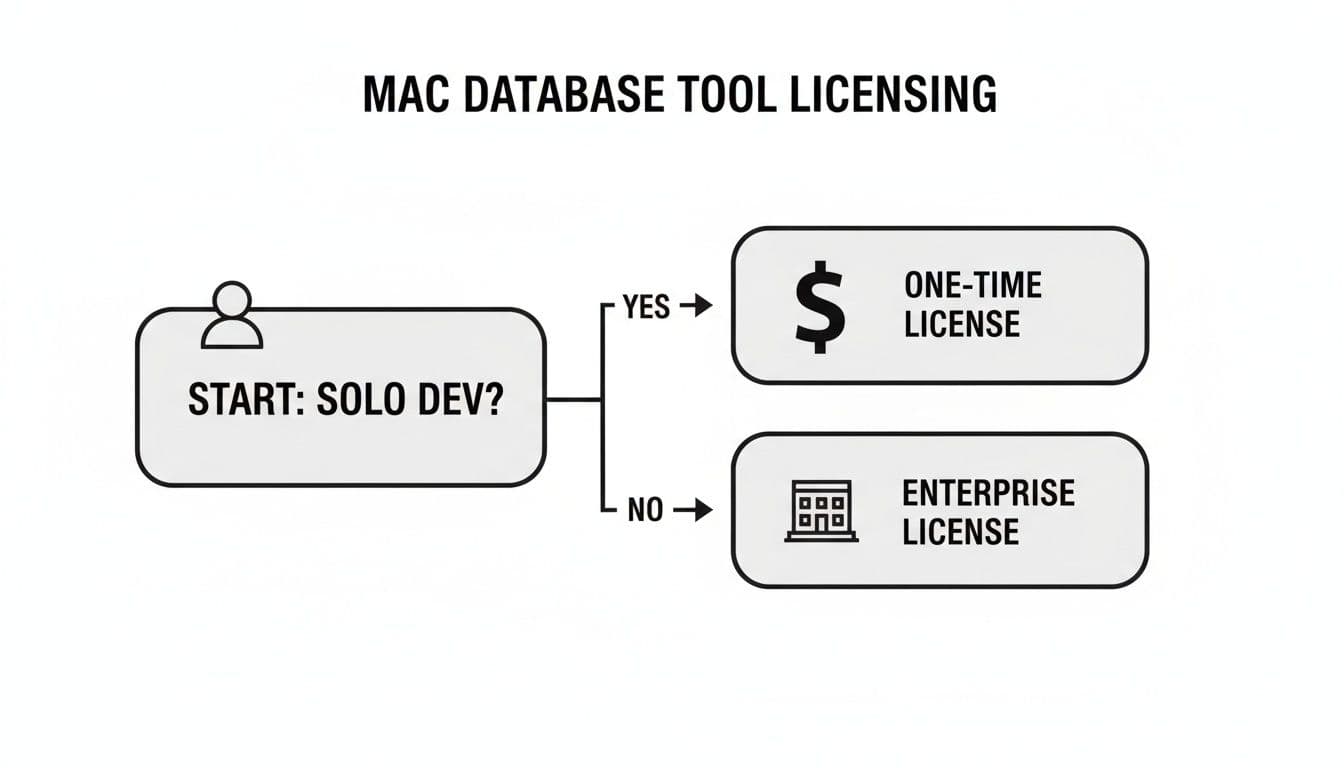
As you can see, the decision often comes down to cost predictability. Solo developers and small consultancies tend to gravitate toward one-time purchases, which keeps overhead low and simple.
For the Backend Developer Obsessed with Schema Integrity
If your days are spent wrangling database migrations and making absolutely sure that staging and production environments are in sync, then your number one priority is a rock-solid schema comparison tool. You need to spot differences instantly and, more importantly, generate flawless migration scripts.
- Actionable Insight: A tool like TableOne was practically made for this. Its schema comparison feature goes beyond just highlighting differences—it actually writes the
ALTER TABLEandCREATE INDEXSQL for you. This transforms a high-stakes, error-prone chore into a quick, confident pre-deployment check. - Practical Example: Before deploying, you compare your
stagingandproductiondatabases. The tool flags that theuserstable on staging has a newlast_login_ipcolumn but is missing an index on theemailcolumn that exists in production. A great tool not only shows you this but gives you a "Generate Script" button that produces the correctALTER TABLE ... ADD COLUMN ...andDROP INDEX ...statements to resolve the discrepancies.
For the Full-Stack Engineer Juggling Multiple Environments
You’re constantly switching hats. One minute you're prototyping a new feature with a local SQLite file, the next you're deploying a hotfix to a remote production PostgreSQL database. For you, speed and seamless connection management are non-negotiable. Clunky connection dialogs or a sluggish client are your worst enemies.
- Actionable Insight: A native Mac database tool that handles both local files and remote servers with equal grace is your best bet. This is where apps like TableOne and TablePlus really pull ahead, offering snappy connections and a clean interface for bouncing between projects.
- Practical Example: Imagine you need to copy a table's structure from your local prototype to a staging server. Instead of scripting the DDL, a good tool lets you right-click the local table and select "Copy Table DDL to Clipboard." You then switch to the staging connection, open a query editor, paste, and run. This kind of workflow efficiency is what you should be looking for.
For the Data Analyst on a Mission for Quick Insights
Your job is to get data in, find the narrative, and share your findings—and you need to do it yesterday. You live and breathe CSV files, so the features you care about most are importing, filtering, and exporting. A tool that makes you wrestle with CSV formats or write complicated COPY statements is a dealbreaker.
Actionable Insight: You need an intelligent import wizard. A tool that auto-detects delimiters, lets you map columns visually, and shows a live preview before committing is your greatest ally. It makes the difference between a 30-second task and a 30-minute headache of debugging a
COPYcommand because the date format was wrong.
- Practical Example: You get a CSV of Q1 sales data. You open the import wizard in a tool like TableOne, and it correctly identifies the comma delimiter and header row. You see a preview and notice the
sale_datecolumn is inMM/DD/YYYYformat, but your table expectsYYYY-MM-DD. The wizard lets you specify the incoming date format on the fly, ensuring a successful import without having to edit the source file. This is the kind of smart assistance that saves hours. You can dig deeper into how various tools compare in our guide to picking a database tool.
When Another Tool Might Be a Better Fit
Let’s be honest: no single tool is perfect for every single person. If your primary role involves connecting to a sprawling ecosystem of niche NoSQL databases or archaic enterprise systems, then a universal client is probably the smarter choice.
- In that arena, DBeaver is the undisputed champion. Its main strength isn't a polished macOS feel, but its staggering breadth of support for over 100 database drivers. If you need to connect to Oracle, Cassandra, and SQL Server all in the same day, its versatility makes it an indispensable part of your toolkit.
Frequently Asked Questions
When you're trying to pick a Mac database tool, the same handful of questions always seem to surface. Getting good, honest answers to these is the difference between finding a tool that feels like a natural extension of your workflow and one that just gets in the way. Let's dig into the most common ones.
What's the Real Difference Between a Native Mac App and a Cross-Platform Tool?
This comes up a lot, and the difference is more than just skin deep. A true native Mac app is built from the ground up for macOS using Apple's own frameworks. A cross-platform tool, on the other hand, is usually built on a framework like Java or Electron, designed to run everywhere.
This isn't just a technical detail—it has a real impact on how you work every day:
- Performance and Feel: Native apps just feel faster. They launch instantly and respond without a hint of lag because they're tuned for the hardware you're using. You're not running an app inside another app; it's talking directly to the OS.
- UI That Makes Sense: A native tool behaves exactly like you'd expect a Mac app to. Keyboard shortcuts (⌘S to save, ⌘F to find), menu layouts, and window management all work consistently. You don't have to fight your muscle memory. Cross-platform apps often have their own quirky UI that feels a little off, a little alien.
- Plays Well with Others: Native apps can tap directly into core macOS features. This means seamless integration with things like Keychain for password storage, Finder for file access, and the built-in notification system.
Actionable Insight: A native app feels like it belongs on your Mac, reducing the friction and mental overhead of just getting things done. For a practical example, try resizing a window or opening a dialog box. In a native app, it's buttery smooth. In a cross-platform app, you might notice a slight stutter or non-standard button placement that constantly, subtly reminds you that you're using an outsider.
Is It Easy to Migrate My Saved Connections from Another Tool?
Absolutely. While you probably won't find a one-click "import from competitor" button, moving your connections over is almost always a quick, painless process.
Actionable Insight: If you're switching to a new Mac database tool like TableOne, there's no need to go digging for all your credentials again. The easiest way is to just open your old tool, edit a connection, and copy-paste the details—host, port, user, database name—into the new tool's connection form. It’s the same simple process for SSH tunnels; just copy the host and key path. Honestly, it rarely takes more than a couple of minutes to get everything set up.
How Well Do These Tools Handle Modern Cloud Databases?
This is a non-negotiable feature in 2026, and the good news is that any top-tier tool handles modern cloud databases beautifully. They're built to connect to platforms like PlanetScale, Neon, Turso, Vercel, and Supabase right out of the box.
Actionable Insight: Since these services provide standard PostgreSQL or MySQL connection strings, there's no special setup required. For example, to connect to a Neon database, you just go to your Neon dashboard, copy the connection string (which looks like postgres://user:password@host:port/dbname), and paste it into the "Connection URL" field in your tool. You don't have to mess with installing special drivers or figuring out weird workarounds. It just works.
Is a One-Time License Sustainable for Receiving Updates?
It’s not only sustainable but, in my opinion, a much more user-friendly model. When you buy a perpetual license, you typically get a year of free updates included with your purchase.
After that first year, the software is yours to keep and will continue to work perfectly on the versions it supports. You're never forced to upgrade. When a major new version with compelling features comes out, you'll have the option to buy the upgrade, usually at a significant discount. This model puts you in control, letting you decide if the new features are worth it, and frees you from the endless cycle of monthly subscription fees.
Ready to try a Mac database tool that’s fast, native, and yours to own forever? TableOne offers a clean, predictable workflow for SQLite, PostgreSQL, and MySQL without the subscription fatigue. Download the free 7-day trial and experience it for yourself.