What Is a Database Tool and How Do You Choose One
Discover what a database tool is, why you need one, and how to choose the right one for your workflow. A practical guide to database management.
At its core, a database tool is a piece of software that lets you see and work with your database through a visual interface, kind of like using a file explorer for your computer instead of typing commands into a black-and-white terminal. It's designed to help developers, data analysts, and database admins browse, edit, and query data without having to memorize and type out complex commands.
This makes managing a database much faster and, frankly, a lot more pleasant.
What Is a Database Tool and Why Is It Essential
Think of your database as a giant, impeccably organized warehouse. Without a good tool, trying to find a specific item means wandering through endless aisles, shouting part numbers into the darkness, and hoping for the best. What you get back is a raw data feed—functional, but messy and hard to read. That's the command-line experience. It works, but it's slow and creates a ton of friction.
A modern database tool is like giving yourself a digital map, a smart inventory scanner, and a clear floor plan all in one. It provides a clean, visual interface to see the warehouse layout (the schema), browse the shelves (the tables), and inspect the contents of each box (the data) with total clarity.
The Frustration of the Command Line
Look, the command line is powerful. It’s essential for scripting and automation. But for everyday, hands-on database work, it can be a real grind. Simple tasks often balloon into multi-step, error-prone ordeals.
Let's say you just need to fix a typo in a customer's shipping address. From the command line, that might look like:
- Find the Record:
SELECT * FROM customers WHERE email = 'jane.doe@example.com'; - Carefully Write the Update:
UPDATE customers SET shipping_address = '123 New Street, Anytown, USA' WHERE customer_id = 42; - Verify the Change:
SELECT shipping_address FROM customers WHERE customer_id = 42;
One tiny mistake in any of those steps—a misplaced quote, a wrong customer_id—and you're either breaking something or spending another ten minutes debugging a simple syntax error. Trying to understand how tables are related or tracing data across foreign keys becomes a mental gymnastics routine instead of a quick glance.
A great database tool transforms cumbersome chores into simple, intuitive actions. It closes the gap between your intent—like "find this user's recent orders"—and the result, letting you focus on the data itself, not the commands needed to access it.
This is exactly why a dedicated database tool has become a non-negotiable part of a productive developer's toolkit. It gets rid of the tedious, repetitive command-line work, lowers the mental burden, and dramatically cuts down the risk of human error. It frees you up to do what you're actually trying to do: build, debug, and innovate.
Exploring the Four Main Types of Database Tools
Database tools aren't a one-size-fits-all solution. The field is packed with different tools designed to solve specific problems, and picking the right one comes down to what you're trying to accomplish. Are you doing local development, or are you responsible for a massive production server? Understanding the main categories is the first step toward finding software that fits your workflow.
The choice between a command line and a visual tool often defines a developer's entire day-to-day experience.
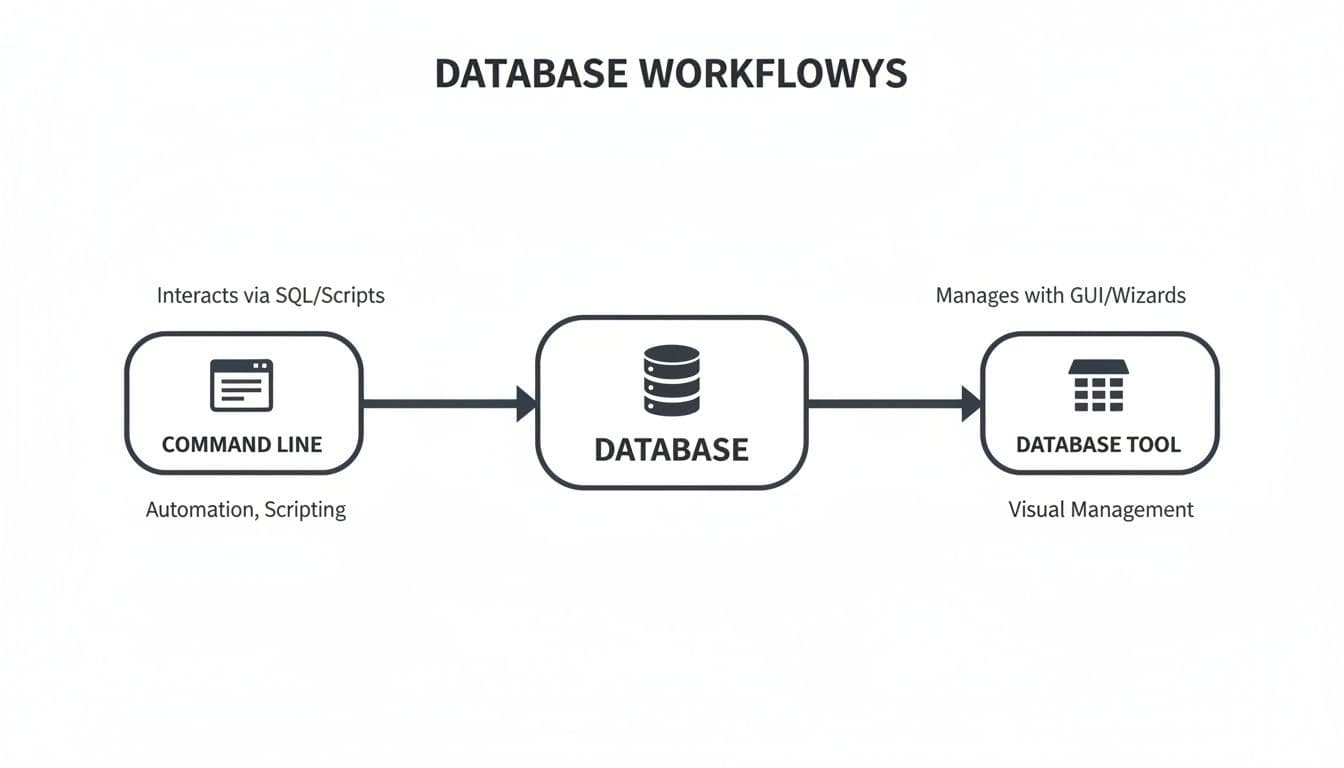
As you can see, both command-line interfaces and graphical tools act as a bridge to the database, but they offer completely different ways of working with it.
GUI Clients
Think of GUI (Graphical User Interface) clients as your visual workbench for daily development and data exploration. Tools like TableOne or DBeaver fit squarely in this category. They provide a point-and-click environment where you can browse schemas, edit data directly in a spreadsheet-like view, and write queries with the help of a smart editor.
Actionable Insight: Use a GUI client to quickly prototype a new feature. For instance, when adding a tagging system to a blog, you can visually create the posts, tags, and post_tags tables, define relationships, and manually insert sample data in minutes to test your application logic, long before writing migration scripts.
Specialized Admin Tools
While general-purpose GUI clients are incredibly versatile, specialized admin tools are built for deep, database-specific management. A great example is pgAdmin for PostgreSQL. These tools go way beyond simple queries and edits, offering powerful features for performance tuning, managing user roles, and tweaking server configurations.
Practical Example: A database administrator (DBA) would use a tool like pgAdmin to analyze a slow query. They could generate a visual "Explain Plan" that shows exactly where the database is spending its time, revealing a missing index on a users.email column. This insight allows them to add the index and instantly improve performance. If you're tired of clunky web-based admin tools, you can find out more about modern desktop options for database administration.
Command-Line Interfaces (CLIs)
The Command-Line Interface (CLI) is the original, old-school database tool. Tools like psql for PostgreSQL or mysql for MySQL are absolutely essential for automation, scripting, and any kind of server-side task. Since they don't need a graphical environment to run, they power everything from automated database migrations in deployment pipelines to batch jobs on a remote server.
Practical Example: A developer can write a shell script that uses psql to automatically dump a sanitized version of the production database, scrub sensitive user data, and restore it to the staging environment every night. This ensures the testing environment always has fresh, realistic data.
A common misconception is that you have to choose between a GUI and a CLI. The most effective developers actually use both. They'll use the GUI for interactive, exploratory tasks and then switch to the CLI for automation and server management.
Cloud Database Consoles
Finally, we have cloud database consoles. These are the web-based dashboards you get from managed database providers like Neon, Supabase, or PlanetScale. Their main purpose is to help you manage the infrastructure around your database—not the data inside it.
Actionable Insight: Before a major product launch, you would use a cloud console like Neon's to pre-emptively scale your database server from a small instance to a larger one with more RAM and CPU. This proactive infrastructure management prevents your site from crashing under the expected traffic spike.
What Makes a Great Database Tool? The Must-Have Features
A great database tool just gets out of your way. It should feel like a natural extension of your workflow, not another piece of software you have to fight with. We're talking about more than just running queries; it’s about smoothing out all the little bumps in the road, from connecting to a remote server to fixing one rogue piece of data.
The best tools are designed to solve the real, everyday problems developers face. This is a huge deal in today's data-centric world. The market for Database Management Systems (DBMS) was valued at a staggering USD 132.09 billion in 2025 and is on track to hit USD 406.03 billion by 2034. That explosive growth, detailed in market trends from fortunebusinessinsights.com, highlights just how vital the right tooling has become.
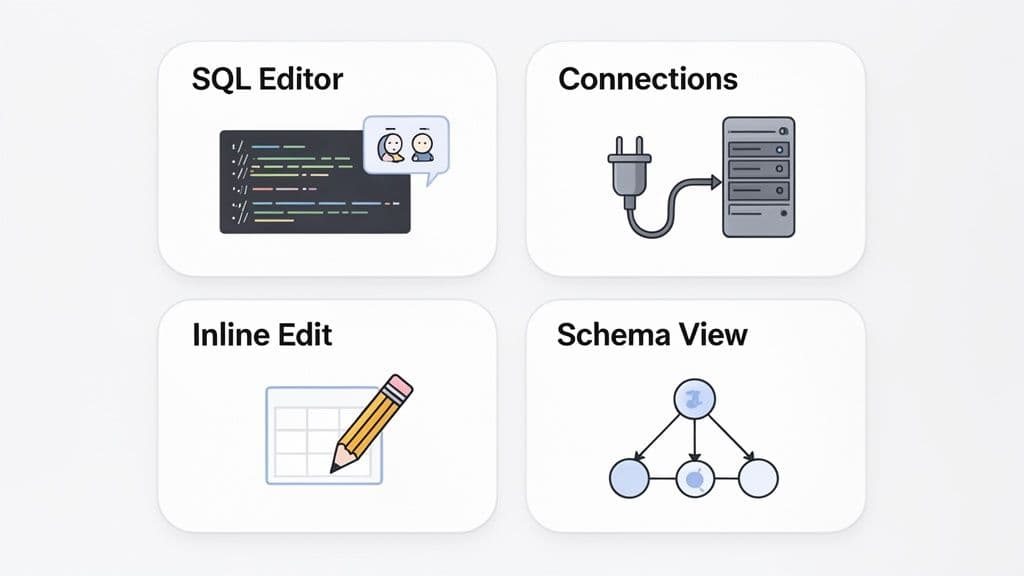
So, let's get into the specific features that separate a truly high-performance database tool from a basic one.
An Intelligent SQL Editor
At its core, any database tool has to have a SQL editor. But the difference between a good one and a great one is massive. A great editor feels like a smart co-pilot, helping you write better queries without having to constantly stop and look things up.
Practical Example: Imagine you start typing SELECT u.id, p.prod... The autocomplete instantly suggests p.product_name and p.product_price because it understands your schema and the alias p you assigned to the products table. This prevents typos and saves you from having to remember exact column names.
This is about more than just pretty colors for your keywords. A genuinely helpful editor gives you:
- Smart Autocompletion: It should know your schema inside and out, suggesting table names, columns, and SQL commands as you type.
- Query History: This feature is an absolute lifesaver. You can instantly retrieve the complex
JOINyou wrote last week for a sales report instead of rebuilding it from scratch. - Multiple Query Execution: The ability to run a query for "active users" and another for "users with failed payments" in separate tabs and compare the results side-by-side.
Seamless Connection Management
Let's be real, you're probably not working with just one database. A top-tier tool needs to juggle multiple connections effortlessly, whether they're running on your laptop or on a production server halfway across the world.
This means native support for different databases like PostgreSQL, MySQL, and SQLite is a must, but it also means having robust security options built right in. For example, most production databases require an SSH tunnel to connect securely. A good tool handles this for you—you just fill in the SSH host and credentials once, and it manages the secure tunnel automatically every time you connect. No more manual ssh -L commands. If you're managing local databases, our guide shows how to use a modern SQLite editor to make life easier.
A truly valuable database tool doesn't just connect—it makes connecting simple and secure. It consolidates all your local, staging, and production databases into one organized list, eliminating the need to juggle multiple applications or terminal sessions.
Intuitive Data and Schema Management
The real magic of a GUI tool is being able to see and touch your data. Instead of writing a whole UPDATE statement just to fix a typo, you should be able to click into a cell and edit it directly, just like in a spreadsheet.
Actionable Insight: Use a schema browser to quickly understand legacy code. When you encounter a table named usr_meta_data, instead of guessing its purpose, you can instantly view its columns, data types, and foreign key relationships to the users table. This visual context clarifies the data model in seconds.
Effective schema management is essential. Key features here include:
- Visual Schema Browsing: A clear, easy-to-navigate view of your tables, columns, indexes, and how they all relate to each other.
- Schema Comparison: A tool that can show you the differences between your local and production schemas. For example, it might highlight that you added a
last_login_ipcolumn locally but forgot to create a migration script for it, preventing a deployment error.
A Day in the Life: How a Database Tool Changes the Game
Let's ground this in reality. To really get a feel for how a good database tool can make a difference, it helps to walk through a typical development cycle. We'll follow a developer named Alex, who's just been tasked with adding a "product reviews" feature to an e-commerce site.
Without a modern tool, this whole process would be a clunky, disjointed mess of command-line prompts. With a proper database tool, it's like having a co-pilot that keeps the entire workflow smooth and focused.
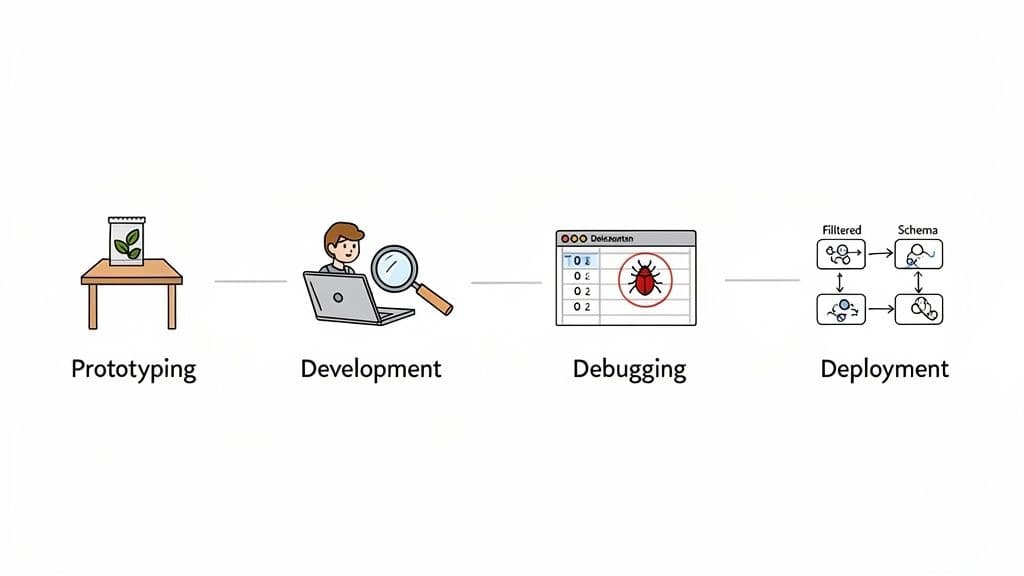
The journey from a feature request to a live deployment has a few distinct stages, and each one comes with its own data-related headaches. Here’s how a dedicated tool helps Alex at every step.
Stage 1: Prototyping and Seeding Data
First, Alex needs to map out the new database structure. Using the tool's visual table editor, she right-clicks to create a reviews table. She adds columns like id, product_id, user_id, rating (as an INTEGER), and comment (as TEXT) by filling out a simple form instead of writing CREATE TABLE statements.
Next, she needs some dummy data. Rather than writing a dozen INSERT statements, Alex imports a CSV file of fake reviews. The tool shows a preview, allowing her to map review_text from the CSV to the comment column in her table. In seconds, her database is populated with realistic content.
Stage 2: Development and Querying
With the foundation in place, Alex starts writing application code. She needs a query joining reviews, users, and products. In the tool's schema viewer, she sees the foreign key lines connecting the tables, which instantly clarifies how to write the JOIN clauses.
As she types SELECT ... FROM reviews r JOIN users u ON r.user_id = u.id, smart autocompletion suggests the column names, preventing typos. She runs the query, pins the results, then writes a second one for a single product (WHERE product_id = 123). The side-by-side view lets her verify her logic instantly. For anyone working with different database systems, knowing the small details of how to connect to a PostgreSQL database efficiently is a massive time-saver.
A powerful database tool eliminates the guesswork. By making the data model visible and query results interactive, it transforms development from a series of abstract commands into a tangible, visual process.
Stage 3: Debugging a Nasty Bug
A bug report lands on Alex's desk: a user's old reviews are missing. Alex needs to isolate that user's data. She opens the reviews table and uses the filter bar.
Instead of writing SELECT * FROM reviews WHERE user_id = 54;, she just types 54 into the user_id column's filter field. The data grid instantly updates. She spots the issue: two reviews have a NULL product_id. She double-clicks the bad cells, enters the correct ID, and hits save. The bug is fixed in under a minute.
Stage 4: Deployment and Migration
The feature is ready. Alex uses the tool’s schema comparison feature, selecting her local database as the source and the staging database as the target.
The tool generates a report showing the exact difference: the reviews table is missing on staging. It then generates the precise SQL migration script: CREATE TABLE reviews (...). Alex copies this script into her project's migration file, confident it’s accurate and won't cause deployment failures.
How to Choose the Right Database Tool for Your Needs
Picking a database tool isn't about chasing the longest feature list. It's about finding the one that slides right into your daily work without causing friction. The whole process starts with asking the right questions.
First things first: what database are you actually using? Are you a PostgreSQL person, or is your world built on MySQL? Maybe you lean on SQLite for quick projects. The tool you choose absolutely must offer top-notch, native support for your primary database.
With relational databases projected to hold 57.30% of the market in 2025, solid support for SQL-based systems is non-negotiable. This means a tool that handles industry mainstays like Oracle, MySQL, and Microsoft SQL Server well is a smart move. You can dig deeper into these trends with this market analysis from mordorintelligence.com.
Define Your Primary Tasks
Okay, now think about what you actually do all day. Your most common tasks are what separate the "must-have" features from the "nice-to-have" ones.
- Querying and Exploration: If you're a data analyst, you live in the SQL editor. Actionable insight: Look for a tool that lets you save and organize frequently used queries into folders (e.g., "Monthly Reports," "User Growth Stats"). This turns repetitive analysis into a one-click task.
- Schema Design and Migrations: For developers, strong schema management is key. Practical example: A schema comparison (diff) tool is a must-have. Before deploying, you can use it to generate a precise
ALTER TABLEscript, ensuring you don't accidentally drop a column in production. - Administration and Maintenance: If you're a DBA, you need admin-focused features. Practical example: Look for a tool with a built-in process list viewer. When the database is slow, you can use it to identify and kill a long-running query that's hogging all the resources.
The right tool feels less like a separate application and more like an integrated part of your development environment. It should anticipate your needs based on the task at hand, whether that's quickly editing a record or comparing schemas before a big deployment.
Evaluate Budget and Platform Needs
Finally, let's get practical. Your budget and your operating system will narrow down the options. Do you need something that runs on macOS, Windows, and Linux? Is your team looking for a shared license, or are you a solo dev hoping for a one-time purchase?
This is where you have to decide between a specialized, single-database tool and one that can handle multiple systems. A dedicated client like pgAdmin is a powerhouse for deep PostgreSQL work, but it means you're stuck switching apps the second you need to touch a MySQL database.
On the other hand, a modern, multi-database tool like TableOne gives you a single, consistent interface for all your databases. This simplifies your setup and cuts down on the mental gymnastics of switching between different UIs and workflows.
Frequently Asked Questions About Database Tools
Even with a good grasp of the features and workflows, some practical questions always pop up when you're on the hunt for a new database tool. Let's tackle some of the most common ones developers ask, with straightforward answers to help you make a better choice.
Are Free Database Tools Good Enough for Professional Work?
Absolutely. Plenty of free and open-source database tools are more than powerful enough for serious, professional work. For a lot of developers, they tick all the boxes needed to get the job done right.
That said, paid tools often justify their price tag with a more polished user experience, dedicated support, and advanced features you just won't find in most free options. Practical example: A paid tool might offer an AI assistant that can convert a natural language request like "show me the top 10 customers by total spending last quarter" into a perfectly formed SQL query. That's a huge productivity boost that can easily make the cost worth it.
Do I Need a Different Tool for Each Type of Database?
Not anymore, thankfully. While a database-specific tool like pgAdmin is fantastic for deep administrative dives into PostgreSQL, modern development rarely sticks to just one database system. Juggling separate apps for PostgreSQL, MySQL, and SQLite is just clunky and inefficient.
The best strategy is usually to find a 'polyglot' tool that speaks every database language you do. It brings your entire workflow under one roof, shortens the learning curve, and keeps all your connections organized in a single, familiar interface.
Using one versatile database tool streamlines your setup and kills the constant context-switching. Actionable insight: By using one tool for all databases, you learn one set of keyboard shortcuts. Cmd+E to execute a query works the same whether you're connected to PostgreSQL or SQLite, making you faster and more effective across your whole tech stack.
Can a GUI Tool Completely Replace the Command Line?
For interactive work, a GUI tool is almost always faster and more intuitive. Tasks like visually exploring data relationships, hunting down a problematic record, or quickly iterating on a complex query are where a visual interface really excels.
But the command line is still king when it comes to automation and scripting. You wouldn't use a GUI to run database migrations in a CI/CD pipeline or to script a nightly backup on a remote server. Those repeatable, hands-off processes are what the CLI was built for.
Most pros use both, playing to their strengths:
- The GUI is for debugging, exploration, and one-off data edits. Practical example: Quickly filtering a
userstable to find everyone with a@gmail.comaddress to investigate a login issue. - The CLI is for automation and server tasks. Practical example: A cron job that uses
mysqldumpto create a backup of your production database every hour.
They aren’t competitors; they're partners. A sharp developer knows exactly when to reach for the visual clarity of a GUI and when to lean on the raw power of the command line.
Ready to stop juggling multiple apps and simplify your workflow? TableOne offers a clean, fast, and predictable interface for SQLite, PostgreSQL, and MySQL in a single desktop app. Try it free for 7 days and see the difference.