Choosing the Best PostgreSQL Database Viewer for Your Workflow in 2026
Find the best PostgreSQL database viewer to improve your workflow. This guide covers essential features, security tips, and practical examples for developers.
At its core, a PostgreSQL database viewer is a piece of software with a graphical user interface (GUI) that lets you see and interact with your database. Instead of typing commands into a black-and-white terminal, you get a visual, clickable environment—a true control panel for your data.
Why You Need a PostgreSQL Database Viewer
If you’ve spent any time working with Postgres, you've probably used the psql command-line tool. It’s undeniably powerful and a staple for any serious database work. But let’s be honest, for many day-to-day tasks, it can feel like trying to assemble furniture with just a pocket knife. It works, but it's not always the right tool for the job.
Wrestling with a command-line-only workflow introduces some real friction, especially when you’re trying to move quickly or work as part of a team.
- Painfully Slow Ad-Hoc Queries: Need to quickly check a value in a production table? That means firing up
psql, writing aSELECTstatement from memory, and hoping you get the syntax right on the first try. It’s a tedious dance for a simple question. - Invisible Data Structures: Trying to figure out how tables are related is like navigating a maze blindfolded. You have to run special commands to see foreign keys and then try to hold that mental map in your head as you work.
- A Steep Hill for Newcomers: For junior developers, data analysts, or anyone not steeped in
psqllore, the learning curve is brutal. It becomes a barrier that slows down their ability to explore data and contribute meaningfully. - The Fear of Manual Data Edits: Nothing gets the heart racing quite like writing a manual
UPDATEorDELETEstatement against a live database. One tiny mistake in theWHEREclause can mean a very, very bad day.
A proper PostgreSQL database viewer is designed to eliminate these exact headaches. It gives you a structured, interactive workspace where your data is always front and center.
Moving Beyond the Command Line
Think of it this way: the command line is like navigating a city with a folded paper map and a compass. It’s a classic and reliable method for experts who know the city well. A database viewer, on the other hand, is like using a modern GPS app.
The GPS gives you a real-time, interactive overview. You can zoom in on a specific street, find the nearest coffee shop, or see traffic ahead. It doesn’t replace your knowledge of the city; it augments it, making the journey faster, safer, and a whole lot less stressful.
A good GUI viewer doesn’t just make your life easier—it turns the inherent complexity of database management into an opportunity for you to work faster, more accurately, and with a lot more confidence.
This need is more pressing than ever. PostgreSQL’s popularity isn't just growing; it's exploding. Developer surveys have consistently shown it’s been the most-used database for three years running. As more teams adopt Postgres, having efficient tools to manage it is no longer a nice-to-have; it's a necessity. You can see the full analysis of PostgreSQL's impressive growth and why the old ways of working are starting to show their age.
To really see the difference, let's compare how you'd handle common tasks using the command line versus a modern GUI viewer.
Command Line vs GUI Viewer Workflow Comparison
| Task | Using Command Line (psql) | Using a PostgreSQL Database Viewer |
|---|---|---|
| Browse Table Data | Write a SELECT * FROM table_name; query. Manually add LIMIT and OFFSET for pagination. | Click on the table name in a sidebar. Data loads in a spreadsheet-like grid with easy pagination. |
| Filter for a Record | Write a SELECT query with a specific WHERE clause. Tweak the query if you get no results. | Use a filter bar above the data grid. Type a value (e.g., an email address) and see results in real-time. |
| Edit a Single Cell | Find the record's primary key, then write a full UPDATE statement with the correct WHERE clause. | Double-click the cell, change the value, and hit Enter. The tool generates the safe UPDATE query for you. |
| Understand Relationships | Run \d table_name to see constraints and foreign keys. Manually trace connections between tables. | Hover over a foreign key column to see a tooltip with the referenced table, or view a visual schema diagram. |
| Export Data to CSV | Use the \copy meta-command, making sure you have the correct file permissions and path on the server or client. | Select the rows you want (or the whole table) and click an "Export to CSV" button. |
This table just scratches the surface, but the pattern is clear: what takes careful command construction in psql often becomes a one or two-click operation in a GUI.
The Productivity Advantage in Practice
Let’s be clear: adopting a GUI viewer doesn’t mean you stop writing SQL. Quite the opposite. The best tools, like TableOne, create a hybrid environment that blends visual convenience with raw query power.
You might start by visually browsing a table to find the record you need, then make a quick inline edit without writing a line of code. But for a more complex data pull, you can jump right into a full-featured SQL editor—complete with syntax highlighting, autocomplete, and query history—that helps you write better SQL, faster. It’s truly the best of both worlds.
Essential Features of a Modern PostgreSQL Viewer
When you're looking for a PostgreSQL database viewer, you're not just shopping for a pretty interface. You're choosing a core part of your toolkit, one that should actively save you time and help you avoid costly mistakes. But not all viewers are built the same, and the best ones share a specific set of features designed for how we actually work with data today.
These aren't just nice-to-haves. They're the fundamental capabilities that separate a basic utility from a true powerhouse. Without them, you're missing out on most of the benefits a graphical tool can offer. Let's dig into what really makes a difference.
Effortless Data Browsing and Inline Editing
First and foremost, a good viewer needs a clean, intuitive grid view that feels like a spreadsheet. Instead of constantly typing SELECT * FROM users LIMIT 100;, you should be able to just click on a table and immediately see your data. This visual grid needs to support simple sorting, filtering, and pagination to make exploring data on the fly feel effortless.
But just looking at data isn't enough. A truly modern viewer must support inline editing. Picture this: you're debugging and spot a typo in a customer's record. Rather than switching gears to write a careful UPDATE statement with a specific WHERE clause, you should be able to simply double-click the cell, fix the text, and hit Enter.
The viewer should be smart enough to generate the correct, safe SQL query for you behind the scenes. This one feature dramatically cuts down on manual data entry errors, which is especially critical in a live production environment.
A Smart SQL Editor
While a GUI is fantastic for quick tasks, you'll always run into situations where you need to write custom SQL. A high-quality PostgreSQL viewer will have a smart SQL editor that's much more than a simple text box. Here’s what to demand:
- Syntax Highlighting: This is non-negotiable. By color-coding keywords, functions, and strings, it makes your queries far easier to read and helps you spot typos in an instant.
- Intelligent Autocomplete: As you type, the editor should suggest table names, columns, and SQL functions. For example, typing
SELECT * FROM usshould pop up a suggestion for theuserstable. This doesn't just save keystrokes; it prevents you from making mistakes in the first place. - Query History: You should never have to rewrite a complex query from memory. A great viewer remembers what you’ve run, allowing you to find, tweak, and re-run past queries with a click.
These editor features work together to make querying feel less like a chore and more like a fluid, productive conversation with your database. It's all about finding the right balance between graphical tools and the command line; you can explore our guide on GUI vs. CLI to see how to pick the right tool for the job.
Hassle-Free Data Import and Export
Data rarely stays put. You're constantly moving it in and out of your database. A top-tier PostgreSQL viewer makes this a painless process. For example, you should be able to take a CSV file from the sales team and import it directly into a table, with the tool guiding you through mapping columns and handling data types.
Exporting data is just as important. Whether you need to pull a few hundred records for a quick analysis in Excel or back up an entire table as a CSV, the process should be as simple as selecting what you need and clicking "Export."
Visual Schema Inspection
Understanding the structure of your database is key. A modern viewer gives you visual tools to inspect your schema without running a bunch of \d commands in psql.
What to look for:
- Table Structure View: A clear, organized panel showing a table’s columns, their data types, default values, and any indexes.
- Foreign Key Insight: The ability to see which columns are foreign keys and easily click to navigate to the table they reference.
- Visual Relationship Diagrams: Some advanced viewers can even generate Entity-Relationship Diagrams (ERDs) that map out how your tables connect. This is an invaluable way to get a bird's-eye view of your database architecture.
With these essential features, you can be confident that the PostgreSQL viewer you choose will be a genuine asset—one that truly improves your workflow instead of just being another app on your machine.
Here’s how a good PostgreSQL viewer fits into the day-to-day grind for developers and analysts. It’s one thing to talk about features, but the real magic happens when you see how a tool can smooth out those frustrating, time-consuming tasks.
A quality viewer doesn't replace your core skills—it sharpens them. It turns a clunky, multi-step process into a few quick clicks, freeing you up to focus on the problem, not the process.
This kind of efficiency is no longer just a nice-to-have. PostgreSQL has become a true powerhouse, with 39,062 verified companies relying on it by 2026. That massive adoption, which you can read more about in the 2026 state of databases report, means people in all sorts of roles need to interact with Postgres databases. For users of tools like TableOne, this means being able to jump in and get things done, regardless of their job title.
So, let's look at how two different professionals—a developer and a data analyst—would actually use a viewer to solve everyday problems.
A Developer's Workflow for Debugging Data
Picture this: a developer is working on an app using Supabase as its backend. A bug report flies in—new user sign-ups aren't creating their profile records. In the command line, this would be the start of a tedious query-and-check cycle. With a visual tool, it's a whole different story.
Here’s a practical, actionable workflow for that debugging session:
- Connect and Verify: The developer instantly connects to the staging Supabase database. They click on the
profilestable to visually scan for the missing record. Right away, they’ve confirmed the bug's impact without typingSELECT * FROM profiles;. - Inspect the Schema: Suspecting a recent database migration went wrong, they right-click the
userstable and select "View Structure". A panel pops up showing columns and constraints. They see the foreign key relationship toprofiles. Aha! They spot a potential misconfiguration on theuser_idcolumn inprofiles—perhaps it's not set to auto-increment or has the wrong default value. - Test a Fix: Rather than writing a long
INSERTstatement, the developer finds a test user in theusersgrid. They copy that user'sid. In theprofilestable view, they click the "Add Row" button, paste the ID into theuser_idfield, and fill in dummy data for the rest. - Pinpoint the Root Cause: The database kicks back a foreign key constraint error, which the viewer displays in a clean, readable format. This confirms the link is the issue. The entire discovery process took less than a minute, all without writing complex SQL.
A PostgreSQL database viewer transforms debugging from a slow, command-line slog into a fast, interactive exploration. It gives you immediate visual feedback, making it much easier to connect the dots between your database schema and the actual data.
This is a perfect example of how a visual interface cuts out the tedious parts of debugging. The developer can get straight to the logic of the problem instead of getting bogged down in diagnostic queries.
An Analyst's Workflow for Uncovering Insights
Now, let's switch gears to a data analyst. Their mission is to understand customer purchasing habits. They've just been handed a CSV file with the latest quarterly sales data and need to combine it with the main customers table to build a report.
This is a bread-and-butter task for any analyst, and a good viewer makes it so much simpler with these steps:
- Import Raw Data: The analyst gets
sales_q3.csv. Instead of wrestling with a script or a tricky\copycommand, they use the viewer’s "Import CSV" function. A simple wizard walks them through mapping the CSV columns (customer_email,product_id,sale_amount) to a new table they calltemp_sales_q3. - Quickly Clean the Data: With the data loaded, the analyst scrolls through the
temp_sales_q3grid. Using the built-in filters, they type "test@" into the filter bar for thecustomer_emailcolumn. This instantly shows a few junk records, which they select and delete with a single click. No manual cleanup script needed. - Query and Join for Insights: The analyst opens the SQL editor. Thanks to syntax highlighting and autocomplete suggesting table and column names, they quickly draft a query to join
temp_sales_q3with thecustomerstable on the email address. They group the results bycustomers.regionto calculate total sales per region. - Export for the Report: The query result grid shows exactly what they need for their report. The analyst simply clicks "Export to CSV" to save the aggregated data. That clean, final dataset is now ready to be pulled into a BI tool or shared directly with stakeholders.
In both of these scenarios, the PostgreSQL database viewer is the key. It removes friction from the workflow, helping both the developer and the analyst get their jobs done faster and with a lot less headache.
How to Securely Connect to Any PostgreSQL Database
Getting your PostgreSQL database viewer connected is your first hurdle, but making sure that connection is secure is what really matters. A leaky connection is a security nightmare waiting to happen, putting all your sensitive data at risk. How you approach this depends entirely on whether you're tinkering on your local machine or working with a live production server.
A good PostgreSQL viewer takes the guesswork out of this by giving you a clean, consistent interface with fields for your Host, Port, User, Password, and Database Name. This makes the whole process feel predictable, whether you're connecting to a database on your laptop or one hosted in the cloud.
Connecting to Your Local Database
Hooking up to a PostgreSQL server running on your own computer is usually the easiest part of the day. You’ll almost always use localhost for the host and the default Postgres port, 5432. But as anyone who’s been in the trenches knows, "usually" doesn't mean "always."
When things go wrong here, it's often something simple. Is your Postgres server even running? Did you accidentally install it on a different port? A quality viewer won't just fail silently; it'll give you helpful error messages that point you in the right direction—be it a firewall blocking the connection, a typo in your password, or a server process that just needs a quick restart. If you're hitting these common snags, our guide on how to connect to a PostgreSQL database has a detailed breakdown.
Secure Connections to Remote and Production Databases
Once you step outside your local setup to connect to a remote database—whether it's on Vercel, Supabase, or a production server—the security stakes get much, much higher. The absolute worst thing you can do is expose your database directly to the internet by opening its port on a firewall. Don't do it. Ever.
The rock-solid, industry-standard approach is to use an SSH tunnel.
Think of an SSH tunnel as a private, encrypted passageway between your computer and the database server. All the data flowing between your viewer and the database travels through this secure channel, making it completely invisible to the outside world.
This method gives you the best of both worlds: you get to interact with your remote database as if it were on your local machine, but with all the security required for a production environment. It’s a non-negotiable best practice.
Thankfully, most modern viewers have built-in support for SSH tunneling, so you don't need to be a command-line wizard to set it up. Here's a practical example of setting one up in a tool like TableOne:
- Navigate to Connection Settings: Open the new connection dialog.
- Enter Standard Details: Fill in your PostgreSQL host (usually
localhostor127.0.0.1when using a tunnel), port (5432), user, and database name. - Enable the Tunnel: Click the "SSH" tab or checkbox.
- Enter SSH Credentials: Provide the SSH host (e.g., the IP address of your production server), your SSH username (e.g.,
ubuntu), and select your authentication method (a private key is recommended over a password). - Connect: The viewer handles the rest, establishing the secure SSH link first and then routing the Postgres connection through it.
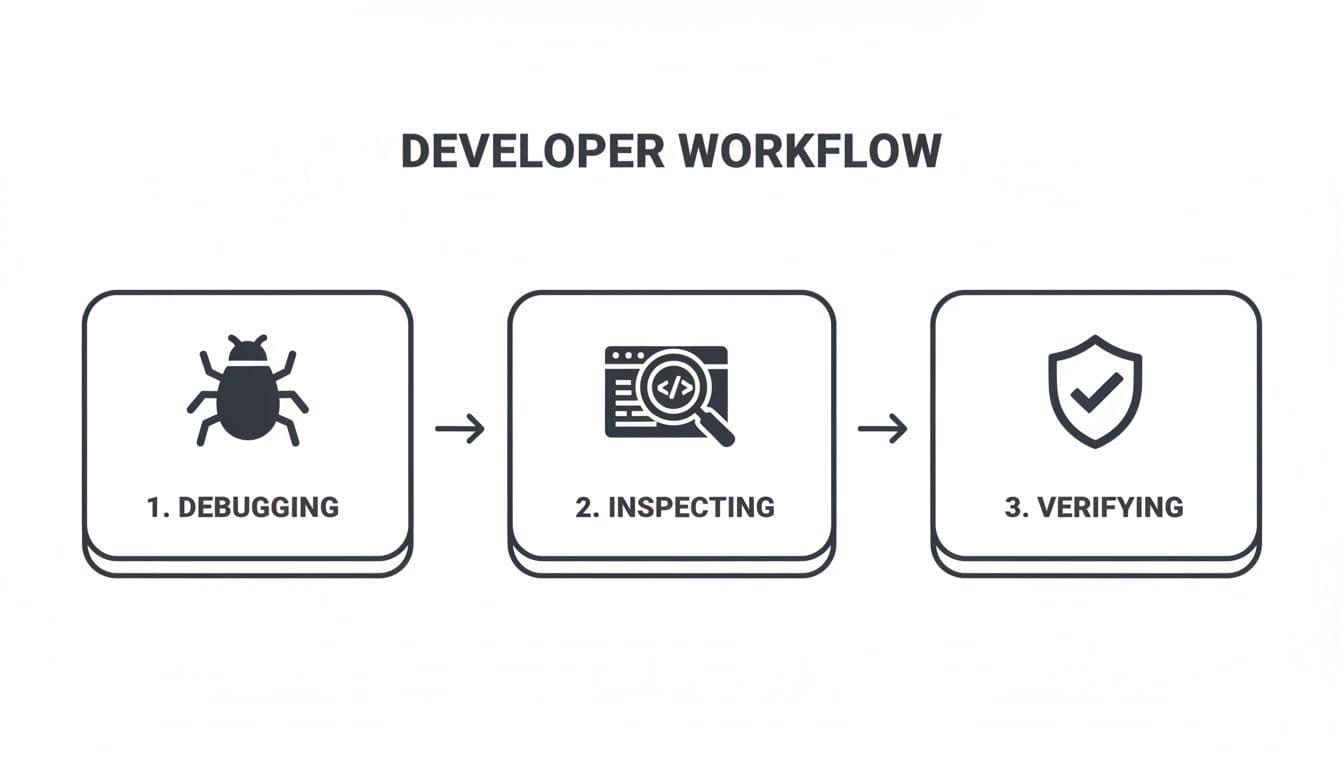
This workflow shows exactly how a PostgreSQL database viewer makes troubleshooting faster and safer. By starting with a secure connection, you can confidently jump from debugging an issue to inspecting the data and verifying your fix. It's how you use these powerful tools without ever compromising on security, no matter where your database lives.
Your Buyer's Checklist for Choosing a PostgreSQL Viewer
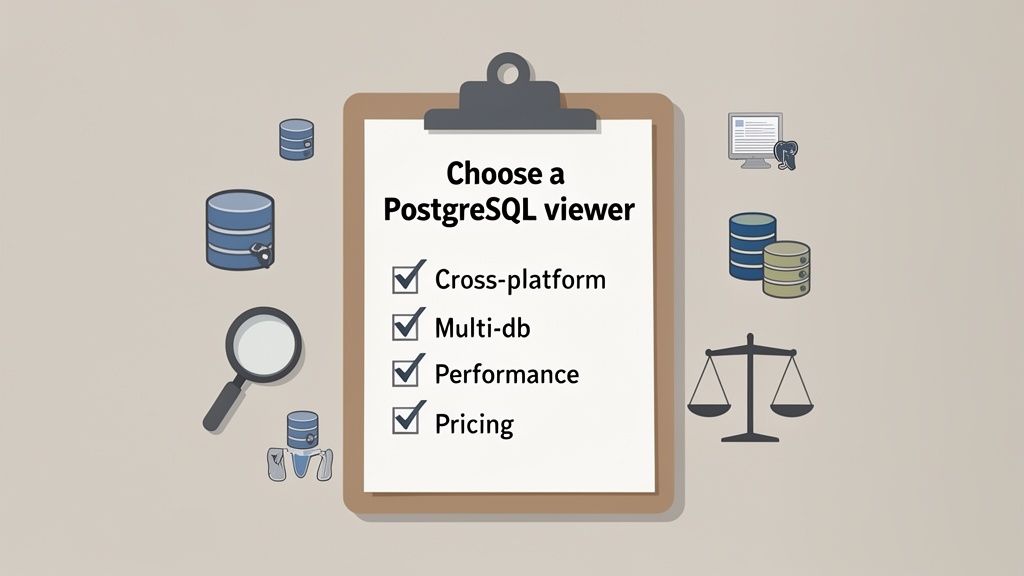
Ready to pick your next PostgreSQL database viewer? It's a crowded market, and it’s easy to get lost in a sea of features. But the right tool isn’t the one with the longest feature list—it's the one that seamlessly fits your workflow, budget, and real-world technical needs.
Think of this as your framework for making a smart decision. Use it to cut through the marketing fluff and choose a tool that will become an indispensable part of your daily toolkit, not just another app gathering dust.
To make this even easier, we've put together a checklist you can use to grade any tool you're considering.
PostgreSQL Viewer Evaluation Checklist
| Feature / Aspect | Why It Matters | What to Look For (Ideal) |
|---|---|---|
| Platform Support | Your OS shouldn't dictate your tools. Inconsistent experiences across platforms can slow down entire teams. | Native apps for macOS, Windows, and Linux that offer the exact same functionality and feel. |
| Multi-Database Support | Projects rarely live in a single database silo. Switching between different tools for different databases is a major productivity killer. | A single, unified interface that connects to PostgreSQL, MySQL, SQLite, and other common databases. |
| User Experience (UX) | A clunky tool actively works against you. The UX should feel so intuitive that you don't even have to think about it. | Quick, responsive data grids; smart autocomplete that understands your schema; and one-click actions for common tasks. |
| Performance with Scale | A viewer that works perfectly with 100 rows can grind to a halt with a million. Performance under pressure is non-negotiable. | The ability to handle millions of rows without freezing. Fast filtering, sorting, and data loading. |
| Advanced Features | Basic CRUD operations are table stakes. A great tool helps you tap into PostgreSQL's deeper power. | Built-in utilities like schema comparison, index management, and easy data migration tools. |
| Pricing & Licensing | The cost model determines your long-term investment and freedom from vendor lock-in. | A transparent, one-time license fee. Avoids "subscription fatigue" and unpredictable price hikes. |
By systematically evaluating each potential tool against these criteria, you can move past flashy websites and make a choice that truly supports your work.
Platform and Database Support
The first and most basic test for any viewer is simple: can it work where you work? Your tools shouldn't box you in, especially in a modern, multi-platform environment.
-
Cross-Platform Availability: Does the tool run natively on macOS, Windows, and Linux? For teams with mixed environments, this is non-negotiable. A "web-only" version or a poorly ported app just doesn’t cut it; you need a consistent, high-performance experience everywhere.
-
Multi-Database Capability: You might be hunting for a great PostgreSQL client today, but what about the SQLite or MySQL databases you also manage? A tool that supports multiple database systems from one interface is a game-changer. It eliminates the mental tax of constantly switching between different apps. For a closer look at what makes a great universal client, check out our guide on the best database clients available.
Core Features and User Experience
A pretty UI is nice, but it's the core functionality that truly matters. A great user experience (UX) is less about aesthetics and more about thoughtful, intuitive design that gets out of your way.
A great PostgreSQL viewer shouldn’t make you think. Key actions like filtering, editing, and exporting data should feel intuitive and predictable, allowing you to stay focused on the task at hand rather than fighting the tool.
When you're test-driving a viewer, pay attention to the little things. How does the data grid feel? Is the SQL editor’s autocomplete actually smart? Can you double-click to edit a cell? These small details add up and have a huge impact on your daily productivity.
Performance and Advanced Capabilities
Here’s where the rubber meets the road. A tool that feels snappy with a tiny test database can fall apart under a real-world load. Always test a potential viewer with a large dataset—think millions of rows—to see how it holds up.
Beyond raw performance, look for features that help you harness PostgreSQL's full power. PostgreSQL is a technical marvel, known for its rock-solid reliability with features like ACID compliance and MVCC. A good viewer should give you tools to match, like schema comparison, easy index management, and tools for copying table structures.
Pricing Model and Licensing
Finally, let's talk about money. The pricing model isn't just a line item on a budget; it dictates your freedom and long-term costs. You'll generally run into two models:
- Subscription: You pay a recurring monthly or annual fee. This often leads to "subscription fatigue" and can become quite expensive over the life of the product.
- One-Time License: You pay once and own the software license for that version forever. This is often far more budget-friendly in the long run and saves you from vendor lock-in or sudden price increases.
For example, a tool like TableOne is built on a $39 one-time license. This model gives you access to a powerful, no-nonsense tool without locking you into a recurring payment cycle—a fantastic option for developers, analysts, and DBAs who value both function and financial sanity.
A Few Common Questions
It's natural to have questions when you're picking a new tool for your daily workflow. Here are some straightforward answers to the things we hear most often about PostgreSQL database viewers.
Can I Use Just One Viewer for PostgreSQL and My Other Databases?
You absolutely can, and you probably should. Many of the best modern GUI tools are built to be multi-database clients. This means you don't have to constantly switch between different apps just because one project uses PostgreSQL and another uses MySQL or SQLite.
A tool like TableOne, for example, lets you manage all of them from one place. It’s a huge relief because you only have to learn one interface and one set of keyboard shortcuts, which really cuts down on the mental friction of a complex workday.
Is It Safe to Connect to a Production Database with a GUI Viewer?
Yes, but only if you're smart about it. The number one rule is to never connect directly by exposing your database port to the public internet. That’s just asking for trouble.
The right way to do it is with a secure connection method, like an SSH tunnel. Think of it as creating a private, encrypted highway between your machine and the server. All the data traveling back and forth is completely shielded from prying eyes. Any decent PostgreSQL viewer will have built-in support to make setting up an SSH tunnel simple.
What's Better: A One-Time License or a Subscription?
This is a big one, and while it depends on your budget, we're seeing a lot of developers lean back toward one-time licenses. A single purchase, like the one for TableOne, means you buy the software and you own that version's license forever. No recurring fees.
A one-time payment is usually more cost-effective over the long haul. Plus, it helps you sidestep the "subscription fatigue" that so many of us are feeling. You get a great tool without getting locked into another monthly bill or worrying about sudden price increases down the road.
Ready to find a PostgreSQL database viewer that fits your workflow without locking you into a subscription? TableOne offers a powerful, cross-platform experience with a simple one-time purchase. Start your free 7-day trial of TableOne today.