Your Guide to a Seamless SQLite to MySQL Migration
Master your SQLite to MySQL migration with this expert guide. Learn schema mapping, data handling, and proven workflows for a successful database transition.

So, you've built something great on SQLite, but now you're hitting a wall. That's a classic sign of success. When your project outgrows SQLite's single-file simplicity, a SQLite to MySQL migration is often the next logical step. It's how you prepare your application to handle more traffic, more users, and more complexity without things grinding to a halt.
Why You Need to Migrate From SQLite to MySQL
Let's be clear: SQLite is fantastic for getting started. Its serverless, zero-configuration design is perfect for prototypes, mobile apps, and small-scale internal tools. But the very feature that makes it so simple—its single-file architecture—becomes a major bottleneck as your application scales.
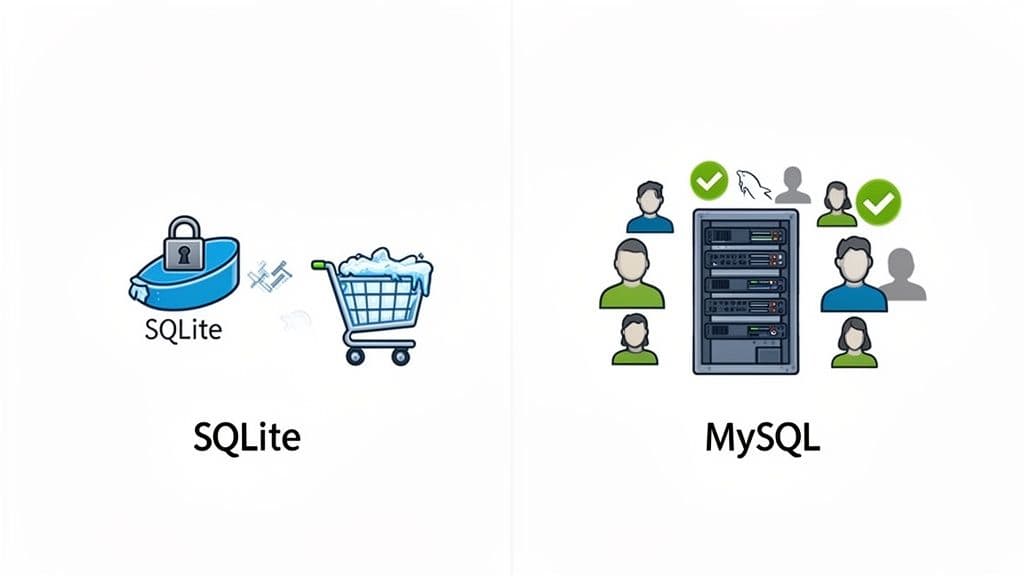
The heart of the problem is how SQLite handles concurrency. It relies on file-locking, which means when one process writes to the database, the entire file is locked. Every other process has to wait its turn. Just imagine an e-commerce site running on SQLite during a flash sale. Multiple customers trying to place orders at once would create a user-experience nightmare.
Recognizing the Tipping Point
You’ll know you’ve hit this wall when you start seeing a constant stream of "database is locked" errors. This isn't just some theoretical limit; it's a very real performance barrier that signals your application's needs have outpaced what SQLite can offer.
This is the number one reason I see teams undertake a SQLite to MySQL migration. For small, single-user datasets under 1GB, SQLite can actually deliver read speeds 2-5x faster than MySQL. The tables turn dramatically under concurrent write loads, though. We saw this with some Grafana users who, after an upgrade, found themselves locked out of dashboards with over 400 panels. SQLite's locking just couldn't keep up with the activity.
The choice to migrate isn't really about which database is "better." It's about what's right for your application's current stage. When you find yourself debugging concurrency issues more than you're building new features, it's time to make the move.
The Case for MySQL's Architecture
This is where a true client-server database like MySQL shines. It's a dedicated server process built from the ground up to juggle thousands of simultaneous connections. This architecture gives you a few critical advantages for a growing application:
- True Concurrency: With the default InnoDB storage engine, MySQL uses row-level locking. This means multiple users can read and write to different rows in the same table at the same time without blocking each other. For example, two different users can update their own profiles in the
userstable simultaneously without a "database is locked" error. - Robust User Management: MySQL has a sophisticated permission system. You can create different users and roles with granular access rights—a security feature that’s completely missing from SQLite. For instance, you can create a
reporting_userthat hasSELECTaccess only, preventing accidental data modification. - Network Accessibility: As a server, MySQL is designed to be accessed over a network. This is essential for any application that isn't running on a single machine, like web apps with separate front-end and back-end servers.
- Scalability and Advanced Features: MySQL opens the door to powerful features like replication, clustering, and a much richer set of data types and functions that you'll need for high-availability systems.
Ultimately, migrating from SQLite to MySQL is more than just a quick performance fix. It's a strategic investment in a foundation that can support your application's future growth and complexity.
Your Pre-Migration Schema and Data Cleanup Plan
If there’s one lesson I’ve learned from countless database migrations, it’s this: success is all in the prep work. Jumping straight into the export is a guaranteed path to broken imports, corrupt data, and a long night of debugging. Before you move a single row, you need to treat your schema and data like a crime scene—examine everything.
First things first, and I can't stress this enough: back up your database. Don't just copy the file; use the official .backup command to create a verified, safe copy you can restore in a pinch. It's your safety net.
-- Create a full backup of your SQLite database file
sqlite3 your_database.db ".backup 'your_database_backup.db'"
With that backup tucked away safely, the real work begins. It’s time to get your hands dirty analyzing the SQLite schema and preparing it for MySQL's much stricter world.
Mapping SQLite's Flexible Types to MySQL's Strict Types
The most common point of failure in this migration, by far, is the clash between data types. SQLite is famously flexible with its type affinity. You can shove a string like "N/A" into a column you’ve called INTEGER, and SQLite won't complain.
MySQL, on the other hand, is the polar opposite. It’s rigid and enforces its data types with an iron fist. Try to load that "N/A" string into a MySQL INT column, and your import will grind to a halt with an error.
To get ahead of this, you absolutely must map every column from SQLite to a sensible MySQL equivalent. This process will form the blueprint for your new MySQL schema.
Here’s a quick-reference table I use to map the most common SQLite types to their MySQL counterparts. It covers the main gotchas you're likely to encounter.
SQLite to MySQL Datatype Mapping Guide
| SQLite Type Affinity | Common Usage | Recommended MySQL Type | Migration Notes |
|---|---|---|---|
INTEGER | Whole numbers, primary keys | INT or BIGINT | If it's a primary key, use INT AUTO_INCREMENT. You'll need to manually set the next ID after the import. |
REAL or FLOAT | Floating-point numbers | DOUBLE or DECIMAL | Always use DECIMAL(10, 2) for currency or any financial data to avoid floating-point rounding errors that can corrupt monetary values. |
TEXT | Any text data, JSON | VARCHAR(255), TEXT, JSON | Use VARCHAR for shorter strings (like names or titles) and TEXT for longer content. For actual JSON, use the native JSON type in MySQL 5.7+. |
BLOB | Binary data like images, files | BLOB, MEDIUMBLOB, LONGBLOB | Pick the BLOB size based on the largest file you expect to store. Don't just default to LONGBLOB if you don't need it. |
DATETIME | Dates and times | DATETIME or TIMESTAMP | MySQL expects a specific format (YYYY-MM-DD HH:MM:SS). You’ll need to make sure all your SQLite date strings are consistent before you migrate. |
Treat this table as your guide when you write the CREATE TABLE statements for your new MySQL database. Getting this right from the start prevents a huge number of import errors down the line.
Cleaning Up Data Inconsistencies
Now it’s time to play detective. You need to hunt down all the data that SQLite let slide but will absolutely break MySQL. You'll want to run these checks on your SQLite database before you even think about exporting.
Here are the biggest culprits to look for, with actionable queries to find them:
- Mixed Data in Numeric Columns: Run queries to find any non-numeric values lurking in columns you plan to map to
INT,FLOAT, orDECIMAL.-- Find rows where 'quantity' isn't a pure number SELECT * FROM products WHERE CAST(quantity AS TEXT) GLOB '*[^0-9]*'; - Inconsistent Date Formats: If you stored dates as
TEXT, you need to standardize them. MySQL is happiest with theYYYY-MM-DD HH:MM:SSformat.-- Find common non-standard date formats (e.g., MM/DD/YYYY) SELECT created_at FROM orders WHERE created_at LIKE '__/__/____%'; -- Then, run an UPDATE to fix them UPDATE orders SET created_at = STRFTIME('%Y-%m-%d %H:%M:%S', created_at); - Character Encoding Issues: MySQL works best with
utf8mb4. If you have mixed encodings in your SQLite source, you'll end up with garbled text (???) after the import. Convert everything to UTF-8 now.
In my experience, the assumption of clean data is the single most destructive myth in database migration. Run the queries. Find the edge cases. Look for empty strings (
'') where you should haveNULL, or rogue date formats likeMM/DD/YY. Fixing these in SQLite is infinitely easier than trying to fix them during a failing MySQL import.
Handling Primary Keys and Auto-Increment
Finally, let's talk about primary keys. In SQLite, an INTEGER PRIMARY KEY column is an alias for the rowid and handles auto-incrementing behavior automatically. You need to preserve these IDs to keep your table relationships intact.
The proper way to handle this is to define the column in your MySQL schema as INT PRIMARY KEY AUTO_INCREMENT.
After you've imported all your data—including the original primary key values—you have one last, critical step. You must tell MySQL what the next ID should be. You do this by resetting the auto-increment counter to a value higher than the maximum ID you just imported.
-- Run this in MySQL AFTER your data import is complete
ALTER TABLE your_table AUTO_INCREMENT = (SELECT MAX(id) FROM your_table) + 1;
This tiny step is what prevents future INSERTs from throwing duplicate key errors, which can quietly wreck your data integrity.
Alright, you've sorted out your schema and planned the migration. Now for the big question: how are you actually going to move the data from SQLite to MySQL?
You've really got two main ways to tackle this. You can either generate a single, massive SQL script with all your data, or you can export each table to a separate CSV file. Honestly, there's a time and a place for both, and your choice will come down to the size of your database and how much you enjoy tinkering.
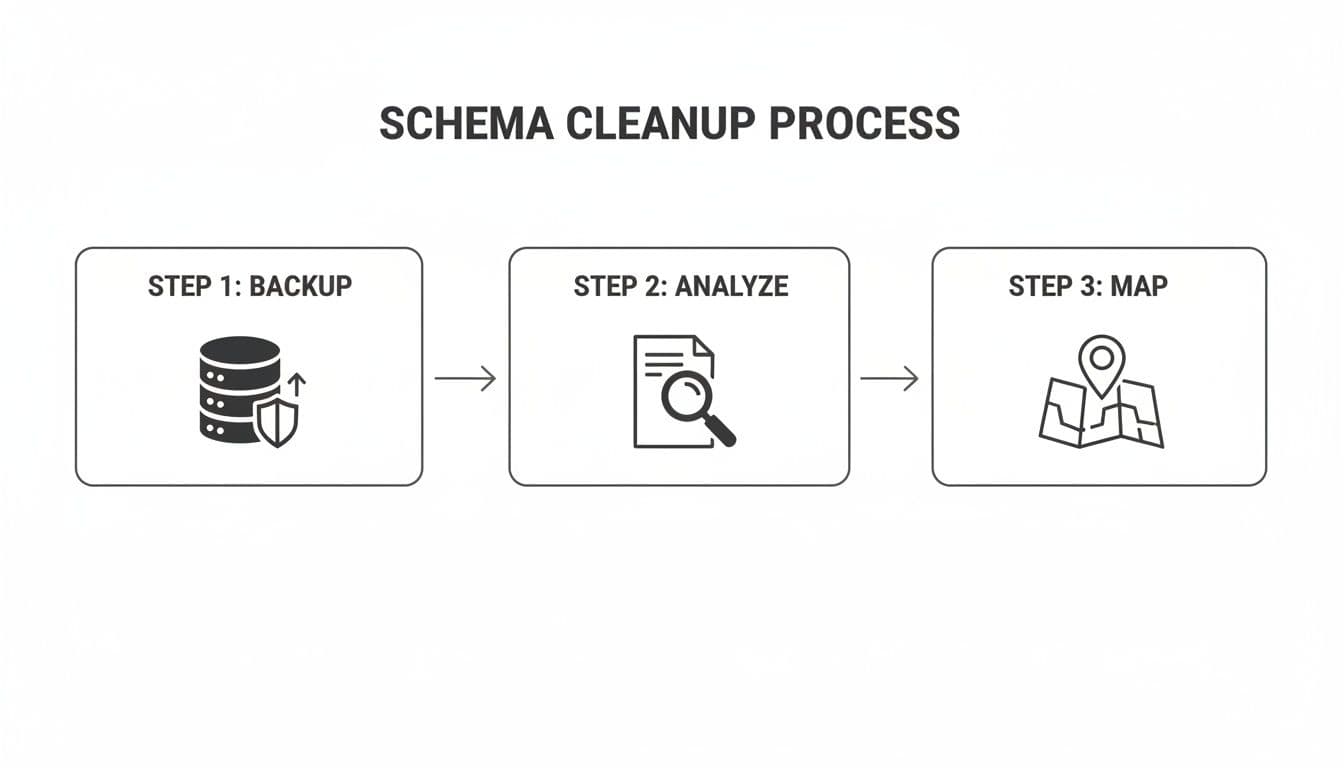
Before you export a single byte, though, remember the core process. It's a simple, three-part mantra: backup, analyze, and map. Get this right, and you'll save yourself a world of pain, no matter which export method you pick.
The SQL Dump: Direct but Deceptive
The most straightforward path seems to be generating a full SQL dump. This process spits out one giant text file containing all the CREATE TABLE and INSERT statements needed to rebuild your entire database from scratch. It's a neat, self-contained package of schema and data.
Getting the dump is easy enough with SQLite's built-in command.
sqlite3 your_database.db .dump > full_dump.sql
Here's the catch: that full_dump.sql file is written in SQLite's dialect of SQL, and MySQL will choke on it immediately. This is where you'll need to roll up your sleeves and get friendly with a command-line tool like sed (a stream editor) to massage the file into a format MySQL can understand.
You'll essentially run a series of find-and-replace operations. Here are the usual suspects you'll need to hunt down and fix:
- Transaction Statements: The dump is wrapped in
BEGIN TRANSACTION;andCOMMIT;. MySQL doesn't need these in the dump file, so they can go. - AUTOINCREMENT Syntax: SQLite’s
AUTOINCREMENTneeds to be changed to MySQL’sAUTO_INCREMENT. This is a classic "gotcha." - Quoting: You might find double quotes around identifiers that MySQL prefers to see as backticks.
- Boolean Values: SQLite is pretty flexible with booleans, often using
0and1. If your dump somehow usestandf, you'll need to convert them to something MySQL expects, likeTRUE/FALSEor1/0.
For instance, a quick sed command to fix the auto-increment keyword would look like this:
sed -i 's/AUTOINCREMENT/AUTO_INCREMENT/g' full_dump.sql
After you've scrubbed the file clean, you can feed it directly to the mysql client.
mysql -u your_user -p your_database < full_dump.sql
A Word from Experience: The SQL dump method is fantastic for small databases where you just want to get it done. But its Achilles' heel is performance. For any table with serious row counts—I'm talking millions of rows—importing via thousands of individual
INSERTstatements is painfully, agonizingly slow.
The CSV Method: The Professional's Choice for Speed
When you're dealing with any significant amount of data, exporting tables to CSV files is the way to go. Yes, it adds an extra step because you have to create the table structures in MySQL manually first, but the performance payoff is massive. If you're new to this, there are plenty of solid guides on how to export your SQL data to CSV files that cover the basics.
To start, you'll export each SQLite table into its own CSV.
sqlite3 -header -csv your_database.db "SELECT * FROM your_table;" > your_table.csv
That -header flag is your friend. It puts the column names in the first row of the CSV, which is invaluable for making sure everything lines up correctly during the import.
With your empty tables waiting in MySQL and your CSVs ready, you get to unleash MySQL's secret weapon for bulk loading: LOAD DATA INFILE.
This command is a beast, purpose-built for one thing: jamming data from a text file into a table at incredible speeds. It bypasses much of the overhead that makes INSERT statements so slow. We're not talking a small difference, either; it can easily be 20 times faster, sometimes more.
Here’s what the command looks like in action:
LOAD DATA INFILE '/path/to/your_table.csv'
INTO TABLE your_table
FIELDS TERMINATED BY ','
ENCLOSED BY '"'
LINES TERMINATED BY '\n'
IGNORE 1 ROWS;
Let's quickly unpack that statement:
FIELDS TERMINATED BY ',': Tells MySQL columns are separated by a comma. Simple.ENCLOSED BY '"': This handles cases where your text fields might contain commas themselves (e.g., "Smith, John").IGNORE 1 ROWS: This is critical. It tells MySQL to skip the first line of the file, which, thanks to our-headerflag, is just the column names.
So, what's the verdict? The choice is a classic trade-off. The SQL dump is simpler and keeps everything in one file, but it's slow. The CSV method requires a bit more prep work but is dramatically faster and more flexible. For any serious SQLite to MySQL migration where performance matters, the CSV and LOAD DATA INFILE combo is the only way to fly.
A Faster Migration Workflow with Database Tools
Let's be honest, wrestling with command-line tools and conversion scripts for a database migration can be a real grind, especially when you're on a deadline. While the manual approach gives you total control, it also opens the door to plenty of frustration and hard-to-debug errors. There's a much cleaner way to handle your SQLite to MySQL migration: using a modern database client to do the heavy lifting.
A good visual tool sidesteps all the command-line gymnastics. It swaps out a script-heavy workflow for a straightforward, interactive process. For developers who just need to move their data reliably and get back to coding, this is the fast track.
A Unified View of Your Migration
The single biggest win from a graphical tool is connecting to both your source and destination databases in one window. You can have your SQLite file open in one tab and your remote MySQL server—whether that's on AWS RDS, PlanetScale, or a private server—in another.
Seeing everything side-by-side like this completely changes the game. It lets you:
- Visually Compare Schemas: Forget manually diffing
CREATE TABLEstatements. You can just look at the table structures side-by-side and immediately spot differences in columns, data types, or constraints before you even start the migration. - Connect Securely: Modern tools take care of the connection details for you. They manage credentials and SSL settings for different MySQL hosts without making you piece together a complicated connection string.
- Work Interactively: You're free to browse data in both databases, run a few test queries, and check structures on the fly. The whole process just feels more predictable and under control.
This screenshot from a tool like TableOne is a perfect example. You have connections to different databases all organized in a single, clean workspace.
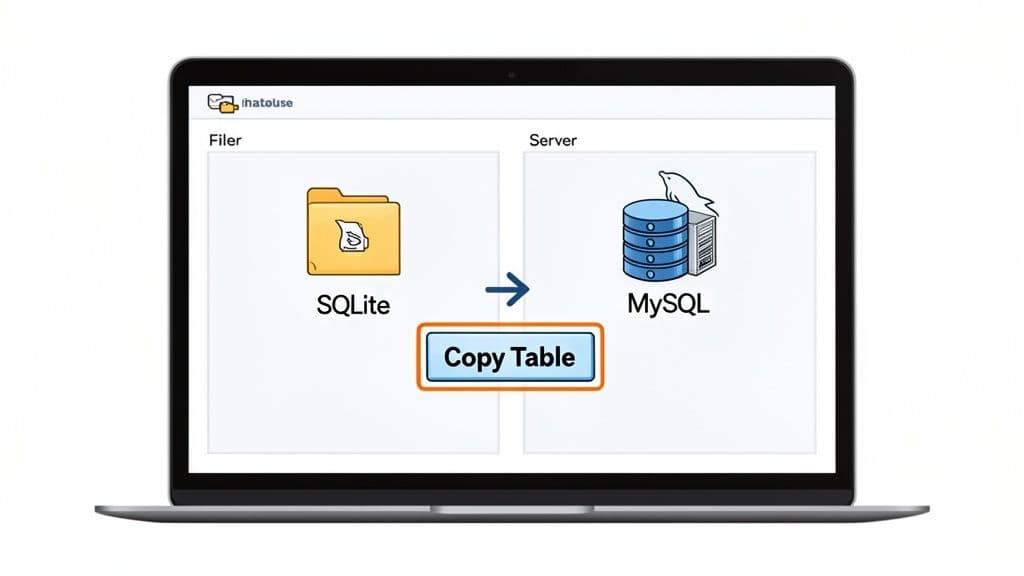
An environment like this just cuts down on the mental overhead of switching between terminals and different contexts. It keeps your workflow organized from start to finish.
The Power of Direct Table Copying
This is where things get really interesting. The most powerful feature you'll find for this task is a direct "Copy Table" function. With a single click, it can automate what would otherwise be a multi-step, manual process.
Behind the scenes, the tool is intelligently handling all the steps you'd have to script yourself. It reads the SQLite schema, generates a MySQL-compatible CREATE TABLE statement with correctly mapped data types, creates the new table in MySQL, and then streams all the data over. It's doing everything at once.
You get the speed of a bulk data transfer without having to manually create CSV files or clean up SQL dumps. I’ve seen this turn what could be a multi-hour, error-prone task into something that takes just a few clicks.
Why This Workflow Wins for Most Projects
Mastering sed and awk is a great skill to have, but it isn't always the most productive use of your time. For the vast majority of SQLite to MySQL migration projects, a visual tool strikes a much better balance of speed, accuracy, and sanity. If you're exploring options, you might want to look into the best database management tool choices that focus on this kind of simple, powerful workflow.
Ultimately, this approach minimizes the risk of a typo in a script derailing your work and dramatically speeds up the entire process. It turns a complex migration into a straightforward and, more importantly, repeatable task.
Alright, your import script has finished, and the terminal is flashing a success message. It’s a huge relief, but don’t close your laptop just yet. The most important part of any database migration—especially from SQLite to MySQL—is what you do after the data has been moved. This is where you hunt down the small, inevitable issues that can cause big headaches later.
Skipping verification is like building a house and never checking if the foundation is level. You might not notice the problem today, but small, hidden errors can lead to silent data corruption or bizarre application crashes weeks from now. A few quick SQL queries at this stage will save you a world of pain.
Your Post-Migration Verification Checklist
Before you declare victory, it's time to play detective. Run these simple but powerful checks on both the original SQLite database and your new MySQL setup. The goal is to spot any differences immediately.
1. Headcount: The Row Count Check This is your first, most basic sanity check. Does every table in MySQL have the exact same number of rows as its counterpart in SQLite? A mismatch is the canary in the coal mine—it tells you something went wrong during the import.
- In SQLite:
SELECT COUNT(*) FROM users; - In MySQL:
SELECT COUNT(*) FROM users;
2. Balancing the Books: Summing Numeric Columns
For any important numeric columns—think total_amount in an orders table or quantity in your inventory—a quick SUM() can reveal if data was truncated or lost. If the sums don't match to the penny, you have a problem.
- In SQLite:
SELECT SUM(total_amount) FROM orders; - In MySQL:
SELECT SUM(total_amount) FROM orders;
3. The Eye Test: Spot-Checking Critical Records Aggregate numbers are great, but they don't tell the whole story. You need to manually inspect a few key rows. Pull up the very first user, the most recent order, and maybe a couple of your most important customer accounts. Compare every single field, side-by-side, between the SQLite and MySQL databases.
-- Check a specific record in both databases
SELECT * FROM orders WHERE id = 12345;
A Playbook for Common Migration Pitfalls
Even if you’ve planned meticulously, you’re bound to hit a few snags. It happens to everyone. The good news is that most of these problems are well-known and have straightforward fixes. Here’s a playbook for the most common issues I’ve seen in the wild.
The Gibberish Text Problem (Character Encoding)
You open a table and see a wall of question marks (???) or garbled symbols where your text should be. This is a classic character encoding mismatch. SQLite is pretty flexible and often defaults to UTF-8. MySQL, on the other hand, needs to be explicitly told to handle the full range of modern characters. If you didn’t set your character set to utf8mb4, emojis and other special characters will get mangled.
The Fix: Make sure your MySQL database and tables were created with the right character set from the start.
CREATE DATABASE your_database
CHARACTER SET utf8mb4
COLLATE utf8mb4_unicode_ci;
If you've already imported the data, don't waste time trying to fix it in place. The safest and cleanest solution is to drop the corrupted tables, fix the character set definition, and run the import again.
The UNIQUE Constraint and NULL Values Dilemma
This one is subtle but trips up a lot of people. SQLite allows multiple NULL values in a column that has a UNIQUE constraint. MySQL is much stricter; it treats NULL as a value and will only allow a single NULL in a unique column.
If your SQLite data relied on having multiple NULLs—for instance, in a users table where an optional email field is NULL for several users—your import will fail as soon as it hits the second NULL.
The Fix: You have a couple of options here. Before migrating, you can either replace the NULLs in SQLite with a unique placeholder (e.g., user1_no_email@example.com, user2_no_email@example.com) or rethink whether that UNIQUE constraint is really necessary in MySQL. You can also use a tool to compare database schemas beforehand to catch these kinds of subtle differences before they become a problem.
The Case-Sensitivity Trap
This is a nasty one that often doesn't show up until you deploy to production. By default, MySQL table names are case-sensitive on Linux servers but case-insensitive on Windows and macOS. SQLite, being file-based, is usually case-insensitive everywhere.
Imagine your code contains a query like SELECT * FROM UserData. It works perfectly on your Mac. But when you deploy to your Linux production server, the app breaks because the actual table name is userdata.
This case-sensitivity issue is one of the most frustrating post-migration bugs to track down. Always adopt a consistent naming convention (like all lowercase) for your tables and stick to it religiously. It will save you from emergency debugging sessions.
These kinds of migration challenges are becoming more common as the data warehouse market, projected to hit $14.78 billion by 2030, continues to grow. This growth is fueled by automation that can slash project times by 40-50%. But with global data volumes expected to triple by 2026, it's no shock that an estimated 70% of data projects fail. Proper planning, which includes accounting for pitfalls like case-sensitivity and NULL handling, is what separates success from failure. For a deeper dive into these trends, check out these database migration statistics.
When I'm helping teams move from SQLite to MySQL, a few questions always seem to pop up. Let's get right into the most common ones and talk through some real-world advice for the challenges you’re likely to face.
Can I Fully Automate the Migration?
Technically, yes. You can absolutely script the entire process for migrations you plan to run over and over. A common approach is to build a shell script that chains the SQLite .dump command, uses a stream editor like sed or awk to fix the SQL syntax, and then pipes that cleaned-up file straight into the mysql client. For more complex, ongoing syncs, you might even look at a dedicated tool like SymmetricDS.
But here’s the thing: for most one-off migrations, building a custom script is often overkill. You can easily spend more time debugging your script than you would have spent just doing the migration manually.
This is where a good visual database tool really shines. It can automate the tricky parts—like schema mapping and copying data—with just a few clicks. You get the speed of automation without the headache of writing and maintaining a custom script.
What's the Single Biggest Mistake to Avoid?
Without a doubt, the most common and damaging mistake I see is skipping the data type and character encoding analysis. It's so easy to assume that SQLite's flexible, "anything-goes" approach to data types will just work with MySQL's strict rules. This assumption almost always leads to silent data truncation or frustrating import failures.
Think about this classic scenario: you've got a string like "N/A" stored in an SQLite INTEGER column. SQLite doesn't mind one bit. But the moment you try to import that row into a MySQL INT column, your entire import process will grind to a halt.
To get ahead of this, you have to map out your data types beforehand. And before you move a single byte of data, make sure your target MySQL database and tables are standardized on the utf8mb4 character set. This will save you a world of hurt from corrupted text and weird characters.
How Should I Handle Auto-Incrementing Primary Keys?
This is a critical detail. Get it wrong, and your data relationships will be a mess. In SQLite, any column defined as INTEGER PRIMARY KEY acts as an auto-incrementing key. When you export your data, the dump file will contain the actual, hardcoded ID values for every single row.
The trick is to make sure MySQL uses these existing IDs instead of trying to generate new ones.
The best way to handle this is a two-step dance. First, go ahead and import all your data into the MySQL table, which should already be defined with its own AUTO_INCREMENT primary key.
Once the import is finished, you need to tell MySQL the next ID to use. You do this by resetting the auto-increment counter to be one higher than the largest ID you just imported.
Here's the exact command to run:
ALTER TABLE your_table AUTO_INCREMENT = (SELECT MAX(id) FROM your_table) + 1;
Running this one simple query prevents future INSERTs from creating duplicate primary keys—a silent but deadly error that can seriously corrupt your data.
Is It Better to Use a SQL Dump or a CSV Export?
The right answer really depends on the size of your database and how hands-on you're willing to get.
- SQL Dump: This method is wonderfully self-contained. You get one file with both the schema (
CREATE TABLE) and the data (INSERT). For small databases, it's a breeze. But for larger tables, it gets painfully slow because it processes data one row at a time. - CSV Export: This is the fast lane for data transfer, especially when you use MySQL's
LOAD DATA INFILEcommand. The trade-off is that it's a data-only export. You have to create the table structure in MySQL yourself before you can import anything.
For big datasets, there’s a powerful hybrid approach. Use the SQL dump file only to create the table schemas. Then, TRUNCATE those new, empty tables. Finally, use the much faster CSV export with LOAD DATA INFILE to get the actual data in. This gives you the best of both worlds: automated schema creation and blazing-fast data loading.
Navigating a SQLite to MySQL migration can feel like a puzzle, but having the right tool makes all the pieces fit together. TableOne is a modern database client built to make tasks like schema comparison and direct table copying fast and predictable. It connects to SQLite, MySQL, and more in a single, clean interface, so you can manage your migration without getting tangled up in scripts.