The Best SQLite GUI for Mac A Developer's 2026 Guide
Searching for the best SQLite GUI for Mac? This guide reviews essential features and criteria to help you choose the right tool for your development workflow.

Trying to manage a database purely from the command line can feel like navigating a maze blindfolded. You know the data is in there somewhere, but every step is a guess, and you’re constantly bumping into walls. For developers working on a Mac, a solid SQLite GUI for Mac is more than just a convenience—it’s the tool that takes the blindfold off.
Why You'll Want a Good SQLite GUI on Your Mac
If you're building anything on a Mac or for iOS, you're working with SQLite databases, often without even realizing it. It’s the quiet engine humming behind the scenes, powering everything from your app's local data storage to the configuration files of your favorite desktop tools. SQLite is simply everywhere.
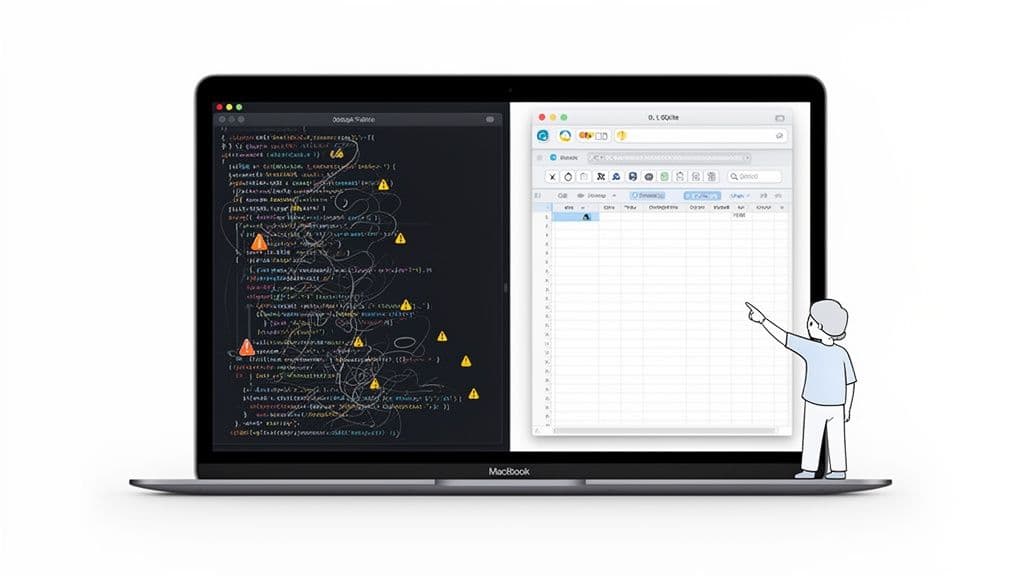
This is where the workflow challenge kicks in. The command-line interface (CLI) is undeniably powerful, but it wasn't designed for intuitive data exploration. Simple tasks, like peeking at a few records or figuring out a table’s structure, become a tedious cycle of typing, checking for typos, and re-typing.
The Daily Grind of the Command Line
Relying solely on the terminal for database tasks adds a layer of friction that quietly grinds down your productivity. Every interaction demands perfect syntax, and getting a clear picture of how your data is connected is practically impossible.
For example, imagine you need to quickly check the last 5 users who signed up. In the command line, you'd type sqlite3 my_app.db "SELECT * FROM users ORDER BY created_at DESC LIMIT 5;". If you mistype created_at, you get an error. A GUI turns this into a two-click action: click the users table, then click the created_at column header to sort.
This leads to a few common headaches:
- Slow Data Browsing: You can’t just glance at a table and scroll through it. Finding one specific record means writing a
SELECTstatement, and if it’s not the right one, you’re writing another. A GUI lets you filter a million-row table by typing a search term, just like in a spreadsheet. - Risky Manual Edits: Need to fix a single value? Typing an
UPDATEcommand likeUPDATE products SET price = 99.99 WHERE id = 123;is a high-stakes game. A forgottenWHEREclause is all it takes to accidentally update every single product. A GUI lets you double-click the cell, change the value, and hit Enter, safely generating the correct SQL for you. - Zero Visual Context: Trying to understand table schemas, foreign keys, and indexes from text output is like trying to assemble furniture with the instructions written in paragraph form. You're flying blind.
A great SQLite GUI is like having a multimeter when you're debugging a circuit. You could poke around with wires and guess, but the right tool gives you immediate, precise feedback, letting you find the problem and fix it fast.
The Staggering Scale of SQLite
The need for a user-friendly SQLite GUI for Mac becomes even clearer when you consider the database's sheer scale. SQLite isn't just popular; it's the most widely deployed database engine on the planet, running on billions of devices. From every iPhone and Android phone to all major web browsers, SQLite is there, resulting in over one trillion active databases in use. You can get a sense of its incredible reach on the official SQLite website.
What this means for you is that you'll constantly be creating, debugging, or managing SQLite files. A visual tool turns these tasks from a chore into a quick, seamless part of your day, freeing you up to focus on what really matters: building great software.
How to Choose the Right SQLite GUI for Your Needs
Let's be honest, picking the right SQLite GUI for Mac isn't about finding the one with the longest feature list. It's about finding a tool that feels like a natural extension of how you work. A clunky, poorly designed app can be even more frustrating than the command line it’s meant to replace.
The goal is to find something that not only gets the job done but does it with speed and intuition. Your first gut check should be the user experience. Does it feel like a true Mac app, or is it a generic, one-size-fits-all tool that ignores the platform’s design standards? A native-feeling tool is a joy to use, making you faster and more efficient without you even realizing it.
This feeling of "fit" is especially critical when you start throwing real data at it. A good GUI should let you browse, filter, and edit millions of rows without breaking a sweat. If the app freezes or lags, it immediately defeats the whole purpose.
Create a Personal Scorecard
The best way to cut through the marketing fluff is to create a simple scorecard to judge your options. This forces you to think about what actually matters for your day-to-day work. A freelance developer’s "must-haves" will look very different from those of a data analyst on a large team.
Here are a few points I always recommend people put on their scorecard:
- User Interface (UI) and Experience (UX): Is it clean and intuitive? Does it offer both light and dark modes? Most importantly, does it feel snappy and responsive on macOS?
- Performance: How does it handle a database with over a million rows? Can you filter data instantly, or are you stuck watching a spinning wheel? Actionable Insight: Download a large sample SQLite database (e.g., one with flight data or census info) and use it during your trial period to test real-world performance.
- Core Feature Set: Does it cover the basics without fuss? I'm talking about inline data editing, easy schema browsing, and a painless CSV import/export workflow.
- Database Support: If your work extends beyond SQLite, can it also connect to PostgreSQL, MySQL, or other databases you rely on?
- Pricing Model: Is it a one-time purchase or a recurring subscription? A one-time license is often more predictable and can save you a lot of money in the long run. If you're weighing the value, our guide on GUI vs. Command Line can offer some helpful perspective.
The Growing Need for Mac-Specific Tools
The demand for a high-quality SQLite GUI for Mac isn’t just a niche developer request anymore; it reflects a major shift in the industry. With macOS now holding a 29.62% share of the US desktop market, nearly one in three users is on a Mac.
Many of them are developers who expect their tools to be top-tier. Since every single Mac ships with SQLite pre-installed, the need for a great GUI to manage those databases is more pressing than ever. You can read more about the growth of macOS in our detailed stats overview.
A great GUI should be an investment, not an expense. It should save you more time and prevent more errors than its cost, making it a clear win for your productivity.
By using a personal scorecard and focusing on what you actually need to get your work done, you can confidently pick a tool that becomes a go-to part of your toolkit—not just another app collecting dust on your hard drive.
Getting Started with a Practical Walkthrough
Theory is great, but let's be honest—nothing really clicks until you get your hands on the tools. So, let's walk through the essential, day-to-day things you’ll actually do with a good SQLite GUI for Mac. You'll see how a visual interface takes tedious command-line work and turns it into a few simple, intuitive clicks.
To keep things realistic, we'll be using the northwind.sqlite sample database. If you've ever learned about databases, you've probably seen it before. It's a classic for a reason: it gives us a nice set of tables, relationships, and data to play with, making it the perfect sandbox for this tour.
Opening a Database and Browsing Data
First things first: you need to connect to your data. Forget fumbling with terminal commands and file paths. With a GUI, you just drag and drop your .sqlite file right onto the app, or use the familiar "File > Open" menu. It's that simple.
The moment you open it, the entire database structure—what we call the schema—lays itself out in a clean sidebar. You'll see all your tables, views, and indexes at a glance. Just click a table, like Customers or Orders, and its data instantly fills the main window in a spreadsheet-like grid.
This visual layout gives you immediate context. You can scroll through thousands of rows, sort by different columns, and get a feel for your data's shape without writing a single line of SQL. Practical Example: To see all customers from London, you don't need SELECT * FROM Customers WHERE City = 'London';. You just click the filter icon on the City column, type "London," and the table updates instantly.
Running Queries and Editing Data
Of course, you'll need to ask specific questions of your data, and that means writing queries. A smart SQL editor is the heart of any worthwhile GUI. Look for one with helpful features like syntax highlighting, autocompletion for table and column names, and a clear space to build and run your SQL.
For example, if you wanted to find all the products that are out of stock, you'd just type this into the editor:
SELECT ProductName, UnitsInStock
FROM Products
WHERE UnitsInStock = 0;
The results pop up immediately. But what if you spot a mistake or need to make a quick change? This is where a top-tier SQLite GUI for Mac really shines with inline editing. Instead of writing a whole UPDATE statement, you just double-click a cell in the results, type in the new value, and press Enter. The tool safely generates and runs the correct UPDATE query for you in the background.
This one feature is an absolute game-changer for both speed and safety. It dramatically cuts down on the human errors that can happen when writing
UPDATEstatements by hand—like forgetting aWHEREclause and accidentally wiping out your data.
Importing and Exporting Data
Getting data in and out of your database is a constant need. Say a supplier sends you a new_inventory.csv file. With a GUI, importing it is a breeze. A simple wizard walks you through the process, helping you map the CSV columns to the right fields in your Products table, preview the changes, and handle the entire import without a single hiccup.
Exporting is just as straightforward. Once you've run a query to pull a specific report, you can export the results to a CSV or JSON file with a click. It's instantly ready to be shared with your team or fed into another application. Actionable Insight: Use the export feature to quickly generate mock data. Run a query to select a few realistic rows, export to JSON, and you have an instant fixture file for your unit tests.
This kind of practical, workflow-focused thinking is exactly what you should apply when picking a tool for yourself.
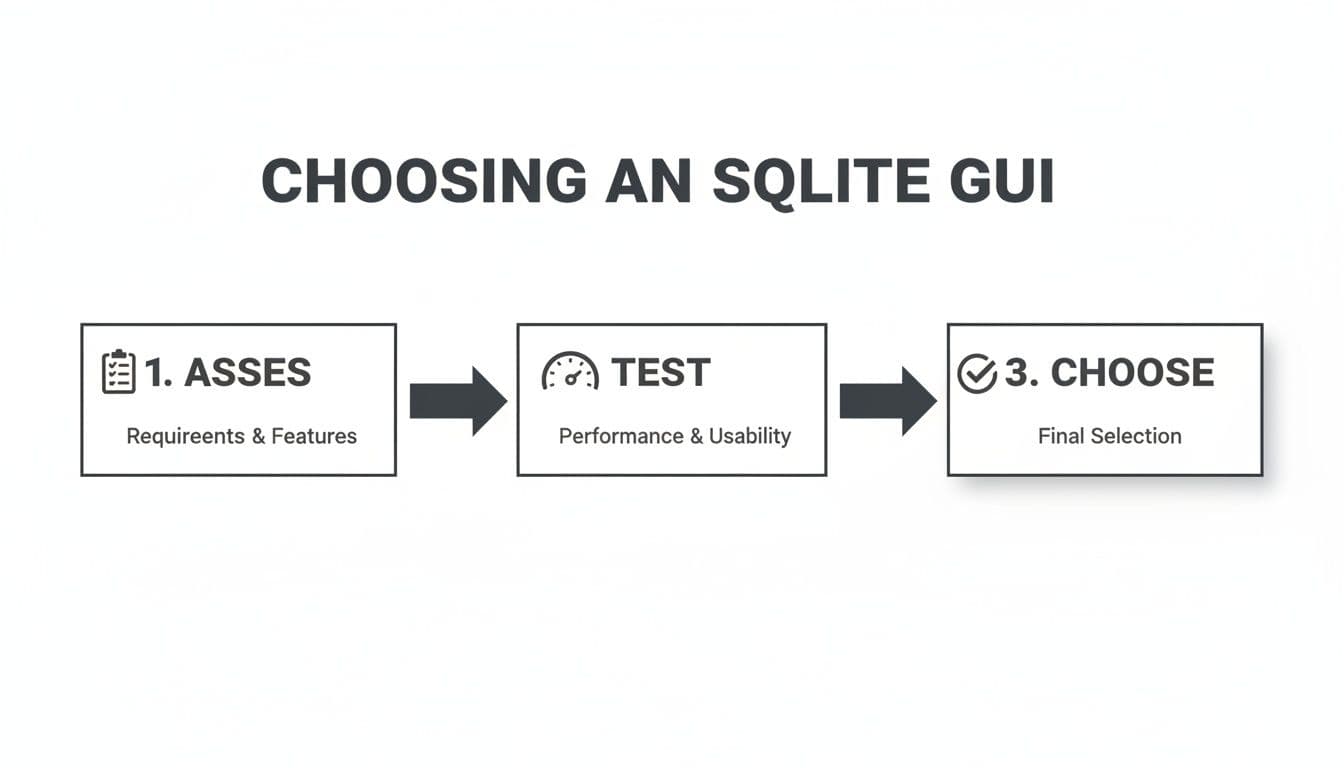
Ultimately, the selection process boils down to a simple loop: figure out what you really need (assess), try out a few tools with your own data (test), and then commit to the one that feels the most natural for your workflow (choose).
Essential Features Beyond Basic Data Editing
While any decent SQLite GUI for Mac will let you browse and edit data, that’s just table stakes. The features that really make a difference—the ones that save you from late-night debugging sessions and painful manual work—are those built for the realities of modern development. A basic tool lets you see your data; a great tool helps you understand and manage it.
Think of it this way: a simple hammer is fine for hanging a picture frame. But if you’re building a house, you need power saws, levels, and architectural blueprints. For real-world database work, you need more than just a data viewer. You need a tool that can reveal the entire structure.
Seeing the Blueprint, Not Just the Bricks
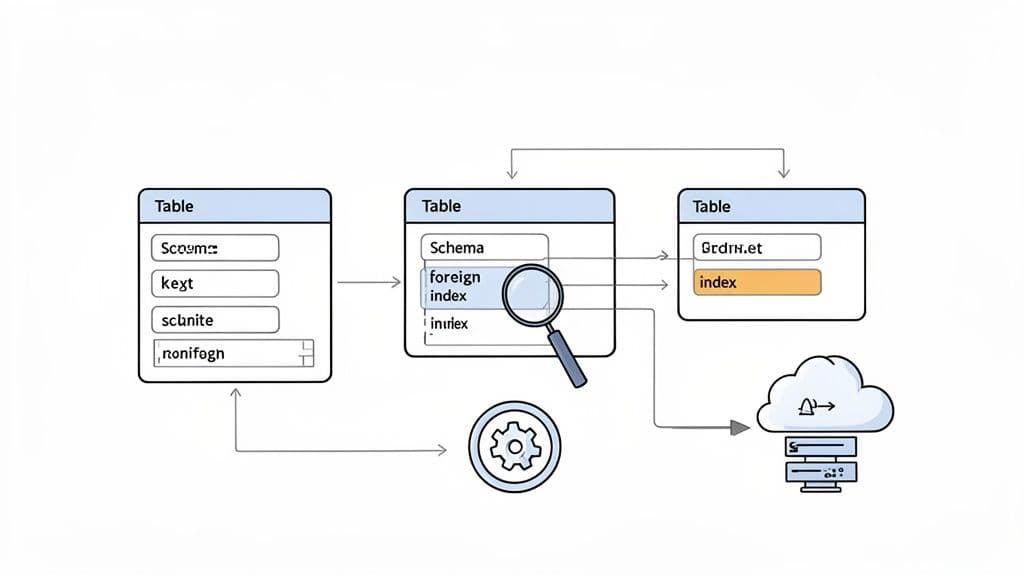
A powerful GUI moves beyond raw rows and columns to show you the underlying logic of your database. These are the features that are indispensable for debugging, optimization, and simply getting your head around a complex system.
-
Schema Comparison (Diffing): Ever had that sinking feeling after a deployment, wondering if your local database schema drifted from what’s in production? A schema diff tool is your safety net. It compares two databases side-by-side and pinpoints every difference, from table structures and column types to indexes and constraints. Practical Example: Before merging a feature branch, you run a diff between your development DB and the main branch's DB. The tool highlights a missing index and an altered column type, allowing you to fix your migration script before it causes issues in production.
-
Visual Relationship Viewer: A database with dozens of tables can feel like a tangled web of foreign keys. A relationship viewer turns that web into a clean, easy-to-read diagram, showing you exactly how tables are connected. This is a game-changer for understanding data flow and writing complex
JOINqueries without guesswork. -
Index Management: Slow queries are a classic sign of missing or poorly chosen indexes. A good index manager lets you see all existing indexes at a glance, find which columns are covered, and add or remove them through a simple interface. No more fumbling with
CREATE INDEXsyntax.
A schema diff feature is the database equivalent of version control for your code. It lets you see exactly what's changed, preventing deployment disasters and making collaboration with your team dramatically safer.
Tools That Get Real Work Done
Beyond analysis, the best GUIs provide practical utilities that turn tedious, multi-step command-line chores into a few clicks. These are the features that genuinely give you hours back in your week.
For example, a huge time-saver is cross-database table copying. Imagine you’ve built a new feature with a local SQLite database and now need to move that data to your staging PostgreSQL server. Instead of a messy export/import process, a great GUI lets you just copy a table from your SQLite connection and paste it directly into the PostgreSQL one. The tool handles the schema creation and data migration for you.
Another incredibly useful feature is the ability to generate schema snapshots. This exports a complete, human-readable definition of your database structure into a file. It’s perfect for documenting the database, including it in a pull request for review, or just keeping a historical record of its design. These are the kinds of capabilities that elevate an SQLite GUI for Mac from a simple editor to an essential part of your development workflow.
Why TableOne Is a Strong Contender for Mac Developers
So, we’ve talked about what to look for in a great SQLite GUI for Mac. Now, let's look at how those ideas come together in a real-world tool built from the ground up for Mac developers. I want to introduce you to TableOne, a database client that really understands the need for speed, simplicity, and a workflow that doesn’t get in your way.
The first impression you get is how clean it is. There’s no clutter—just the essentials you need to get work done. Whether you’re quickly peeking into a local SQLite file or managing a production database, the experience feels fast, predictable, and genuinely native to macOS. It just feels right.
Built for the Modern Developer Workflow
TableOne really shines for individual developers and small teams. This focus makes a lot of sense when you look at who actually uses SQLite. The data shows its sweet spot is with smaller companies; 37% of businesses using SQLite have fewer than 50 employees, and 62% bring in under $50M in revenue. You can dig into the numbers on SQLite's market adoption on enlyft.com.
TableOne is clearly built for this crowd, skipping the enterprise-level bloat and cost. Instead, it delivers a feature set that solves day-to-day problems:
- One Tool for All Your Databases: It handles SQLite brilliantly, but it doesn't stop there. You can connect to PostgreSQL and MySQL from the same app, giving you a consistent interface for your local dev database and your production server.
- Genuinely Useful Utilities: Features like schema diffing aren't just for show. They solve real headaches, like making sure your local and production schemas haven't drifted apart. Practical Example: You've just inherited a legacy project. Use TableOne to create a schema snapshot of the production database. Now you have a clear, version-controllable file that serves as documentation for the entire data structure.
- Simple, Honest Pricing: In a world of endless subscriptions, TableOne’s one-time license is a breath of fresh air. For a $39 Solo license with a 7-day trial, you get a powerful tool you actually own. It’s a predictable cost that’s easy for any indie developer or small team to budget for.
A good tool should empower you, not distract you. TableOne strikes that balance by keeping the core experience—browsing data, running queries—incredibly fast and simple, while still giving you powerful features like schema comparison when you need them.
In the end, the right SQLite GUI for Mac is the one that fits how you work. With its native Mac feel, thoughtful developer-centric features, and straightforward pricing, TableOne presents a compelling case. It’s a reliable and efficient client that helps you manage your data without the fuss, so you can stay focused on building your next project.
Frequently Asked Questions About Mac SQLite GUIs
As you start looking for the perfect SQLite GUI for your Mac, the same questions tend to pop up. Getting straight answers to these is key to picking a tool you'll actually enjoy using, not just tolerate. Let's walk through some of the most common things developers ask.
Are Free SQLite GUIs Good Enough?
This is the first question on everyone's mind, and the answer really comes down to what you do all day. For a quick, one-off task—like peeking inside a .sqlite file or running a simple SELECT statement—a free tool can absolutely get the job done. No argument there.
The problem is, as soon as your database work gets more serious, the limits of free tools can become a real drag on your productivity. This is where paid GUIs earn their keep, with features designed to save you hours of tedious work and prevent those costly "oops" moments.
Think of it this way: a free GUI is like a basic text editor, while a paid GUI is more like a full-featured IDE. Both can edit text, but the IDE's smart autocompletion, debugging, and refactoring tools make you a much faster and safer developer.
Things like inline data editing, schema comparison, and visual relationship viewers are almost never found in free options. These aren't just frills; they are professional tools that make complex tasks simple. Actionable Insight: The moment you find yourself manually writing an UPDATE statement for the third time in an hour, that's your cue. The time you'll save and the errors you'll prevent with a paid tool's inline editing will pay for the license fee in a matter of weeks.
Can a Single GUI Manage Both SQLite and PostgreSQL?
Yes, and honestly, for most developers, this should be a dealbreaker. It's pretty rare to work with just one kind of database. A common workflow is to use SQLite for local development and then push to a production database like PostgreSQL or MySQL.
Juggling different apps for each database adds a ton of friction to your day. You're constantly context-switching, trying to remember which interface does what, and it just slows you down.
A modern, multi-database SQLite GUI for Mac erases this problem by giving you one consistent window into all your databases. This means you can:
- Have a local SQLite file open right next to a remote PostgreSQL database, in the same app.
- Copy a table structure (or even the data) from your SQLite dev database directly to your PostgreSQL production server with a couple of clicks.
- Use the same query editor and data browser you're used to, no matter which database you're connected to.
It’s all about removing mental clutter and making your entire database workflow feel smooth and connected.
What Are the Best Practices for Securely Connecting to Production?
Connecting to a live production database demands respect and a healthy dose of caution. A good GUI should give you a secure way to do this, and the industry standard is connecting via an SSH tunnel.
Think of an SSH tunnel as a secure, encrypted "pipe" between your Mac and the production server. Your GUI sends all its traffic through this protected pipe instead of connecting to a database port that's exposed to the open internet—which is a huge security risk.
When you're setting up the connection, you’ll typically provide two sets of information:
- SSH Host Details: The server's address, your username, and your authentication method (either a password or, for better security, an SSH key file).
- Database Credentials: The database username, password, and port. These are only used after the secure tunnel is established.
This two-step process ensures all communication with your production database is locked down and encrypted. Of course, another headache you might run into is the database locking up during a critical operation. To learn how to handle that, check out our guide on how to resolve a SQLite database locked error in our detailed guide.
Ready to try a tool that was built from the ground up for the Mac and designed for developers? TableOne is a modern database client for SQLite, PostgreSQL, and MySQL that offers a clean interface without the clutter. It's a simple, one-time purchase. Download the 7-day free trial of TableOne and see how much faster your database work can be.