Import CSV Into MySQL: A Practical Developer's Guide
Learn how to import CSV into MySQL using LOAD DATA INFILE, MySQL Workbench, Python, and more. Get actionable steps for fast and error-free data imports.

So, you have a CSV file and need to get that data into a MySQL database. It’s a task every data professional runs into, but the best way to tackle it isn't always obvious. You've got a few solid options, and picking the right one upfront will save you a world of headaches.
This guide cuts through the noise and compares the most effective methods to import CSV into MySQL, from blazing-fast command-line tools to user-friendly graphical interfaces, complete with actionable examples you can use today.
CSV to MySQL Import Methods at a Glance
At a high level, your choice boils down to a trade-off between raw speed and click-and-go convenience. Are you wrangling a massive dataset, or just doing a quick one-off import?
Here's a quick comparison to help you choose the right tool for the job.
| Method | Best For | Speed | Ease of Use |
|---|---|---|---|
LOAD DATA INFILE | Huge datasets (millions of rows), automated scripts, and maximum performance. | Very Fast | Low (Requires SQL & server access) |
| MySQL Workbench | Visual learners, one-off imports, and inspecting data before loading. | Moderate | High (Wizard-driven) |
| phpMyAdmin | Users with web hosting panels (like cPanel) and small-to-medium files. | Slow to Moderate | High (Simple web interface) |
| TableOne | Teams needing a collaborative, modern GUI with smart data mapping. | Fast | Very High (Intuitive & streamlined) |
Each method has its place. For routine, massive data dumps, nothing beats the command line. But for most other tasks, a good GUI provides a much friendlier and less error-prone experience.
Choosing Your Path: Speed vs. Simplicity
The main decision point is pretty clear. If you're working with a large file—think millions of rows or a file size pushing a gigabyte—the native LOAD DATA INFILE command is your best bet. It's built specifically for bulk loading and bypasses a lot of overhead, making it incredibly fast.
On the other hand, for smaller files or if you just prefer a more visual approach, a graphical user interface (GUI) is the way to go. Tools like MySQL Workbench offer a step-by-step wizard that guides you through the process, which is perfect when you don't want to mess with SQL commands directly.
This simple flowchart lays out the core decision.
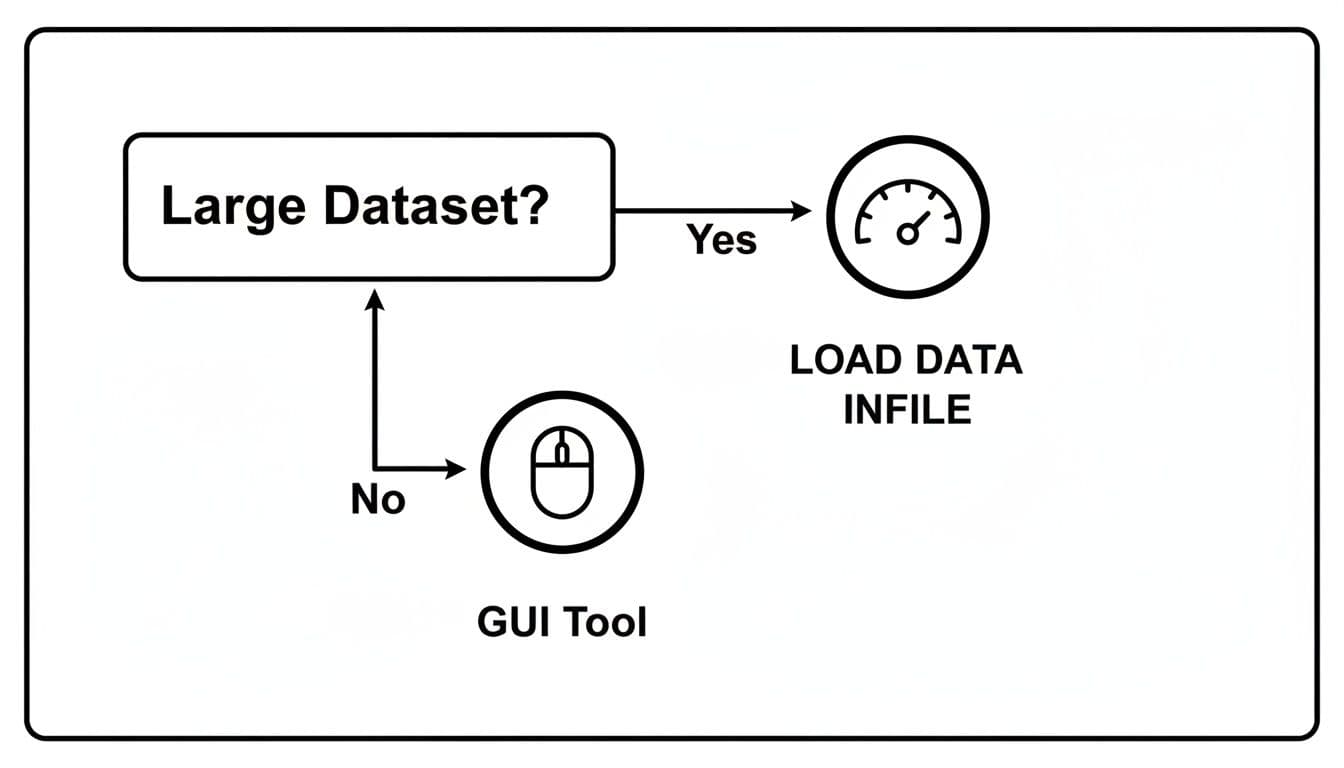
As you can see, file size is the biggest factor. For big data, the command line wins on pure performance. For everything else, a GUI will get the job done with less fuss.
Actionable Insight: A truly efficient developer knows when to use which tool. For a 2GB log file, scripting
LOAD DATA INFILEis the right call. But for a 500-row marketing list from a colleague, using a GUI like TableOne to quickly preview and import is far more productive. It's about using the right tool for the right job, every time.
And remember, this is a two-way street. If you ever need to pull data back out of your database, you can learn how to export SQL to a CSV with similar tools and techniques.
Getting Your Data Ready for a Smooth Import
I’ve seen countless MySQL imports fail, and it's almost never because of a tricky SQL command. The real culprits? Simple, overlooked issues in the data itself. You can’t build a solid house on a shaky foundation, and the same goes for your database.
Spending a few minutes cleaning up your CSV file beforehand is the single best thing you can do to guarantee a successful import. Think of it as a pre-flight check for your data; it will save you hours of frustrating troubleshooting later.
Create a Matching MySQL Table Schema
Your data needs a home, and that home is your MySQL table. The golden rule here is that your table's columns must perfectly mirror your CSV's columns—not just in name, but in order and data type. If your CSV has user_id, email, signup_date, your table needs to match that structure precisely.
For a practical example, let's say you have a users.csv file that looks like this:
id,name,email,created_at
1,"Alex Smith","alex@example.com","2023-10-26"
2,"Sarah Jones","sarah.j@example.net","2023-11-05"
You'd need to create a table with a corresponding schema.
CREATE TABLE users (
    id INT PRIMARY KEY,
    name VARCHAR(100),
    email VARCHAR(255) NOT NULL,
    created_at DATE
);
Notice how we’ve chosen INT, VARCHAR, and DATE to perfectly match the kind of data in each column. This alignment isn't just good practice; it's critical. A staggering 62% of import failures stem from these kinds of data type mismatches. Trying to shove a text string into a date column, for example, can lead to 25-30% data loss if you're not careful. You can dig deeper into data import challenges and their solutions to see just how common these problems are.
Standardize and Clean Your CSV Data
With your table structure in place, it’s time to get your hands dirty with the CSV file. The small inconsistencies that are invisible to the human eye can completely derail an automated import.
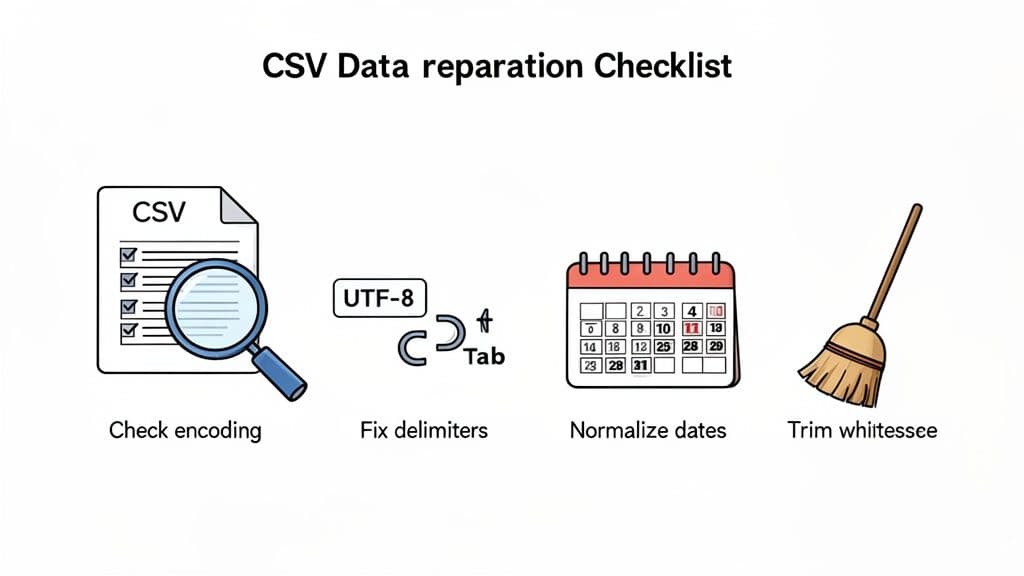
Here’s a practical checklist I run through before every import:
- Character Encoding: Always save your file with UTF-8 encoding. This prevents special characters (
é,—,€) from turning into gibberish (â€") inside your database. - Delimiters and Line Endings: Most CSVs use a comma, but some use semicolons or tabs. You can check this by opening the file in a text editor. Be sure your line endings are consistent (
\nfor Linux/macOS or\r\nfor Windows). - Whitespace: Pesky spaces at the beginning or end of a value (
" alex@example.com ") are a classic cause of import errors. A quick find-and-replace for"(space-quote) and"(quote-space) can save you a headache. - Date and Time Formats: MySQL expects dates in
YYYY-MM-DDformat. If your CSV has10/26/2023orOct 26, 2023, you must reformat them first. Most spreadsheet programs can do this with a "Format Cells" option.
Actionable Insight: Don't just rely on spreadsheet software like Excel or Google Sheets. Open your CSV in a plain text editor (like VS Code, Sublime Text, or even Notepad). Spreadsheets can hide formatting issues, like converting long numbers into scientific notation (e.g.,
8123456789012345becomes8.12346E+15) or auto-formatting your dates. A text editor shows you the raw, unfiltered data—exactly what MySQL will see.
Mastering the LOAD DATA INFILE Command
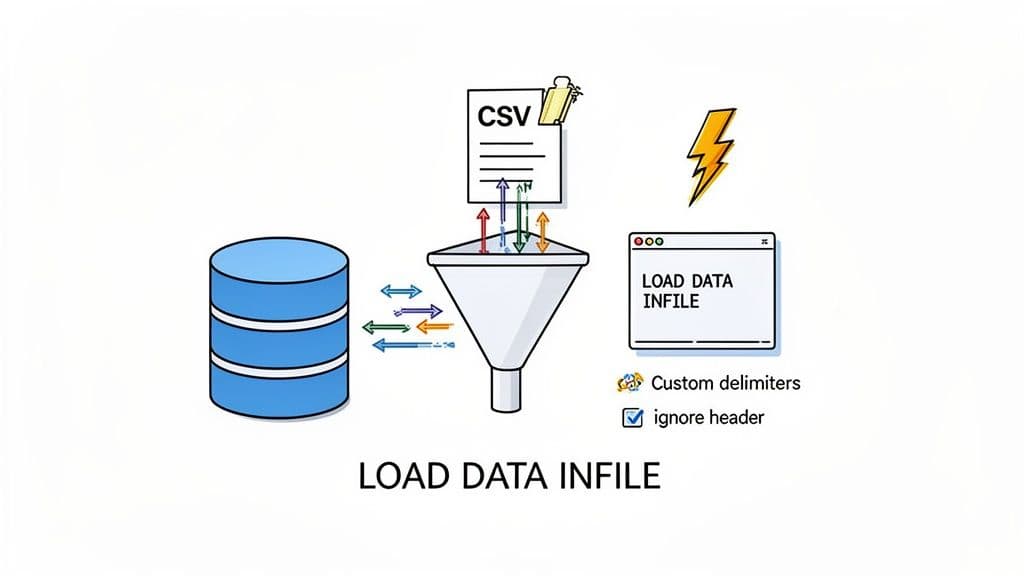
When it comes to getting a CSV file into MySQL, especially a big one, my go-to tool is almost always LOAD DATA INFILE. This is MySQL's built-in utility for bulk loading, and it's built for one thing: raw speed.
Forget looping through INSERT statements. This command moves data directly from the file into your table at an incredible pace. On modern hardware, you can see speeds hitting 100 MB per second. That's a massive difference, often five times faster than traditional methods. If you're curious about the numbers, the team at Percona has published some great MySQL performance benchmarks that really highlight the performance gap.
The Basic Syntax for a Quick Import
Let’s walk through a common scenario. Say you have a file called products.csv located in MySQL's designated upload directory, /var/lib/mysql-files/. Its content is:
product_id,product_name,price
101,"Super Widget",19.99
102,"Mega Gadget",29.99
Here is the LOAD DATA command to import it:
LOAD DATA INFILE '/var/lib/mysql-files/products.csv'
INTO TABLE products
FIELDS TERMINATED BY ','
ENCLOSED BY '"'
LINES TERMINATED BY '\n'
IGNORE 1 ROWS;
Let's quickly break down what this does:
INTO TABLE products: The destination for your data.FIELDS TERMINATED BY ',': Tells MySQL that commas separate your columns.ENCLOSED BY '"': Specifies that double quotes wrap text values, which is crucial for handling commas within your data (e.g.,"Widget, 1-inch").IGNORE 1 ROWS: A lifesaver. This tells MySQL to skip the first line of the file, which is almost always a header row (product_id,product_name,price).
A Critical Note on Security: LOAD DATA LOCAL
You'll often see a slightly different version of this command out in the wild: LOAD DATA LOCAL INFILE. That one small word, LOCAL, completely changes how the command works and has major security implications.
LOAD DATA INFILE: The standard, secure version. The CSV file must already be on the MySQL server's own filesystem. The server reads the file directly, which is fast and safe.LOAD DATA LOCAL INFILE: TheLOCALkeyword means the CSV file is on your machine (the client). When you run the command, the file gets sent over the network to the server and then loaded.
Actionable Insight: Be extremely cautious with the
LOCALoption. If the server you're connecting to has been compromised, it could theoretically request and read any file on your computer that your user account has access to. Because of this risk, this feature is disabled by default in all modern MySQL versions (local_infile=0). You should only enable it if you have complete trust in the database server and control both the client and server environments.
Handling More Complex CSV Files
Of course, real-world data is never that clean. I've seen CSVs with semicolons for delimiters, out-of-order columns, and all sorts of other quirks. Luckily, LOAD DATA INFILE has some powerful options for these messy situations.
Imagine a users.csv file where the columns are email, created_at, and user_id, but your users table expects them in user_id, email, created_at order. You don't have to manually edit the file—you can handle this during the import.
Check out this practical example of mapping CSV columns to the correct table fields on the fly:
LOAD DATA INFILE '/var/lib/mysql-files/users.csv'
INTO TABLE users
FIELDS TERMINATED BY ','
LINES TERMINATED BY '\n'
IGNORE 1 ROWS
-- Read CSV columns into variables
(@col_email, @col_created, @col_id)
-- Assign variables to the correct table columns
SET
  user_id = @col_id,
  email = @col_email,
  created_at = STR_TO_DATE(@col_created, '%m/%d/%Y');
What we're doing here is using user-defined variables (@col_email, @col_created, @col_id) as temporary placeholders. MySQL reads each column from the CSV into these variables in order. Then, the SET clause lets us explicitly assign the data to the correct table columns. We've even included STR_TO_DATE() to convert a U.S.-style date format (MM/DD/YYYY) into a MySQL-compatible date on the fly. This gives you incredible flexibility to import a CSV into MySQL even when the column order or data format doesn't match your schema.
Using GUI Tools Like MySQL Workbench and TableOne
Let's be honest, LOAD DATA INFILE is a powerhouse, but not everyone enjoys spending their day in a terminal. For many of us, a good Graphical User Interface (GUI) is a much friendlier, less stressful way to import a CSV into MySQL. These tools translate complex commands into a simple, clickable workflow.
A GUI is your best friend for quick, one-off imports, especially when you want to visually check your data before committing. They're also essential when you don't have the server permissions needed for LOAD DATA INFILE. We'll look at two great options: the tried-and-true MySQL Workbench and a more modern alternative, TableOne.
Importing with MySQL Workbench
MySQL Workbench is the official GUI from Oracle. Its "Table Data Import Wizard" is a reliable way to get your CSV data loaded correctly.
Here's the actionable workflow:
- Connect to your database server.
- In the
Schemaspanel on the left, expand your database. - Right-click on the target table (e.g.,
products) and selectTable Data Import Wizard. - Browse and select your CSV file.
- Choose whether to import into the existing table or create a new one.
- Configure Encoding and Columns: This is the most crucial step. Workbench shows you a preview of your data. Ensure the source columns from your CSV are correctly mapped to the destination columns in your table. You can change data types here if needed.
- Click Next and let the wizard complete the import.
This visual feedback is a lifesaver. Being able to preview the data before the import runs helps you spot problems like misaligned columns or funky data types right away.
Actionable Insight: The biggest advantage of a wizard isn't the clicks—it's the confidence it gives you. You're not guessing about syntax or file paths. You see exactly what's about to happen, which drastically cuts down on failed imports and frustration.
A Modern Approach with TableOne
While Workbench gets the job done, newer database clients have reimagined the import experience to be faster and more intuitive. Tools like TableOne are built to make common tasks like importing a CSV completely seamless, stripping away unnecessary steps. If you're curious about how modern clients are changing workflows, this guide on the best database clients offers some great insights.
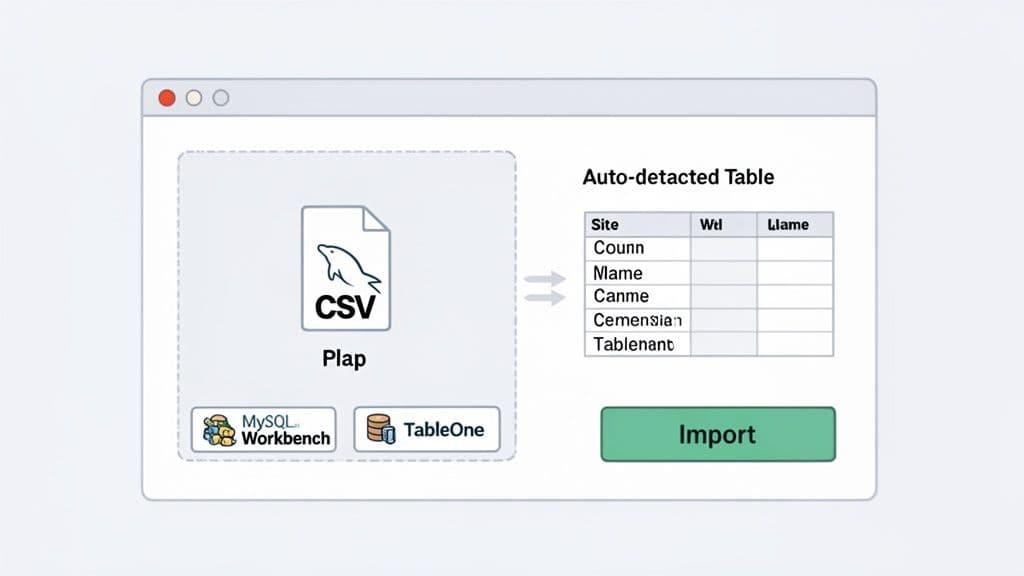
With TableOne, the whole process is consolidated. You just right-click your target table, choose "Import CSV," and everything you need appears in a single, clean window.
TableOne's import dialog is designed for speed. It automatically detects your delimiter and header, then gives you an interactive preview where you can drag-and-drop columns to reorder them or simply uncheck any you don't want to import. This design puts all the controls in one place, giving you immediate visual confirmation of how your data will be loaded. It’s a faster, more intuitive approach that gets you from CSV to database in just a few seconds.
Automating Imports With Python and Node.js
GUI tools are fantastic for one-off imports, but what happens when you need to load data every night? Or when your application needs to process user-uploaded files automatically? That’s when you need to step up to programmatic scripting to import a CSV into MySQL as part of a reliable, automated data pipeline.
Let's dive into some production-ready patterns for Python and Node.js. These are practical, copy-paste-ready examples for creating dependable ETL (Extract, Transform, Load) scripts.
Efficient Bulk Imports with Python
For anyone working with data in Python, the combination of pandas and SQLAlchemy is the undisputed champion. The pandas library makes reading and cleaning CSV files almost trivial, and SQLAlchemy gives you a highly efficient way to push that data into your database.
Here is a practical script to load daily sales data:
import pandas as pd
from sqlalchemy import create_engine
from sqlalchemy.exc import SQLAlchemyError

def import_daily_sales(csv_path, db_connection_str):
    """Reads a CSV and bulk inserts it into the 'sales' table."""
    try:
        # Read the CSV data into a pandas DataFrame
        df = pd.read_csv(csv_path)

        # Practical data cleaning: ensure column names are SQL-friendly
        df.columns = [c.lower().replace(' ', '_') for c in df.columns]

        # Create a connection engine to your MySQL database
        db_engine = create_engine(db_connection_str)

        # Use the to_sql method for a fast, bulk insert
        df.to_sql('sales', con=db_engine, if_exists='append', index=False, chunksize=1000)
        print(f"Successfully imported {len(df)} rows from {csv_path}.")

    except FileNotFoundError:
        print(f"Error: The file {csv_path} was not found.")
    except SQLAlchemyError as e:
        print(f"Database error: {e}")
    except Exception as e:
        print(f"An unexpected error occurred: {e}")

# --- How to use it ---
# Replace with your actual connection details
connection_string = 'mysql+mysqlconnector://user:password@host/db_name'
csv_file = 'daily_sales.csv'
import_daily_sales(csv_file, connection_string)
The real magic here is df.to_sql(). By setting if_exists='append', you're telling it to add new data to your existing table, perfect for recurring tasks. The chunksize=1000 parameter is a performance-tuning gem, breaking the large insert into smaller, more manageable batches.
Building a Data Pipeline in Node.js
Over in the JavaScript world, you can achieve the same goal with libraries like csv-parser to read the file and mysql2 for the database connection. The key difference in the Node.js approach is its strength in handling massive files by processing them as a stream instead of loading everything into memory at once.
Data volumes are exploding—a 2025 report found that 68% of MySQL users now run imports daily. These sessions average a hefty 500MB each, a 40% increase from 2024. You can read more about how to import CSV files to MySQL from these insights.
Actionable Insight: When you're automating anything, proper error handling is non-negotiable. Always wrap your database logic in
try...catchblocks. This lets you log issues like a connection failure or a data type mismatch and send an alert, all without bringing your entire script to a screeching halt.
Here’s a battle-tested way to structure a Node.js import script using streaming and batching:
const fs = require('fs');
const mysql = require('mysql2/promise');
const csv = require('csv-parser');

async function importCsvToMysql(filePath, dbConfig) {
  const connection = await mysql.createConnection(dbConfig);
  let records = [];
  const batchSize = 1000; // Insert 1000 rows at a time

  fs.createReadStream(filePath)
    .pipe(csv())
    .on('data', (row) => {
      // Assuming CSV columns are 'id', 'name', 'email'
      records.push([row.id, row.name, row.email]);
      if (records.length === batchSize) {
        // A full batch is ready, pause the stream and insert
        fs.createReadStream(filePath).pause();
        insertBatch(connection, records.slice()); // Use a copy
        records = []; // Reset the batch
        fs.createReadStream(filePath).resume();
      }
    })
    .on('end', async () => {
      // Insert any remaining records
      if (records.length > 0) {
        await insertBatch(connection, records);
      }
      console.log('CSV file successfully processed.');
      await connection.end();
    });
}

async function insertBatch(connection, batch) {
  const sql = 'INSERT INTO users (id, name, email) VALUES ?';
  try {
    await connection.query(sql, [batch]);
    console.log(`Inserted ${batch.length} rows.`);
  } catch (error) {
    console.error('Failed to insert batch:', error);
  }
}

// --- How to use it ---
const dbCredentials = { host: 'localhost', user: 'root', password: 'password', database: 'test_db' };
importCsvToMysql('path/to/your/data.csv', dbCredentials);
This batching technique gives you the perfect balance between memory efficiency and database performance. It’s a professional pattern for building scalable pipelines that can reliably import CSV data into MySQL.
Common Import Problems and How to Solve Them
Even when you've done everything right, importing a CSV into MySQL can throw you a curveball. We've all been there: staring at a cryptic error message, wondering where things went wrong. The good news is that most of these import headaches are common issues with well-known fixes.
Let's walk through the most frequent problems you'll encounter and, more importantly, how to solve them.
Fixing "Access Denied" with LOAD DATA
One of the most common errors you’ll see is Access denied for user... or ERROR 1290 (HY000): The MySQL server is running with the --secure-file-priv option.... This error is about file permissions, not your user password. For security, MySQL will only read files from a specific, pre-approved directory.
Actionable Solution:
- Find the approved directory by running this SQL query:
SHOW VARIABLES LIKE 'secure_file_priv'; - The result will show you a path, often
/var/lib/mysql-files/on Linux orC:\ProgramData\MySQL\MySQL Server 8.0\Uploadson Windows. - Move your CSV file into that exact directory.
- Update the path in your
LOAD DATAcommand to reflect the new location.
Problem solved. MySQL can now safely access and read your file.
Solving Character Encoding Mismatches
Ever import a file and find your text has turned into a jumble of strange symbols like “ or the import fails with an Incorrect string value: '\xE2\x80\x93' error? This is a classic sign of a character encoding mismatch.
Actionable Solution:
- Fix the File: Open your CSV in a text editor like VS Code, Sublime Text, or Notepad++. Go to "Save As" and explicitly choose UTF-8 as the encoding.
- Tell MySQL: Add a
CHARACTER SETclause to your import command to let MySQL know what to expect.
LOAD DATA INFILE '/var/lib/mysql-files/yourfile.csv'
INTO TABLE your_table
CHARACTER SET utf8mb4 -- Specify the encoding
FIELDS TERMINATED BY ','
LINES TERMINATED BY '\n'
IGNORE 1 ROWS;
Pro Tip: I always recommend using utf8mb4 over the older utf8. It provides full Unicode support, which means everything from international characters to emojis will import perfectly.
Correcting Misaligned Rows and Columns
Sometimes the import runs without an error, but the data itself is a mess. Values are in the wrong columns, and multiple rows seem to have merged into one. This almost always points to a problem with your delimiters. If a comma is your separator, but a comma also exists inside a text field (like "Widgets, Inc."), the importer gets confused.
This is a bigger problem than you might think. A 2026 JetBrains developer survey noted that 55% of developers see delimiter inconsistencies as a primary cause of import failures. You can read more about these common CSV data integrity risks.
Actionable Solution: The most reliable fix is to ensure your text fields are wrapped in quotes and tell MySQL about it.
- Your CSV data:
101,"Widget, Small",9.99 - Your
LOAD DATAcommand:
LOAD DATA INFILE '/path/to/your/file.csv'
INTO TABLE your_table
FIELDS TERMINATED BY ','
ENCLOSED BY '"' -- This is the key!
LINES TERMINATED BY '\n'
IGNORE 1 ROWS;
By adding FIELDS ENCLOSED BY '"', you're telling MySQL to treat everything between the double quotes as a single field, no matter what characters are inside.
For a deeper dive into handling particularly messy data structures, our guide on how to import CSVs into various databases offers some more advanced strategies.
If you're tired of wrestling with command-line tools and cryptic errors, you might want to give TableOne a look. It's a modern, visual tool that helps you sidestep these issues entirely. It can automatically detect delimiters, let you map columns with a simple drag-and-drop, and shows you a live preview of your data before you import. It saves a ton of time and frustration. You can get started with a free trial today.