Export SQL to CSV Like a Pro: A Developer's Guide
Learn how to export SQL to CSV from PostgreSQL, MySQL, and SQLite. This guide covers CLI commands, GUI tools, and automation scripts for any developer.

At its core, exporting a SQL query to a CSV file is straightforward. It’s often just a single command or a few clicks in a GUI. But don't mistake simplicity for unimportance. This is one of the most fundamental skills for anyone who works with data, acting as the universal bridge between your structured database and a world of other applications.
Why Exporting SQL to CSV Is Still a Core Developer Skill
It might seem like a basic task, but getting data out of your SQL database and into a clean CSV file is a non-negotiable skill. This isn't just about downloading a table. It's about enabling a vast range of workflows that depend on this simple, portable format. Think of a CSV as the universal adapter in your data toolkit—it’s what makes otherwise incompatible systems talk to each other.
This process is so much more than a simple data dump; it's a foundational technique that quietly supports critical business operations every single day.
- Actionable Insight: Before running a risky
ALTER TABLEmigration, export the target table. If the migration fails, you have an immediate, clean backup to restore from. A practical example:\copy (SELECT * FROM users) TO 'users_backup_before_migration.csv' WITH CSV HEADER;. This simple command has saved projects countless hours. - Data Analysis and Business Intelligence: Most BI tools like Tableau or Power BI, and even trusty old spreadsheets, thrive on CSVs. A product manager doesn't need direct database access; they need a CSV of user activity to analyze trends in Excel. Exporting the result of
SELECT user_id, last_login FROM users WHERE signup_date > '2023-01-01'gives them exactly what they need, without security risks. - Inter-System Data Migration: Moving data from an old MySQL database to a new PostgreSQL instance? A CSV often acts as the perfect intermediary. It strips away proprietary database structures, giving you a clean, neutral format to work with during the import.
- Generating Reports for Stakeholders: The marketing team needs a weekly report of new sign-ups, but you definitely don't want them running queries on the production database. An automated script that runs a query and emails a CSV is a classic, effective, and safe solution. This isolates your database from direct, potentially harmful, user queries.
This diagram breaks down the three most common reasons you'll find yourself exporting SQL to CSV: creating backups, migrating data between systems, and performing analysis.
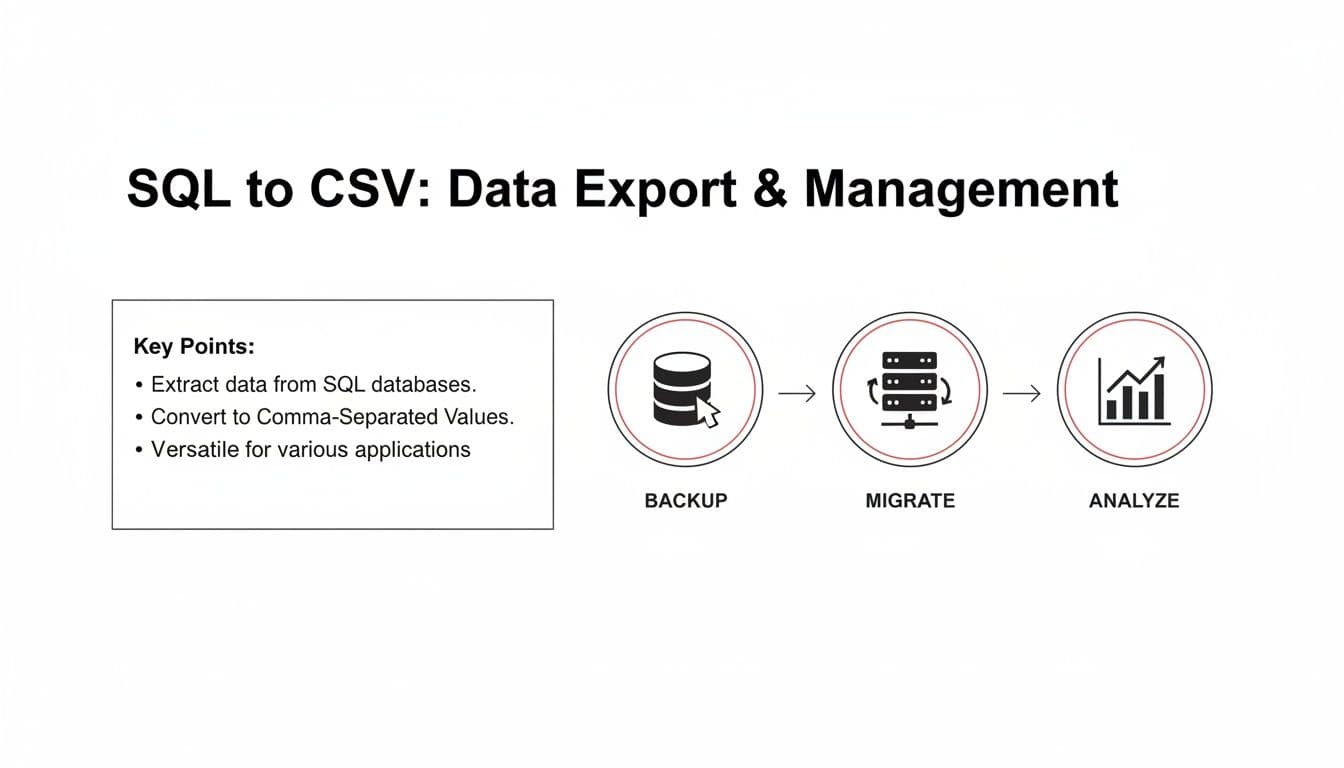
As you can see, this single function serves a whole host of different needs across an organization.
To help you decide which export method is right for your situation, here's a quick comparison of the common approaches we'll cover in this guide.
Choosing Your SQL to CSV Export Method
| Method | Best For | Common Tools | Key Advantage |
|---|---|---|---|
| Command-Line (CLI) | Automation, scripting, and handling large datasets on a server. | psql, mysql, sqlite3 | Power and flexibility. Perfect for repeatable tasks and integration into larger workflows. |
| SQL GUI Clients | Quick, one-off exports, visual data exploration, and ease of use. | TableOne, DBeaver, DataGrip | Simplicity and speed. A few clicks are all it takes to get your file. |
| Built-in SQL Commands | In-database exports controlled entirely by SQL syntax. | COPY (PostgreSQL), INTO OUTFILE (MySQL) | Performance. The database engine handles the file writing directly, making it very efficient. |
| Scripting Languages | Custom export logic, complex transformations, and API integration. | Python (with Pandas), Node.js, PHP | Maximum control. You can manipulate the data in any way you need before writing the final CSV. |
Each of these methods has its place. The best one for you will depend entirely on your specific goal, whether it's a quick data pull for a report or a complex, automated data pipeline.
The Universal Language of Data Exchange
The staying power of the CSV format really comes down to its incredible simplicity. Nearly every data-aware application on the planet—from programming languages like Python to massive enterprise software—can read and write CSV files without breaking a sweat. This makes it an unbelievably reliable choice for moving data around.
In the world of database management, this is one of the most common tasks you'll encounter. Industry surveys from 2023 show that over 78% of SQL users working with databases like SQL Server, PostgreSQL, and MySQL perform CSV exports at least once a week. In major markets like the US and Europe, those rates climb to 82%. This trend really took off around 2005 when Microsoft introduced the SQL Server Import and Export Wizard, which made data sharing as simple as a right-click. For a deeper dive, you can read the full research about SQL to CSV export trends.
Actionable Insight: Mastering SQL to CSV export isn't just about learning a command. It’s about understanding how to connect your structured database to the countless tools, platforms, and people who need that data in a simple, portable, and universally understood format. Practice by taking one of your existing tables and exporting just three columns. Then, try opening it in three different programs (Excel, VS Code, a Python script) to see how it behaves. This simple exercise reveals the power of universal compatibility.
Getting Your Hands Dirty: Command-Line Exports for Any Database
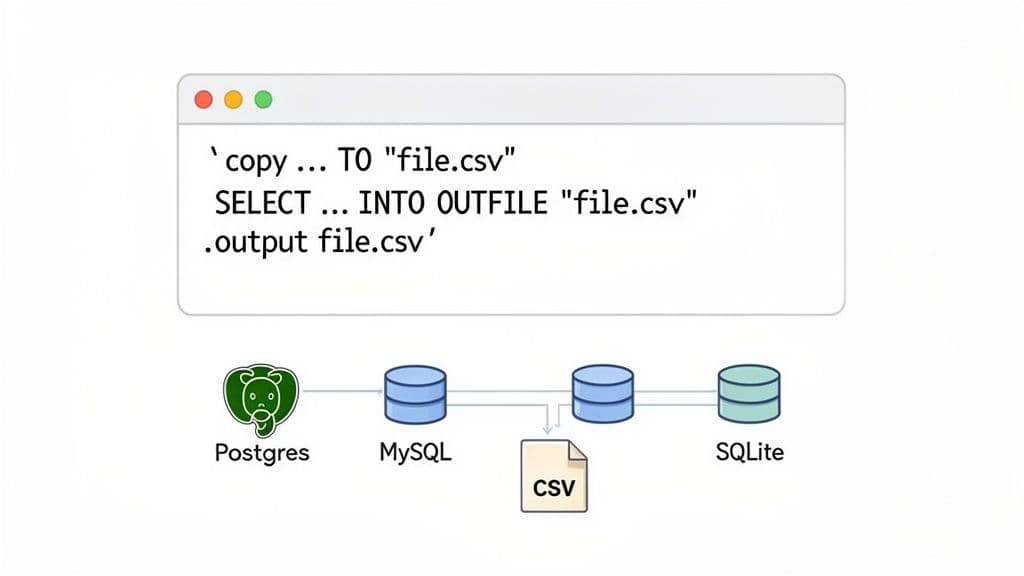
For anyone who spends their day in a terminal or needs to automate data pulls on a server, the command-line interface (CLI) is your best friend. It’s powerful, scriptable, and built for repeatable workflows. While a GUI is fine for a one-off export, the CLI is the only way to go when you need to schedule a nightly report or build data extraction into a larger script.
Working with the command line means you're in complete control. You decide everything—the delimiter, the file encoding, the exact query. This level of precision is exactly what you need for building reliable data pipelines. Let’s get into the practical, real-world commands for the most common open-source databases.
PostgreSQL: Exporting Data with psql
PostgreSQL's own interactive terminal, psql, has a brilliant little meta-command called \copy that's perfect for this. It’s much better than the standard SQL COPY command for a simple reason: \copy runs with your user permissions, not the database server's. This single difference helps you dodge a ton of frustrating file permission errors you'd otherwise hit with server-side exports.
Let's say you need to pull a list of active users who signed up last month for the marketing team. Here’s how you’d do it right from your terminal.
\copy (SELECT user_id, email, signup_date FROM users WHERE status = 'active' AND signup_date >= '2024-01-01') TO 'active_users_report.csv' WITH (FORMAT CSV, HEADER);
A quick look at the command:
\copy (...) TO '...': This is the main instruction. Your query is nested in the parentheses, followed by the output file path.WITH (FORMAT CSV, HEADER): This part handles the formatting.FORMAT CSVensures you get a properly structured CSV file, andHEADERadds the column names as the first row—something you almost always want.
This method gives you total control to export SQL to CSV with the exact data you need, no fluff. If you spend a lot of time in psql, mastering its command-line options can seriously speed up your daily work.
MySQL: Using SELECT INTO OUTFILE
MySQL takes a server-side approach with its SELECT ... INTO OUTFILE syntax. It's incredibly fast because the database engine writes the file directly. But there's a big catch: the file is created on the database server's filesystem, not on your local machine.
This is great if you’re already on the server via SSH and need to generate a file there. The trade-off is that you must have the FILE privilege, and the MySQL server process needs write access to the output directory, which can sometimes be a headache to configure.
Here's a common scenario: exporting product inventory data.
SELECT
  product_id,
  product_name,
  stock_quantity,
  price
FROM products
WHERE category = 'Electronics'
INTO OUTFILE '/var/lib/mysql-files/electronics_inventory.csv'
FIELDS TERMINATED BY ','
ENCLOSED BY '"'
LINES TERMINATED BY '\n';
The magic happens after the SELECT statement. INTO OUTFILE points to the server path for the CSV. FIELDS TERMINATED BY ',' sets your delimiter, while ENCLOSED BY '"' wraps every field in double quotes. This is a lifesaver for text fields that might contain commas.
SQLite: Keeping Exports Simple
SQLite, true to its nature, keeps things refreshingly simple. Its command-line tool, sqlite3, uses a few "dot-commands" to set up the export before you run your query. You're essentially just telling it where to send the output.
To pull data from a SQLite database, you’ll run a short sequence of commands: first, set the output mode to CSV; second, name your output file; and third, run your query.
Here’s what that looks like in practice for exporting a list of published blog posts.
sqlite3 my_database.db
.headers on
.mode csv
.output blog_posts.csv
SELECT post_id, title, author, publish_date FROM posts WHERE is_published = 1;
.quit
It's a really intuitive process. .headers on adds the column names, .mode csv sets the format, and .output tells SQLite to pipe the results of your SELECT statement directly into blog_posts.csv. As soon as you run .quit, the file is created and ready to go. It’s the perfect method for pulling data from local app databases or for straightforward scripting.
The GUI Approach: A Faster, More Intuitive Way to Export SQL Data
While the command line is a powerhouse for automation, let's be honest—it’s not always the quickest tool for the job. For those everyday, ad-hoc data pulls, a good Graphical User Interface (GUI) is often far more practical. The best modern database tools have ditched the clunky wizards of the past for streamlined workflows that take you from query to CSV in seconds.
The real value here becomes obvious in day-to-day work. I see this all the time with product analysts trying to figure out a sudden drop in user engagement. They don't need to build a complicated script; they just need to grab some filtered user data from a production PostgreSQL database, export it, and start digging into the numbers in a spreadsheet. This is where a modern client truly shines.
A Modern Workflow for Fast Exports
Let's stick with that analyst scenario. They connect to their database, write a quick query to pull users who haven't logged in for 30 days, and instantly get a grid of results. Instead of fumbling with server permissions or rewriting the query with a COPY command, they can just export what they see on the screen.
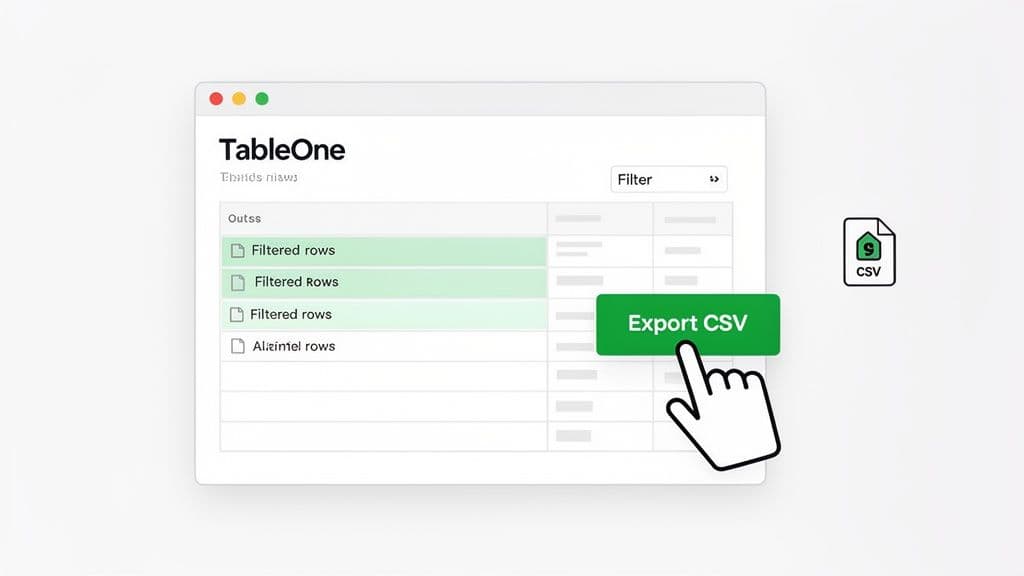
In a tool like TableOne, the process is about as simple as it gets. After running your query, you can interact directly with the results.
- Filter and Select: You can apply filters right in the results grid to narrow things down without having to write more SQL. For example, after running a broad query, you can type "> 100" into a
purchase_amountcolumn's filter box to instantly isolate high-value customers. - One-Click Export: A dedicated "Export to CSV" button immediately saves the data you're looking at, including any filters you just applied.
- No New Queries: There’s no need to construct a new
SELECT ... INTO OUTFILEor\copycommand. What you see is what you get.
This visual, direct approach dramatically lowers the technical barrier. Recent surveys show why this matters: 68% of individual developers now prefer a GUI for exports, reporting they can get the job done up to 40% faster than with the command line. This trend also highlights the frustrations with older tools. For instance, 82% of small teams using legacy clients like SSMS report struggling with grayed-out export options on unexecuted queries, a notorious source of errors and wasted time.
The Advantage of Simplicity and Flexibility
This modern GUI workflow isn’t just about being faster; it’s about reducing friction. I’m sure you’ve been stuck in an old-school, multi-step "Export Wizard" before. They feel so slow and rigid—forcing you to define the source, map columns, configure destinations, and click through half a dozen screens just for a simple file.
In contrast, the one-click method lets you work more fluidly. Spot a data anomaly? Select the rows, export, and fire them off to a colleague for review. Need to give the marketing team a quick sample? Filter for the last 100 sign-ups and export instantly. This approach to export SQL to CSV is built for the iterative, fast-paced nature of real data analysis.
Actionable Insight: A great database GUI gets out of your way. Its goal isn't to bombard you with options, but to make common tasks—like exporting to CSV—feel effortless and immediate. The next time you need a quick data pull, time yourself using your favorite GUI versus the command line. The result will likely speak for itself.
Better yet, a solid cross-platform tool gives you a consistent experience no matter what database you’re connected to. Whether you're working with a local SQLite file, a managed PostgreSQL instance on Neon, or a MySQL database on PlanetScale, the export process is identical. This consistency is a massive productivity booster, as you can learn more about in our guide to choosing the best database client for your needs. You can stop trying to remember database-specific commands and just focus on the data itself.
Automating Your Data Exports with Scripts
Manual exports are fine for a one-off analysis, but they simply don't scale. When you need consistency and reliability, especially in a production environment, you have to turn to scripting. This is where you can build repeatable, automated workflows that save a ton of time and, more importantly, eliminate human error.
Once you have a solid script to export SQL to CSV, you can schedule it to run whenever you need. Think about it: nightly sales reports, hourly data backups, or feeding fresh data into a live dashboard. You set it up once, and it just runs in the background.
Automating Exports in a Bash Environment
If you're working on Linux or macOS, a Bash script is the most natural way to automate these exports. It’s incredibly easy to wrap the command-line tools we've already covered, like psql or mysql, into a script and then schedule it using a cron job.
The real magic happens when you start adding logic. For example, dynamically naming your export files is a classic requirement. You definitely don't want to overwrite report.csv every single day.
Let's say you need a daily sales report from your PostgreSQL database. A simple Bash script can handle this beautifully.
#!/bin/bash

# Define the output directory and filename with a timestamp
OUTPUT_DIR="/path/to/reports"
FILENAME="sales_report_$(date +%Y-%m-%d).csv"
FULL_PATH="$OUTPUT_DIR/$FILENAME"

# Your PostgreSQL connection details
DB_USER="report_user"
DB_NAME="sales_db"

# The SQL query to export
QUERY="COPY (SELECT order_id, customer_name, total_amount, order_date FROM orders WHERE order_date = CURRENT_DATE) TO STDOUT WITH (FORMAT CSV, HEADER)"

# Run the psql command and redirect its output to the file
psql -U "$DB_USER" -d "$DB_NAME" -c "$QUERY" > "$FULL_PATH"

echo "Sales report created at $FULL_PATH"
This script will generate a uniquely named file each day, like sales_report_2026-10-26.csv, so you never lose historical data. From there, just add a line to your crontab (0 1 * * * /path/to/your/script.sh to run it at 1 AM daily), and you have a fully automated reporting system.
Actionable Insight: By combining a simple query with a dynamic filename, you create a robust reporting system. This approach is far more reliable than someone remembering to manually run a query and save the file every single day. As a next step, you could add a line to this script to email the generated file or upload it to cloud storage.
Automating SQL-to-CSV exports this way has completely changed how small engineering teams and data analysts operate. A 2024 Gartner report found that 62% of enterprises now automate over half of their data exports, a huge jump from just 35% in 2020. This growth is overwhelmingly driven by command-line tools. Forum data shows that 71% of users rely on scheduled jobs for automation, which has been proven to slash manual errors by up to 89%. You can find more on how automation is changing SQL data exports on n8n.io. For more scripting ideas, you might be interested in our guide on exporting a MySQL table to CSV, which covers other useful command-line techniques.
Scripting SQL Server Exports with PowerShell
If you're in a Windows world, PowerShell is your best friend for database scripting. The Invoke-SqlCmd cmdlet is designed for running queries, and its output can be piped directly into Export-Csv.
This is a powerful one-two punch because Export-Csv handles all the tricky formatting for you. It automatically quotes fields where needed and adds the headers, giving you a clean, reliable CSV every time.
Let's tackle that same daily sales report task, but this time for a SQL Server database.
# Define SQL Server connection details
$sqlInstance = "YourServerName"
$database = "SalesDB"
$query = "SELECT order_id, customer_name, total_amount, order_date FROM orders WHERE order_date = CAST(GETDATE() AS DATE);"

# Define the output path with a dynamic timestamp
$timestamp = Get-Date -Format "yyyy-MM-dd"
$filePath = "C:\Reports\sales_report_$timestamp.csv"

# Execute the query and pipe the results directly to Export-Csv
Invoke-SqlCmd -ServerInstance $sqlInstance -Database $database -Query $query | Export-Csv -Path $filePath -NoTypeInformation

Write-Host "Sales report successfully exported to $filePath"
Here’s a pro tip: always use the -NoTypeInformation parameter. This little flag stops PowerShell from adding an extra type-definition header (like #TYPE System.Data.DataRow) to your CSV file. This keeps the output clean and universally compatible. Once the script is ready, you can set it up in Windows Task Scheduler to run on any schedule you need.
Getting Past the Common Headaches: Advanced Exporting Tips
Exporting a SQL query to a CSV file feels like it should be straightforward. But then you open the file and see a complete mess—broken rows, corrupted data, and strange, garbled text. It's a classic "works on my machine" problem that falls apart in the real world.
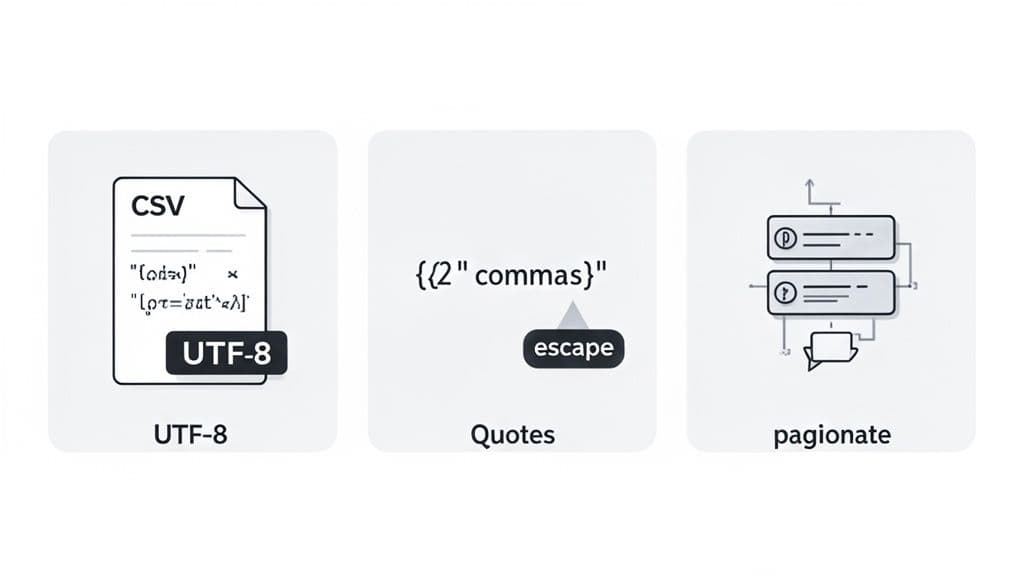
These headaches almost always boil down to three things: character encoding, special characters in your data, and trying to export massive datasets all at once. If you can get a handle on these, you'll save yourself countless hours of cleanup and frustration. A simple export of customer feedback, for instance, is useless if names like "José" get mangled or comments with commas throw off your columns.
Let's walk through how to anticipate and solve these problems before they even start.
Handling Character Encoding Issues
Ever opened a freshly exported CSV and been greeted by black diamonds with question marks () or other bizarre symbols instead of text? That’s a tell-tale sign of a character encoding mismatch. Your database, your command-line tool, and your spreadsheet program are all speaking slightly different languages.
For any modern application, UTF-8 is the gold standard. It’s the only encoding that can reliably handle everything from standard English to accented characters to emojis. Forcing your export to use UTF-8 is the single most effective way to prevent mangled text.
Here's an actionable example with PostgreSQL's psql: you can set the encoding right in the command. This tells psql exactly how to write the file.
PGCLIENTENCODING=UTF8 psql -c "\copy (SELECT * FROM customer_feedback) TO 'feedback.csv' WITH (FORMAT CSV, HEADER)"
In MySQL, you can define the character set when you connect or within the export command itself. Getting this right from the start is a non-negotiable step for clean data.
Mastering Quoting and Escaping
The next common trap is the data itself. The 'C' in CSV is for "comma," so what happens when your data has commas in it? Or line breaks? Without proper handling, these characters will break your file's structure, shifting columns around and corrupting your rows.
This is precisely what quoting and escaping were designed to solve. The standard approach is to wrap any field containing special characters in double quotes. If the data itself has a double quote, it gets "escaped" by doubling it up (so " becomes "").
Thankfully, you don't have to do this by hand. Most database tools have built-in options for this.
- PostgreSQL's
COPY: When you useFORMAT CSV, it automatically and intelligently handles all the necessary quoting. - MySQL's
INTO OUTFILE: The key here is to useFIELDS ENCLOSED BY '"'. This is a bulletproof way to wrap your text fields and prevent parsing errors down the line. - GUI Tools: A good SQL client like TableOne manages all the quoting rules for you behind the scenes during an export. You just click the button and get a clean file.
Actionable Insight: Always enable quoting, even if you don't think you need it. It makes your CSVs resilient to unexpected data, ensuring an address like "123 Main St, Apt 4B" exports perfectly every time. This simple habit prevents a huge category of parsing errors.
Strategies for Exporting Large Datasets
Trying to dump a table with millions of rows in a single command is a recipe for disaster. It can lock up the database, max out your computer's memory, and end with a crashed process and no file. When you need to export SQL to CSV with huge amounts of data, you have to be smarter about it.
The most reliable technique is pagination—exporting the data in smaller, more manageable chunks. You can easily build a script that loops through the data using LIMIT and OFFSET to pull it out batch by batch.
For example, here’s a simple Python script that pulls records from a massive logs table 100,000 rows at a time.
import pandas as pd
import sqlalchemy

# Assume 'engine' is a configured SQLAlchemy engine
offset = 0
batch_size = 100000
all_chunks = []

while True:
    query = f"SELECT * FROM logs ORDER BY id LIMIT {batch_size} OFFSET {offset}"
    chunk = pd.read_sql(query, engine)

    if chunk.empty:
        break

    print(f"Fetched {len(chunk)} rows, offset {offset}")
    all_chunks.append(chunk)
    offset += batch_size

# Concatenate all chunks and save to CSV
print("Concatenating chunks and saving to CSV...")
final_df = pd.concat(all_chunks, ignore_index=True)
final_df.to_csv('large_logs_export.csv', index=False)
print("Export complete.")
This approach keeps memory usage low and prevents a single, massive query from bringing the database to its knees. For even larger, server-side jobs, look into database-specific bulk utilities like SQL Server's bcp, which is built for exporting terabytes of data efficiently.
Tackling Common SQL to CSV Headaches
Once you've got the basic export commands down, you start hitting the real-world snags. It's the little details that can derail an entire data task. Let's walk through some of the most common "gotchas" I've seen and how to handle them like a pro.
How Can I Export Just a Few Specific Columns?
It's tempting to just SELECT * FROM your_table and call it a day, but that’s a rookie mistake. You almost never want or need every single column. Exporting a massive, untargeted dataset is inefficient and just creates more cleanup work down the line.
The right way to do it is by being explicit in your SELECT statement. Instead of the wildcard (*), spell out exactly which columns you need. For instance, if you're pulling a simple contact list, don't bring the whole customer history with it.
Practical Example:
SELECT
    customer_id,
    first_name,
    last_name,
    email
FROM
    customers
WHERE
    is_active = TRUE;
When you run your export command—whether it’s in the CLI or a GUI tool—it will now use this precise query. The resulting CSV will contain only those four columns, making the file smaller, faster to generate, and immediately useful to whoever needs it.
What's the Best Way to Deal with NULL Values?
Ah, NULL values. They’re the bane of many a data export. Depending on your tool, a NULL can show up in your CSV as the word "NULL", an empty field, or something else entirely, causing confusion for any script or program trying to read the file.
The best practice is to take control and decide what NULL should mean in your output. Your secret weapon for this is the COALESCE function. It lets you substitute NULL with a default value of your choosing right in the query. A common, safe approach is to replace them with an empty string.
Practical Example:
SELECT
    product_id,
    COALESCE(product_name, 'N/A') AS product_name,
    COALESCE(description, '') AS description
FROM
    products;
Actionable Insight: Notice the flexibility here. We're turning a
NULLproduct_nameinto "N/A" so it's clear the data is missing, while aNULLdescriptionbecomes a simple empty string. UsingASrenames the column back to its original name for a clean header. This level of control ensures your CSV is clean, predictable, and free of ambiguity.
Handling NULLs at the source, in your SQL, is always better than trying to fix them later.
How Do I Fix Weird Characters in My CSV File?
You know the moment: you open your freshly exported CSV and see a mess of garbled characters like †or ``. That’s a classic sign of an encoding mismatch. It means your database, export process, and spreadsheet program aren't speaking the same language.
The universal fix? Make sure everything is on the same page with UTF-8. It’s the modern standard for a reason—it supports virtually every character and symbol you'll ever encounter.
Here’s a quick, actionable checklist to stamp out encoding errors:
- Check the Source: First, confirm your database and specific tables are configured to use a UTF-8 character set (like
utf8mb4in MySQL). RunSHOW CREATE TABLE your_table;to verify. - Specify on Export: When using a command-line tool, tell it what you want. In
psql, for example, you can set the client encoding before you run the command:PGCLIENTENCODING=UTF8 psql .... - Check Your Tool's Settings: If you're using a database GUI, dive into the export settings. There should be an option to set the file encoding; make sure UTF-8 is selected.
- Import with Care: Sometimes the file is fine, but your spreadsheet program guesses the encoding wrong. When opening in Excel, for instance, don't just double-click. Use the "Data" -> "From Text/CSV" import wizard, which lets you manually specify the file origin as "65001: Unicode (UTF-8)" to ensure it’s read correctly.
Wrestling with command-line flags, character encodings, and NULL values can be tedious. When you need to get data out quickly and correctly without the hassle, a modern GUI can make all the difference.
TableOne was built to handle these issues seamlessly, giving you a straightforward interface for all your database tasks. Check out how TableOne can help you skip the troubleshooting and get back to work.