Import csv to database: A Practical Guide for Seamless Data Loading
Learn how to import csv to database efficiently in PostgreSQL and MySQL, ensure data integrity, and troubleshoot common issues.
Whether you’re using a command-line tool like PostgreSQL’s COPY command, MySQL’s LOAD DATA INFILE, or a visual interface, the core process of importing a CSV into a database always starts before you touch the database itself. You have to preprocess your data.
This guide walks you through the exact steps for getting your data clean and ready, so your import works on the first try.
Laying the Groundwork for a Flawless CSV Import
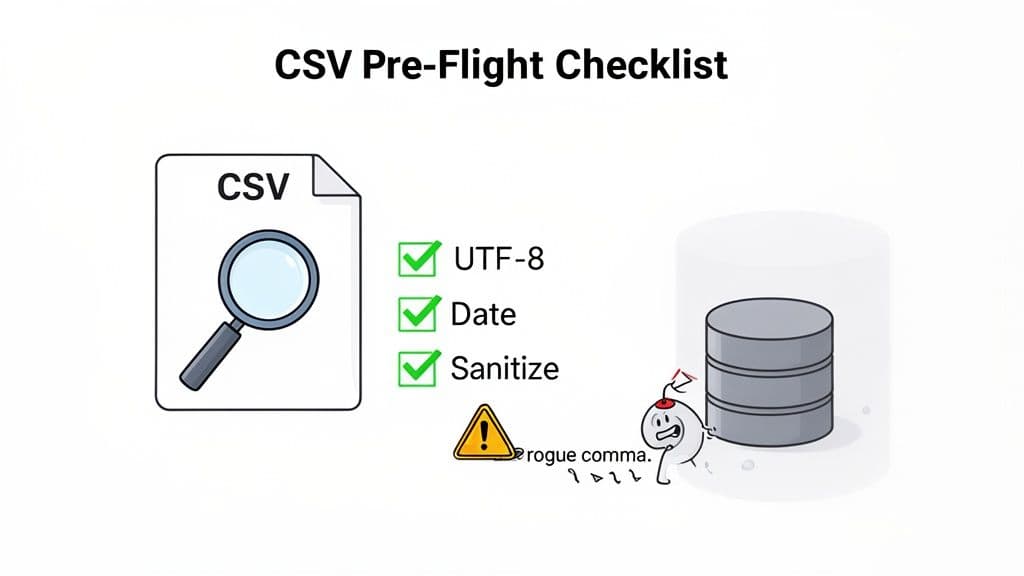
We've all been there. You run an import script, and it grinds to a halt because of a rogue comma, a weird character, or a date format the database just doesn't understand. It’s a frustrating, time-consuming mess that is almost always preventable.
This is why prepping your CSV file isn't just a suggestion—it's a non-negotiable first step. Think of it as a pre-flight check for your data. Skipping it is the single most common mistake people make, and it’s the difference between a smooth import and hours of painful troubleshooting.
The Three Pillars of CSV Preparation
To avoid the most common import failures, you need to focus on three critical areas: standardizing your formats, sanitizing your content, and checking your file's encoding. Getting these right will solve 90% of import headaches before they happen.
-
Standardize Formats: Databases demand consistency. If your
order_datecolumn has dates like10/25/2023,2023-10-25, andOctober 25, 2023all mixed together, the import will fail. Actionable Insight: Before importing, open your CSV in a spreadsheet program and apply a uniform date format (YYYY-MM-DDis a safe, universal bet) to the entire column. -
Sanitize Content: Raw data is almost always dirty. I'm talking about hidden troublemakers like extra spaces at the beginning or end of a cell, non-printable characters, or stray quotation marks that break your columns. Actionable Insight: Use a "Find and Replace" function to remove leading/trailing spaces. Search for
"(a double quote) and ensure they are properly escaped (e.g.,"") or removed if unnecessary. -
Verify Encoding: This one is subtle but can corrupt your data in a hurry. If your CSV was saved with an encoding other than UTF-8 (like
latin1), any special characters (é,ü,ñ) will turn into gibberish. Actionable Insight: Open your file in a text editor like VS Code or Notepad++. The editor's status bar will often show the current encoding. If it's not UTF-8, use the "Save with Encoding" option to convert it.
This simple flowchart shows how these checks fit together to ensure your data is clean and ready for a smooth import.
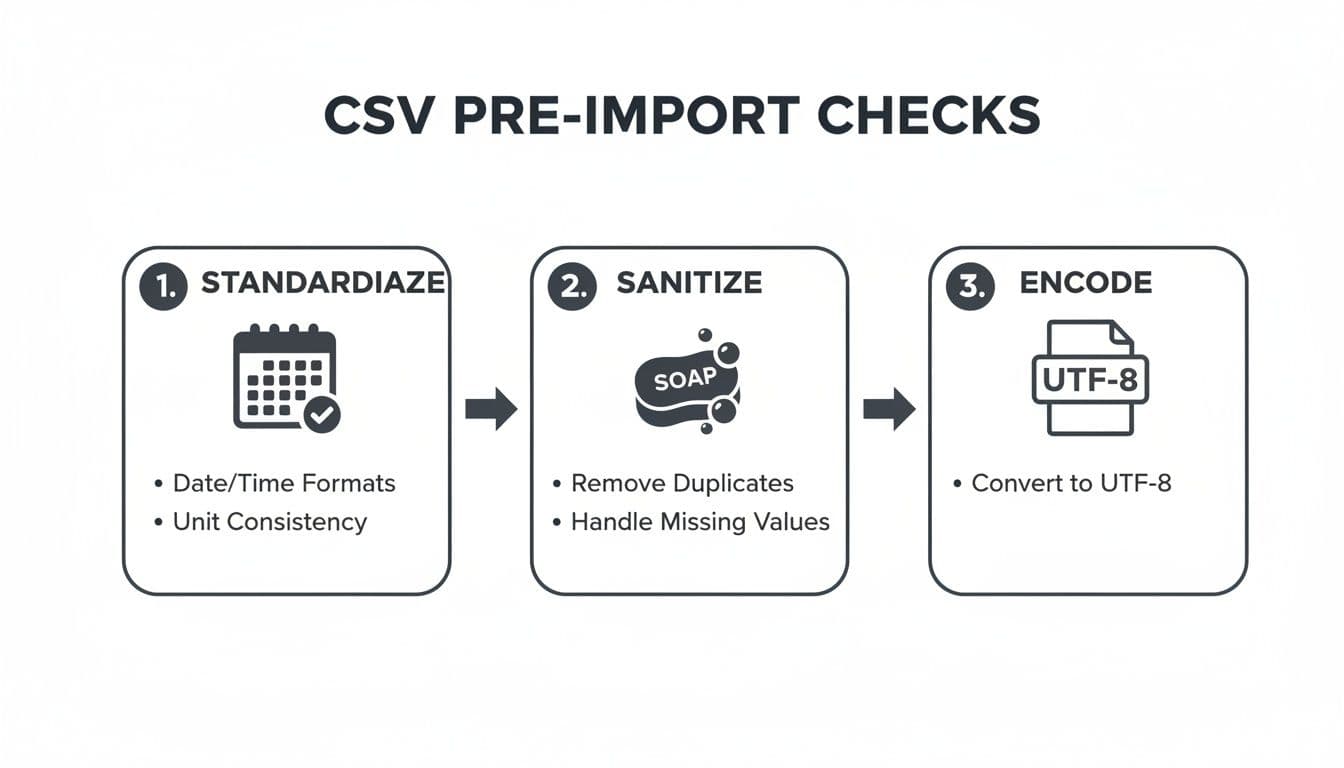
Running through these three steps—standardizing, sanitizing, and encoding—is a simple routine that will save you from the vast majority of import errors.
To make this even more practical, here's a quick cheat sheet of what to look for.
Pre-Import Sanity Checks for Your CSV
Before you even think about writing an IMPORT command, run through this checklist. It summarizes the critical factors to verify to guarantee data integrity and a smooth process.
| Check | Why It's Critical | Example Pitfall & Actionable Fix |
|---|---|---|
| Consistent Delimiters | Your database needs to know how to separate columns. Mixing commas and semicolons will break the structure. | A product description like "Screws, 1/4 inch" is misread as two columns. Fix: Ensure all such text is enclosed in double quotes. |
| Header Row | The first row should contain clean, database-friendly column names (no spaces or special characters). | A column named Order Date should be order_date. Fix: Replace spaces with underscores (_) and convert to lowercase. |
| Character Encoding | Non-UTF-8 files can garble text, especially names or locations with special characters. | "José" becomes "José". Fix: Open the CSV in a text editor, select "Save As," and explicitly choose "UTF-8" encoding. |
| Date/Time Formats | Databases are strict about date formats. Inconsistency leads to import rejections. | A column has both MM/DD/YY and YYYY-MM-DD. Fix: Use a spreadsheet to format the entire column to YYYY-MM-DD before exporting. |
| Number Formats | Currency symbols ($, €), commas, or percentage signs (%) in numeric fields will cause data type errors. | A price column has $1,200.50. Fix: Use find-and-replace to remove $ and ,, leaving only 1200.50. |
| Line Endings | Inconsistent line endings (Windows CRLF vs. Unix LF) can sometimes cause entire rows to be skipped or misread. | A file created on Windows imported on a Linux server might be read as one giant line. Fix: Use a tool like dos2unix or a text editor to convert line endings to LF. |
Taking a few minutes to validate these points is far more efficient than debugging a failed import with thousands of messy rows.
When you're ready to move beyond GUI-based tools and get serious about importing CSVs, the command line is where the real power lies. For both PostgreSQL and MySQL, native command-line utilities offer the speed and flexibility you need, especially when dealing with massive datasets.
Let's be honest, graphical interfaces are great for one-off tasks, but they often fall short when you need to automate a process or handle a file that's several gigabytes in size. This is where you'll want to roll up your sleeves and work directly with the database.
Mastering PostgreSQL's COPY Command
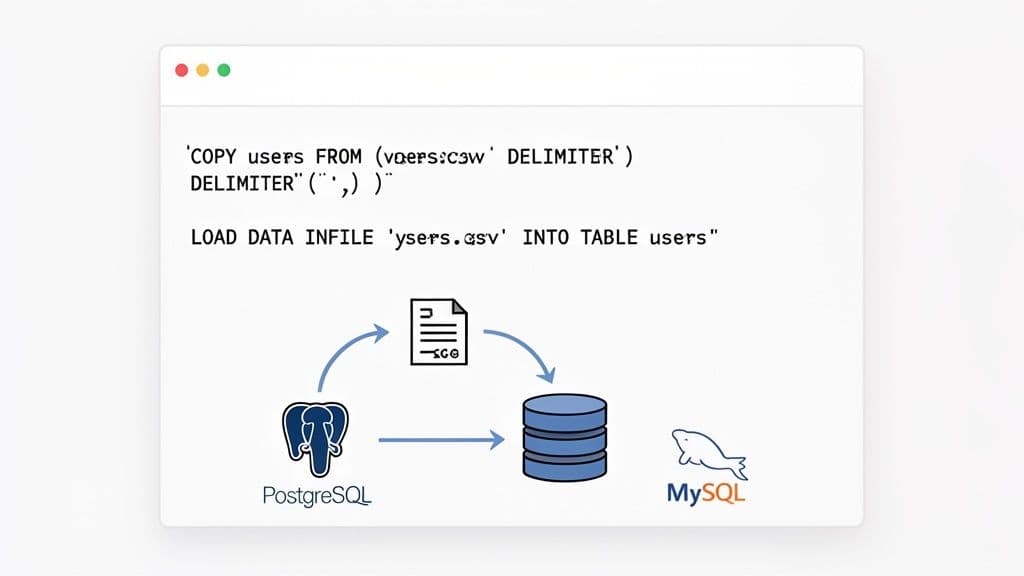
In the PostgreSQL world, the COPY command is legendary for its speed. It works by reading directly from a file and bulk-loading the data, which sidesteps the massive overhead you'd get from running thousands of individual INSERT statements.
While the COPY command itself runs on the database server, psql provides a handy meta-command, \copy, that lets you do the same thing right from your local machine.
Let’s say you have a users.csv file with a header row that you need to get into your users table. The command is beautifully simple:
\copy users FROM 'path/to/your/users.csv' WITH (FORMAT csv, HEADER);
This one-liner tells Postgres to treat the file as a CSV, expect a header row, and just get the job done.
Of course, real-world data is never this clean. What happens when you get a file from a European system that uses semicolons as delimiters? Or when empty values need to be imported as NULL? The COPY command handles this with ease.
Actionable Insight: I've learned this the hard way: always be explicit with your import options. Relying on defaults is a recipe for disaster when the source file format inevitably changes. The
FORMAT csv,HEADER,DELIMITER, andNULLoptions will save you countless headaches.
Here’s a practical example for a file with a semicolon delimiter and empty strings that should be NULL:
\copy users FROM 'path/to/users.csv' WITH (FORMAT csv, HEADER, DELIMITER ';', NULL '');
This level of control means you can often avoid preprocessing the CSV file altogether. If you want to dive deeper, we have a complete guide on importing CSVs into PostgreSQL that explores even more advanced tricks.
Using MySQL's LOAD DATA INFILE
Over in the MySQL camp, the tool for the job is LOAD DATA INFILE. It's built for high-performance bulk loading and is dramatically faster than running a script of INSERT statements. One key thing to know is that, for security reasons, it's often disabled by default for loading local files.
Actionable Insight: You'll likely need to start your MySQL client with the --local-infile=1 flag and also make sure the local_infile system variable is enabled on the server. Once that's sorted, you're ready to go.
For a standard comma-separated file with a header, the syntax is straightforward:
LOAD DATA LOCAL INFILE 'path/to/your/users.csv'
INTO TABLE users
FIELDS TERMINATED BY ','
LINES TERMINATED BY '\n'
IGNORE 1 ROWS;
The IGNORE 1 ROWS clause is your way of telling MySQL to skip the header.
Where LOAD DATA INFILE really shines, though, is its ability to transform data during the import. Imagine your CSV has separate first_name and last_name columns, but your table has a single full_name column. You can combine them on the fly.
Practical Example:
LOAD DATA LOCAL INFILE 'path/to/your/users.csv'
INTO TABLE users
FIELDS TERMINATED BY ','
IGNORE 1 ROWS
(@first_name, @last_name, email, @signup_date)
SET full_name = CONCAT(@first_name, ' ', @last_name),
    created_at = STR_TO_DATE(@signup_date, '%m/%d/%Y');
See what's happening here? We're mapping CSV columns to user-defined variables (@first_name, @last_name, @signup_date) and then using the SET clause to perform transformations—concatenating names and converting the date format—before the data is inserted. It’s an incredibly powerful feature that can save you a ton of time on data cleaning.
Managing Data Integrity in Complex Imports
Importing a CSV file rarely means you're starting with an empty table. More often, you're updating records that already exist, potentially pulled from multiple different systems. This immediately brings up a tough question: if data conflicts, which source gets the final say? You absolutely need to establish a clear "source of truth" to keep your data reliable.
Many large-scale platforms handle this by creating a tiered data hierarchy. Think of it as a priority list for your data sources. When a record gets updates from several places, this model ensures the most trusted source always wins. Without a system like this, your database can quickly devolve into a chaotic mess of conflicting information.
Understanding Data Source Priority
The world of CSV imports has come a long way from just dumping raw data into a table. Modern import tools often use sophisticated matching and prioritization logic to head off conflicts before they happen. A classic example is giving data from a core business system, like your company's CRM, top priority over any other source.
You see this in action on major B2B platforms. When they allow CSV imports, they often enforce a strict, multi-tiered data priority structure. In this kind of setup, CRM data holds the highest priority, followed by data from a Marketing Automation System, then the manually uploaded CSV file, and finally any data generated by the platform itself.
Actionable Insight: By establishing a clear hierarchy—for example, CRM > Marketing Automation > CSV—you create a predictable system. This ensures that a manual CSV import of contact details won't accidentally overwrite a phone number recently updated by your sales team directly in the CRM.
This tiered approach is a lifesaver for developers. It helps prevent accidental data corruption by making sure every import enriches, rather than overwrites, your existing dataset. Each import becomes a controlled process, not a blind update. If you're managing these workflows, getting a solid grasp on what is a database transaction is well worth your time.
Technical Rules for Successful Imports
For this priority system to actually work, databases and import platforms rely on strict rules about mandatory fields and data types. For instance, if you're updating a contacts table, you’ll almost always need a contact_id or email field in your CSV. That's how the system knows which existing record to match with the incoming row.
Here are a few technical rules you’ll run into out in the wild with practical examples:
- Mandatory Match Keys: To update a record, you have to provide at least one unique field. Practical Example: When importing product updates, your CSV must contain a
skuorproduct_idcolumn that matches existing products in your database. Without it, the system can't perform an update. - Object-Specific Fields: Different data objects have their own non-negotiable fields. Practical Example: Importing a
companyrecord might demand adomain_name, whereas anactivityrecord would likely require atimestampandactivity_type. - Validation Logic: Most systems will run a series of checks before committing the data. Practical Example: A
country_codecolumn might be validated against the ISO 3166-1 alpha-2 standard. If your CSV contains "USA" instead of "US", the row will be rejected.
If your import fails to meet these requirements, it will be rejected—and that's a good thing. It’s the database’s defense mechanism, protecting data integrity by forcing you to supply clean, well-structured information. By anticipating these rules, you can fix your data before you even start the import and avoid those frustrating validation errors.
The SQLite Method and Modern GUI Tools
Sometimes you just don't need a massive, server-side database. For quick data analysis, prototyping a mobile app, or any local development task, SQLite is often the perfect fit. It's a simple, self-contained file, requires zero configuration, and lets you get straight to work from its command-line shell.
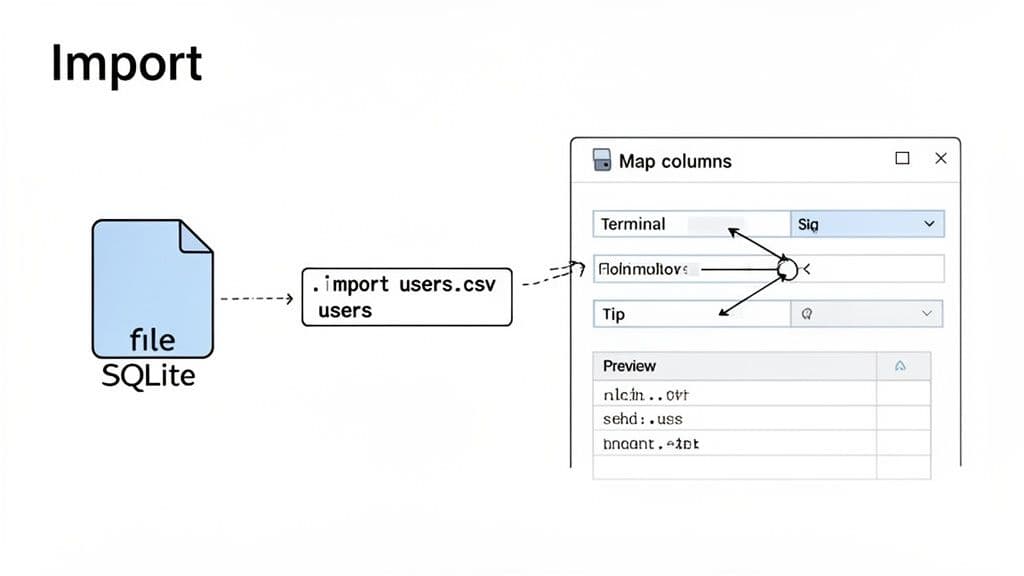
The workhorse command for getting data in is .import. But here's the catch, and it’s a big one that trips up developers all the time: you have to create the table structure first. Unlike other database commands, SQLite's .import won't generate the table for you.
A Practical SQLite Import Scenario
Let's say you've got a products.csv file with three columns: id, name, and price. Before you can even think about importing, you need to fire up your database and define that table.
First, you’ll create the table, making sure to pick the right data types for your columns.
CREATE TABLE products (
  id INTEGER PRIMARY KEY,
  name TEXT,
  price REAL
);
With the table schema in place, you can finally run the .import command. You just have to tell SQLite you're working with a CSV and point it to the right table.
-- Set the mode to CSV
.mode csv

-- Import the file into the 'products' table, skipping the header
.import --skip 1 path/to/your/products.csv products
This two-step dance—create, then import—is the fundamental workflow. It’s solid and reliable for smaller datasets, but it starts to feel pretty manual when your CSV has dozens of columns.
Unifying the Workflow with GUI Tools
This is exactly where a modern database GUI comes in handy. These tools give you an intuitive, visual way to manage data that works consistently across SQLite, PostgreSQL, and MySQL. Instead of juggling different command syntaxes, you get a single, unified experience.
Tools like TableOne were built to streamline these kinds of everyday tasks, making the whole process faster and far less prone to human error.
Actionable Insight: The true advantage of a good GUI isn't just about clicking buttons. It’s about the immediate visual feedback—you can preview your data, map columns with a simple drag-and-drop, and spot potential problems before you commit the import. This lets you catch a misaligned column or a formatting error instantly, rather than after a failed import.
When you use a GUI to import a CSV, the workflow is much more straightforward:
- Select Your File: Simply browse your computer for the CSV.
- Target the Table: Choose which database table you want to import into.
- Map the Columns: The tool shows your CSV columns next to your table columns. You can visually confirm that everything lines up and even exclude columns you don't need.
- Preview and Go: You'll get a quick preview of the first few rows to make sure it looks right. If it does, you just click "Import."
This visual approach completely bypasses the need to manually write CREATE TABLE statements for SQLite or memorize the specific options for PostgreSQL's COPY command. It handles the SQL behind the scenes, letting you focus on your data. You can see this in action in our article on using a modern SQLite graphical interface to manage your database. Ultimately, this approach helps you stay productive and avoid the common headaches of manual command-line work.
Optimizing Performance for Large-Scale Imports
Importing a CSV with a few thousand rows is one thing, but what happens when you're facing a file with millions of records? Whether it's a massive product catalog or years of historical logs, the standard import csv to database methods will slow to a crawl or even fail completely.
The real bottleneck isn't reading the file; it's the database itself. With every single row you insert, the database has to do a ton of work in the background, primarily checking that the new data doesn't violate any existing rules. This is where your indexes and foreign key constraints become a major performance drain.
Actionable Insight: The fastest way to handle this is to get those constraints out of the way, at least temporarily. By dropping indexes and foreign keys before you start the import, you stop the database from validating each row individually. This shifts the process from a painstaking, row-by-row integrity check into a much more efficient bulk loading operation. Once all the data is in the table, you can rebuild the indexes and constraints in one go.
Database-Specific Performance Tuning
On top of that general strategy, each database has its own knobs you can turn to squeeze out more performance. These settings usually control how much memory the system dedicates to bulk operations, which can make a huge difference.
- PostgreSQL: The setting to look for is
maintenance_work_mem. Practical Example: Before runningCOPY, executeSET maintenance_work_mem = '1GB';to allocate more memory for index creation post-import. - MySQL: Here, you'll want to adjust the
bulk_insert_buffer_sizevariable. Practical Example: Set this variable in your session beforeLOAD DATA INFILEto cache inserts and write them in larger, more efficient batches.
The great thing about these adjustments is that you can set them just for your current session. Run the import, and then they'll revert. It’s a simple, low-risk way to get a big performance win.
Actionable Insight: I’ve made it a personal rule to always drop non-essential indexes and foreign keys before a big import. It might feel counterintuitive, but the time you save by skipping per-row validation far outweighs the time it takes to rebuild them. This one trick can honestly turn a multi-hour job into a matter of minutes.
It’s not just us developers who are getting smarter about this; the platforms we use are evolving, too. Enterprise systems are recognizing the need to handle bigger datasets more gracefully. For instance, in early 2026, commercetools increased its single-file CSV import limit to 100 MB and the row count to 500,000.
Changes like this are significant. As the platform's updated import limits show, what used to require multiple, carefully sequenced uploads can now often be done in a single pass.
At the end of the day, speeding up large-scale imports is all about making the database's job easier. By temporarily disabling constraints, tuning memory settings for the task at hand, and paying attention to platform limits, you can get even the most massive datasets loaded without bringing your system to its knees.
Practical Troubleshooting for Common Import Errors
Let's be honest—even the most carefully prepared CSV import can hit a wall. When it does, the database often spits back a cryptic error message, leaving you scratching your head. But once you’ve seen these errors a few times, you start to recognize the patterns.
Getting tripped up by errors like data type mismatch, permission denied, or constraint violation is practically a rite of passage. Let's break down what these actually mean in plain English and how to get past them so you can get your data where it needs to be.
Decoding Data Type Mismatches
This is, without a doubt, one of the most common blockers. A data type mismatch simply means you're trying to cram a piece of data into a column that isn't built for it. Think of it like trying to fit a square peg in a round hole.
Practical Example: You're importing a products CSV and the import fails. The error log says invalid input syntax for type integer on line 50. You check line 50 and find the stock_quantity column contains the value "Out of Stock" instead of a number.
Actionable Insight: When this happens, your first move should be to track down the problem row. The database error log will usually point you to the exact line number. From there, you have two paths forward:
- Fix the source data: Replace "Out of Stock" with
0or an empty value in the CSV. - Adjust the schema: If text values are valid, change the column's data type from
INTEGERtoVARCHARusing anALTER TABLEcommand.
My rule of thumb is to always assume the data is dirty. Before I ever blame the database schema, I inspect the specific row that triggered the error. Nine times out of ten, it’s a stray character or an unexpected format that slipped through the initial cleaning process.
Handling Permission and Constraint Issues
Other roadblocks you're likely to encounter are related to permissions and the rules you've set for your database. While they both stop the import, they point to very different problems.
A permission denied error is all about access rights. You'll see this a lot with MySQL's LOAD DATA INFILE command. Actionable Fix: The fix is usually to either move your CSV into a server-approved directory (check the secure_file_priv variable in MySQL) or connect to your client with the --local-infile=1 flag to use a local file.
On the other hand, a constraint violation means your data is breaking a fundamental rule of your database design. Practical Example: You try to import an orders.csv and get a FOREIGN KEY constraint failed error. This likely means you have a customer_id in your orders file that doesn't exist in your customers table. The fix is to either add the missing customer to the customers table first or remove the invalid order from your CSV.
These aren't just textbook examples. In the real world, people import massive datasets all the time. For instance, some IoT and data analysis projects involve importing months of time-series data with hundreds of thousands of data points. One developer documented a case where they imported long-term statistics involving 47 different identifiers across 183 total samples. You can read more about this complex CSV import scenario to see how these challenges play out with large, messy datasets.
Frequently Asked Questions About CSV Imports
Even after you've done it a hundred times, importing CSVs can still throw a few curveballs. Let's tackle some of the most common questions that pop up, with practical answers to get you past those familiar roadblocks.
How Do I Handle CSV Files With Headers?
This is a classic. Most import tools are built for this. If you're using the command line, you just need to tell the database to skip that first line. In PostgreSQL, the COPY command has a simple HEADER keyword. For MySQL, you'd add IGNORE 1 LINES to your LOAD DATA INFILE statement.
Actionable Insight: If you’re working with a good GUI tool, it's usually even easier—just look for a checkbox that says something like "First row is header." This will handle the column mapping for you automatically.
What Is the Best Way to Import a Large CSV Without a Timeout?
When you're dealing with massive files, scripting INSERT statements one by one is a recipe for a very long wait and likely a timeout. Your best bet is to always fall back on the database's native bulk-loading tool.
PostgreSQL's COPY and MySQL's LOAD DATA INFILE are purpose-built for this. They are incredibly fast because they bypass a lot of the overhead that comes with processing single rows.
Actionable Insight: For a serious speed boost, temporarily drop your table's indexes and foreign key constraints before you start the import. Run
DROP INDEX my_index_name;before the import, andCREATE INDEX my_index_name ON my_table (column);after it's done. This prevents the database from validating every single row on its way in and is far more efficient.
My Import Is Failing on Date Formats. What Should I Do?
Ah, the dreaded date format error. This happens all the time because dates can be written in so many different ways. The most reliable fix is to standardize the date column before you even try to import.
Actionable Insight: A quick script—say, with Python and the Pandas library—can read your CSV and convert the entire date column into the ISO 8601 format (YYYY-MM-DD HH:MI:SS). This universal format is clearly understood by pretty much any database, which solves the ambiguity and stops the errors cold.
import pandas as pd
df = pd.read_csv('my_data.csv')
df['date_column'] = pd.to_datetime(df['date_column']).dt.strftime('%Y-%m-%d %H:%M:%S')
df.to_csv('my_data_cleaned.csv', index=False)
Can I Transform Data During the Import Process?
Yes, and some databases make this surprisingly easy. MySQL's LOAD DATA INFILE command is particularly powerful here, with a SET clause that lets you manipulate data as it's being loaded. For example, you could take first_name and last_name columns from your CSV and combine them into a single full_name column in your database table, all in one step.
Actionable Insight: In PostgreSQL, a different pattern is more common. You'd typically import the raw CSV data into a temporary "staging" table first. From there, you can use a standard INSERT...SELECT query to clean, transform, and move the data into its final destination, giving you the full power of SQL for the transformation step.
-- Step 1: Import into a temporary table
\copy staging_table FROM 'data.csv' WITH (FORMAT csv, HEADER);

-- Step 2: Transform and insert into the final table
INSERT INTO final_table (full_name, created_at)
SELECT first_name || ' ' || last_name, TO_TIMESTAMP(signup_date, 'MM/DD/YYYY')
FROM staging_table;
Stop wrestling with command-line syntax and start managing your databases with confidence. TableOne provides a unified, intuitive interface for SQLite, PostgreSQL, and MySQL, letting you import CSVs, browse data, and run queries with ease. Get your one-time license at tableone.dev.