How to run sql queries: A practical guide to faster, cleaner results
Master how to run sql queries with practical, step-by-step guidance for connecting to databases, crafting efficient queries, and avoiding common mistakes.

Alright, let's talk about the moment of truth: running your very first SQL query. At its core, this is a two-part dance. First, you connect to your database. Then, you tell it what data you want to see.
There are two main avenues for this: a visual tool, known as a graphical user interface (GUI), or a more traditional, text-based command-line interface (CLI).
Your First Query: Choosing Your Tools and Getting a Quick Win
When you're just starting, the mountain of SQL theory can feel overwhelming. My advice? Forget all that for a minute. The best way to learn is by doing, and the goal right now is to get a tangible result, fast.
Let's focus on getting connected and pulling some real information. Seeing that data pop up on your screen is the feedback you need to build momentum and actually understand what your commands are doing.
The Two Paths to Your Data
So, GUI or CLI? Honestly, there's no wrong answer, and most pros I know use a mix of both depending on the task.
A GUI like TableOne gives you a friendly, visual workspace. Think of it like a spreadsheet on steroids. You can see your database tables, click around to explore rows, and write queries in a dedicated editor that often helps you with syntax. If you're new to this, a GUI is a fantastic starting point because it lowers the barrier to entry and makes discovery feel natural.
The CLI, on the other hand, is all about raw power and efficiency. It’s a text-only window where you type commands directly. While it might look a little barebones, it’s the go-to for scripting, automation, and integrating database tasks into larger development workflows. If you're curious, it's worth reading up on the differences between a GUI and a command-line interface.
A Pro Tip From Experience: Start with a GUI. It lets you get comfortable and visually understand your data's structure without getting bogged down by syntax. Once you know your way around, you can graduate to the CLI for its speed and automation capabilities.
Your First Actionable Query
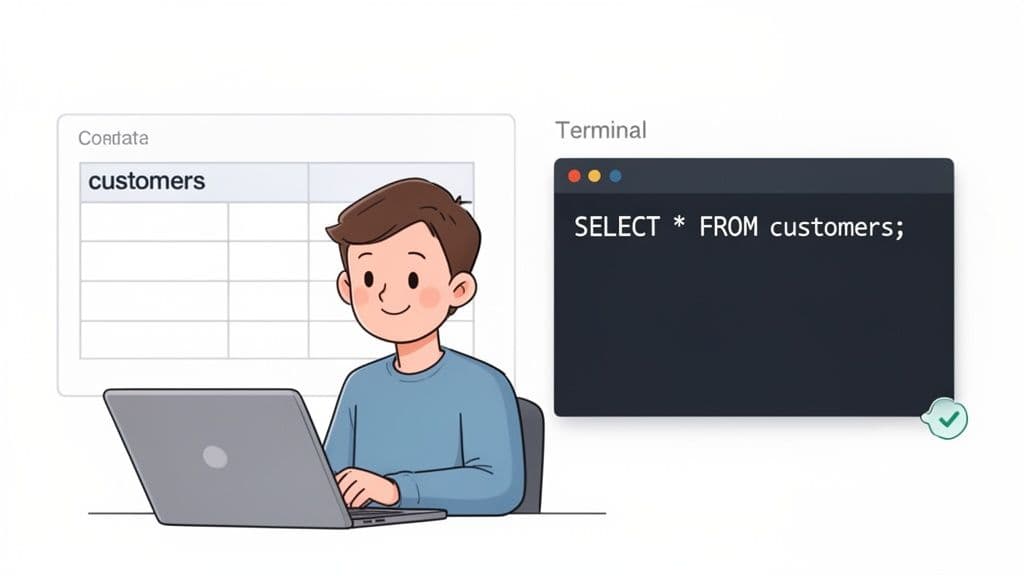
No matter which tool you've chosen, your first command is almost universally a SELECT statement. This is how you ask the database for information.
Let's imagine you have a customers table and you just want to see everything inside it.
Here’s the classic query you'd run:
SELECT * FROM customers;
It’s beautifully simple. Here's what you're telling the database:
SELECT *means "give me all the columns." The asterisk is a wildcard for "everything."FROM customerstells it which table to look in.
Running that one line and seeing your data appear is a huge win. You've just successfully talked to a database and it talked back. Every complex query you'll ever write is built on this fundamental concept.
Connecting to Your Database
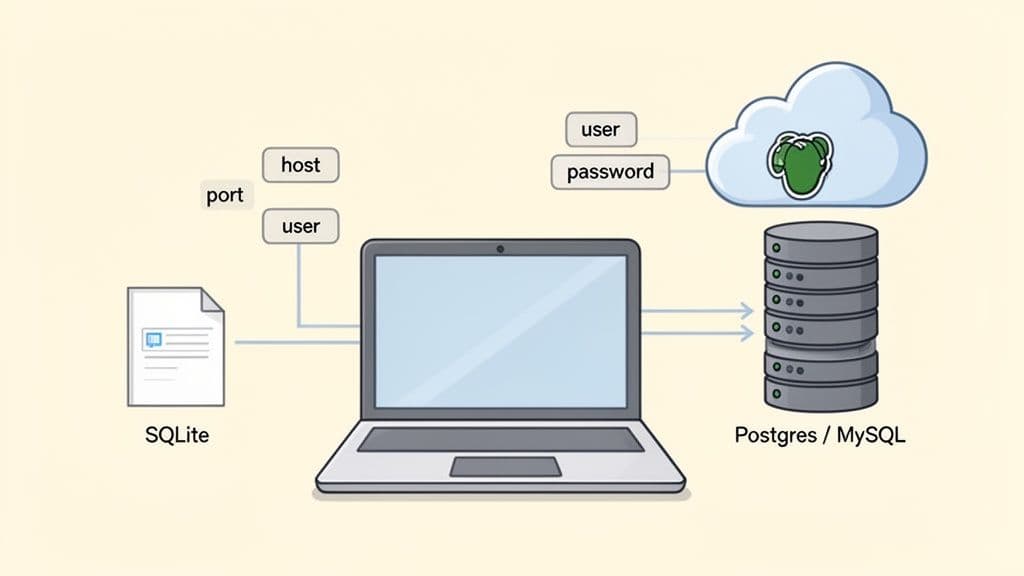
Before you can write a single line of SQL, you have to get connected. Think of it as the handshake between your computer and the database. It might seem like a hurdle, but it’s really just about giving your tool the right address and credentials.
How you connect really boils down to one question: is the database on your machine, or is it somewhere else?
Local vs. Remote Connections
Getting started with a local database is usually the most straightforward path. If you're using SQLite, for example, your entire "connection" might just be pointing to a single file ending in .sqlite or .db right on your computer. It’s perfect for solo projects, quick tests, and small-scale apps where you don't need a dedicated server.
Things get a little more involved with remote databases, which is what you’ll find in most professional settings. When your PostgreSQL or MySQL instance is running on a server—whether it’s a machine in the office or on a cloud platform like Neon or PlanetScale—you'll need a few key pieces of information to get in.
- Host: The IP address or domain name of the database server (e.g.,
db.yourcompany.com). - Port: The specific "door" the database is listening on (e.g.,
5432for PostgreSQL). - User: The username you've been assigned for access (e.g.,
data_analyst). - Password: Your secret key to prove you are who you say you are.
For any data team, just getting everyone connected to the right database can be a real roadblock. The good news is that modern tools have made this initial setup way less painful, getting you from credentials to querying in just a few minutes.
A Better Way to Manage Connections
If you've ever found yourself digging through old emails or Slack messages for connection strings, you know how frustrating it can be. This constant friction is a big reason why the SQL Server Transformation market is expected to jump from $7.4 billion in 2024 to $11.7 billion by 2030. As more companies move their data to the cloud, tools that make access simple and secure become critical.
This is exactly where a modern SQL client like TableOne shines. Instead of dealing with different setups for every database, you get one clean interface for connecting to SQLite, PostgreSQL, and MySQL.
You can save all your connection profiles for different projects—local and remote—and switch between them with a click. It's a unified approach that cuts down on configuration time so you can focus on what actually matters: running queries and finding answers. For a more detailed walkthrough, check out our guide on how to connect to a PostgreSQL database.
Writing Queries That Actually Answer Questions
Alright, you're connected to your database. Now for the fun part—actually talking to it. This is where you move beyond setup and start turning raw data into real answers. Think of it less like coding and more like learning to ask very specific, logical questions.
Every single query that pulls data begins with one word: SELECT. It's the foundation for everything else you'll do.
Let's say we're working with a products table for an online store. A good first step is always to just peek at the data to see what you're dealing with.
SELECT name, price, category FROM products;
Running that gives you... well, everything. It’s a giant list of every product, which is a start, but it isn't very useful on its own. It's just a data dump. To get any real insight, we need to start filtering.
Finding Exactly What You Need with WHERE
This is where the WHERE clause comes in. It's your go-to tool for telling the database, "Don't show me everything, just show me the rows that match this specific rule." It’s how you start narrowing things down.
For example, if you only care about products in the 'Electronics' category, you can add a WHERE condition. The query instantly becomes more focused.
SELECT name, price
FROM products
WHERE category = 'Electronics';
See the difference? We went from a vague "What's in the products table?" to a much better question: "What are our electronic products and how much do they cost?" This is the core of writing good SQL.
Sorting Your Results for Clarity
Okay, so you have a list of electronics, but it's probably in whatever random order the database decided to return it. To make sense of the results, you need to sort them. That's what ORDER BY is for. You can sort by any column, either in ascending order (ASC) or, more commonly for finding top items, descending order (DESC).
Let's find our most expensive electronics and put them right at the top.
SELECT name, price
FROM products
WHERE category = 'Electronics'
ORDER BY price DESC;
Just like that, your messy list now has a clear hierarchy. You can immediately see which items are your most premium offerings.
A Pro's Takeaway: Getting comfortable with the
SELECT,WHERE, andORDER BYtrio is your first major milestone. These three clauses work together to let you grab a specific slice of data and present it in a way that actually makes sense. Master this combo, and you're well on your way.
Keeping Your Output Manageable with LIMIT
Sometimes, you don't need to see all 500 electronic products. You might just want the top 5, the top 10, or even just a single record. For that, you use LIMIT. It does exactly what it sounds like: limits the number of rows the query spits out.
Let's put it all together. What if the boss asks for the top 3 most expensive electronic products? Easy.
SELECT name, price
FROM products
WHERE category = 'Electronics'
ORDER BY price DESC
LIMIT 3;
Now that is a useful query. It's sharp, efficient, and answers a very specific business question. This is the process in a nutshell: you start broad, then you layer on clauses like WHERE, ORDER BY, and LIMIT to refine your request until you've moved from a sea of data to a single, actionable insight.
Getting Your Hands Dirty with Everyday SQL Patterns
Once you've got the basics of a SELECT statement down, the real work begins. To get anything meaningful done, you'll need to start using the SQL patterns that data professionals rely on every day.
The good news is that a handful of core techniques—things like filtering with more precision, joining tables together, and summarizing data—will cover 90% of what you need to do. These aren't just abstract concepts; they are the fundamental building blocks for turning mountains of raw data into actual business intelligence.
Refining Your Results with AND, OR, and LIKE
The WHERE clause is your best friend for zeroing in on the data you need, but its real power comes from combining conditions. Using AND and OR lets you ask much more specific questions of your database. Just remember: AND is strict and requires all conditions to be met, while OR is more flexible, needing just one condition to be true.
Let's say you're looking for a specific group of users: anyone who signed up last October or who has a Gmail address.
SELECT
  user_id,
  email,
  created_at
FROM
  users
WHERE
  (created_at >= '2023-10-01' AND created_at < '2023-11-01')
  OR email LIKE '%@gmail.com';
Notice the LIKE operator? It's perfect for finding patterns in text. The % symbol is a wildcard that stands in for any number of characters, so '%@gmail.com' is our way of telling the database to find any email address that ends with that domain.
Connecting the Dots with INNER and LEFT Joins
Data is rarely stored in one giant table. In the real world, you'll constantly need to pull related information from several tables at once. That's where JOINs come into play, and understanding the two most common types—INNER JOIN and LEFT JOIN—is non-negotiable.
Here’s a practical way to think about it:
- An
INNER JOINis like finding the perfect overlap between two datasets. It only returns rows where the key you're joining on exists in both tables. - A
LEFT JOINstarts with everything from the first (or "left") table and then brings in matching data from the second table. If a row in the left table has no match in the right, its columns will simply show up asNULL.
Imagine you have a customers table and an orders table. To get a list of only the customers who have actually placed an order, an INNER JOIN is the right tool for the job.
SELECT
  c.customer_name,
  o.order_id,
  o.order_date
FROM
  customers c
  INNER JOIN orders o ON c.customer_id = o.customer_id;
This query cleanly pulls a list of active buyers. But what if you wanted to see all customers, including those who haven't bought anything yet? That's a classic use case for a LEFT JOIN. Just swap INNER JOIN for LEFT JOIN, and you'll get every customer, with NULL values in the order columns for those who haven't made a purchase.
To help you choose the right tool for the job, here's a quick breakdown of the most common SQL JOINs you'll encounter.
Common SQL Join Types Explained
| Join Type | What It Does | Common Use Case |
|---|---|---|
INNER JOIN | Returns only the rows where the join condition is met in both tables. | Finding customers who have placed orders. |
LEFT JOIN | Returns all rows from the left table, plus matched rows from the right table. | Listing all employees and the departments they belong to, including employees not yet assigned to a department. |
RIGHT JOIN | Returns all rows from the right table, plus matched rows from the left table. | Less common, but useful for finding all products that have been ordered, including products from a supplier that isn't in your main product list. |
FULL OUTER JOIN | Returns all rows when there is a match in either the left or the right table. | Combining two different contact lists to find all unique people, regardless of which list they were originally on. |
Understanding which join to use in which scenario is a huge part of writing effective and accurate queries. It’s what separates a simple data pull from a truly insightful analysis.
Creating Summary Reports with Aggregates and GROUP BY
The final piece of the puzzle is learning how to summarize your data. This is where you go from just viewing rows to calculating meaningful metrics. Aggregate functions like COUNT(), SUM(), AVG(), MIN(), and MAX() do the heavy lifting, and when you combine them with a GROUP BY clause, you can generate powerful reports on the fly.
For instance, you can quickly calculate total sales and the number of orders for each product category from your raw sales data.
SELECT
  p.category,
  SUM(oi.quantity * oi.unit_price) AS total_sales,
  COUNT(DISTINCT o.order_id) AS number_of_orders
FROM
  order_items oi
  JOIN orders o ON oi.order_id = o.order_id
  JOIN products p ON oi.product_id = p.product_id
GROUP BY
  p.category;
This single query is a game-changer. It takes what could be thousands of individual transaction lines and rolls them up into a clean, high-level business summary. Mastering
GROUP BYis how you graduate from just fetching data to actually generating insights.
These patterns are so fundamental to data work that an entire market has grown around making them easier to manage. The global market for SQL Query Builders is projected to jump from $2,706.98 million in 2021 to $4,311.45 million by 2025. You can read the full market research about SQL query builders to see just how much organizations rely on these operations.
This flowchart gives you a good mental model for how the database thinks when it runs your query.
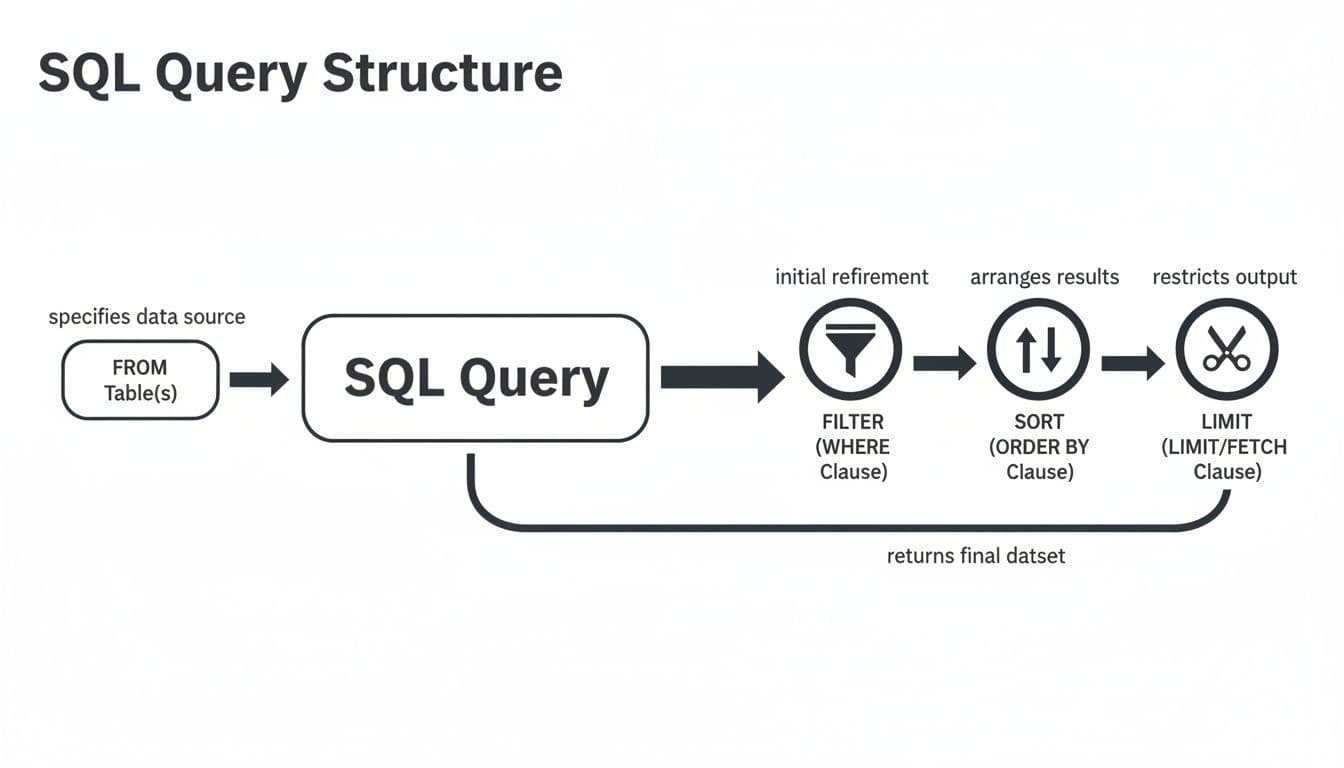
It's a logical flow: the database first identifies the table, filters the rows, sorts the results, and finally limits the output. Keeping this execution order in mind will help you write more efficient queries and troubleshoot them when they don't behave as expected.
Writing Faster and Safer SQL Queries
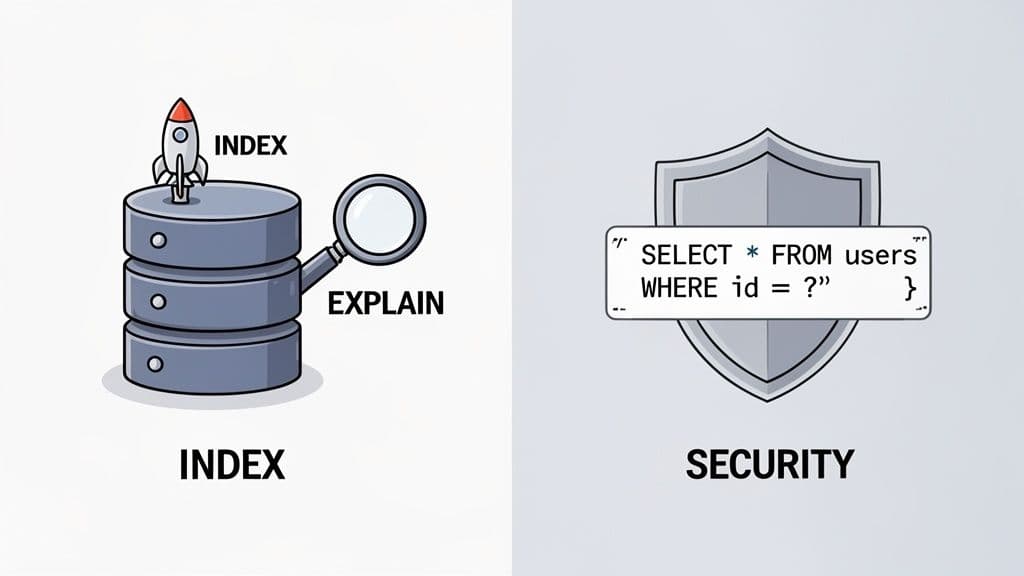
Getting a query to return the right data is just the starting line. The real craft lies in writing queries that are fast, efficient, and secure. A sluggish query can grind an entire application to a halt, and a poorly secured one can open the door to catastrophic data breaches.
Let's move beyond the basics and tackle two practices that define professional-grade SQL: optimizing for performance and hardening against vulnerabilities. These aren't just academic exercises; they are essential, everyday skills for anyone working with real-world databases.
Boost Your Query Speed with Indexes
Think about trying to find a specific topic in a massive textbook without an index in the back. You'd be stuck reading every single page from front to back. That painful, page-by-page process is what a database does when it performs a full table scan, and it’s a notorious culprit behind slow queries.
An index is your database's version of that textbook index. It's a special, pre-sorted data structure that lets the database engine pinpoint the data you need almost instantly. If you find yourself constantly filtering on a particular column, like in a WHERE user_id = 123 clause, that column is a prime candidate for an index. The performance gain can be staggering.
So how do you know if your query is actually using an index? The EXPLAIN command is your best friend here. Just add EXPLAIN to the beginning of your SELECT statement. The database will return its "query plan"—the step-by-step strategy it will use to fetch the data. If you see "FULL TABLE SCAN" in that plan, it’s a major red flag that an index might be missing.
For a much deeper look into this, we have a whole guide covering powerful SQL query optimization techniques.
Performance isn't just about what you do on your own machine. Modern cloud platforms have made incredible strides. Databricks SQL, for example, has seen a 5x performance jump since 2022 by using intelligent query replanning to sidestep performance bottlenecks. Industry benchmarks show that up to 70% of query delays come from unpredictable data spills, something these advanced systems are designed to prevent. You can read more about these innovations in query execution on databricks.com.
Secure Your Database with Parameterized Queries
Now, let's talk about security. One of the oldest, most common, and most dangerous attacks out there is SQL injection. This is where an attacker feeds malicious input to your application, tricking your database into running their commands instead of yours.
Let me be blunt: never, ever build your SQL queries by just mashing strings together with user input. It’s like leaving your front door wide open with a sign that says "Please rob me." The only professional way to handle user input is with parameterized queries, sometimes called prepared statements.
This technique is simple but brilliant. You send the database the SQL command template with placeholders, and then you send the user's input separately. The database engine handles combining them, ensuring the input is treated strictly as data, never as executable code.
The difference is night and day.
The Dangerous Way (Vulnerable to SQL Injection)
-- THIS IS DANGEROUS. A malicious user could wipe your data.
userInput = "105; DROP TABLE users;" -- Malicious input
query = "SELECT * FROM products WHERE id = " + userInput;
If you run this code, the attacker’s DROP TABLE command executes. Your users table is gone.
The Safe Way (Using Parameterized Queries)
-- THIS IS THE CORRECT, SAFE METHOD.
userInput = "105; DROP TABLE users;"
query = "SELECT * FROM products WHERE id = ?;"
// Your code would then execute this query, passing the userInput as a parameter.
Here, the database engine isn't tricked. It safely searches for a product whose ID is the literal string "105; DROP TABLE users;". It won't find one, the malicious command is never executed, and your data remains safe. This isn't optional—it's a fundamental requirement for secure application development.
Common Questions (and Answers) About Running SQL Queries
Even with a solid guide, you're bound to run into a few common questions. Let's tackle some of the roadblocks and curiosities I see pop up all the time when developers are getting their hands dirty with SQL.
GUI vs. CLI: Which One Should I Use?
This really comes down to the task at hand. Think of a GUI (Graphical User Interface) like TableOne as your interactive workbench. It's visual, you can click around to explore tables, and you write your query in one pane and see the results pop up right below. It's perfect for exploring a new dataset or pulling a quick, one-off report.
A CLI (Command-Line Interface), on the other hand, is all about power and automation. Tools like psql for PostgreSQL or mysql for MySQL have a steeper learning curve, no doubt. But once you're comfortable, they're unbeatable for scripting, automating repetitive tasks, and baking database commands right into your development workflow.
What's the Easiest Way to Export My Results to CSV?
For a quick export, a GUI is your best friend. Seriously. Most modern SQL clients have a simple "Export to CSV" button right there in the interface. You run your query, you like the results, and with a single click, you have a CSV file on your desktop. It’s the fastest way to get data out for a spreadsheet or a report.
You can absolutely do this from the command line, but it's a bit more involved. You’ll need to use database-specific commands:
- PostgreSQL: Use the
\copy (SELECT ...) TO 'filename.csv' WITH CSV HEADERcommand. - MySQL: Use
SELECT ... INTO OUTFILE '/path/to/file.csv'.
For most day-to-day tasks, the convenience of a GUI export is hard to beat.
My Take: I use a GUI for 90% of my export needs because it's fast and visual. I only turn to CLI commands when I need to build an export into an automated script that runs on a schedule.
Can I Really Connect to SQLite, PostgreSQL, and MySQL From One App?
Yes, and once you do, you'll wonder how you ever managed without it. Using a modern, multi-database client means you can have all your connections—local SQLite files, a staging PostgreSQL server, and your production MySQL database—open in a single, unified interface.
This is a massive time-saver. You stop context-switching between different tools, each with its own quirks and shortcuts, and get a consistent workflow no matter which database you're querying.
Help! Why Is My SQL Query So Slow?
Ah, the dreaded slow query. We've all been there, staring at a spinning wheel. More often than not, the culprit is a missing index. If you’re filtering by a column in your WHERE clause that isn't indexed, the database is forced to read every single row in the table to find a match. This is called a full table scan, and it's brutally inefficient on large tables.
Other common reasons for a sluggish query include:
- Complicated
JOINs: Joining too many tables or joining on unindexed columns can create a monster of a query. - Massive Tables: Querying huge tables without filters can bring things to a crawl.
- Functions in
WHEREClauses: Applying a function to a column (e.g.,WHERE UPPER(last_name) = 'SMITH') often prevents the database from using an index on that column.
Your first step in diagnosing the problem should always be to run an EXPLAIN on your query. This command asks the database to show you its execution plan—the exact steps it will take to run your query. It will quickly reveal if you're dealing with a full table scan.
Ready to stop juggling multiple database tools? TableOne offers a modern, cross-platform SQL client that connects to SQLite, PostgreSQL, and MySQL in a single app. Run queries, edit data, and manage your connections with confidence. Try TableOne free for 7 days.