How to Backup PostgreSQL Database A Practical 2026 Guide
Learn how to backup PostgreSQL database with this practical guide. Explore pg_dump, PITR, and cloud-native strategies with actionable examples for any setup.

When you're dealing with PostgreSQL, knowing how to back up your database comes down to two main paths: flexible logical backups using pg_dump, and lightning-fast physical backups with pg_basebackup. The right choice for you boils down to two simple questions: how much data can you afford to lose, and how quickly do you need to be back online?
Why Your PostgreSQL Backup Strategy Is Mission-Critical
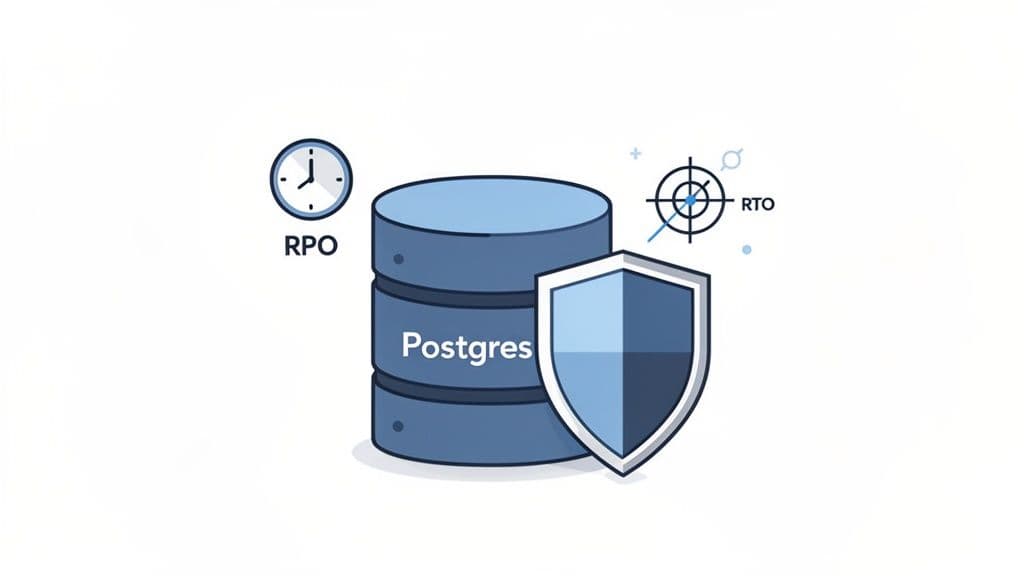
Before we get into the nuts and bolts of backup commands, let's get one thing straight. A backup strategy isn't just a "just in case" checkbox. It's the bedrock of a resilient application. A solid plan is what ensures business continuity when a server fails or someone accidentally drops a production table. It's what gives your team the confidence to ship new features without the paralyzing fear of causing an unrecoverable disaster.
The entire effectiveness of your backup plan is measured by two metrics. You, and only you, can define these based on what your business truly needs.
- Recovery Point Objective (RPO): This is the maximum amount of data you're willing to lose, measured in time. For a busy e-commerce site, the RPO might be just a few seconds. For an internal reporting dashboard, maybe an entire 24 hours is acceptable.
- Recovery Time Objective (RTO): This is all about speed. It's how fast you need to get the database back up and running after something goes wrong. A critical API might need an RTO of five minutes, while a less important internal service could probably wait a few hours.
Logical vs. Physical Backups
Your RPO and RTO are what guide your choice between the two main backup philosophies in the PostgreSQL world.
Logical backups, which you create with tools like pg_dump, aren't a copy of the database files. Instead, they generate a text file full of SQL commands that can perfectly reconstruct the database from scratch. Think of it as a detailed architectural blueprint for your data. This makes them incredibly flexible—you can restore just a single table, easily migrate between major PostgreSQL versions, or even shift your database to a completely different server architecture.
Actionable Insight: For many applications, a simple daily or even hourly logical backup is more than enough. It's a straightforward and reliable way to protect your data without the operational overhead of more complex setups.
On the other hand, you have physical backups. Using a tool like pg_basebackup, this method creates an exact, binary copy of the database cluster's files on the disk. For massive, multi-terabyte databases, this is dramatically faster than a logical dump. It's also the essential foundation for advanced strategies like Point-in-Time Recovery (PITR), which we'll get to later. The trade-off? Physical backups are tied to a specific PostgreSQL version, operating system, and hardware architecture, so they offer far less flexibility.
Getting these concepts straight is the first real step toward building a backup plan you can actually trust. As you'll see, the best strategies often blend both methods, all while being wrapped in strong security. To that end, it's worth reading our guide on database security best practices to make sure your backups are as secure as they are reliable.
Mastering Logical Backups with pg_dump
For most of us working with PostgreSQL, pg_dump is the go-to tool for backups. It’s the first thing you learn, and frankly, it’s often all you need for a rock-solid backup strategy. This command-line workhorse creates a "logical" backup—a script full of SQL commands that can rebuild your database from scratch, piece by piece.
Its real power lies in its flexibility. Whether you're migrating a database, setting up a staging environment, or just creating a simple safety net, pg_dump has you covered. For the vast majority of applications, a schedule of regular pg_dump backups is more than enough protection.
Your First PostgreSQL Backup Command
Let's start with a practical example: dumping a single database into a plain-text SQL file. This format is great because you can actually open it, read it, and see exactly what's going on. It’s perfect for debugging or even checking into Git to track schema changes over time.
If you have a local database named my_app_dev, backing it up is as simple as running this in your terminal:
pg_dump -U your_username -d my_app_dev -f my_app_dev_backup.sql
This command connects as your_username to the my_app_dev database and writes a complete blueprint—tables, data, indexes, views, and all—into a file named my_app_dev_backup.sql.
Of course, production databases rarely live on your local machine. To back up a remote database, you just need to add the host (-h) and port (-p) flags.
pg_dump -U your_username -h db.example.com -p 5432 -d my_app_prod > my_app_prod_backup.sql
You'll notice I used > here to redirect the output to a file instead of the -f flag. It’s a common shortcut that does the exact same thing.
Choosing the Right Backup Format
While plain-text SQL files are handy, they get massive in a hurry. For any real production database, you'll almost always want to use the compressed custom format. It's significantly smaller, restores much faster, and unlocks some of pg_dump's most powerful features.
To use it, just add the -Fc flag.
pg_dump -U your_username -d my_app_prod -Fc -f my_app_prod_backup.dump
The output is now a binary .dump file. You can't peek at it with a text editor anymore, but the gains in efficiency are well worth it.
So, how do you decide? It really comes down to what you're trying to accomplish. Here’s a quick breakdown to help you choose the right tool for the job.
Choosing Your pg_dump Backup Format
| Format | File Extension | Best For | Key Advantage |
|---|---|---|---|
| Plain Text | .sql | Small databases, schema inspection, version control. | Human-readable and universally portable. |
| Custom | .dump | Most production use cases, large databases, selective restores. | Compressed, faster, and enables parallel operations. |
| Directory | (folder) | Very large databases, parallel backups. | Writes dump files for each table in a directory. |
| Tar | .tar | Archiving, when you need a standard archive format. | A non-compressed archive format, similar to the directory format. |
For a deeper dive into the nuances of PostgreSQL data dumps and formats, you might be interested in our guide on PostgreSQL data dump strategies.
Pro Tip: When backing up a large database, use the
--jobsflag to put multiple CPU cores to work. It can drastically cut down your backup time. This only works with the custom, directory, or tar formats. For example,pg_dump -Fc --jobs=4 ...will use four cores to run the backup in parallel.
Real-World Backup Scenarios
Let's move beyond the basics and look at a couple of scenarios you'll definitely run into.
Scenario 1: Excluding Sensitive Data
Sooner or later, you'll need a database dump for a staging environment. The catch? You absolutely cannot have sensitive user PII in it. The --exclude-table flag is a lifesaver here.
pg_dump -d my_app_prod -Fc --exclude-table=user_pii -f staging_backup.dump
This command backs up everything except the user_pii table, keeping you compliant while giving developers a realistic dataset to work with.
Scenario 2: Creating a Schema-Only Dump
Sometimes you just need the database structure, not the data. This is super common when spinning up a clean environment for a new feature branch. For this, the --schema-only flag is your best friend.
pg_dump -d my_app_dev --schema-only -f schema_for_new_feature.sql
The result is a tiny SQL file with just the CREATE TABLE and other DDL statements. No data, no bloat—just the architectural blueprint.
Restoring Your Database with pg_restore
A backup is worthless if you can't restore it. When you're working with the custom (-Fc) format, you'll use the pg_restore utility. This is where you see the real benefits over a plain SQL file.
First, you'll generally need an empty database to restore into.
createdb -U your_username my_app_restored
With your empty database ready, you can perform a full restore from your backup file.
pg_restore -U your_username -d my_app_restored my_app_prod_backup.dump
But here’s where pg_restore really shines. What if a developer accidentally drops the products table? You don't want to roll back the entire database. Instead, you can perform a surgical restore of just that one table.
pg_restore -d my_app_prod -t products my_app_prod_backup.dump
This command connects to your live my_app_prod database and restores only the products table from the backup file, leaving everything else untouched. It can turn a potential disaster into a minor five-minute fix.
It's interesting to note how much the landscape has changed. For most modern applications—SaaS products, internal tools, e-commerce sites—simple logical backups with pg_dump are completely sufficient. The reality is that for many businesses, an hourly backup is perfectly fine; losing up to an hour of data often has a low business impact. This is a huge shift from a decade ago when more complex strategies were the norm.
Getting Serious with Physical Backups and Point-in-Time Recovery
While pg_dump is a fantastic tool for many use cases, there are times when it just doesn't cut it. Think about high-transaction systems—a busy e-commerce platform or a financial trading application—where losing even a few minutes of data is simply not an option. This is where you need to level up to physical backups and Point-in-Time Recovery (PITR), which lets you restore your database to a specific moment.
Unlike logical backups, which are essentially a script of SQL commands to rebuild your data, a physical backup is a direct, binary copy of the database files on disk. The go-to tool for this is pg_basebackup. It creates a snapshot of your entire database cluster, and for very large databases, it's often much faster to back up and restore than its logical counterpart.
Creating the Initial Base Backup
Your entire PITR strategy is built on a solid foundation: a full physical backup. The pg_basebackup utility does this by connecting to your primary PostgreSQL server and streaming all the data files to a new directory. It’s like taking an identical clone of your database's data directory at that instant.
A practical command to get started looks something like this:
pg_basebackup -h your_db_host -p 5432 -U replicator_user -D /path/to/backups/base -Fp -Xs -P --verbose
Those flags are really important, so let’s quickly go over what they do:
- -h, -p, -U: These define the connection details—host, port, and a dedicated user. I always recommend creating a specific user for this with
REPLICATIONprivileges instead of using a superuser. - -D /path/to/backups/base: This is just the target directory where the backup files will land.
- -Fp: This sets the output format to 'plain', meaning it copies the files as-is into the directory.
- -Xs or --wal-method=stream: This is the key. It tells
pg_basebackupto also stream all the Write-Ahead Log (WAL) files that are generated during the backup. This ensures the final backup is consistent and ready for recovery. - -P: This shows a progress bar, which is a lifesaver when you're backing up a multi-terabyte database and want to know it's actually working.
Once that command finishes, your /path/to/backups/base directory holds a complete, self-contained copy of your PostgreSQL data directory. It's the starting point for any recovery operation.
Setting Up Continuous WAL Archiving
That base backup is just a snapshot in time. The real magic of PITR comes from continuously saving the transaction logs, what Postgres calls Write-Ahead Logging (WAL) files. Every single change to your database—every INSERT, UPDATE, or DELETE—is first recorded in a WAL file before it even touches the main data files.
By archiving these WAL files as they're produced, you create a continuous history of every transaction. This is what allows you to "replay" the database's activity on top of a base backup and restore it to any specific moment.
To get this working, you'll need to make a few changes in your postgresql.conf file:
wal_level = replica       # Or logical
archive_mode = on         # Enables WAL archiving
archive_command = 'cp %p /path/to/wal_archive/%f' # Command to archive a WAL file
wal_level = replica: This setting ensures enough detail is logged in the WALs to support archiving and recovery.archive_mode = on: This is the master switch that enables the archiving feature.archive_command = 'cp %p /path/to/wal_archive/%f': This is the shell command Postgres will run for each WAL file that’s filled and ready to be archived.%pis a placeholder for the full path to the WAL file, and%fis just the filename.
Actionable Insight: In any real production environment, please don't use a simple
cpcommand like that. Yourarchive_commandshould be far more robust. You’d typically usersyncto a separate backup server or, even better, a script that uploads the file to cloud object storage like Amazon S3, complete with error handling and monitoring.
Remember, you have to restart your PostgreSQL server for these configuration changes to take effect. After that, Postgres will dutifully copy each completed WAL segment into your archive directory, building that unbroken chain of your database's history.
A Real-World PITR Scenario: The "Oops" Moment
Let's play out a scenario that gives every DBA a cold sweat. At 2:15 PM, a developer accidentally runs DROP TABLE users; on the production database. Without PITR, this is a full-blown catastrophe. With it, it's a manageable incident.
Our goal is to restore the database to the exact state it was in at 2:14:59 PM, just before the rogue command was executed.
Here's how we'd tackle it step-by-step:
- Shut down the corrupted database cluster immediately to stop any further damage.
sudo systemctl stop postgresql. - Move or delete the old, corrupted data directory (
/var/lib/postgresql/16/main) and restore the most recent base backup into its place.cp -a /path/to/backups/base/* /var/lib/postgresql/16/main/. - Inside the newly restored data directory, create a file named
recovery.conf(or for PostgreSQL 12+ add recovery settings topostgresql.confor apostgresql.auto.conffile). This file guides PostgreSQL through the recovery process. - In that file, add these crucial lines:
Therestore_command = 'cp /path/to/wal_archive/%f "%p"' recovery_target_time = '2026-10-27 14:14:59 EDT'restore_commandtells Postgres how to fetch the archived WAL files it needs. Butrecovery_target_timeis where the magic happens—it instructs Postgres to replay transactions from the WALs only up to that precise timestamp, and then stop. - Finally, start the PostgreSQL server:
sudo systemctl start postgresql. It will spot the recovery settings and automatically enter recovery mode. It will begin fetching WAL files from your archive and replaying every transaction, one by one, until it hits the 2:14:59 PM mark. Once it's done, it brings itself online as a fully functional database, effectively rewinding time.
Modern Tools for Cloud-Native PITR
The basic flow for a backup and restore operation is pretty straightforward, whether you're using logical or physical methods.
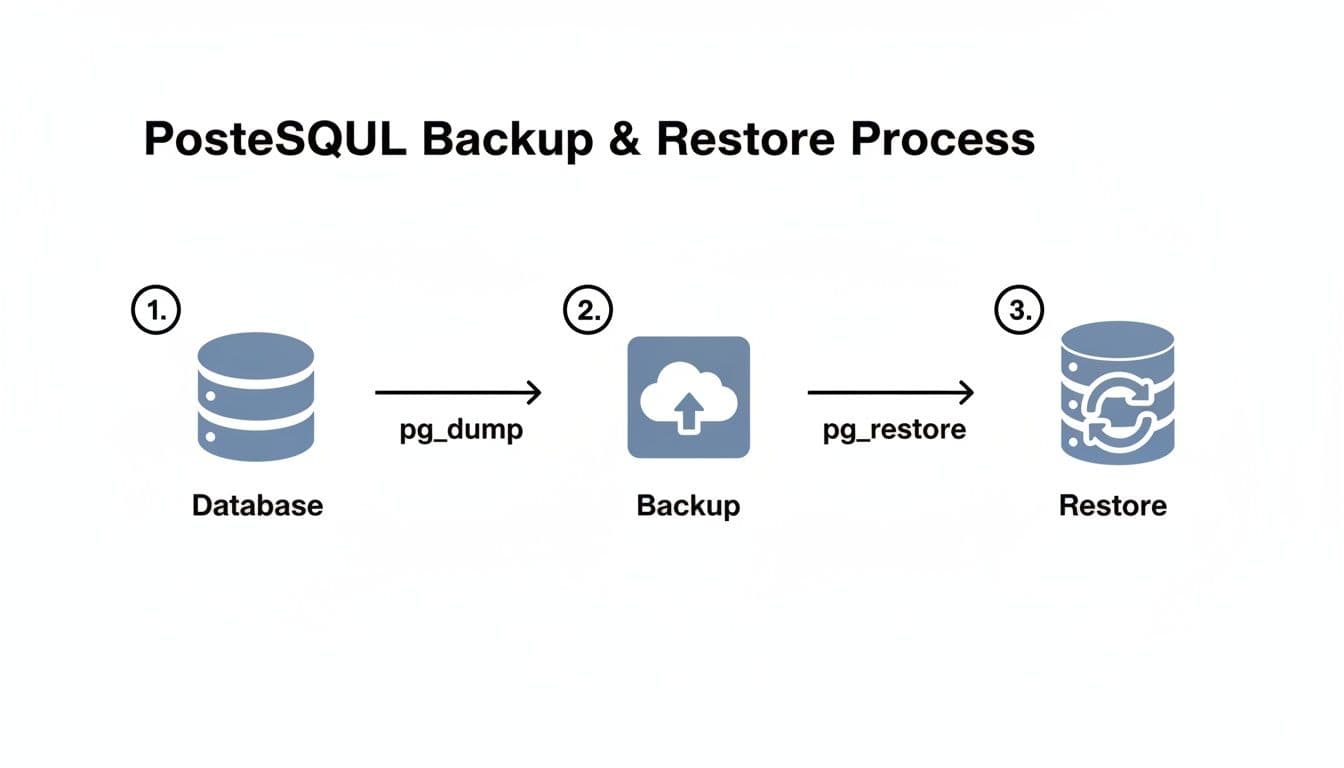
The diagram above shows that classic path of using pg_dump and pg_restore for logical backups. The principle for physical backups is similar—you just swap those tools for pg_basebackup and the WAL replay mechanism.
However, managing WAL archives with custom shell scripts can get complicated and brittle, especially in dynamic environments like the cloud or Kubernetes. This is why a new generation of tools has emerged to handle this much more gracefully.
The open-source backup ecosystem for PostgreSQL saw a significant shift around December 2025 as these modern solutions gained traction. Tools like WAL-G have become incredibly popular because they handle streaming WAL archives directly to object storage like AWS S3 or Google Cloud Storage. This is a perfect fit for Kubernetes, where local storage can be ephemeral. You can read more on how these tools became a dominant force in the PostgreSQL community. This trend was also helped by important fixes in recent PostgreSQL releases like 17.8 and 18.2, which made recovery procedures involving WAL files even more reliable.
Automating and Verifying Your PostgreSQL Backups
If there's one universal truth in database management, it's this: a backup you have to run by hand is a backup you will eventually forget. To build a truly resilient PostgreSQL backup strategy, you have to automate it. This isn't just about convenience; it's about eliminating human error and ensuring your data is consistently protected, day in and day out.
Setting up a "set it and forget it" system is a core skill. Luckily, on Linux-based systems, we have some fantastic, time-tested tools to get the job done right.
Scheduling Backups with Cron
For decades, cron has been the trusty workhorse for scheduling tasks on Linux and macOS. It’s simple, incredibly reliable, and perfect for running a routine job like a nightly pg_dump. A cron job is just a single line in a configuration file called a crontab that tells the system what to run and when.
Let's walk through a practical example of setting up a daily backup. First, we'll create a simple shell script to handle the logic. I usually name mine something descriptive, like backup_prod.sh:
#!/bin/bash

# Define backup directory and database name
BACKUP_DIR="/var/backups/postgres"
DB_NAME="my_app_prod"
TIMESTAMP=$(date +"%Y%m%d_%H%M%S")
BACKUP_FILE="$BACKUP_DIR/${DB_NAME}_${TIMESTAMP}.dump"

# Create the backup using pg_dump with custom format
pg_dump -U postgres -d "$DB_NAME" -Fc -f "$BACKUP_FILE"

# Optional: Clean up backups older than 7 days
find "$BACKUP_DIR" -type f -name "*.dump" -mtime +7 -delete
This script handles two key tasks: it creates a neatly timestamped backup file and then prunes any old backups that are more than a week old.
To make this script run automatically, you'll need to edit your crontab by running crontab -e and adding the following line:
0 2 * * * /path/to/your/scripts/backup_prod.sh > /var/log/postgres_backup.log 2>&1
This entry tells cron to execute your script every single day at 2:00 AM. The second part is just as important—it redirects all output and any potential errors to a log file. Trust me, when a backup fails silently in the middle of the night, this log file will be your best friend.
A Modern Alternative with Systemd Timers
While cron is a fantastic and reliable tool, systemd timers have become my preferred method on most modern Linux distributions. They offer more granular control and far better logging integration with the rest of the system. With systemd, you create a service unit and a timer unit that work together.
First, create a service file at /etc/systemd/system/pg_backup.service to define what to run:
[Unit]
Description=PostgreSQL daily backup service

[Service]
Type=oneshot
ExecStart=/path/to/your/scripts/backup_prod.sh
Next, you create the corresponding timer file at /etc/systemd/system/pg_backup.timer to define when to run it:
[Unit]
Description=Run pg_backup.service daily

[Timer]
OnCalendar=daily
Persistent=true

[Install]
WantedBy=timers.target
Here, OnCalendar=daily does the same job as our cron schedule. To get it running, you just need to start and enable the timer:
sudo systemctl start pg_backup.timer
sudo systemctl enable pg_backup.timer
The real win here is visibility. You can check the status of your timer with systemctl status pg_backup.timer and, more importantly, dive into detailed logs for any run using journalctl -u pg_backup.service. It's a much cleaner way to see what's happening.
Actionable Insight: An untested backup is not a backup at all—it's just a file taking up disk space. You only know if your strategy works when you have successfully restored from it. This is a non-negotiable part of database management.
The Critical Role of Verification and Restore Drills
Automating the creation of backup files is only half the job. The real measure of your entire strategy is whether you can actually restore from those files when disaster strikes. You have to regularly prove that your backups are complete, uncorrupted, and can get your database back online within your required timeframe (RTO).
The only way to gain this confidence is by performing regular restore drills. This isn't a theoretical exercise; it's a hands-on fire drill for your data.
Here’s a practical runbook for a restore drill:
- Spin up a staging environment. You need a dedicated server that's a close-as-possible clone of your production setup—same OS, same PostgreSQL version, similar hardware specs. Make sure this server has the necessary permissions and network access. If you need a refresher, our guide on how to connect to a PostgreSQL database securely can help.
- Perform a real restore. Grab your latest backup and use
pg_restore(for logical backups) or your PITR process to bring the database to life on the staging server. - Time everything. Start a stopwatch. How long does the full restoration take, from start to finish? If it takes 4 hours but your business demands a 1-hour RTO, you have a major gap in your strategy that you need to fix now, not during a real outage.
- Check the data. Once the database is up, run spot checks. Run
SELECT COUNT(*) FROM users;andSELECT COUNT(*) FROM orders;on your most important tables. If you have custom scripts that check for key data points, run those too. - Document the drill. Keep a log of every test. Note which backup you used, how long the restore took, whether it succeeded, and any snags you hit along the way. This documentation is gold for audits and for continuously refining your process.
Backing Up PostgreSQL in the Cloud
Shifting your PostgreSQL database to a managed service like Amazon RDS, Neon, or Supabase can feel like a massive weight has been lifted. All of a sudden, complex jobs like physical backups and Point-in-Time Recovery (PITR) are mostly taken care of for you. These platforms are fantastic at automating physical snapshots and managing WAL archiving, which frees up a ton of operational bandwidth for your team.
This automation is, without a doubt, a huge selling point. But here’s the catch: treating these built-in backups as a complete, fire-and-forget solution creates a new kind of risk. When you rely 100% on your provider's system, your data's entire fate is tied to a single point of failure.
The Hybrid "Belt and Suspenders" Approach
For true peace of mind, you need a hybrid strategy. I like to call it the "belt and suspenders" approach. You let your cloud provider do what they do best—handle high-frequency disaster recovery. Their automated snapshots and PITR are your go-to for bouncing back quickly from hardware failures or a recent, nasty data corruption bug.
At the same time, you supplement their system with your own independent, logical backups. The key is to schedule a periodic pg_dump of your database and, most importantly, store that dump file somewhere completely separate.
Actionable Insight: This hybrid model delivers the best of both worlds. You get the fast, granular recovery of managed PITR for everyday incidents, combined with the long-term security and freedom of your own independent backups.
Why go to this extra trouble? Storing your own pg_dump file in a different cloud account—or even with a different cloud provider altogether—insulates you from several worst-case scenarios I've seen play out in the real world:
- Vendor Lock-in: With a portable logical backup file on hand, migrating to another provider or even back to a self-hosted setup becomes dramatically simpler. You're not trapped.
- Accidental Account Deletion: It happens more often than you'd think. If your entire cloud account gets nuked by mistake, your provider's backups are almost certainly gone with it. An external backup is your only lifeline.
- Provider-Level Outage: While rare, a major outage can cripple a provider's control plane, making their own recovery tools unavailable right when you need them most.
- Granular, Application-Level Recovery: A
pg_dumpfile gives you the flexibility to restore a single table or a specific subset of data for a development environment without triggering a full, heavyweight database restore through your provider's console.
A Practical Cloud Backup Runbook
So, what does this look like in practice? It's all about having a clear runbook that defines the role of each backup type.
This thinking is part of a broader evolution in how teams manage PostgreSQL. As enterprise support has matured, backup management, verification, and testing are now seen as core responsibilities. By letting managed services handle the grunt work of installation, scaling, and high-frequency backups, engineering teams can focus on building great products. You can read more about how managed services are transforming PostgreSQL operations on instaclustr.com.
This clear division of labor is your ticket to real resilience.
First, let your provider handle disaster recovery. Use their managed snapshots and PITR for high availability and recovering from recent, system-level failures. This is your first line of defense.
Second, use your own pg_dump for archival and portability. Set up a daily or weekly pg_dump job that creates a logical backup. Then, tuck that file away in a secure, isolated location, like a separate AWS S3 bucket or Google Cloud Storage account. This is your strategic reserve.
Following this two-pronged approach ensures you're ready for both common operational hiccups and the rare catastrophic event, giving you true control over your data's destiny.
Common Questions About PostgreSQL Backups
Even with a well-thought-out backup strategy, a few key questions always seem to pop up. Let's tackle some of the most common ones I hear from developers and DBAs who are deep in the trenches with PostgreSQL.
How Often Should I Actually Back Up My Database?
There’s no magic number here. The right backup frequency comes down to one critical question: how much data can your business afford to lose? This is your Recovery Point Objective (RPO), and it should dictate your entire schedule.
- High-Transaction Systems: If you're running a busy e-commerce store or a financial platform, every single transaction counts. For these cases, you absolutely need continuous WAL archiving for Point-in-Time Recovery (PITR). This minimizes potential data loss to just a few seconds or minutes.
- Standard Applications: For most SaaS products or internal company tools, an hourly logical backup using
pg_dumpoften hits the sweet spot. Losing up to an hour of data is a business risk most can live with. - Low-Activity Databases: Working with a personal blog, a CMS that's rarely updated, or a staging environment? A single, solid backup once a day is almost always enough.
The Real-World Difference: pg_dump vs. pg_basebackup
People often get tangled up trying to decide between pg_dump and pg_basebackup. The choice really boils down to flexibility versus raw speed and recovery time.
pg_dump is your go-to for logical backups. It works by generating a plain-text SQL script that can completely rebuild your database schema and data from scratch. Its superpower is flexibility—the backup isn't tied to a specific PostgreSQL version or server architecture, and you can even restore individual tables.
pg_basebackup, on the other hand, creates a physical backup. It takes a literal, bit-for-bit copy of the database files on disk. This approach is significantly faster for massive databases and is the cornerstone of setting up Point-in-Time Recovery. The trade-off? It’s rigid. The backup only works with the exact same PostgreSQL major version and architecture.
Should I Bother Compressing My Backups?
Yes. Always. The benefits are massive and there's virtually no downside. A plain-text SQL dump from pg_dump can get huge, fast. Before you know it, you're burning through disk space and your network transfers are slow and costly.
Actionable Insight: Compressing backups is one of the easiest wins you can get. It dramatically shrinks your storage footprint and cuts down on transfer times, saving you both time and money.
It’s standard practice to just pipe the output straight into a compression tool. For example:
pg_dump mydatabase | gzip > mydatabase_backup.sql.gz
Better yet, if you use the custom format (-Fc) with pg_dump, it handles compression for you automatically. You get a smaller, optimized file right from the start.
Can I Restore a Backup From a Newer Version to an Older Server?
That’s a hard no. You cannot reliably restore a dump from a newer version of PostgreSQL to an older one. For instance, a backup taken from a PostgreSQL 16 instance will fail if you try to restore it on a server running version 15.
The pg_dump utility is designed to be forward-compatible, which means you can take a dump from an older version (like v15) and restore it to a newer one (v16). It is not backward-compatible. This is a crucial detail to remember, especially when you're planning database upgrades or migrations.
Managing backups, connections, and schemas is essential for a healthy database workflow. TableOne is a modern, cross-platform database tool built to make this work fast and predictable. It connects to PostgreSQL, MySQL, SQLite, and managed providers like Neon and Supabase, giving you a single app to explore tables, edit data, compare schemas, and generate snapshots. Skip the clutter and subscriptions—get your one-time license and ship with confidence. Learn more at https://tableone.dev.