How to Export MySQL Table to CSV: A Developer's Practical Guide
Learn how to export MySQL table to CSV using SQL, CLI tools, scripts, and GUI clients. Get actionable tips to handle headers, encoding, and permissions.

Getting data out of a MySQL table and into a CSV file is a fundamental skill every developer needs. It's often as simple as running a single SQL command or clicking a few buttons in your favorite database client. This isn't just a technical task; it's the go-to method for moving data into a format that literally any tool can understand, from spreadsheets to complex data science libraries.
Why Exporting MySQL to CSV Is a Core Developer Skill
Sure, we have fancy formats like JSON and Parquet these days, but the humble CSV file is still king when it comes to portability. Its dead-simple, plain-text structure is its superpower. This universal compatibility is why knowing how to export a MySQL table to CSV is more than just a neat trick—it's essential.
Think about all the times you need to pull data from your database. The reason usually falls into one of a few common paths, whether you're making a quick backup, running an analysis, or integrating with another system.
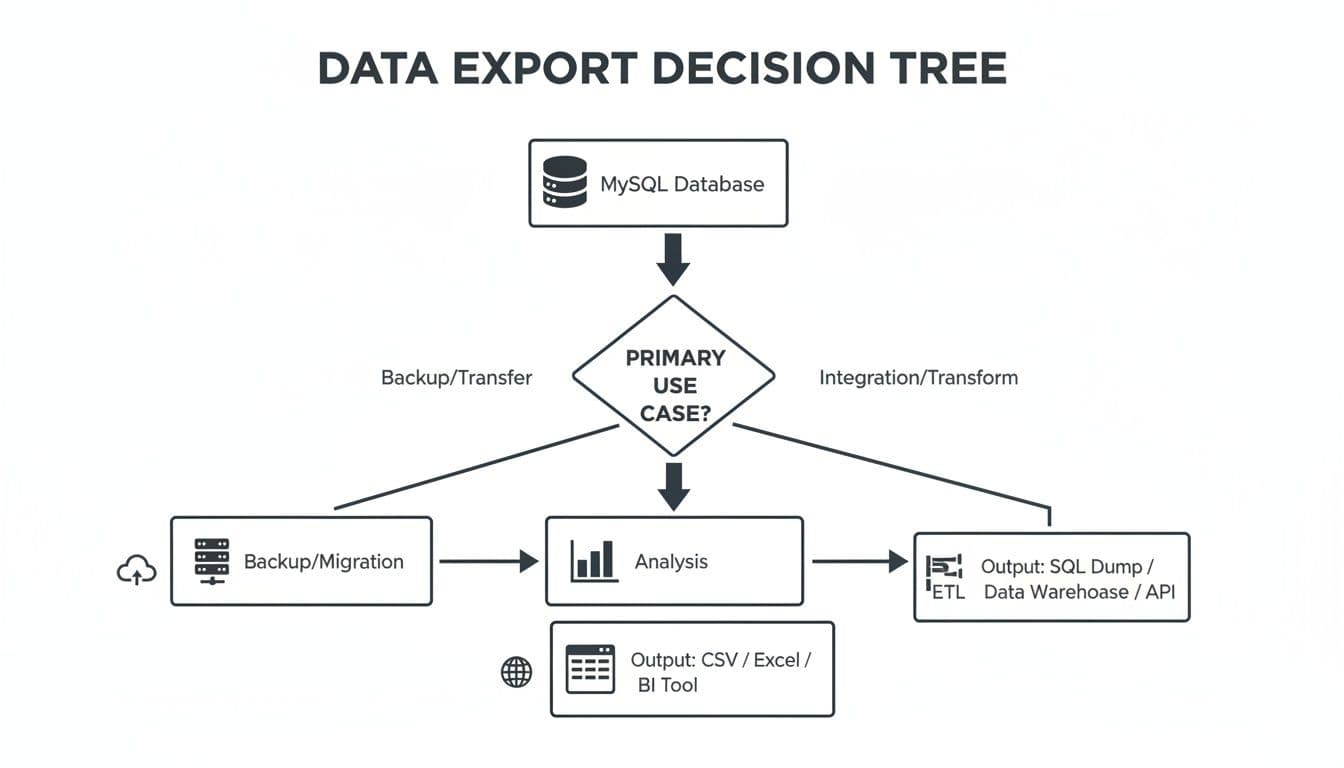
As you can see, whether you're archiving old records, feeding a BI tool, or moving a table over to a new PostgreSQL database, CSV often ends up being the most practical bridge to get you there.
Common Scenarios for CSV Exports
I run into this need all the time in my own work. Here are a few real-world examples you've probably faced too:
- Quick Backups: You need a fast, human-readable copy of a critical table, like your
usersorproductslist, without firing up a full-blown backup utility. An export of theconfigtable before a major update is a classic safety net. - Data Migration: You're moving a
blog_poststable from a MySQL-powered WordPress site to a new CMS running on PostgreSQL. Exporting to CSV is the universal middleman. - Business Reporting: The marketing team needs a list of all customers who purchased a specific product in Q4 to analyze in Excel. A quick CSV export is the fastest way to get it to them.
- Data Analysis: You're preparing a dataset for a project in Python. Loading a clean CSV of user activity logs into a pandas DataFrame is the first step for nearly every data scientist.
At its core, exporting to CSV is the best way to decouple your data from your database. You create a simple, portable file that anyone on your team can open and work with, no matter what tools they have or how technical they are.
This is where a good GUI can be a lifesaver. A modern database tool can turn a multi-step export process into a few clicks, saving you from the headaches of manual queries and typos.
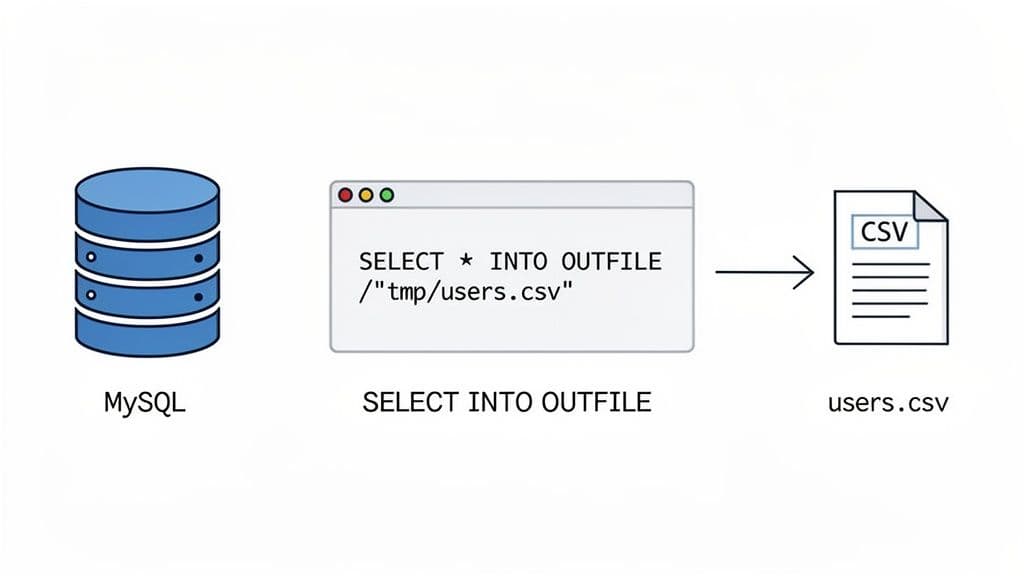
Using SQL's SELECT INTO OUTFILE for Server-Side Exports
When you need raw speed, nothing beats exporting data directly on the MySQL server itself. The classic, time-tested command for this is SELECT ... INTO OUTFILE. It’s incredibly fast because it skips the network entirely and writes the file right on the server's local disk. For massive datasets, this is your go-to method.
At its simplest, you can dump an entire customers table with a single command.
-- Actionable Example: A simple, full-table export
SELECT *
FROM customers
INTO OUTFILE '/var/lib/mysql-files/customers_export.csv';
This tells the MySQL server to grab everything from the customers table and write it into customers_export.csv, placing it in a specific directory on the server.
Customizing Your CSV Export
Of course, you rarely need to export an entire table. The real power here is that you can use the full expressiveness of SQL to shape the data you’re exporting.
Let's say you need a quick report of all users who signed up in the last month. You can easily select just the columns you need and add a WHERE clause to filter the rows.
-- Actionable Example: A filtered export for a specific report
SELECT user_id, email, created_at
FROM users
WHERE created_at >= DATE_SUB(CURDATE(), INTERVAL 1 MONTH)
INTO OUTFILE '/var/lib/mysql-files/monthly_signups.csv';
This kind of targeted export is perfect for creating reports without pulling down a bunch of data you’ll just have to filter out later. Getting comfortable with queries is key, and you can dive deeper into the fundamentals by reading our guide on how to run SQL queries.
A common headache with CSVs is data corruption. If any of your text fields happen to contain a comma, your file’s structure will break. The fix is to be explicit about your formatting rules.
FIELDS TERMINATED BY ',': This confirms you want to use a comma to separate columns.ENCLOSED BY '"': This is the crucial part. It wraps every value in double quotes, so a comma inside a text field won't be mistaken for a delimiter.LINES TERMINATED BY '\n': This sets the standard newline character to separate rows.
Putting it all together, a more robust and reliable export command looks like this:
-- Actionable Example: A robust export with formatting rules
SELECT user_id, name, email
FROM users
WHERE status = 'active'
INTO OUTFILE '/var/lib/mysql-files/active_users_report.csv'
FIELDS TERMINATED BY ','
ENCLOSED BY '"'
LINES TERMINATED BY '\n';
Solving the secure_file_priv Blocker
If you've tried this command, you may have already run into the infamous "secure_file_priv" error. This is a security feature, not a bug, designed to stop MySQL from writing files all over the server's filesystem.
The
secure_file_privsetting is a major hurdle. When active, it strictly dictates the only directory where MySQL can write files. If you specify any other path, the export will fail.
So, how do you find the "approved" directory? Just run this query:
-- Actionable Insight: Find your allowed export directory
SHOW VARIABLES LIKE "secure_file_priv";
The result tells you everything you need to know:
- A specific path (like
/var/lib/mysql-files/): This is your golden ticket. It's the only directory you're allowed to write to. - NULL: This means the feature is disabled, and you can't use
INTO OUTFILEat all. You’ll have to use a different method. - An empty string: The feature is turned off, giving you the freedom to write to any directory where the MySQL user has write permissions. This is common on local development machines but rare in production.
Exporting data from MySQL to CSV has been a core task for developers since SELECT INTO OUTFILE was introduced around 2002. Its importance is clear from the 150,000+ questions on Stack Overflow tagged with 'mysql' and 'csv'. However, roadblocks like the secure_file_priv setting still cause headaches, impacting an estimated 70% of users on cloud-hosted database instances.
Mastering Command-Line Exports with Mysql and Mysqldump
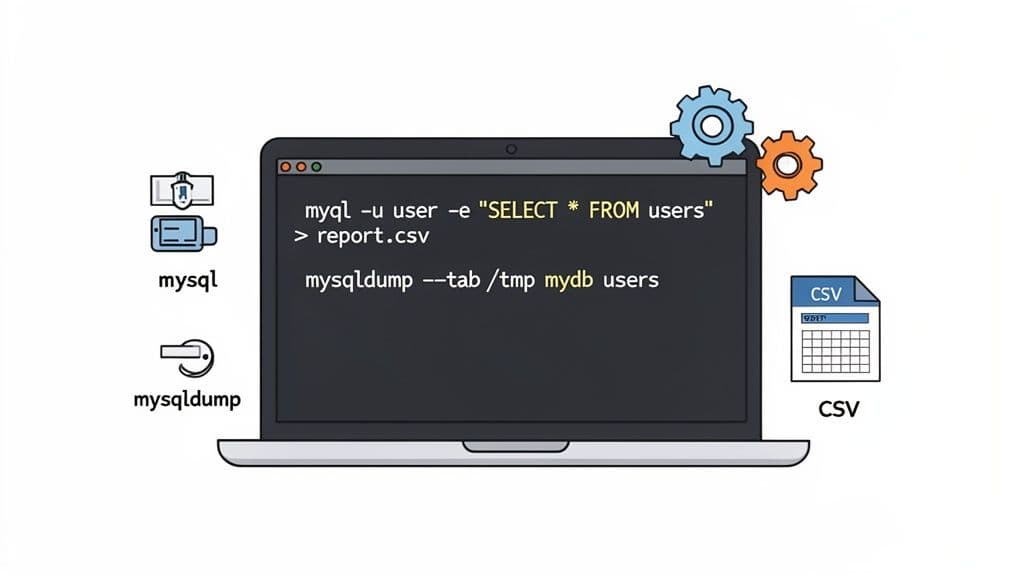
If you’re comfortable on the command line, you have some seriously powerful options for getting data out of MySQL. While SELECT INTO OUTFILE is undeniably fast, it runs on the database server itself and often gets blocked by strict file permissions. For exports you can run right from your own machine, the mysql client and mysqldump utility are your go-to tools.
These client-side tools are perfect for scripting and automation. Think daily sales reports or pulling a fresh list of users for another application. Since you're running the command locally, you completely sidestep server-side headaches like the dreaded secure_file_priv error.
Using the Mysql Client for Quick Query Exports
The standard mysql client is more than just an interactive shell; you can use it to fire off a single query and pipe the results wherever you want. This is my favorite method when I need to export a MySQL table to CSV based on a specific WHERE clause or a complex JOIN.
The magic here is the -e (execute) flag, combined with some classic output redirection.
Let's say you need a quick CSV of all active users. Instead of logging in, running the query, and copy-pasting, you can do it all in one line:
# Actionable Example: One-liner to export active users to CSV
mysql -u your_user -p'your_password' your_db -e "SELECT id, name, email FROM users WHERE status = 'active';" | tr '\t' ',' > active_users.csv
Here’s a quick rundown of what’s happening:
mysql -u ... -p ... your_db: Standard connection details for your user and database.-e "...": Executes theSELECTstatement you provide in quotes.| tr '\t' ',': This is the key part. By default, themysqlclient outputs tab-separated values. This pipe sends that output to thetr(translate) utility, which swaps every tab (\t) for a comma (,).> active_users.csv: Finally, the comma-separated output is redirected into a new file on your local machine.
Pro Tip: Need column headers in your file? Just add the
--batchflag to your command. When used with-e, it forcesmysqlto print the column names as the first line, giving you a perfect, ready-to-use CSV.
Leveraging Mysqldump for Clean Data Dumps
While the mysql client is flexible, mysqldump is a purpose-built tool for creating database backups. It’s incredibly fast and efficient for dumping entire tables. With the --tab option, you can tell mysqldump to export each table into its own clean, tab-delimited file.
This approach gives you two separate files for each table: a .sql file with the CREATE TABLE statement and a .txt file with the raw data.
# Actionable Example: Dumping a single table with mysqldump
mysqldump -u your_user -p'your_password' --tab=/path/to/export-dir your_db your_table
After running this, you'll find two files in your export directory:
your_table.sql: The table’s schema definition.your_table.txt: A tab-delimited data file, which is essentially a CSV with tabs instead of commas.
The big win here is simplicity and speed, especially for large tables. However, there's a catch: even though you run the command from your client, the file writing happens on the database server. The directory you specify with --tab must exist and be writable by the user running the MySQL server process, not your local user.
Comparing Command-Line Export Tools
When deciding between these two tools, it really comes down to what you're trying to accomplish. Are you exporting a filtered dataset from a complex query, or are you just dumping a whole table as-is?
| Feature | mysql Client (-e) | mysqldump (--tab) |
|---|---|---|
| Primary Use Case | Exporting custom query results | Dumping full tables quickly |
| Flexibility | High. Can use any valid SELECT statement. | Low. Exports the entire table's contents. |
| Output Format | Flexible. Tab-separated by default; can be piped to tr for CSV. | Fixed. Creates a tab-delimited .txt and a .sql schema file. |
In short, use the mysql client for its surgical precision with custom queries. For brute-force, full-table exports where speed is paramount, mysqldump --tab is a fantastic, if slightly less flexible, choice.
A Faster Workflow: Using a Modern Database GUI
Let's be honest—while the command line is incredibly powerful, it's not always the fastest tool for the job. When you just need to get a table out of MySQL and into a CSV file, wrestling with command flags, SSHing into a server, and fighting permissions can feel like overkill.
This is where a modern database GUI completely changes the game. It offers a much more direct and intuitive way to export a MySQL table to CSV.
Instead of writing SELECT ... INTO OUTFILE and hoping you have the right permissions, you can connect directly to your database with a client application. It doesn't matter if the database is running on your own machine or is a remote service like PlanetScale. The export happens on your computer, which neatly sidesteps common server-side headaches like the dreaded secure_file_priv error.
What This Looks Like in Practice
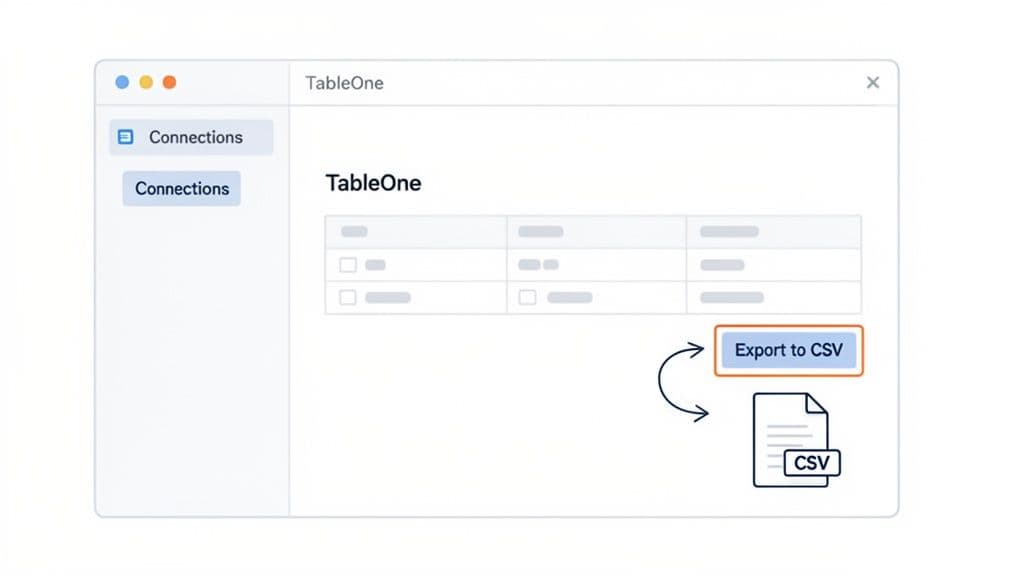
With a GUI tool like TableOne, the entire process becomes visual and straightforward. Once you’re connected to your MySQL database, you just find the table you need. From there, you can pull the whole thing or even apply some quick filters to grab just a specific slice of the data.
The export itself is usually just a couple of clicks.
The real benefit here is seeing what you’re doing. You get a clean preview and a simple dialog, which cuts out the guesswork and eliminates the typos that often creep into long terminal commands. For example, instead of guessing file paths, you get a familiar "Save As..." dialog to choose exactly where the CSV goes on your own computer.
Speed and Sanity for Everyday Data Tasks
This kind of workflow is a lifesaver for anyone who frequently pulls data for reports, quick analysis in a spreadsheet, or for importing into another system. You don’t have to be a SQL guru to get the exact dataset you need, right when you need it.
The biggest advantage of a good GUI is how much friction it removes. It turns ad-hoc analysis from a chore into a quick, almost effortless task. You can go from a question to a ready-to-use dataset in seconds.
This speed is a huge plus for development teams. In fact, for managed services like Neon, the need for simple CSV import/export is expected to drive 25% growth in 2025. Yet, a 2024 analysis found that manual exports fail 45% of the time with large datasets. This is why more people are turning to GUIs, which can perform tasks like copying entire tables between databases in 70% less time.
Many modern tools also escape the complex subscription models that plague 68% of competitors by offering simpler, transferable licenses. You can see how even MySQL is leaning into these workflows in their official HeatWave documentation.
Ultimately, it’s about using the right tool for the task at hand. The command line will always be king for automation and scripting. But for the day-to-day work of pulling data, a purpose-built desktop app is often the smarter, faster choice. You can check out a modern database tool like TableOne to see how it might fit into your own process.
Automating Exports with Python and Pandas
When you find yourself exporting the same data over and over—say, for a daily sales report or feeding a data pipeline—it's time to stop doing it by hand. Manual exports are a recipe for mistakes and wasted time. For any recurring job, scripting is the only way to go, and Python is the perfect tool for it, thanks to its incredible data science ecosystem.
By pairing the pandas library for data wrangling with SQLAlchemy for database connections, you can build a solid, reusable script to export a MySQL table to CSV. This setup gives you complete control over the entire process, from the query itself to how the final CSV is formatted.
Building a Python Export Script
Let's walk through a practical Python script that automates this whole process. It connects to MySQL, runs a query, and saves the output directly to a CSV file. It's the kind of workhorse script I've used countless times.
First, a crucial piece of advice: never hardcode your database credentials in your script. That’s a major security risk. A much better practice is to store them as environment variables, which we'll load using a .env file.
# Actionable Example: A complete Python script for automated exports
import os
import pandas as pd
from sqlalchemy import create_engine
from dotenv import load_dotenv

# Load credentials from a .env file
load_dotenv()

# Securely get connection details
db_user = os.getenv("DB_USER")
db_password = os.getenv("DB_PASSWORD")
db_host = os.getenv("DB_HOST")
db_name = os.getenv("DB_NAME")

# Create a database connection string
connection_string = f"mysql+mysqlconnector://{db_user}:{db_password}@{db_host}/{db_name}"
engine = create_engine(connection_string)

# Define your SQL query
sql_query = """
    SELECT
        order_id,
        customer_name,
        order_date,
        total_amount
    FROM orders
    WHERE order_date >= '2024-01-01';
"""

try:
    # Execute the query and load data into a pandas DataFrame
    df = pd.read_sql(sql_query, engine)

    # Save the DataFrame to a CSV file
    df.to_csv("monthly_orders_export.csv", index=False, encoding='utf-8')

    print("Export successful! Data saved to monthly_orders_export.csv")

except Exception as e:
    print(f"An error occurred: {e}")

finally:
    # Close the database connection
    if 'engine' in locals():
        engine.dispose()
This script is pretty straightforward. It grabs your credentials, runs a query for recent orders, and then lets pandas do the heavy lifting of writing the data to a CSV. Notice the index=False argument—that’s a key detail to prevent pandas from adding an unwanted index column to your file.
Dodging the Dreaded Character Encoding Glitches
One of the most common snags you'll hit when exporting data is a character encoding mismatch. If your database speaks latin1 but your script expects UTF-8 (or vice-versa), you’ll get corrupted text, often showing up as black diamonds (``) or other nonsense. This is a near-guarantee if your data includes international characters, symbols, or emojis.
To prevent data corruption, always be explicit about character encoding. The best practice is to standardize on
UTF-8throughout your stack, from the database tables themselves to the connection string in your export script.
You can enforce the character set right in your connection string to make sure everything communicates properly.
Just add ?charset=utf8mb4 to the end. This tells the MySQL driver to treat all data as modern UTF-8, which is exactly what you want for maximum compatibility.
# Actionable Insight: Prevent encoding errors in your connection string
connection_string = f"mysql+mysqlconnector://{db_user}:{db_password}@{db_host}/{db_name}?charset=utf8mb4"
Exporting Huge Datasets: The Cloud-Native Way
When you're dealing with truly massive datasets, even an optimized Python script can become a bottleneck. Moving terabytes of data from the database server to a client machine just to write a file is slow and inefficient. Thankfully, modern cloud-native databases give us a much better option.
For instance, MySQL HeatWave includes a game-changing feature called SELECT INTO OUTFILE S3. This command lets you run a query and export the results directly to an object storage bucket like Amazon S3, completely bypassing your local machine.
The SELECT INTO OUTFILE S3 integration, first introduced with version 8.0.30 in 2022, allows you to send results straight to a location like s3://my-bucket/export-results/. Benchmarks from Oracle in 2024 revealed this can cut transfer times by an incredible 85% for datasets over 1TB compared to traditional client-side exports.
You can read up on these advanced MySQL export capabilities from the official documentation. This direct-to-cloud approach is a lifesaver for big data workflows, offering lightning-fast performance where older methods would grind to a halt.
Common Questions About Exporting MySQL to CSV
Even the most straightforward export can hit a snag. Let's walk through some of the common gotchas you might encounter when pulling data from MySQL into a CSV file and how to get past them quickly.
How Do I Include Headers in My CSV Export?
This is probably the most common request. You need those column names as the first row in your file, but how you get them depends entirely on your tool.
- Using
SELECT INTO OUTFILE: The server-side command itself has no built-in option for headers. The classic trick is to use aUNION ALLstatement, where you manually write out the column names as a string and join them with your actual query results. - With the
mysqlClient: If you're running a query directly from your terminal with the-eflag, just add the--batchflag. This handy option tells the client to automatically include the column headers in the output. Easy. - In a GUI: Nearly every database client, including TableOne, makes this a non-issue. You'll almost always find a simple "Include Headers" checkbox right in the export dialog. One click and you're done.
The
UNION ALLmethod works, but let's be honest, it's a bit clunky. For quick exports where you just need headers, using a client-side tool like themysqlcommand or a GUI is almost always the faster, cleaner path.
How Can I Fix the Secure-File-Priv Error?
Ah, the dreaded ERROR 1290 (HY000): The MySQL server is running with the --secure-file-priv option.... Hitting this error is a rite of passage. It’s a security feature, not a bug, designed to lock down file exports to a specific, pre-approved directory on the server.
To figure out where you're allowed to write, you first need to ask MySQL. Run this command:
SHOW VARIABLES LIKE "secure_file_priv";
The result tells you everything. If it shows a specific path (like /var/lib/mysql-files/), you must use that exact directory in your INTO OUTFILE clause. If it returns NULL, exports are disabled entirely.
But the fastest solution is often to just bypass the server's file system altogether. Switch to a client-side method—like a Python script, the mysql command-line tool, or a GUI. These tools pull the data to your local machine first, neatly sidestepping the entire server-side restriction.
How Do I Handle Special Characters and Prevent Corrupted Data?
If your exported CSV is full of garbled text or weird black diamond () characters, you've got an encoding mismatch on your hands. This usually happens when your database is using one character set (like latin1) but your export tool is assuming another (most often UTF-8).
The most reliable fix is to be explicit and standardize on utf8mb4 for everything. It's the modern standard that supports a huge range of characters, including emojis and international symbols.
- For Database Connections: When you connect with a script or tool, make sure to specify the character set. For example, you might add
?charset=utf8mb4to your connection string. - During Export: Double-check that whatever tool or script you're using is set to write the final file with
UTF-8encoding.
By aligning everything to utf8mb4, you ensure that the data you see in your database is exactly what you get in your CSV file.
TableOne makes exporting data from MySQL, PostgreSQL, and SQLite a fast, predictable part of your workflow. Skip the command-line headaches and export clean CSVs with just a few clicks. Check out the free trial.