Database File Viewer: Quickly Master SQLite and Remote Data
Discover how a database file viewer streamlines working with SQLite, SQL, and remote databases. Learn to choose the right tool and boost your data workflow.
At its core, a database file viewer is a simple but powerful idea: it's a piece of software that lets you open up a database file and see what’s inside, just like you’d open a text file or a spreadsheet. It provides a clean, visual interface for peeking into your data without having to write a single line of code.
What Is a Database File Viewer and Why Is It Essential
Think of your data as being locked away in a high-tech vault. You could try to crack the combination using complex commands, or you could just use a database viewer—the master key that opens the door and lays everything out for you in an organized grid.
This simple tool is a game-changer for anyone working with data. Whether you're a developer dealing with a local SQLite file for a mobile app or an analyst connecting to a massive company-wide PostgreSQL server, a good viewer makes your job faster, easier, and far more intuitive. It closes the gap between raw, messy data and clear, actionable information.
A database acts like a magician, decoupling "what you want" from "how you get it." A viewer is the program for that magic show, giving you a front-row seat to the performance without needing to know how the tricks work behind the scenes.
Bridging the Gap Between Code and Data
For developers, a database viewer provides instant feedback. Instead of writing throwaway code just to check if a new user record was saved correctly, you can simply refresh the viewer and see the new row appear in the table. It’s an immediate sanity check. For example, after running a user sign-up test, you can instantly check the users table to confirm the created_at timestamp is correct and the is_active flag is set to false.
For data analysts, it's a direct line to the source of truth. It lets you quickly perform essential tasks without getting bogged down in SQL syntax:
- Inspect Data Integrity: Spot missing values, typos, or incorrect data types at a glance. For instance, you could quickly see that a
zip_codecolumn contains "N/A" strings instead of numbers. - Quickly Filter Information: Find specific records—like all customers from Chicago—with just a few clicks in the user interface instead of writing
WHERE city = 'Chicago'. - Export Subsets for Reports: Easily grab a slice of data and export it to a CSV file for a report or a chart in Excel or Google Sheets. An example would be filtering for all sales in Q4 and exporting only those rows.
An Indispensable Tool in a Data-Driven World
The need for tools that make data easy to handle has never been more critical. The global market for database software is a testament to this, having hit a massive $186.07 billion in 2025 and projected to climb to $203.92 billion by 2026. This isn't just a trend; it's a reflection of how central data has become to every industry.
Modern viewers like TableOne are built for this reality, giving you a straightforward way to open a local chinook.sqlite file for a side project or securely connect to a live production database. By removing the friction of working with data, these tools let you focus on what really matters: building great products and finding answers. Learning why choosing the right database tool is so crucial can completely change your workflow for the better.
2. The Database Files and Connections You Can Master
Think of a great database viewer as your universal translator for data. It’s not just a key for one specific lock; it’s a master key that works on everything from a simple file on your laptop to a massive, production-grade server humming away in the cloud. This versatility is precisely what makes it such an indispensable tool.
By handling a wide range of formats and connection types, a modern viewer provides a single, consistent interface for your entire data world. Let's dig into the kinds of data sources you'll typically work with and see how a viewer helps you get a handle on each one.
Self-Contained Local Databases
Many apps, particularly for mobile and desktop, use self-contained databases that are literally just a single file. They’re the workhorses for local development and embedded systems because they’re incredibly portable and don't require any complex server setup. Just drop the file in your project, and you’re good to go.
A top-notch viewer excels at opening these files directly. The two you’ll see most often are:
- SQLite (
.sqlite,.db): This is the undisputed king of embedded databases. It’s running on billions of devices, from your phone to your web browser. A viewer lets you pop open a.sqlitefile from your web browser's local storage or an Android app's data directory to debug issues directly. - DuckDB (
.duckdb): A real rising star in the analytics world, DuckDB is an in-process SQL database designed for speed. When you have a largesales_data.csvfile, instead of loading it into a heavy database, you can use DuckDB via a viewer to run fast SQL queries directly on the CSV data.
With a viewer, these standalone files are no longer just static artifacts. They become fully interactive environments where you can actively engage with a live, queryable database that just happens to be stored on your local machine.
File-Based Representations and Dumps
Outside of live database files, you'll frequently encounter text-based files that represent data structures and content. These are absolutely crucial for backups, migrations, or just sharing a database schema with a teammate. An effective viewer can make sense of these files, making them far more useful than a simple text editor ever could.
The most common format here is the SQL dump (.sql). This is a plain text file packed with SQL statements that can rebuild an entire database—its tables, indexes, and all the data. Instead of showing you a daunting wall of text, a good viewer can parse that .sql file and visualize the structure it defines. This helps you understand what's inside before you even think about importing it. For example, you can visually confirm a .sql backup file contains the new user_profiles table before using it to restore a database.
This concept map shows how a viewer sits right at the center of your workflow, connecting you to all these different data sources.
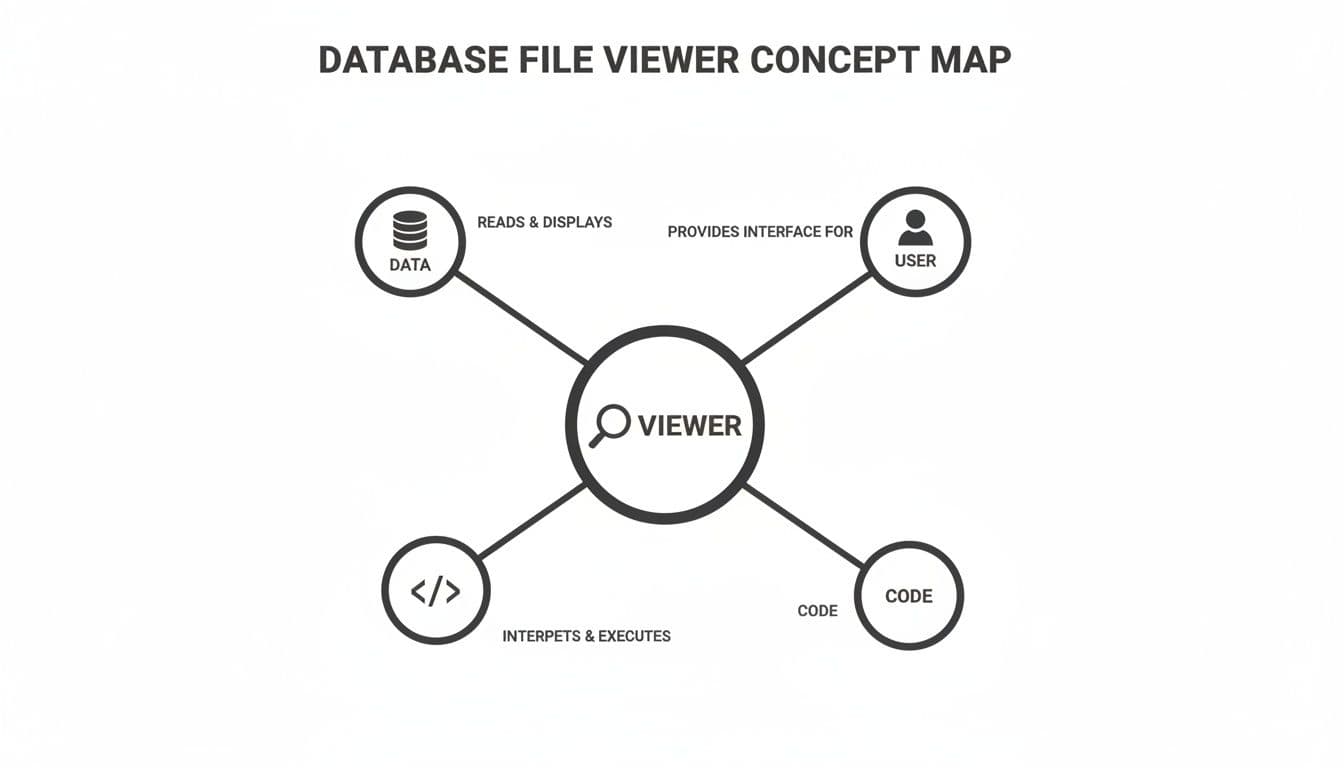
As you can see, the viewer's main job is to act as the bridge between raw data files, your questions, and the code needed to get the answers.
Direct Connections to Remote and Cloud Databases
The best tools don’t stop at local files. They also function as secure clients for connecting directly to server-based databases, whether it's a server in the next room or a managed service from a cloud provider. This is where a database file viewer truly evolves into a complete database management tool.
Modern viewers like TableOne can connect directly to:
- Traditional Servers: This includes PostgreSQL and MySQL, the two open-source powerhouses that run a huge portion of the web.
- Managed Cloud Platforms: Services like PlanetScale, Neon, Turso, and Supabase offer serverless and highly scalable database solutions. A viewer takes the headache out of connecting to them, handling the tricky connection strings and security protocols for you.
This ability to connect to anything, anywhere, is a game-changer. It means you can use one familiar tool to poke around a local chinook.sqlite file for a quick prototype, and then in the next minute, securely connect to your production PostgreSQL database to investigate a real-time issue.
What Makes a Great Database Viewer? Core Features to Look For
Sure, a basic database viewer lets you open a file. But the great ones do so much more, transforming from a simple magnifying glass into a fully-stocked workshop for your data. They’re packed with thoughtful features that make your job easier, save you from headaches, and seriously boost your productivity.
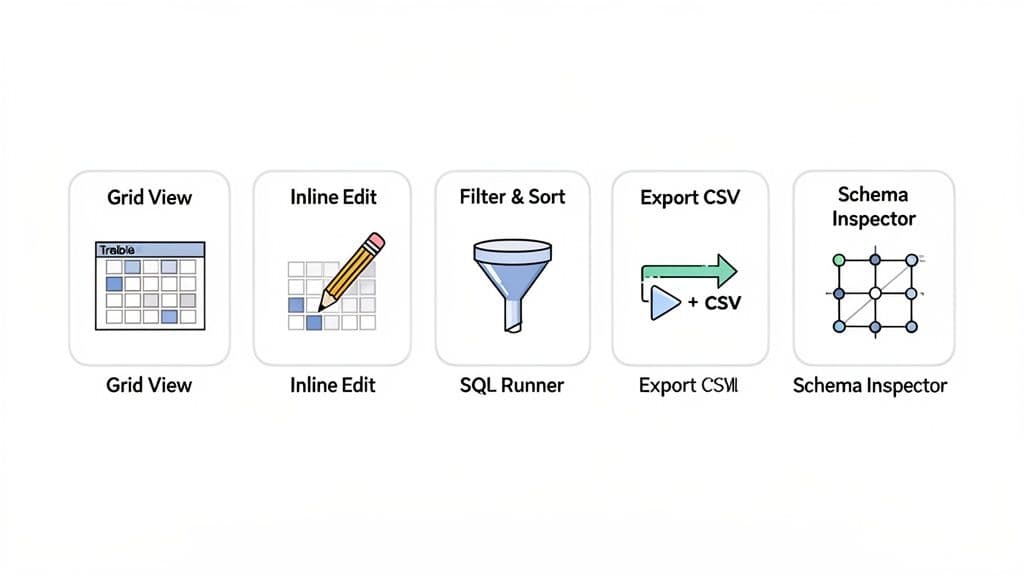
Let's walk through the features that separate a decent tool from an indispensable one.
The Everyday Essentials
These are the non-negotiable features you'll rely on every single day. They are the bedrock of a smooth workflow, making common tasks feel effortless.
-
Intuitive Grid View: This is the heart of any viewer. Data needs to be laid out in a clean, spreadsheet-style grid that you can actually read. You should be able to zip through thousands of rows without a hint of lag, with column headers always in sight.
-
Safe Inline Editing: Need to fix a typo in a user's email or update a product's price? Inline editing lets you click right into a cell, make the change, and save it. The best tools, like TableOne, make this process safe by staging your changes. You have to explicitly commit them, which is a lifesaver for preventing those "oops" moments that corrupt data.
-
Powerful Filtering and Sorting: You shouldn't have to write a SQL query just to find something. A quality viewer lets you apply filters with a couple of clicks—like showing all sales from last quarter or sorting customers by their join date. It’s a huge time-saver.
Without these basics, you’ll spend more time fighting your tools than working with your data.
Bridging the Gap: Utilities for Developers and Analysts
Once you have the fundamentals covered, the next set of features is what really starts to save you serious time. These utilities handle the more complex tasks that pop up constantly for developers and analysts.
A robust SQL Query Runner is an absolute must. As great as a visual interface is, you’ll always hit a point where you need to write custom SQL. A good query runner provides syntax highlighting, autocompletion, and the ability to run several queries at once, keeping the results in separate, organized tabs.
The ability to write a custom SQL command, see the results instantly, and then pin them for later is a massive workflow multiplier. The viewer becomes your data scratchpad, letting you test ideas without ever leaving the app. For example, you can run a query to find top-selling products, pin it, and then run another query to see which customers bought them, comparing the two result sets side-by-side.
Equally important is a painless Export and Import function. Analysts constantly need to pull data for reports, so exporting a selection of rows to a CSV file should be a one-click affair. For example, in TableOne, you can run a query, highlight the results you need, and export just that slice of data.
To get a clearer picture, here’s a breakdown of how these features deliver real-world value.
Core Features of a Modern Database File Viewer
| Feature | Primary User Benefit | Common Use Case |
|---|---|---|
| Grid View | Effortless browsing and instant visual feedback on data content and structure. | Quickly scanning a users table to see the latest sign-ups. |
| Inline Edit | Making fast, safe, and precise changes to individual records without writing SQL. | Correcting a typo in a product description or updating a status field from pending to shipped. |
| Filter & Sort | Finding specific records or patterns in large datasets with just a few clicks. | Isolating all customers from a specific country or sorting orders by value to find the largest purchases. |
| Query Runner | Executing custom, complex data retrieval and manipulation commands when needed. | Joining orders and customers tables to create a custom report on spending habits. |
| Export/Import | Moving data between your database and other tools (like spreadsheets) seamlessly. | Exporting sales data for a quarterly report or importing a CSV of new marketing leads. |
These features combine to create a powerful, flexible environment for day-to-day data work.
Advanced Tools for Deep Dives
For the really tricky stuff, top-tier viewers offer advanced tools built for DBAs, DevOps engineers, and senior developers who need to get under the hood.
A Schema Inspector is your database's blueprint. It lets you visually explore table structures, see column data types, and trace relationships between tables using primary and foreign keys. It's invaluable when you're jumping into a new project and need to get the lay of the land. For instance, you can use it to find out what the product_id column in your orders table links to.
Even better is a Schema Comparison tool. This feature is a sanity-saver, letting you compare your local development database against the staging or production environment. It instantly flags any differences, such as a missing last_login_ip column on your production users table, helping you catch migration bugs before they go live. Finally, basic Index Management lets you view existing indexes and even add new ones to tackle slow queries, all from within the GUI.
A Practical Walkthrough: From File to Query
Alright, theory is great, but nothing beats getting your hands on the data. Let’s walk through exactly how a good database file viewer can make your life easier, moving from just talking about features to seeing them in action.
For this example, we’ll use a popular sample file called chinook.sqlite, which is basically a mini-database for a digital music store. We'll use TableOne to pop the hood and see what’s inside, showing how a modern tool simplifies everything from opening the file to asking it questions.
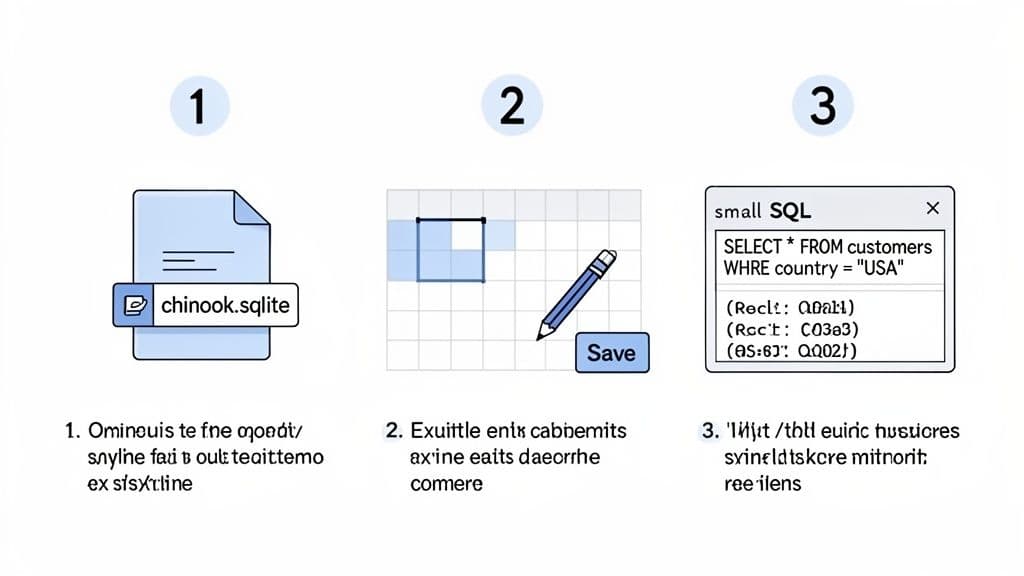
This workflow is the bread and butter of data work: open the file, make a quick change, and run a query. A solid viewer brings it all together in one place.
Step 1: Open the Database File and Find Your Way Around
First, you just have to open the file. With a tool like TableOne, you can literally drag and drop the chinook.sqlite file onto the app, or just use the standard "Open File" menu. No command-line wizardry or configuration files needed.
The moment you do, the database structure appears in the sidebar, showing a neat list of all its tables—albums, artists, customers, and more. Click on the customers table, and boom, the main screen fills with a familiar spreadsheet-style grid. You can immediately start scrolling through records and get a feel for the data.
Step 2: Inspect the Schema to See How It’s Built
Before you start changing things, it’s smart to understand how the database is put together. This is where a Schema Inspector comes in. In TableOne, a quick right-click on the customers table and selecting "Inspect Schema" gives you the full blueprint.
This screen tells you everything you need to know:
- Column Names:
CustomerId,FirstName,Country, etc. - Data Types:
INTEGER,NVARCHAR(40), and so on. - Constraints: You'll see which columns are the
PRIMARY KEY. - Foreign Keys: It clearly shows how a field like
SupportRepIdin thecustomerstable is linked to theEmployeeIdin theemployeestable.
Having this map is priceless. It stops you from accidentally trying to stick text where a number should go or breaking a critical link between two tables. If you want to dive deeper into navigating database GUIs, check out our guide on choosing a good SQLite graphical interface.
Step 3: Make a Quick, Safe Edit
Okay, let's change something. Imagine you spot a customer who's missing their company name. Instead of writing out a whole UPDATE statement, you can just find their row, double-click the empty Company cell, and type in the name.
As you type, the cell’s background color might change to show it's a pending edit. Here's the important part: the change is not written to the database file yet. This is a fantastic safety net. You can make a dozen other edits, review them all, and only when you’re sure everything is correct, you hit the "Commit" button to save all your changes in one go.
The clean layout makes it easy to browse your data, and the sidebar keeps all your tables just a click away.
Step 4: Run a SQL Query and Pin the Results
Last but not least, let's ask the database a question. What if you need a list of all customers from the USA? This is a perfect job for the built-in SQL query runner.
- Pop open a new query tab.
- Write a simple SQL command:
SELECT FirstName, LastName, Email FROM customers WHERE Country = 'USA'; - Hit "Run."
The results instantly show up in a new grid, filtered to show only the customers you asked for.
One of the most useful features in modern viewers is the ability to pin your results. With a single click, that "USA Customers" list can be saved as its own tab. Now you can flip back to the full
customerstable or run a completely different query without losing your filtered results. It makes comparing different slices of data incredibly easy.
This whole process—opening a file, exploring it, editing it safely, and running custom queries—is what a great database file viewer is all about. It gets rid of the friction and gives you the confidence to truly understand and manage your data.
Connecting to Your Remote and Cloud Databases
While local database files like SQLite are fantastic for development and quick prototyping, let's be realistic: most of the important data today doesn't live on your laptop. It’s stored on remote servers and in managed cloud platforms. A truly useful database viewer needs to be more than just a file opener; it must be a secure bridge to that remote infrastructure.
This isn't just a nice-to-have feature anymore—it's essential. The market for cloud databases and Database-as-a-Service (DBaaS) is exploding, expected to grow from $19,945.7 million in 2024 to a staggering $49,784.2 million by 2030. This massive shift shows why modern tools have to handle both local files and complex remote connections without breaking a sweat. You can read more about the growth of the DBaaS market on grandviewresearch.com.
Having one tool that gives you a consistent interface for everything is a game-changer. It means you can inspect a local .db file one minute and then, without missing a beat, switch over to managing your production PostgreSQL instance. For developers and DevOps engineers, that unified workflow is a huge productivity win.
Securing Your Connection with SSH Tunneling
When you're connecting to a live database like PostgreSQL or MySQL, security isn't negotiable. Opening up a database port directly to the internet is like leaving your front door wide open. That's why the industry standard for secure remote access is an SSH tunnel.
Think of an SSH tunnel as your own private, encrypted highway for data. Your database viewer sends its request through this secure tunnel to a server (the "bastion host"), which then passes it along to the database. This simple but powerful technique accomplishes three critical things:
- Your database credentials are never exposed to the public internet; they stay inside the encrypted tunnel.
- The data you're querying is also encrypted while in transit, protecting it from anyone trying to snoop.
- The database port itself remains closed to the outside world, dramatically shrinking the potential attack surface.
Frankly, any viewer that doesn't support SSH tunneling simply isn't cut out for managing production databases. For example, to connect to an Amazon RDS instance in a private VPC, you would configure your viewer to tunnel through a public-facing EC2 instance, keeping the database itself completely isolated.
Simplifying Connections to Cloud Providers
One of the most common headaches when working with modern DBaaS providers is deciphering their connection strings. Every provider, from PlanetScale and Neon to Turso and Supabase, has its own unique URL format. These long strings mash together usernames, passwords, hostnames, ports, and database names into a single, confusing line of text.
A high-quality database file viewer like TableOne takes that pain away. Instead of making you manually pick apart that URL and plug the pieces into different fields, it does the heavy lifting for you.
You just copy the entire connection URL from your cloud provider's dashboard—for example,
postgres://user:password@host:port/dbname—paste it into a single field, and the tool intelligently parses everything. It automatically fills in the hostname, user, password, and database for you. This small touch saves a surprising amount of time and prevents those frustrating connection errors that come from a simple typo.
This streamlined approach makes connecting to a serverless PostgreSQL instance on Neon or a MySQL-compatible database from PlanetScale just as easy as opening a local file. The tool handles the tricky parts, letting you get straight to your data. To see this in action, you can check out our detailed guide on how to connect to a PostgreSQL database.
Common Questions About Database File Viewers
It's smart to ask questions before adding a new tool to your workflow. You need something that actually solves your problems, not just adds another icon to your dock. Let’s cut through the noise and answer some of the most common questions people have about database file viewers.
What's the Difference Between a Viewer and a Full IDE?
Think of it like this: a great database file viewer like TableOne is a high-quality pocket knife. It’s lightweight, incredibly fast, and perfectly designed for the 90% of tasks you face every day—popping open a file, browsing data, making a quick edit, or running a simple query.
A full-blown Integrated Development Environment (IDE), like DBeaver or DataGrip, is the entire mechanic's toolbox. These are heavy-duty, complex platforms built for deep database administration, intense query optimization, designing visual ER diagrams, and monitoring server performance. They’re powerful, but often overkill.
If your job is to quickly check why a user's
order_statusis stuck on "processing," you don't need to wait for a heavy IDE to load. A lightweight viewer lets you connect, find the record, and check its data in seconds. Save the full IDE for when you need to design a new database schema from scratch.
For most developers and analysts, a specialized viewer is simply a more efficient way to get daily tasks done without the distraction of a thousand other features.
Are Database Viewers Safe for Production Data?
Absolutely, but with a big asterisk. Modern viewers are safe for production data only if they support proper security protocols and you use them correctly. The one feature you cannot compromise on is SSH tunneling.
An SSH tunnel creates a secure, encrypted channel from your computer directly to the database server. It’s the industry standard for protecting sensitive information from prying eyes.
Here’s a practical example of the workflow:
- In your viewer, you configure a new connection. You provide the database details (like
localhost:5432) and the SSH details (e.g.,user@bastion.your-company.com). - When you connect, the viewer first establishes an SSH connection to your bastion host.
- All your database traffic is then routed through this encrypted tunnel to the database server, which thinks the connection is coming from
localhost. - The database itself remains inaccessible from the public internet.
This simple process prevents anyone from eavesdropping or stealing your login details. Any viewer with solid SSH tunneling support is a safe and effective tool for inspecting or making necessary edits on live production data. Just make sure the tool you choose takes security seriously.
Can I Use a Viewer to Recover Corrupted Data?
In short, no. A database file viewer is built to read and interact with valid, well-structured database files. It's not a data recovery or file repair tool.
Imagine a database file is like an intricate book with a very specific table of contents and page-numbering system. A viewer knows exactly how to read that system. But if the file gets corrupted—for example, due to an unexpected system shutdown while data was being written—it's like someone ripped out pages and scrambled the index. The viewer will likely show an error like "file is not a database" and will fail to open it.
If you're staring at a corrupted SQLite file or a damaged SQL dump, you'll need to:
- Use a specialized data recovery utility built for that specific type of database.
- Restore the database from your most recent healthy backup.
A good viewer helps you manage healthy data and prevent corruption through safe editing, but it can't fix a file that's already broken.
How Do I Choose the Right Database Viewer for My Needs?
The "right" viewer really comes down to your role and what you do all day. The trick is to match the tool's strengths to your most common tasks. It's no surprise the market for these tools is growing; it was valued at $2.7 billion in 2025 and is projected to hit $3.12 billion in 2026, with North America leading at a 38.8% share. This growth comes from large enterprises (64.89% of the market) and individual users who need reliable tools to connect to modern platforms like PlanetScale or Supabase. You can dive into the numbers in the full database monitoring software market analysis on fortunebusinessinsights.com.
To make it simple, here’s a breakdown based on your job:
-
For the Software Developer: You need speed and versatility. Look for a cross-platform tool that handles your mainstays (like SQLite and PostgreSQL) and connects to both local files and remote servers without a fuss. A practical must-have is a fast query runner with history, so you can easily re-run a command you used yesterday to check a user's permissions.
-
For the Data Analyst: Your world is about exploring and moving data. Prioritize a viewer with strong import/export features, especially for CSV files. A killer feature is the ability to filter a large table with the GUI, select a few hundred rows, and directly export just that selection to CSV for a quick chart in Excel.
-
For the DevOps Engineer or DBA: Security and managing environments are your top priorities. A viewer with first-class SSH tunneling is a must. A practical, valuable feature is schema comparison. Before deploying new code, you can use it to compare your staging and production schemas to ensure the new
user_preferencestable was correctly added by the migration script.
A well-rounded tool like TableOne is designed to hit that sweet spot for all these roles, offering a balanced set of features that focus on the core workflows of modern data and development work.
Ready to stop wrestling with clunky tools and get a clear, fast view of your data? TableOne offers a modern, predictable way to work with SQLite, PostgreSQL, MySQL, and your favorite cloud providers. With a simple one-time license, you get all the essential features you need without the subscription fatigue.