A Guide to PostgreSQL Change Password Operations
Learn how to perform a PostgreSQL change password operation using psql and ALTER ROLE. Includes security best practices and troubleshooting tips for 2026.
Changing a PostgreSQL password is a fundamental skill for anyone managing this powerful database. The go-to method for most is the ALTER ROLE command. For instance, a DBA can instantly update a user's credentials by running a practical, actionable command like ALTER ROLE username WITH PASSWORD 'new_password';. It’s a direct and powerful approach that works whether you're updating your own password or, with the right permissions, managing other users' accounts.
Why Getting Password Management Right in PostgreSQL Is Crucial
Handling passwords in PostgreSQL isn't just another item on your to-do list; it's a critical part of your database security and operational health. Think about it: a single weak or compromised password can be the weak link that exposes sensitive data, brings down your applications, and opens the door to a major security breach.
Knowing how to change a PostgreSQL password in different situations means you can act fast when security needs arise, safely onboard new developers, or get yourself back in when you're locked out. This guide is your roadmap for every scenario, from the command line to graphical tools, with actionable examples you can use immediately.
We'll walk through practical, real-world examples covering:
- The Command-Line Essentials: Using
psqland theALTER ROLEstatement for quick, scriptable password updates. - Using GUI Tools: A visual guide for changing passwords in popular clients like pgAdmin.
- Hardening Your Security: Diving into authentication methods in
pg_hba.conf, why you should be using scram-sha-256 encryption, and how to enforce password expiration. - Emergency Recovery: What to do when you've lost the superuser password and need to regain access.
Before we dive deep, here’s a quick overview of the tools at your disposal. This table breaks down the common methods for changing passwords, so you can pick the right one for your specific task.
PostgreSQL Password Change Methods at a Glance
| Method | Use Case | Required Permissions | Example Command |
|---|---|---|---|
\password in psql | Changing your own password interactively without it being logged in shell history. | Must be logged in as the user. | \password |
ALTER ROLE (or ALTER USER) | Changing your own password or another user's password directly via SQL. Ideal for DBAs. | Your own role, or CREATEROLE or superuser privileges to change others. | ALTER ROLE user_name WITH PASSWORD 'new_secret'; |
| GUI Tools (e.g., pgAdmin) | Visually managing user roles and passwords through a graphical interface. | Same as ALTER ROLE. | (Varies by tool) |
pg_hba.conf modification | Recovering a lost superuser password by temporarily allowing passwordless access. | Filesystem access to the server. | N/A (Configuration change) |
This summary should help you quickly navigate to the section that best fits your immediate needs.
A disciplined approach to password management is non-negotiable for database health. It prevents unauthorized access and ensures that your applications remain connected and functional after a credential update.
Changing Passwords from the Command Line with PSQL and SQL
For many of us who work with databases day-in and day-out, the command line is home base. It's the most direct, no-fuss way to manage PostgreSQL. When it's time to change a password, you have two fantastic tools at your disposal right in the terminal: the interactive \password command and the powerful ALTER ROLE statement.
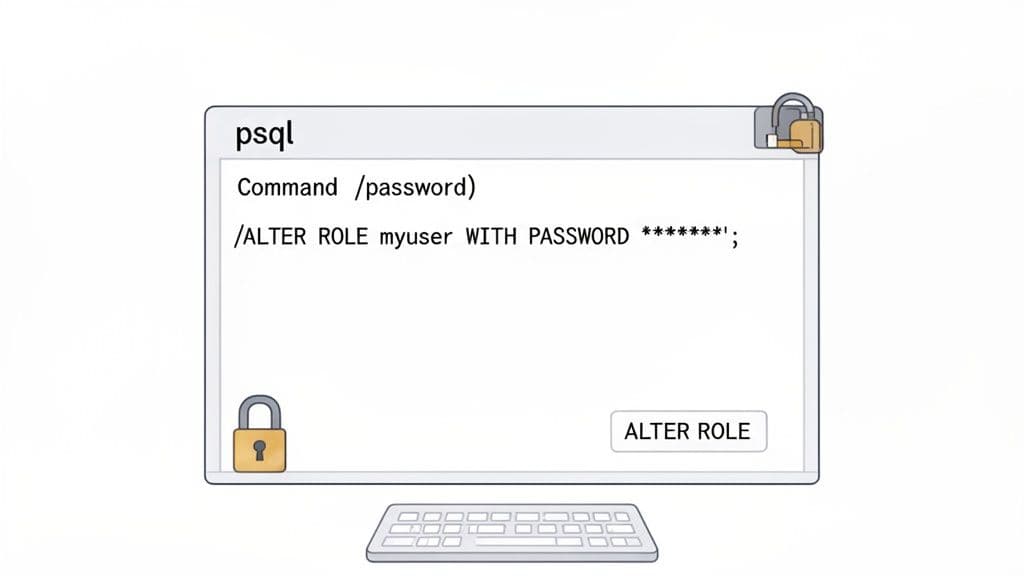
Whether you're a developer updating your own credentials or a DBA juggling the security for an entire team, these methods give you all the control you need. Let’s dive into how to use each one with practical examples.
The Quick and Secure \password Command
Inside the psql interactive terminal, the \password command does one thing and does it perfectly: it lets you change the password for the account you're currently logged in with.
The biggest win here is security. It prompts you for the new password, so the credential never gets typed directly into the terminal, which means it won't show up on screen or, more importantly, get saved in your shell's history file.
First, you'll need to be connected to your database. If you need a quick refresher on that, we have a complete guide on how to connect to a PostgreSQL database that covers all the basics.
Once you're in, it’s dead simple. Here's a practical example:
- Log into your database with
psql. A typical connection command looks something like this:psql -U myuser -d mydatabase -h myhost - At the
psqlprompt, just type\passwordand hit Enter.psqlwill then prompt you to enter and confirm the new password.mydatabase=> \password Enter new password: Enter it again: mydatabase=> - That's it. Your password is now changed, and the new credential was never exposed in your terminal history.
This is my go-to recommendation for any user changing their own password. It’s clean, safe, and avoids accidentally leaking your new password.
Why this matters: Using
\passwordis the safest way for an individual to update their own credentials from the command line. It keeps the new password out of shell history files like.bash_history, which is a huge security plus.
The Power User's Choice: ALTER ROLE
While \password is great for personal use, ALTER ROLE is the admin's Swiss Army knife. It's far more flexible, letting you change your own password, reset someone else's, and even enforce password expiration. You might also see ALTER USER, which is just an alias for ALTER ROLE—they do the exact same thing.
To change your own password with this command, the syntax is straightforward:
ALTER ROLE myuser WITH PASSWORD 'a-very-strong-and-long-password';
Just swap myuser with your username and, of course, use a genuinely strong password. You can run this directly in psql or from any other SQL client you have connected.
But the real power of ALTER ROLE comes into play when you need to manage other users (assuming you have superuser or CREATEROLE privileges). Say a developer, jane_dev, forgot her password and is locked out. An admin can get her back in action with a single command:
ALTER ROLE jane_dev WITH PASSWORD 'new-temporary-password-123!';
Actionable Insight: For temporary passwords, combine this with a VALID UNTIL clause to force the user to change it upon their next login.
Enforce Password Rotation with VALID UNTIL
Good security hygiene means passwords shouldn't live forever. ALTER ROLE has a built-in feature for this: the VALID UNTIL clause. This lets you set an expiration date on a password, providing a simple but effective way to enforce a rotation policy.
For instance, you could set a password for a temporary auditor role that automatically expires at the end of the year:
ALTER ROLE auditor
WITH PASSWORD 'secure#audit$pass'
VALID UNTIL '2025-01-01T00:00:00';
Once that timestamp passes, the auditor account can no longer log in until a new password is set by an administrator. This is an essential practice for compliance and for securing roles with access to sensitive data, making sure credentials don't go stale and become a liability.
Using GUI Tools for Password Management
If you're more of a visual person and prefer clicking through a clean interface over typing into a terminal, you're in luck. Most modern database Graphical User Interface (GUI) tools make managing PostgreSQL passwords incredibly straightforward. They turn what can feel like an abstract command-line task into a simple, point-and-click process.
For many, this isn't just about preference—it's about reducing the chance for a simple typo to cause a big headache.
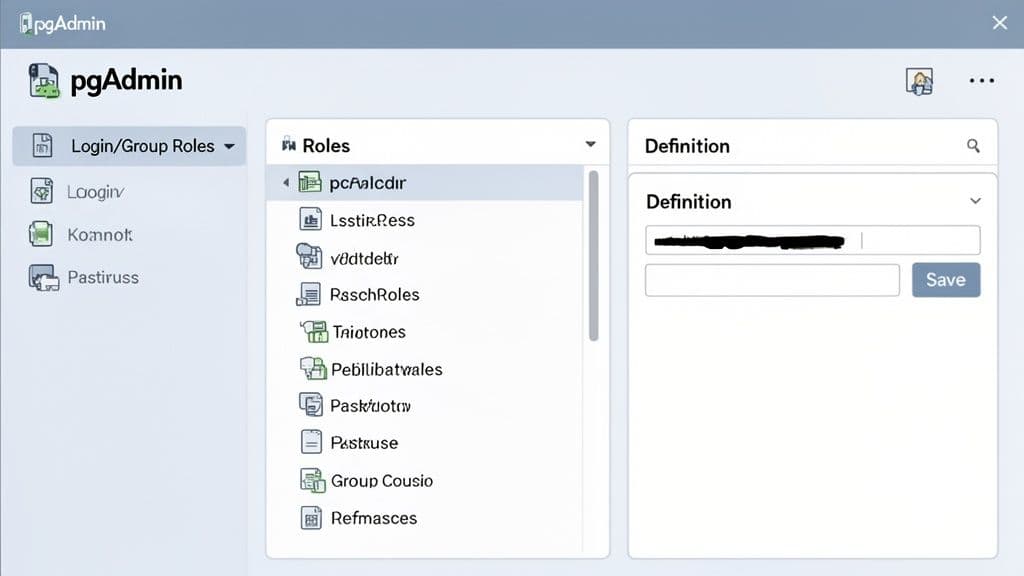
This view in pgAdmin is a perfect example. Instead of writing SQL, you just navigate a familiar tree structure, find the user, and edit their properties. It’s a much more intuitive workflow for many developers.
Most modern database clients are built to make routine jobs like this as painless as possible. You’ll typically find a list of all database users, open a properties window for the one you need to change, and just type the new password into a designated field. If you're looking for a tool that fits your workflow, you can explore some of the best database clients for PostgreSQL available today.
Changing a Password in pgAdmin
As the long-standing, go-to open-source tool for PostgreSQL, pgAdmin is a common choice for developers and DBAs. Its interface gives you a complete picture of your database server, including all the login and group roles.
Here’s the visual path to changing a password in pgAdmin, a step-by-step actionable guide:
- Connect to Your Server: Launch pgAdmin and establish a connection to your target PostgreSQL server.
- Navigate to Roles: In the object browser panel on the left, expand the server tree until you find Login/Group Roles. Click to expand it.
- Select the User: Find the specific user role you want to update (e.g.,
jane_dev), right-click on it, and choose Properties from the context menu. - Enter the New Password: In the properties dialog that opens, navigate to the Definition tab.
- You’ll see a Password field and a Password (again) field for confirmation. Enter the new password in both.
- Save the Changes: Click the Save button. pgAdmin will now execute the necessary
ALTER ROLEcommand on the server for you.
This whole process sidesteps the need to write any SQL, which is great for team members who might not be as comfortable with PostgreSQL’s command syntax.
What's Happening Under the Hood? GUI tools simply provide a user-friendly layer on top of SQL. When you update a password in pgAdmin's "Definition" tab and click save, the tool is just generating and running a command like
ALTER ROLE "rolename" WITH PASSWORD 'your-new-password'in the background.
Why Bother with a GUI for Password Tasks?
While the command line definitely has its place for speed and scripting, a GUI offers its own clear advantages, especially when you're working in a team or managing a complex database with dozens of roles.
There are a few solid reasons you might reach for a graphical tool:
- Fewer Typos: Let's be honest, it's easy to mistype a complex password in the terminal. GUI forms with confirmation fields are a simple but effective way to make sure you set the password you actually intended.
- Easy to Explore: A good GUI lets you browse through database objects and settings without needing to know the exact commands to look them up. This is great for discovering other security settings, like password expiration rules you didn't even know existed.
- Visual Confidence: Seeing a list of users and physically clicking on
jane_devprovides a nice sanity check that you’re modifying the right account—a small but crucial detail in a production environment filled with similar-looking usernames.
Ultimately, choosing between the command line and a GUI comes down to what you're comfortable with and what the situation calls for. For quick, one-off changes or for anyone who prefers a more visual workflow, a dedicated database client is a reliable and friendly way to manage your database credentials.
Advanced Scenarios and Security Best Practices
Changing a password is just one piece of the puzzle. To really lock down your PostgreSQL instance, you have to look past the ALTER ROLE command and dig into the configuration files that control who can connect and how. This is where you graduate from just managing passwords to building a genuinely secure database environment.
The heart of PostgreSQL's connection security is a file called pg_hba.conf. The "hba" stands for host-based authentication, and this file is essentially a rulebook. When a connection request comes in, Postgres reads this file from top to bottom and stops at the first rule that matches the connection. That rule dictates everything.
Decoding Authentication Methods in pg_hba.conf
The most important part of a pg_hba.conf rule is the authentication method. It’s what tells Postgres how a user needs to prove their identity.
Here's a practical example of a rule:
# TYPE  DATABASE        USER            ADDRESS                 METHOD
host    all             all             192.168.1.0/24          scram-sha-256
This rule states that any user (all) connecting to any database (all) from an IP address in the 192.168.1.0/24 subnet must authenticate using the scram-sha-256 method.
Common methods include:
trust: As risky as it sounds. It lets anyone matching the rule connect without a password. Only use it for emergency recovery or initial setup onlocalhost.md5: The old standard. It hashes the password, but MD5 is now considered cryptographically broken and vulnerable.scram-sha-256: The modern, secure default. It uses a challenge-response mechanism that prevents password sniffing and is highly resistant to brute-force attacks.
Actionable Insight: If your
pg_hba.confstill has lines withmd5, it’s time for an upgrade. Switching toscram-sha-256is probably the single biggest security boost you can give your database's authentication layer.
Why You Must Migrate from MD5 to SCRAM-SHA-256
The shift from MD5 to SCRAM-SHA-256 is one of the most important security upgrades in PostgreSQL's recent history. The entire industry has moved on. By 2026, major cloud providers like Microsoft Azure are already explicitly recommending SCRAM for all local authentication. EnterpriseDB and the official Postgres docs are clear: MD5 should never be used in new deployments.
Here’s your actionable migration plan:
- Configure
postgresql.conf: Open your main configuration file and setpassword_encryption = 'scram-sha-256'. - Force Password Resets: Each user must change their password. This action forces PostgreSQL to re-hash and store the credential using the new SCRAM algorithm.
- Update
pg_hba.conf: Change all instances ofmd5toscram-sha-256in yourpg_hba.conffile. - Reload the Configuration: Apply the changes without a server restart by running
SELECT pg_reload_conf();or usingpg_ctl reload.
Implementing Password Policies and Rotation
Postgres doesn't have built-in rules for password complexity or history, but it gives you a fantastic tool for forcing password rotation: the VALID UNTIL clause. It’s a simple but powerful way to make sure credentials don't get stale.
Here's a practical example for setting a developer's password to expire in 90 days:
ALTER ROLE dev_user
WITH PASSWORD 'new_secure_password'
VALID UNTIL (now() + interval '90 days');
Once that date passes, the user is locked out until an admin gives them a new password and a new expiration date. This isn't just a good idea—it’s a core requirement for compliance standards like PCI DSS and SOC 2.
For a deeper look into this and other crucial security measures, check out our comprehensive guide on database security best practices.
By combining strong authentication methods in pg_hba.conf with a proactive password expiration policy, you shift from a reactive to a proactive security posture. You’re no longer just changing passwords when you remember to; you're building a system that enforces good credential hygiene, making your database a much tougher target.
Troubleshooting Common Password Issues
Sooner or later, it happens to everyone. A forgotten password, a cryptic authentication error, or an app that suddenly refuses to connect can throw a wrench in your day. This is your field guide to solving the most common password-related headaches in PostgreSQL, starting with the most stressful one: getting back in when you're locked out.
The fix almost always involves taking a close look at your configuration, especially the pg_hba.conf file. Think of it as the bouncer for your database—it decides who gets in and how they have to prove their identity.
Recovering a Lost Superuser Password
Losing the password for your postgres superuser account feels like misplacing the master key to your entire server. The good news is there's a reliable way back in, but it requires direct access to the server's filesystem and should be done during a planned maintenance window.
The strategy is simple: we'll temporarily tell PostgreSQL to trust any local connection without a password. This lets you sneak in, reset the password, and then immediately lock the door behind you.
Here’s your step-by-step actionable recovery plan:
-
Find your
pg_hba.conffile. It lives in your PostgreSQL data directory. Find its exact location with this SQL command:SHOW hba_file;. Common paths are/etc/postgresql/VERSION/main/or/var/lib/pgsql/data/. -
Backup and edit the file. First, make a backup:
cp pg_hba.conf pg_hba.conf.bak. Then openpg_hba.confand find the line for local superuser connections. It probably looks like this:# "local" is for Unix domain socket connections only local all postgres scram-sha-256 -
Switch to
trustauthentication. Change the method totrust:# "local" is for Unix domain socket connections only local all postgres trustThis powerful change means anyone on the local machine can now log in as the
postgressuperuser without a password. -
Reload the configuration. Apply the change without restarting the server. From your shell, run
pg_ctl reloadorsudo systemctl reload postgresql. -
Connect and set a new password. Hop into psql as the superuser—no password needed:
psql -U postgres. Immediately set a new, strong password:ALTER ROLE postgres WITH PASSWORD 'YourNewSuperStrongPassword'; -
Revert and secure everything. This is the most important step. Go back into
pg_hba.confand changetrustback to its original method (e.g.,scram-sha-256). Save the file, and reload the configuration one last time to lock things down.
Following these steps gets you back in control without significant downtime. Just don't forget to undo the
trustsetting!
This visual decision tree shows how PostgreSQL's pg_hba.conf file directs authentication flow, deciding whether to require a secure password, an older method, or none at all.
 The key takeaway here is that connection security begins and ends with the rules in this file. It should always be your first stop for any authentication problem.
Password Authentication Failed Errors
Ah, the classic FATAL: password authentication failed for user "username" error. It’s one of the most common issues developers run into. While frustratingly vague, it usually points to just a few culprits.
- Incorrect Credentials: It sounds obvious, but a simple typo in the username or password is the number one cause. Double-check it first.
- Outdated Connection Strings: Just changed a password? This error is often the immediate result. An application, script, or environment variable is almost certainly still using the old credentials. Use
grep -r "OLD_PASSWORD" .in your project folder to find hardcoded instances. - Mismatched
pg_hba.confRules: Your connection attempt might not match any rule inpg_hba.conf. For example, if you're connecting from10.0.1.50, ensure there is a rule that covers this IP range, such ashost all all 10.0.1.0/24 scram-sha-256.
The Post-Change Checklist: What to Do Next
Changing a password is only half the battle. The other half is updating every single thing that relied on the old one. Forgetting this is the single biggest reason for service disruptions after a routine security update.
Here's your actionable checklist to run through:
- Application Code: Hunt down any hardcoded connection strings in your app's source code or config files (
.env,config.yml, etc.). - Environment Variables: Check for variables like
DATABASE_URLorPGPASSWORDon your servers, in your local dev setup, and within your CI/CD pipelines. - Client Tools: Remember to reconnect your local database GUI, whether it’s pgAdmin or a desktop client like TableOne, with the new password.
- Scripts and Cron Jobs: Don't forget about those automated scripts and cron jobs that run in the background. They need the new credentials, too.
Systematic password rotation is a pillar of modern database security. Credential-based attacks are a huge threat—industry data suggests around 90% of breaches stem from abused but otherwise valid credentials. Simply enforcing password changes every 60 to 90 days can slash this risk. In fact, organizations with a 60-day rotation policy see about 40% fewer unauthorized access incidents. You can dive deeper into these PostgreSQL security findings on cipherstash.com.
Frequently Asked Questions
Even with the best guides, you're bound to run into specific questions. Let's tackle some of the most common ones that pop up when you're managing PostgreSQL passwords. Think of this as your quick-reference cheat sheet.
How Do I Change a PostgreSQL Password Without the Old One?
If you have superuser privileges, you don't need the old password at all. You can reset any role's credentials with one simple command.
For instance, if you need to reset the password for the app_user role, a superuser just needs to run:
ALTER ROLE app_user WITH PASSWORD 'a_new_secure_password';
The real challenge is when you've lost the password for your main superuser, like postgres. That process is more hands-on. It requires you to get onto the server's filesystem, edit the pg_hba.conf file to temporarily switch the authentication method to trust, and then connect without a password. Once you're in, you can set a new password with ALTER ROLE and immediately switch the configuration back to secure the database.
The ability to change any password is a core superuser power. This is exactly why you must protect superuser accounts with incredibly strong, unique passwords and, where possible, multi-factor authentication.
What Is the Difference Between ALTER USER and ALTER ROLE?
In any modern version of PostgreSQL, there’s no real difference—ALTER USER is just an alias for ALTER ROLE.
The term ROLE is broader. A role can be a user (if it has the LOGIN privilege), a group, or even both. Since ALTER ROLE covers every possibility, it's become the standard command. While both will get the job done for changing a password, sticking with ALTER ROLE keeps your scripts aligned with official documentation and modern PostgreSQL conventions.
Can I See a User's Current Password?
Absolutely not. You can't view a user's current password in plaintext from inside PostgreSQL, and that's by design. The database doesn't store the actual password; it stores a secure hash of it.
When someone tries to log in, PostgreSQL hashes the password they entered and checks if it matches the stored hash. This one-way street is fundamental to good database security. It means even a database admin with full access can't pull up user credentials. The only thing an admin can do is set a new password, which simply overwrites the old hash with a new one.
Why Am I Getting a "Password Authentication Failed" Error?
This is easily the most common hiccup, and it almost always comes down to one of three things.
- An Outdated Credential Somewhere: This is the usual suspect. After you change a password, some application, script, or client tool is probably still trying to connect with the old one. Hunt down all your connection strings,
.envfiles, and configuration settings. - A Simple Typo: It sounds obvious, but you'd be surprised how often it's just a mistyped username or a fumble on the new password. Double-check it first.
- An Incorrect
pg_hba.confRule: The connection you're attempting might not have a matching rule in the host-based authentication file. You need to make sure there's a line that allows your user to connect from your IP address using a valid authentication method, likescram-sha-256.
How Often Should I Change My PostgreSQL Password?
A good rule of thumb is to rotate database passwords at least every 90 days. For accounts with higher privileges—like superusers or application owners—it's much safer to aim for a 30 to 60-day rotation cycle.
You can enforce this automatically by using the VALID UNTIL clause in your ALTER ROLE command. Here's a practical example for a 60-day policy:
ALTER ROLE high_priv_user
WITH PASSWORD 'new_secret_!@#'
VALID UNTIL (now() + interval '60 days');
Setting an expiration date ensures that old credentials don't become a lingering security threat. This isn't just a suggestion; it's a hard requirement for many compliance frameworks like PCI DSS and SOC 2.
Managing database credentials is a routine but absolutely critical task. For a modern, cross-platform database tool that makes everything from browsing tables to changing passwords easier, check out TableOne. TableOne connects to PostgreSQL, MySQL, and SQLite in a clean, predictable desktop app so you can work faster and with more confidence.